Network Radar 3.2
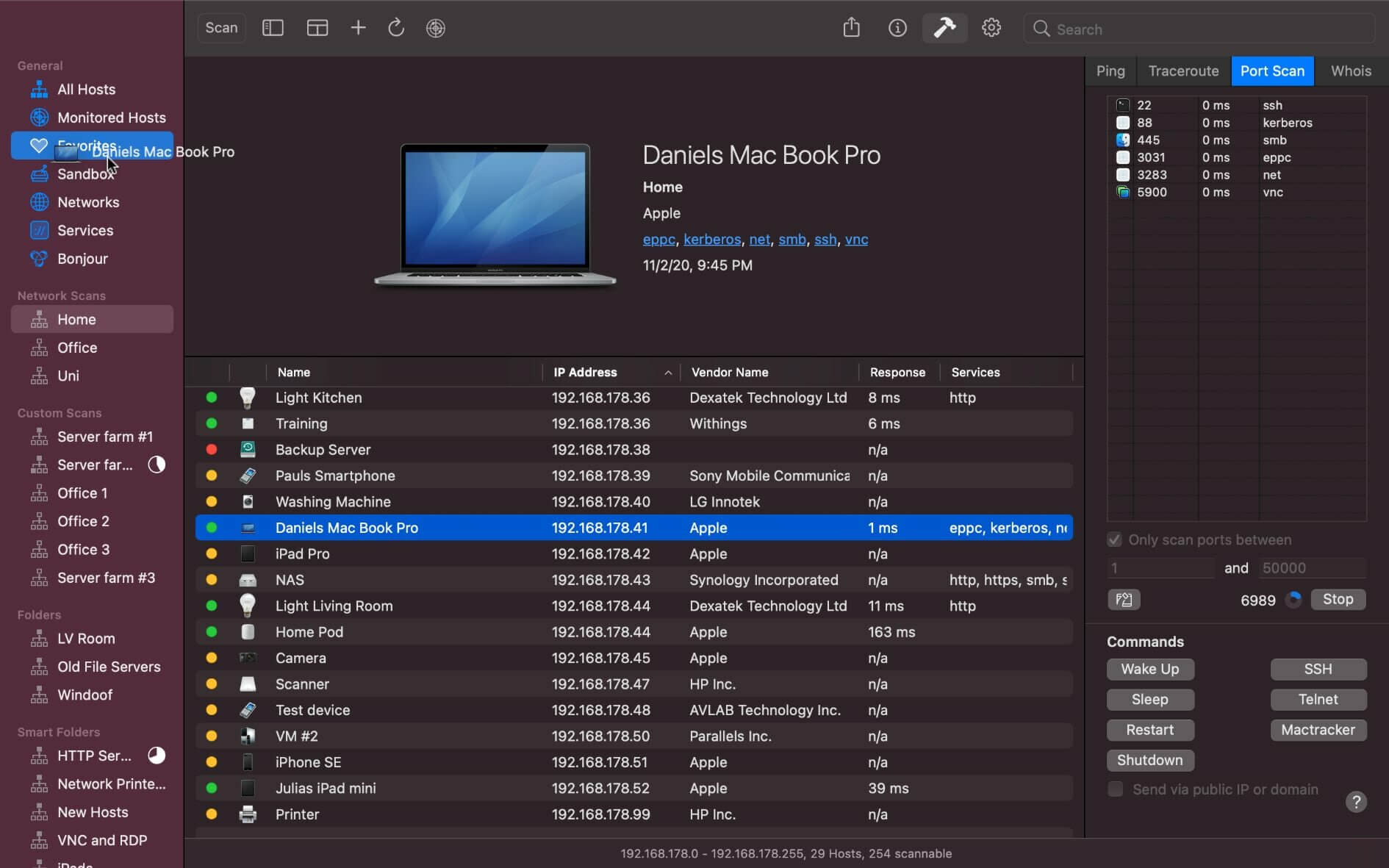

Network Radar - Manage and configure network devices. Network Radar is an advanced network scanning and managing tool. Featuring an easy-to-use and streamlined design, the all-new Network Radar 2 has been engineered from the ground up as a modern Mac application.
Features
- Scan your network and retrieve detailed information on network devices
- Run useful network tools and commands with the click of a button
- Use the monitoring feature and get notified about changes in your network
- Access devices from previous scans, even in different networks
- Use the simple rules / actions system for automatic processing of devices
- Simply connect to a device by double-clicking it in the list
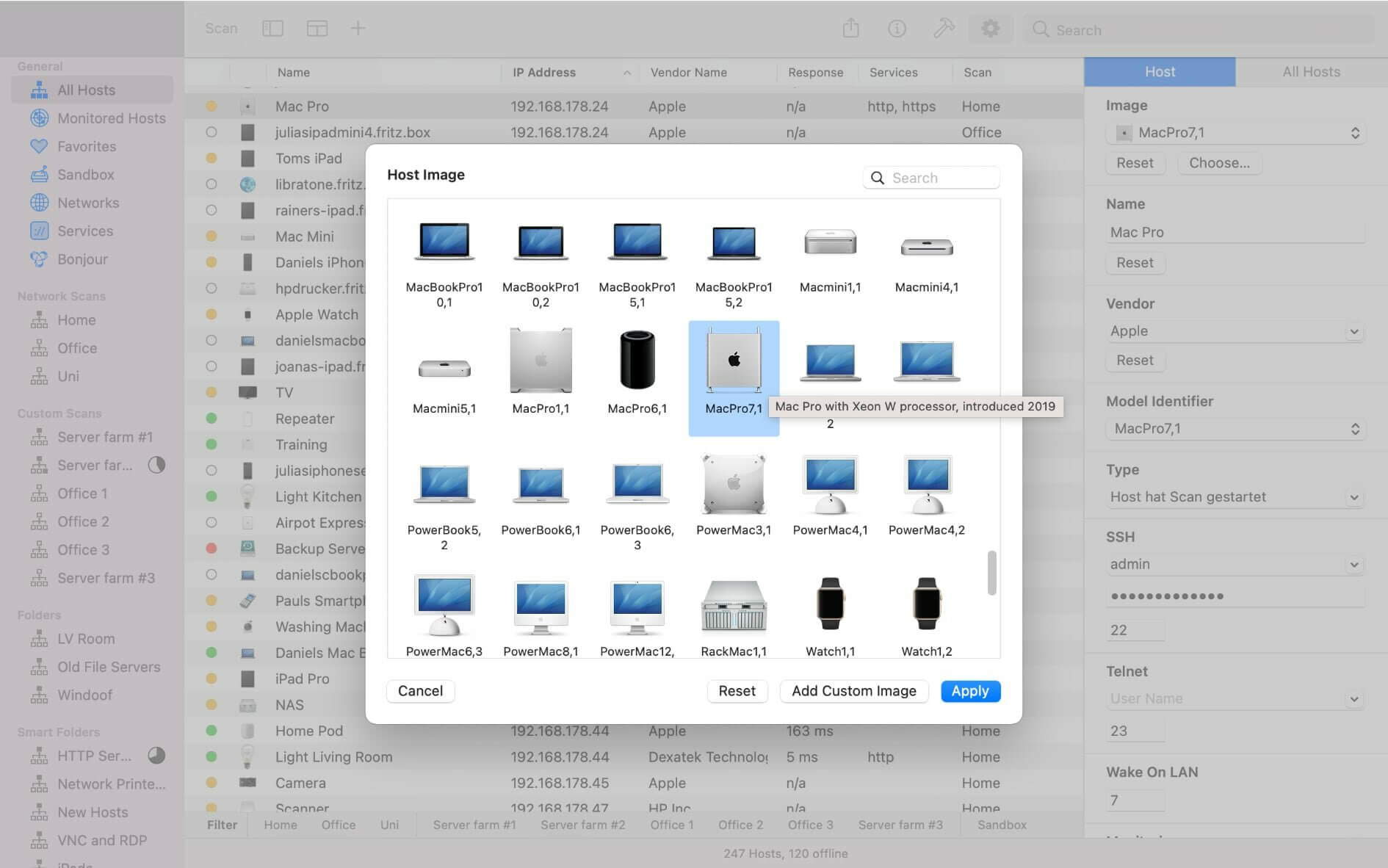
- Assign your own names and choose from provided icons or import own icons
- Organize your hosts in folders and smart folders
- Create scans with custom IP ranges
- Export a scan to XML, CSV, TXT, PDF or NETRADR
Supported Network Interfaces
- Built-in WiFi
- Built-in Ethernet
- Apple's USB to Ethernet Adapter
- Apple's Thunderbolt to Ethernet Adapter
- Apple's Thunderbolt Display Ethernet *Please note that the amount of information Network Radar can find depends on the network it scans.
Version 3.2
New Features
- The user interface has been updated to make use of new UI elements of macOS 26 Tahoe like the Liquid Glass buttons in the file preview and much more.
Feature Image
- The app icon has been updated to match the new macOS 26 Tahoe style.
- Support for the latest SSH version has been added.
- The scrolling bar is now hidden in the filter bar.
- The new min macOS version is macOS 13.5. (was 12.0 before)
- The services database and MAC database has been updated.
Bug Fixes
- entering the license code may dod not work under macOS 26
Frequently asked questions
How do I install the app?
Mount the image, drag the app into the "Applications" folder and launch it. If the system blocks the launch, allow it in "System Settings → Privacy & Security".
The app is damaged or won't launch
Reinstalling from a fresh image usually helps. Make sure your macOS version matches the one listed in the compatibility specs.
How do I update?
Download the new version from the site and install it over the current one — your settings will be preserved.
The download link doesn't work
Try a mirror or a download manager. For large files the browser often drops the connection.
How do I completely remove the app?
Use an uninstaller utility — it cleans up the service files that remain after moving the app to the trash.

Choose a download source
Network Radar 3.2 · 26.68 MB
Previous versions
Network Radar 3.2
Previous versions are available to registered users.