Webcam Setting 1.2.1
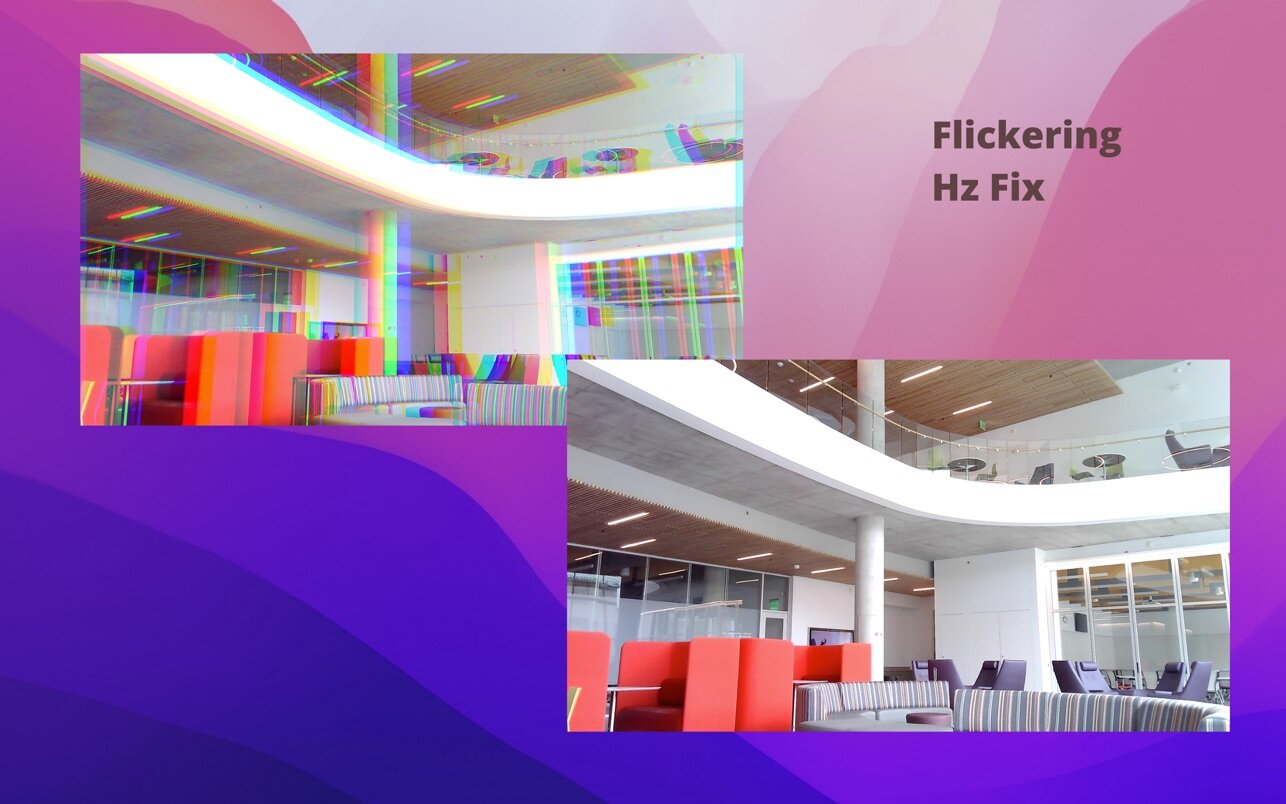
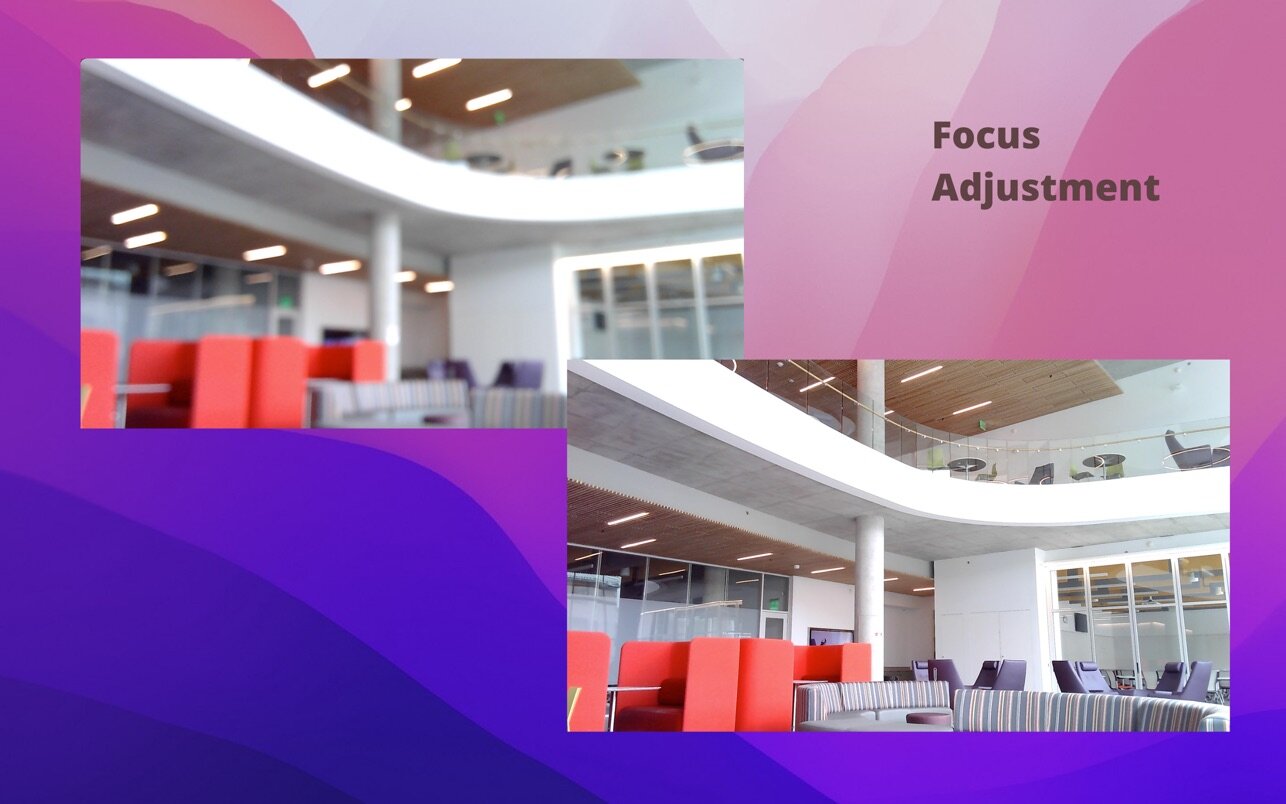
Flickering? Unstable Auto-focus? Change contrast, brightness and etc.,? Webcam setting got your back!
Feature highlights:
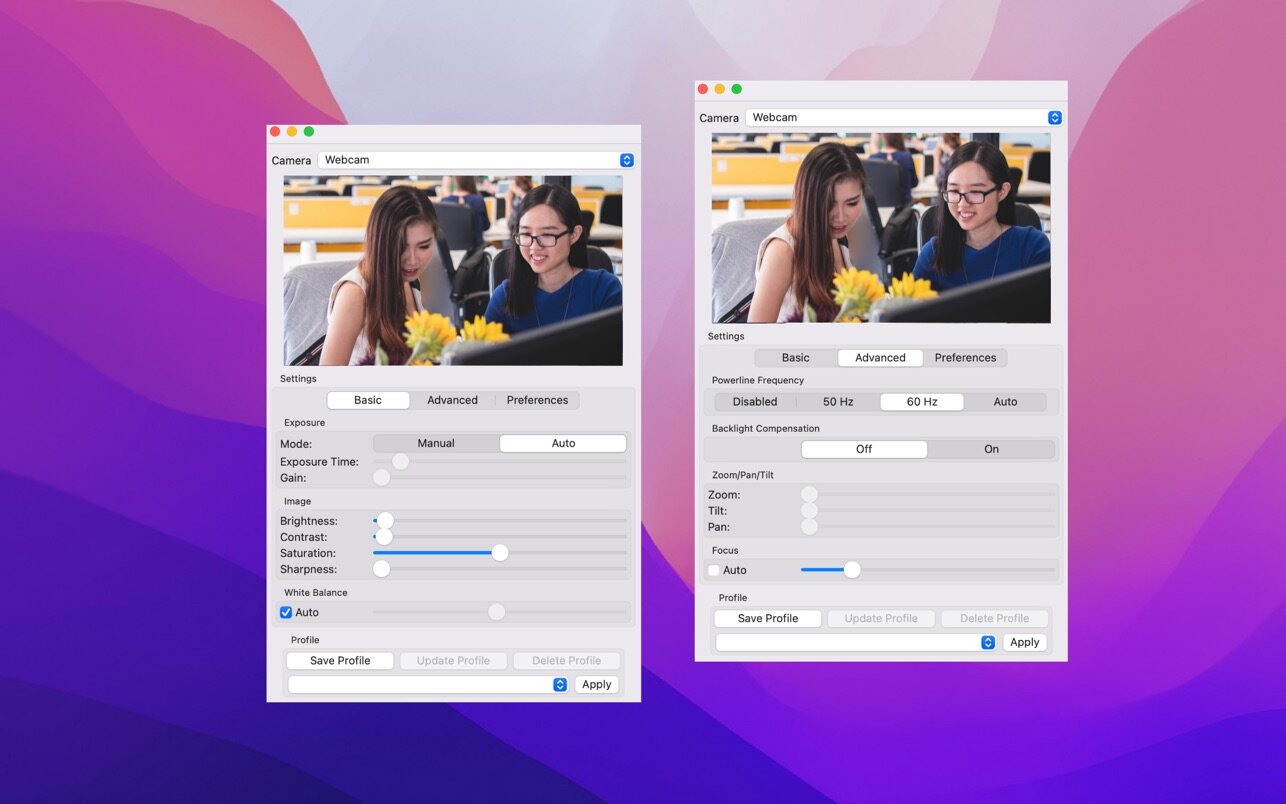
- Flickering - Go to the "Advanced" tab and select a Hz that works for your lighting
- Manual-focus - Go to the "Focus" row, select a focus, and uncheck the "Auto" box to keep the camera stable
- Visual update - Go to "Basic" tab to choose a setting you like.
Full-feature list:
Note: some features are available only when the webcam has relevant built-in hardware.
Exposure
- Mode: Manual/Auto
- Exposure Time
- Gain
Image:
- Brightness
- Contrast
- Satuartion
- Sharpness
White Balance
- Auto/Manual
Powerline Frequency
- Disabled/50Hz/60Hz/Auto
Backlight Compensation
- Off/On
Zoom/Pan/Tilt
- Zoom
- Tilt
- Pan
Focus
- Auto/Manual
Other Preferences
- Save profiles
- Auto open at login
- Read/Push settings
Version 1.2.1
- New icon
Frequently asked questions
How do I install the app?
Mount the image, drag the app into the "Applications" folder and launch it. If the system blocks the launch, allow it in "System Settings → Privacy & Security".
The app is damaged or won't launch
Reinstalling from a fresh image usually helps. Make sure your macOS version matches the one listed in the compatibility specs.
How do I update?
Download the new version from the site and install it over the current one — your settings will be preserved.
The download link doesn't work
Try a mirror or a download manager. For large files the browser often drops the connection.
How do I completely remove the app?
Use an uninstaller utility — it cleans up the service files that remain after moving the app to the trash.




Choose a download source
Webcam Setting 1.2.1 · 2.86 MB