
Auto Refresh Page 1.1

Refresh web pages automatically. Auto-refresh and page monitor with specified time intervals. Auto clicker.
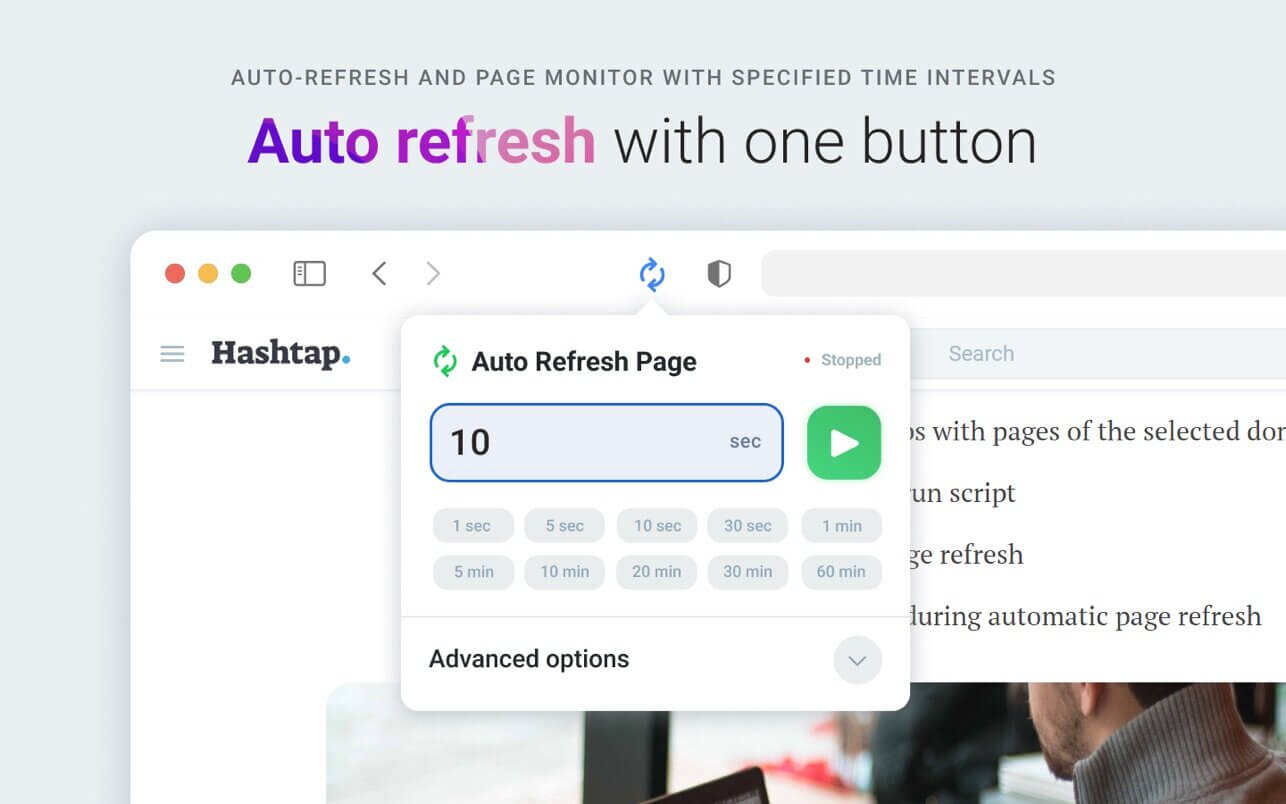
Auto Refresh Page is a browser extension that automatically refreshes and reloads any page or tab after a specified number of seconds. Just enter the number of seconds between page refreshes and click the "Start" button.
The extension is useful to all users who need to automatically refresh browser pages or tabs according to the selected parameters
- Automatically refresh pages at a specified time interval
- Automatically refresh pages with a random (random) time interval
- Automatically refresh pages at a specified time (09:00, 18:20, 9:30pm, etc.)
- Automatically refresh all open browser tabs
- Automatically refresh URLs from a list
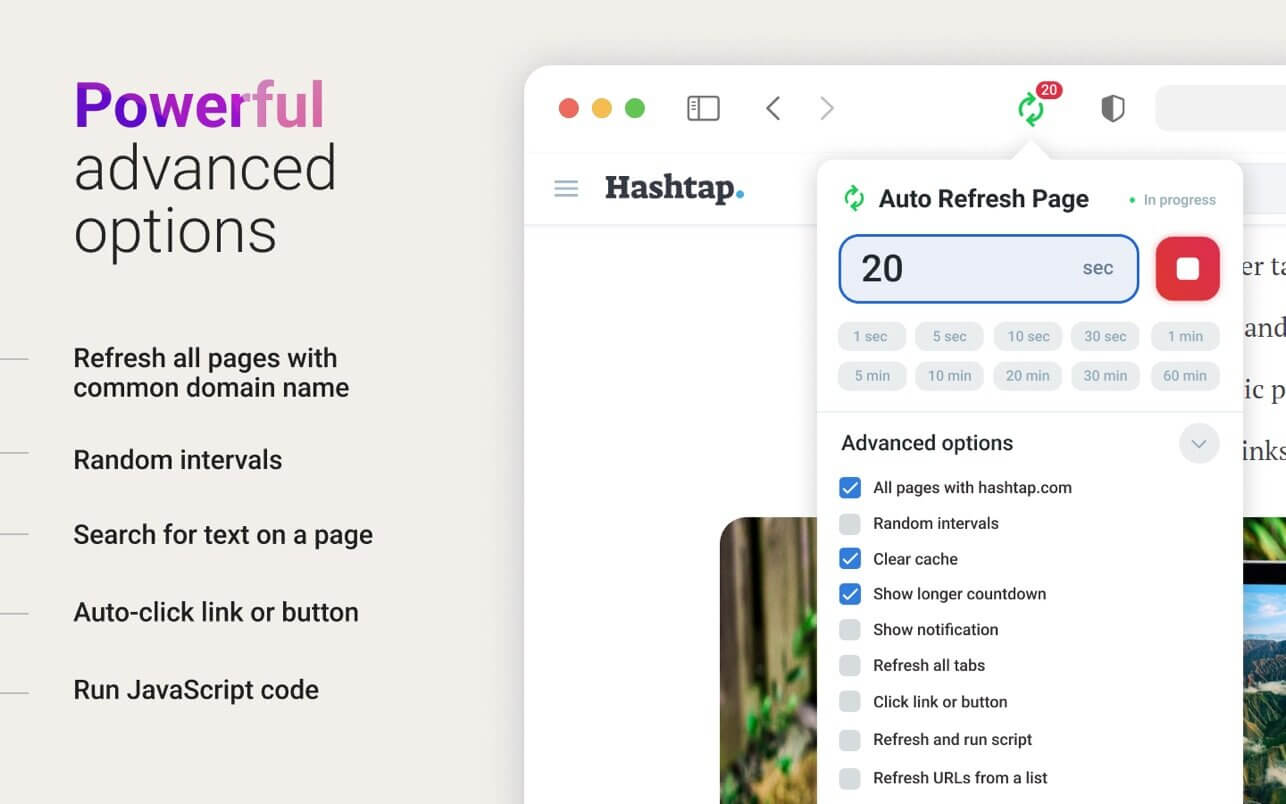
- Automatically refresh common domain name pages
- Search for keywords or regular expressions on automatic page refresh
- Auto-clicking buttons or links when auto-refreshing pages (Auto-click)
The extension is easy to use
- enter the desired number of seconds or select the ready-made time presets and press the "Start" button;
- to stop updating the page - click the "Stop" button;
- if you want to select more options, click on the "Advanced options" dropdown list and select the options that interest you and click on the "Start" button;
Auto Refresh Page advanced options includes
- Save preferences per web page URL or per web site domain
- Enable random countdown intervals
- Choose specific times of day
- Reload all tabs in the window
- Automatically click a button, link, or element on the page
- Navigate to a URL from a list at each countdown interval.
- Show a notification and play a sound when text is found in the page
- Display refresh counter, the last and next refresh time
- Run jаvascript code in the page
- Clear cache
Version 1.0:
- Release notes were unavailable when this listing was updated.
Frequently asked questions
How do I install the app?
Mount the image, drag the app into the "Applications" folder and launch it. If the system blocks the launch, allow it in "System Settings → Privacy & Security".
The app is damaged or won't launch
Reinstalling from a fresh image usually helps. Make sure your macOS version matches the one listed in the compatibility specs.
How do I update?
Download the new version from the site and install it over the current one — your settings will be preserved.
The download link doesn't work
Try a mirror or a download manager. For large files the browser often drops the connection.
How do I completely remove the app?
Use an uninstaller utility — it cleans up the service files that remain after moving the app to the trash.


Choose a download source
Auto Refresh Page 1.1 · 6.06 MB