Webcam Settings 2.3
Quickly customize your webcam's settings while using FaceTime, Photo Booth or Skype on your Mac.
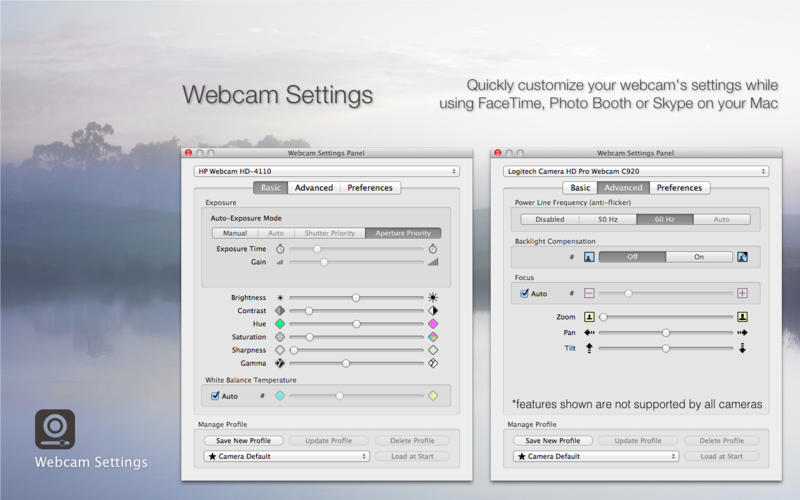
Webcam Settings allows you to adjust settings including the exposure time, contrast, saturation, and white balance temperature for your webcam, whether it’s a Built-in iSight, a more recent FaceTime/FaceTime HD Camera or an external USB webcam.
Features
- True hardware level control of your webcam.
- View changes in Real-time to your video as you move sliders and change other settings.
- Fully plug-and-play; Webcam Settings, automatically recognizes your USB webcam when it’s connected to your Mac.
- Automatically identifies various settings that your webcam supports.
- Feel free to try any different settings as “Reset to Default” button brings back original settings from your camera.
- Works with almost every video or photo app such as Photo Booth, FaceTime, iMovie, Skype, iStopMotion, Wirecast, Sparkbooth, GoToMeeting, WebEx, Jabber, Flash based webcam app and many others.
Supported Settings (varies between cameras)
- Auto-Exposure Mode
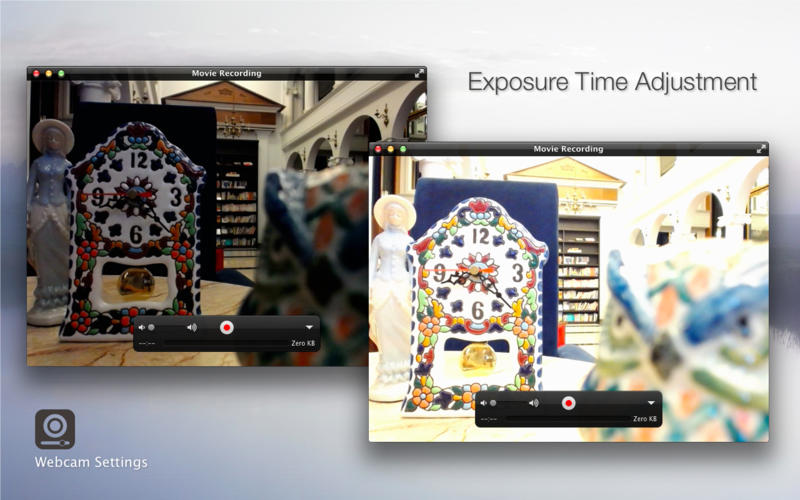
- Exposure Time
- Gain
- Aperture
- Brightness
- Contrast
- Hue
- Saturation
- Sharpness
- Gamma
- White Balance Temperature
- Power Line Frequency (anti-flicker)
- Backlight Composition
Advanced Settings (Only Microsoft LifeCam Studio, Cinema, Logitech HD Webcam C525, C615, C910 and C920 support Zoom, Pan and Tilt, please check our website for camera support.)
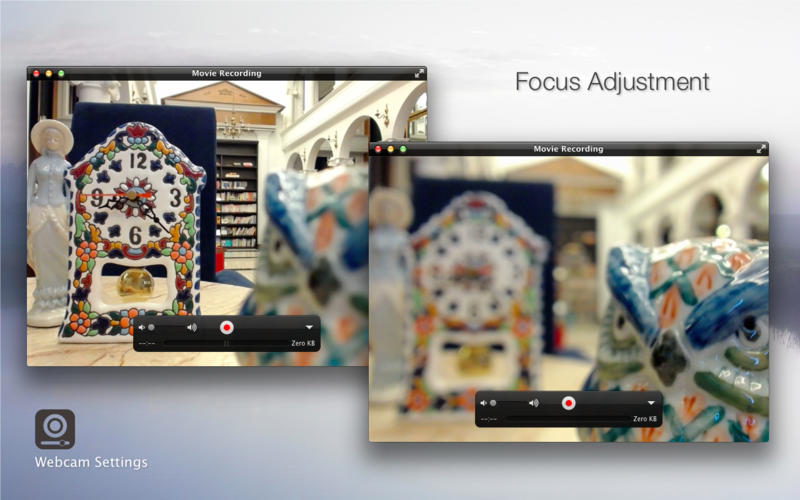
- Focus
- Zoom
- Pan
- Tilt
WHAT’S NEW
Version 2.3
- Add "Update Profile" button in "Profile Management" section.
- Fix an issue where multiple profiles with the same name may be listed in the menu.
Screenshots
Frequently asked questions
How do I install the app?
Mount the image, drag the app into the "Applications" folder and launch it. If the system blocks the launch, allow it in "System Settings → Privacy & Security".
The app is damaged or won't launch
Reinstalling from a fresh image usually helps. Make sure your macOS version matches the one listed in the compatibility specs.
How do I update?
Download the new version from the site and install it over the current one — your settings will be preserved.
The download link doesn't work
Try a mirror or a download manager. For large files the browser often drops the connection.
How do I completely remove the app?
Use an uninstaller utility — it cleans up the service files that remain after moving the app to the trash.
VersionWebcam Settings 2.3
DeveloperLiang-Hsin Chen © 2013 Mactaris
CompatibilityOS X 10.6 or later
LanguageEnglish, Japanese, Simplified Chinese, Traditional Chinese
IncludesPre-K'ed





Information
Visitors in the group Guests cannot leave comments on this publication.
Choose a download source
Webcam Settings 2.3 · 3.15 MB