CloudMounter 4.18
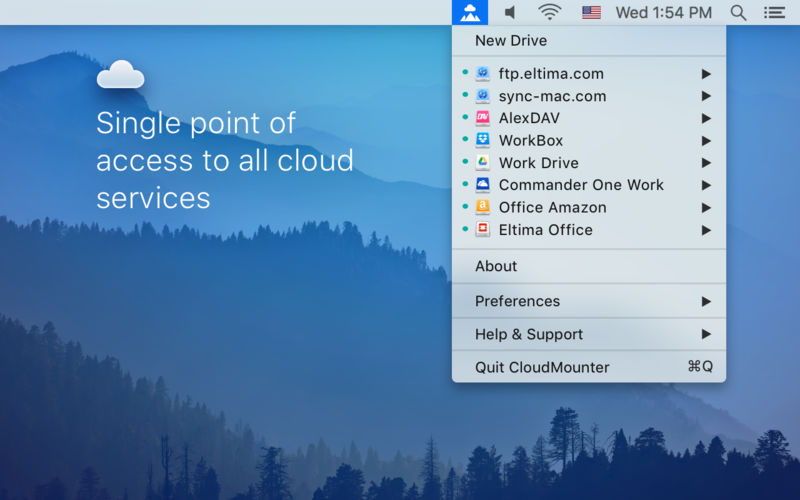
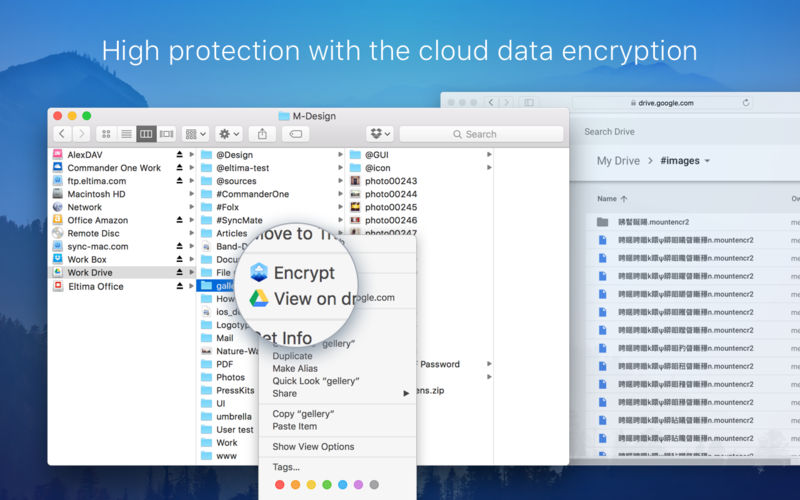
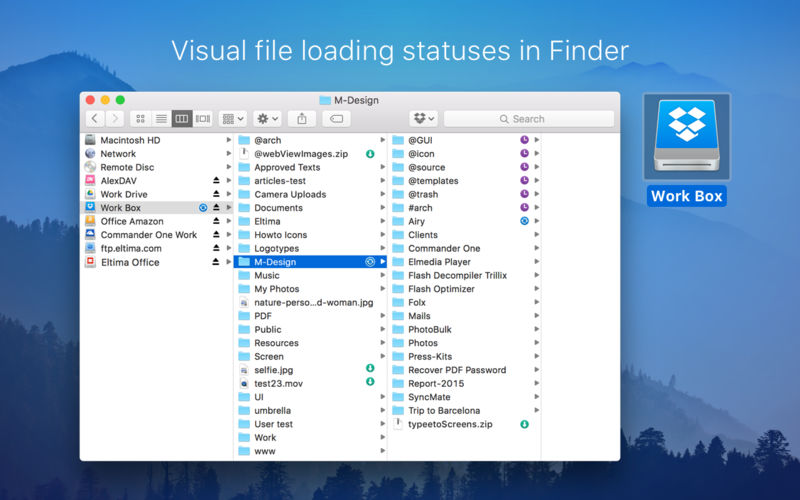
CloudMounter is a centralized service that allows mounting cloud storages as local drives and work with online files the same way as with local ones.
Supported cloud services:
- Google Drive
- Microsoft OneDrive
- Dropbox
- Amazon S3
- FTP
- FTPS
- SFTP
- WebDAV
With this handy system utility you can extend your Mac disk space to unlimited, the only condition is an active Internet connection. Ready to find out how it works? It is really easy!
Unlike native clients, CloudMounter does not sync local information with your online accounts, it really mounts remote servers on your Mac, like removable disks. You can copy, move, open, download and upload files to your cloud servers, just as you would be doing it with your local folders. You can even move files between cloud accounts, without having to manually copy them to your local computer. Keep in mind that a temporary copy of the file is still saved to a computer only to be removed after the transfer is completed.
CloudMounter is a safe and secure utility. All connections are performed through the native API of cloud services, which means that all your login credentials are not used by the app for anything else except for logging in appropriate accounts and of course are not shared with any third parties. All passwords for FTP, WebDAV and Amazon S3 accounts are securely kept in Mac OS X Keychain.
CloudMounter is your must-have tool if you use several cloud accounts or if your Mac SSD drive has an extremely low capacity. Try it now and enjoy the benefits of an all-in-one cloud solution.
CloudMounter 4.18.2513
- Improved: uploading of large files.
- Improved: faster loading of files and folders listing.
- Improved: work with MEGA connections.
- Fixed: download cancellation for files on SFTP connections.
- Fixed: file downloading issues when cache volume is changed.
- Fixed: issues with incorrect file and folder listing.
- Fixed: displaying of storage usage information for online connections.
Frequently asked questions
How do I install the app?
Mount the image, drag the app into the "Applications" folder and launch it. If the system blocks the launch, allow it in "System Settings → Privacy & Security".
The app is damaged or won't launch
Reinstalling from a fresh image usually helps. Make sure your macOS version matches the one listed in the compatibility specs.
How do I update?
Download the new version from the site and install it over the current one — your settings will be preserved.
The download link doesn't work
Try a mirror or a download manager. For large files the browser often drops the connection.
How do I completely remove the app?
Use an uninstaller utility — it cleans up the service files that remain after moving the app to the trash.




Choose a download source
CloudMounter 4.18 · 98.74 MB
Previous versions
CloudMounter 4.18
Previous versions are available to registered users.