
Default Folder X 6.3.1
Tag and comment files right in the Mac Save dialog
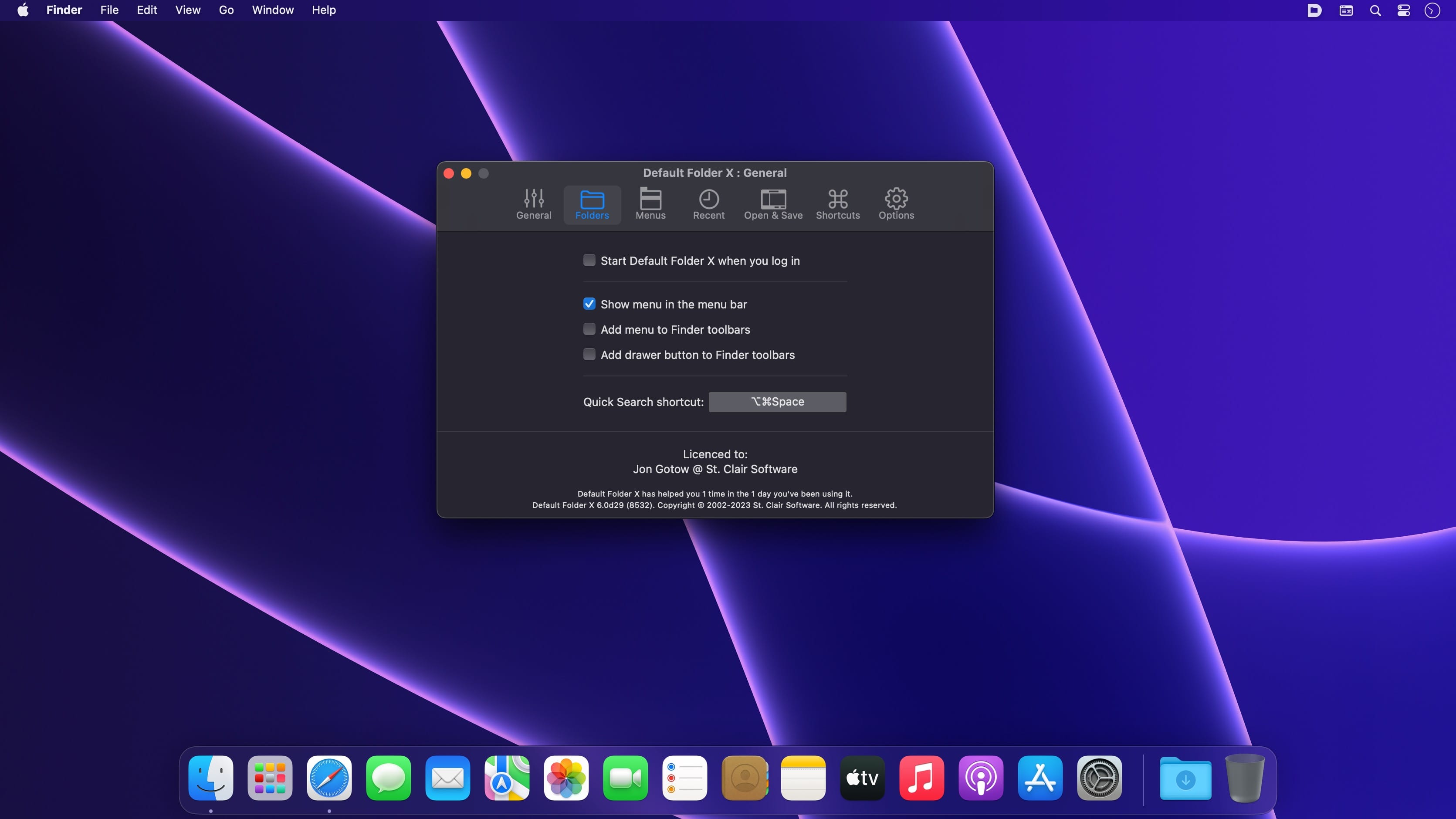
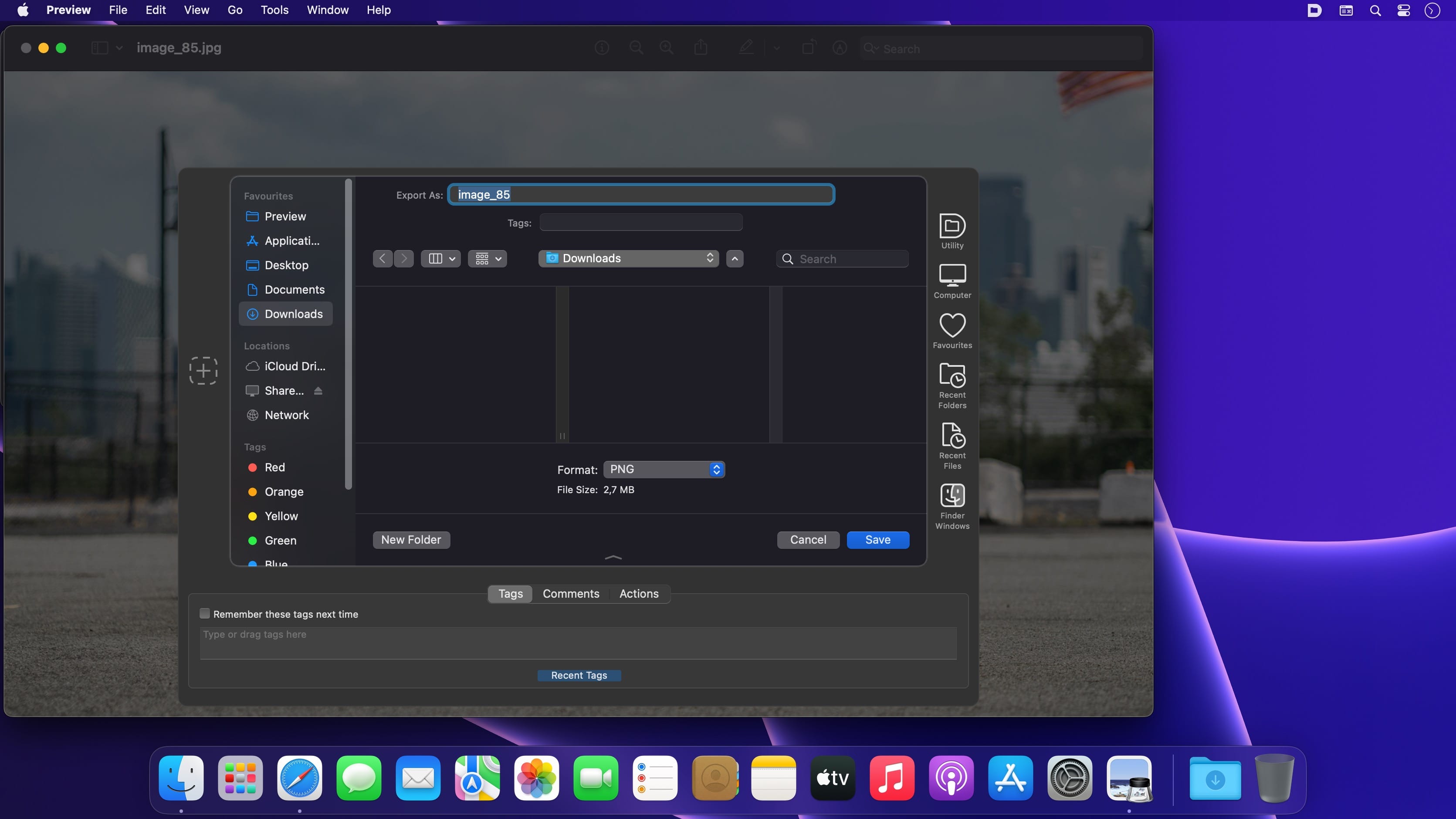
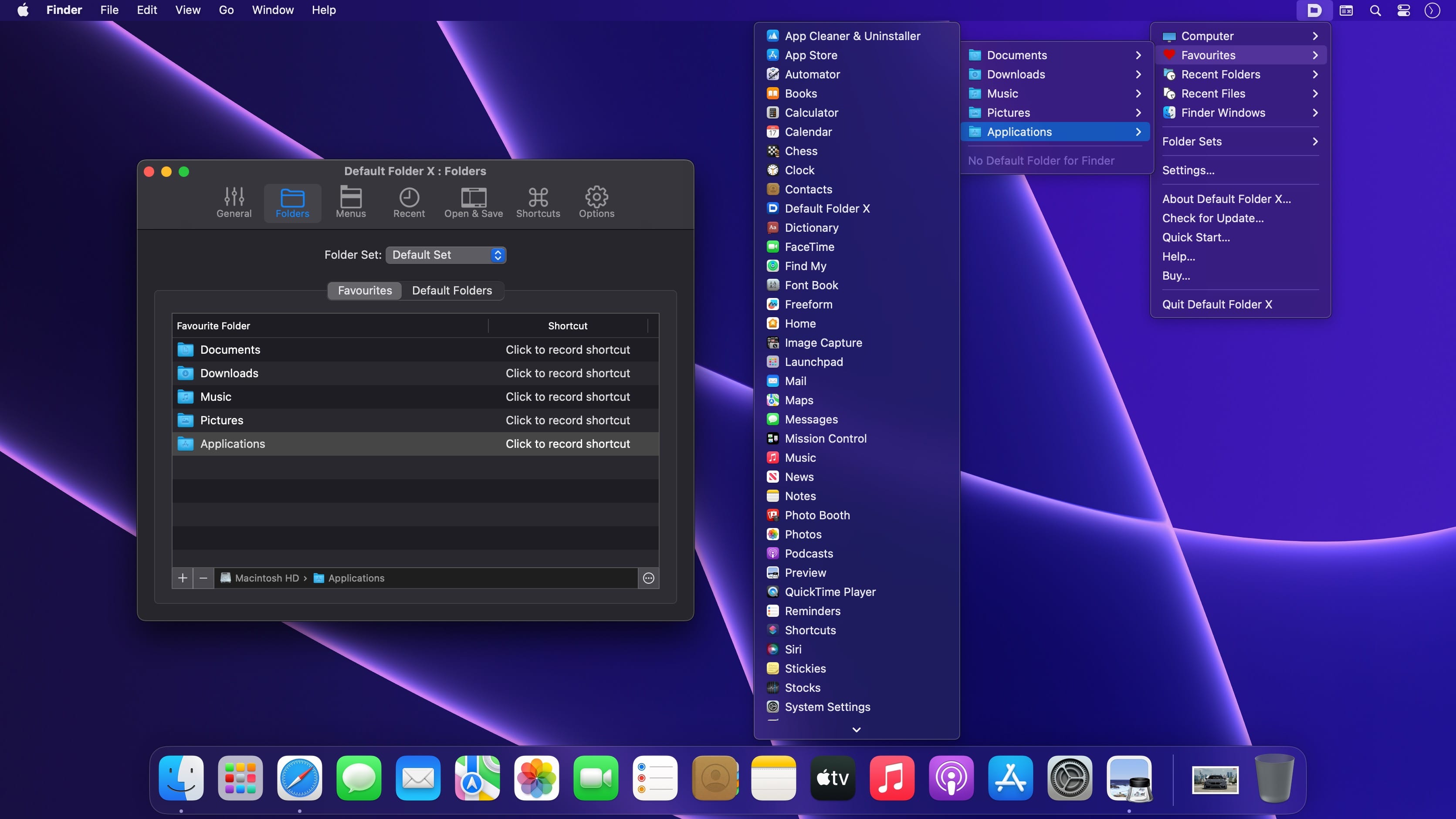
Default Folder X supercharges the Open and Save dialogs on your Mac. Jump to the folders you use most, tag and comment files as you save them, and preview documents before you open them.
Your Folders, One Click Away
- Get to your default, favorite, and recent folders straight from the menu bar
- See every open Finder window and bring any of them forward
- Build your own list of favorite folders
- Set a default folder for each app, so every save lands in the right place
A Smarter Open and Save Toolbar
Whenever you open or save a file, Default Folder X adds a toolbar to the dialog with all your folders and options in easy reach. Hover over a menu to browse it, or use the built-in keyboard shortcuts for the actions you use most.
Find Files Faster with Spotlight
Add Spotlight keywords, tags, comments, and labels right in the Save dialog, so your files are easy to find later.
Preview Before You Open
See documents as thumbnails in the Open dialog and zoom in to full size to make sure you've picked the right one.
Default Folder X: less clicking, more doing.
Version 6.3.0:
New features:
- Supports macOS 27 Golden Gate.
- Recent files and folders can be "pinned" in the menu to keep them there. Press the Shift key when a recent file or folder is highlighted in its menu to pin it. Repeat to unpin it.
- Clicking on the path shown in the Info pane below Open dialogs copies the path of the selected item and displays a popover to indicate that it was copied.
- When a file has a "Where from" attribute, that information is shown in the Info pane below Open dialogs.
- Existing Finder tags can be sorted by name or by date in the Tags pane below Open and Save dialogs.
- After dragging an item to Default Folder X's icon in the menu bar or using its "Default Folder X: Move / Copy / Alias" services in the Finder's contextual menu, you can switch folder sets while choosing a destination folder. To do so, the Folder Sets menu must be added to your menu configuration in Settings > General > Customize Menu.
- The Finder-click feature will no longer obscure windows floating over Open and Save dialogs, allowing you to use drag-and-drop utilities like Dropzone, Dropover, Unclutter, etc.
- Added a "menu type" argument to the CopyUsingMenu and MoveUsingMenu AppleScript commands so you can invoke it with just the Favorites menu, for instance.
- If the "Say No to Notch" app is running, Default Folder X will not warn about its icon being behind the screen notch.
- Finder toolbar icons use the same style as the icon selected for the menu bar.
Bug fixes:
- Fixed a problem with Default Folder X hanging when adding folders in Settings > Folders.
- Clicking on grayed-out filenames works correctly in Save dialogs when using column view.
- Fixed problems with recent settings changes not getting saved before restart and shutdown.
- Corrected a bug that resulted in more iCloud traffic than necessary when syncing settings via iCloud.
- Fixed an inability to determine the location of an empty folder on a volume mounted at a non-standard mount point.
- Removed the option to automatically download and install updates. It can't be done reliably without displaying a prompt to relaunch, which makes it just as intrusive as normal updates.
- Added LanguageTool to Default Folder X's exclusion list because it causes Default Folder X to run very very slowly.
- Corrected problems when the DFX and DFX Drawer helper apps are used in Bloom's toolbar.
- Fixed text color in the menu configuration editing window when running on High Sierra.
- Eliminated oversized menu item icons in High Sierra.
- Fixed a crash in the Focus filter.
Frequently asked questions
How do I install the app?
Mount the image, drag the app into the "Applications" folder and launch it. If the system blocks the launch, allow it in "System Settings → Privacy & Security".
The app is damaged or won't launch
Reinstalling from a fresh image usually helps. Make sure your macOS version matches the one listed in the compatibility specs.
How do I update?
Download the new version from the site and install it over the current one — your settings will be preserved.
The download link doesn't work
Try a mirror or a download manager. For large files the browser often drops the connection.
How do I completely remove the app?
Use an uninstaller utility — it cleans up the service files that remain after moving the app to the trash.



Choose a download source
Default Folder X 6.3.1 · 31.92 MB
Previous versions
Default Folder X 6.3.1
Previous versions are available to registered users.