
Stage View 1.2
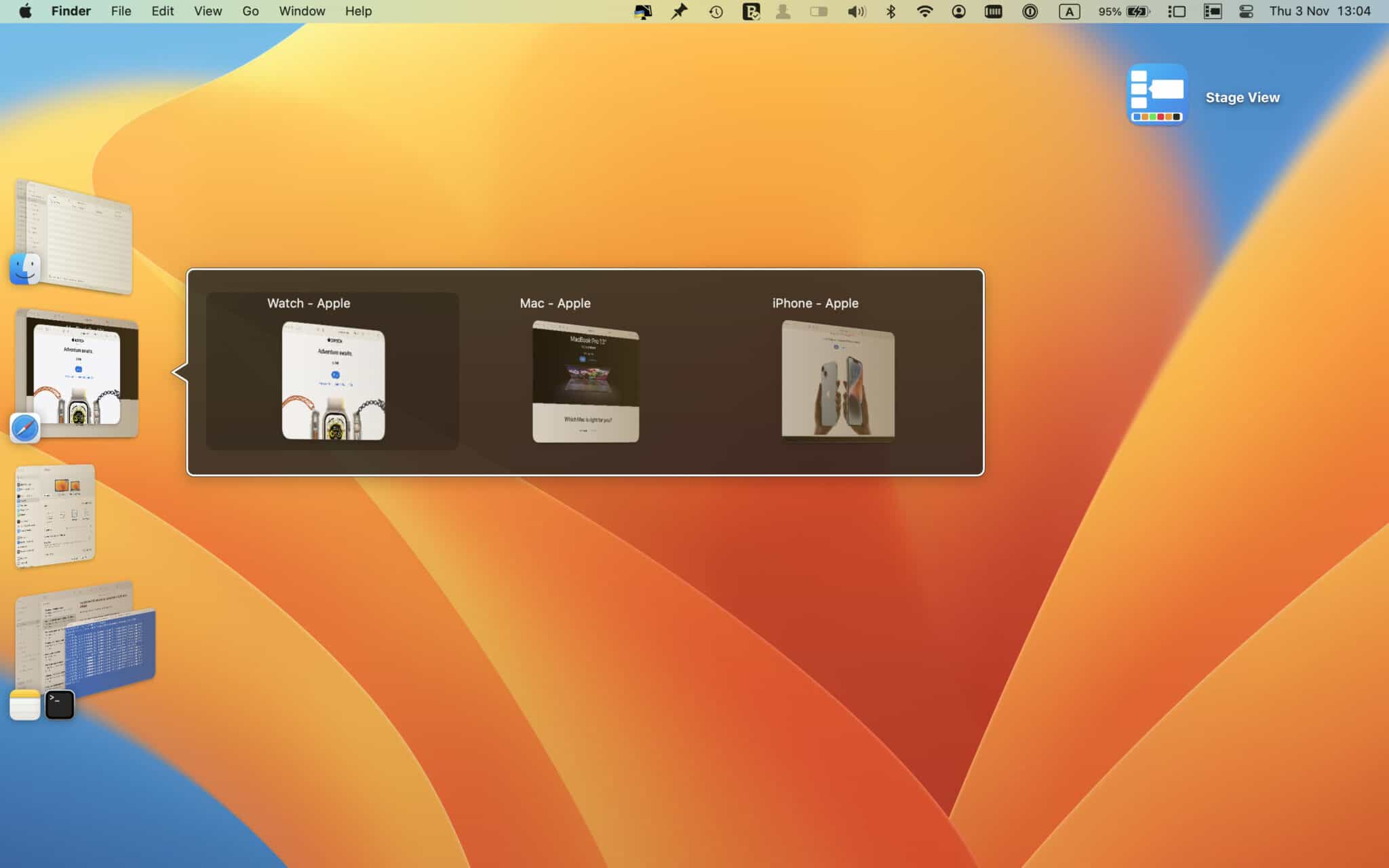
Stage Manager is a pretty cool window management feature added in macOS Ventura, but it does take some getting used to, and it still needs some tweaks. One particular issue is the fact that it can be difficult to tell what’s in a window group, as the tiny preview on the left quickly becomes cluttered.
Stage View aims to solve this by generating a full preview of all these windows, letting you see, select, and manage items a bit more easily. It works quite well, but just like Stage Manager itself, it can feel clunky at first.
Previews for all grouped Stage Manager windows
The idea is simple enough. When two or more windows are in a group, you can hover the cursor over the unified preview to get separate views of all included windows. These will include the app’s icon and title, if available.
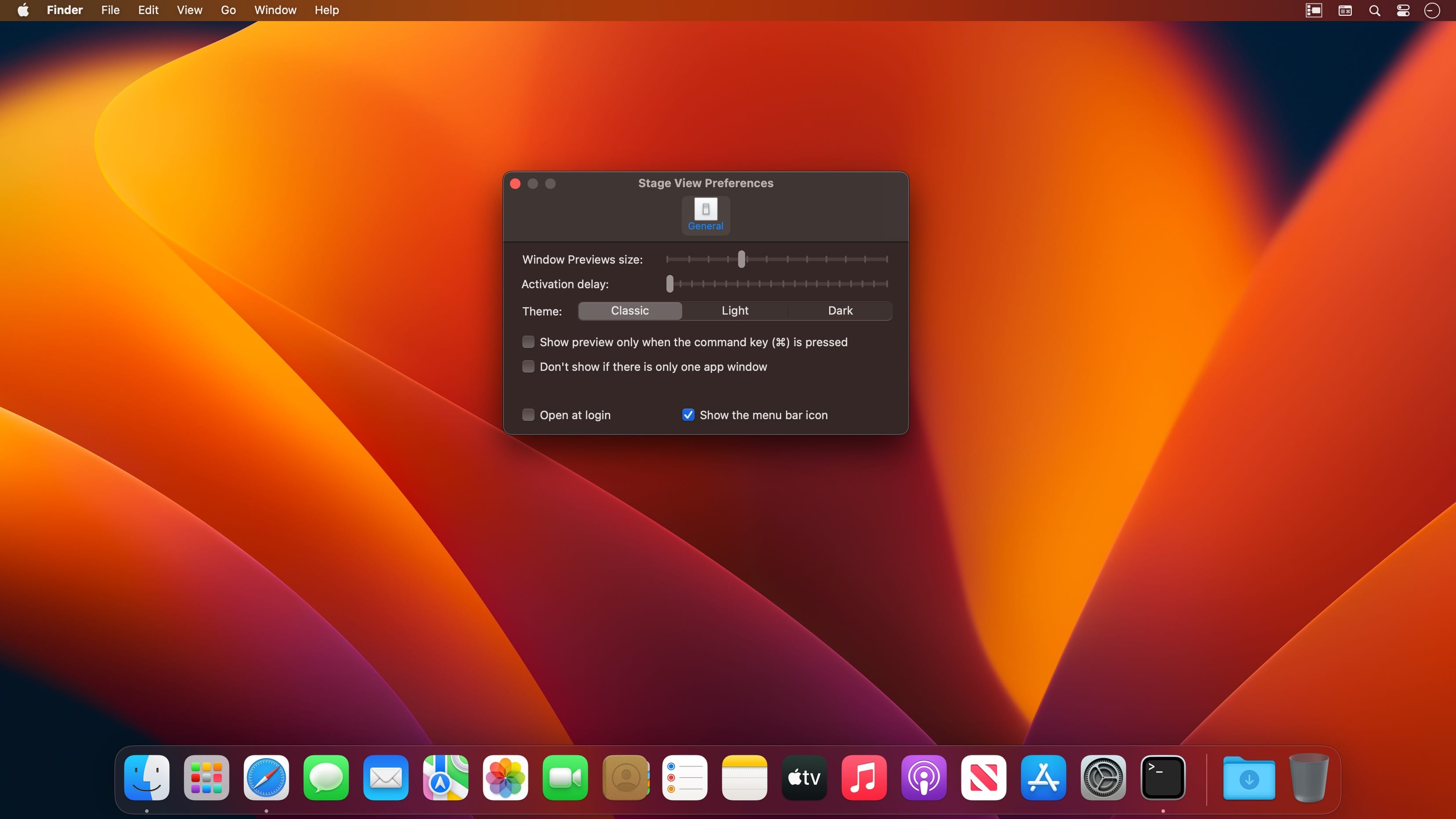
You can customize the size of the previews and add a short delay so that they are not displayed immediately. You can also prevent them from showing up for single windows, which I highly recommend, along with adding a delay.
Manage windows directly from previews
From the previews, you can close, minimize, and make windows full-screen. Additionally, you can change their order before switching to a group.
Once a preview has been displayed, clicking one of the windows will bring it to the foreground, and clicking a window again, any window, will switch to the group. Some documentation would be helpful for this feature, as it can be quite confusing at first.
A good addition to Stage Manager
In short, Stage View does a pretty good job, but the window selection feature may need some tweaks, or at least a bit of documentation to get users started. I would also recommend switching to Dark or Light mode from the app’s settings, as I feel they both look nicer than the default Classic mode.
Version 1.2:
- Release notes were unavailable when this listing was updated.
Frequently asked questions
How do I install the app?
Mount the image, drag the app into the "Applications" folder and launch it. If the system blocks the launch, allow it in "System Settings → Privacy & Security".
The app is damaged or won't launch
Reinstalling from a fresh image usually helps. Make sure your macOS version matches the one listed in the compatibility specs.
How do I update?
Download the new version from the site and install it over the current one — your settings will be preserved.
The download link doesn't work
Try a mirror or a download manager. For large files the browser often drops the connection.
How do I completely remove the app?
Use an uninstaller utility — it cleans up the service files that remain after moving the app to the trash.




Choose a download source
Stage View 1.2 · 5.58 MB
Previous versions
Stage View 1.2
Previous versions are available to registered users.