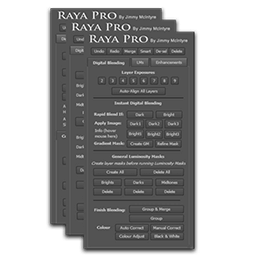
Raya Pro 3.0 - panel for Adobe Photoshop
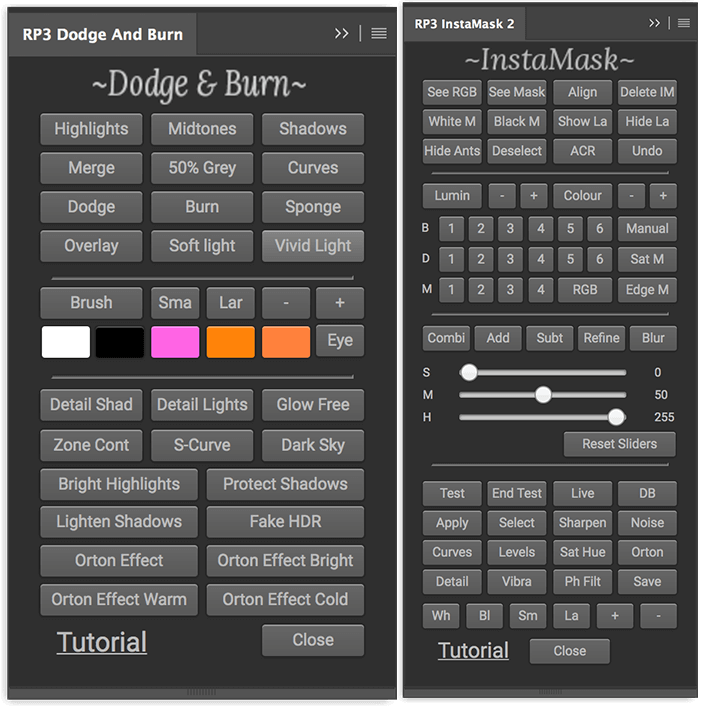
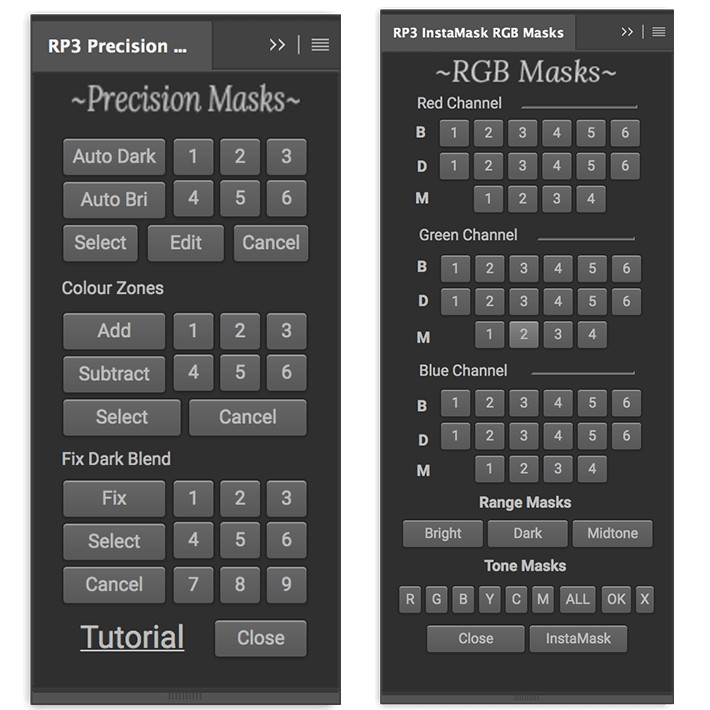
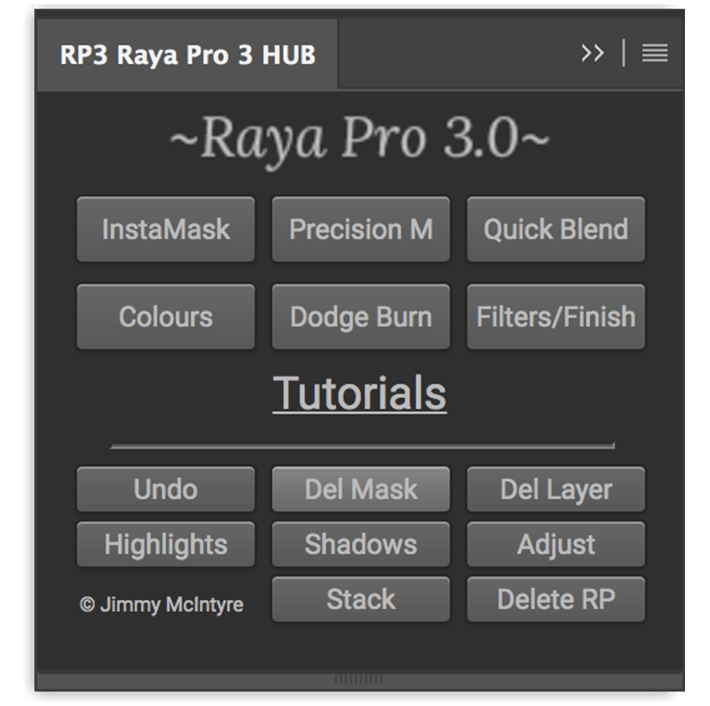
The panel that makes Photoshop and Digital Blending simple. Raya Pro is one of the finest panels for Photoshop. It makes digital blending extremely easy – just a click of a button and the blending is done.
Features of Raya Pro 3:
Blend Exposures With Ease
Works in ALL Languages
Instant Digital Blending
Techniques
- 16 Bit Luminosity Masks Made Easy
- Jimmy’s Presets:
- 3 Beautiful Sharpening Tools
- 4 Magical Orton Effects
- Dodge & Burn With Ease
- Enhance Incredible Details
- Awesome Filters
- Clean CA
- Frequency Separation
- Easy Vignettes
- 6 Custom Buttons: You
- Make Your Images Perfect For The Web
- Beautiful Golden Hour Glow
- Amazing Sharpening Technique
- Auto Exposure blending for complete beginners
- 48 different 16 Bit Luminosity Masks
- 16 Bit Precision Masks
- Easy Filters
- Instant Digital Blending Method 1: Rapid Blend If
- Instant Digital Blending Method 2: Apply Image
- Instant Digital Blending Method 3: Gradient Masks
- Instant Digital Blending Method 4: GMs + Apply Image
- Instant Digital Blending Method 5: Range Masks
- Layer Any Exposures With One Click
- Auto-Align All Layers
- Select Luminosity Masks With One Click, Without Going To The Channels Palette
- Subtract Any Luminosity Mask From A Selection With One Click
- View Black & White Mask With One Click
- Colour Zones
- Saturation Masks
- Sharpening Without Edging
- Frequency Separation (16 bit & 8 bit)
- Use a Simple Slider To Create & Shape Luminosity Masks For a Perfect Selection
- Use 4 Of Jimmy’s Shadow Luminosity Masks Presets With One Click, To Make Accurate Shadow Selections Without Intersecting Channels
- CC 2014 & CC 2015 Users Benefit From The New Range Mask Function, Created By Jimmy McIntyre – They Make Extremely Accurate Luminosity Masks
- Easy One-Click Buttons, Like Delete, Make Smart Object, and Deselect, That Will Speed Up Your Workflow
- Merge All Files Non-Destructively
- 3 Auto-Colour Correct Buttons
- Manual Colour Correct Button
- Easy Adjust Any Colours In Your Image
- Easy Filters For Instant Improvements
- Contrast Zones
- Turn Your Photo Black & White
- 4 Orton Effects
- Many Dodge & Burn Options
- Detail Enhancers
- Clean Chromatic Aberration
- Easy Vignettes
- Create Autumn Colours
- Make Your Image Glow
- Make Your Sunset/Sunrise Glow
- 6 Custom Buttons: You Decide Their Function!
- Perfect Sharpening & Web Preparation, Which Leaves Your Images Sharp, With The Ideal Colour Profile And Size
- Targeted Contrast
- Make Targeted Colours More Vivid/Desaturated
- Apply A Precise Mask To Any Layer To Make Your Image Cleaner
- Noise Removal
- Fake HDR
- Full Size Sharpening
- Contrast Punch
Frequently asked questions
How do I install the app?
Mount the image, drag the app into the "Applications" folder and launch it. If the system blocks the launch, allow it in "System Settings → Privacy & Security".
The app is damaged or won't launch
Reinstalling from a fresh image usually helps. Make sure your macOS version matches the one listed in the compatibility specs.
How do I update?
Download the new version from the site and install it over the current one — your settings will be preserved.
The download link doesn't work
Try a mirror or a download manager. For large files the browser often drops the connection.
How do I completely remove the app?
Use an uninstaller utility — it cleans up the service files that remain after moving the app to the trash.
VersionRaya Pro 3.0 - panel for Adobe Photoshop
DeveloperJimmy McIntyre Software & Development LTD
CompatibilityPhotoshop CS6, and all versions of CC (including CC 2018)
LanguageEnglish
IncludesPre-K'ed
Related posts
-
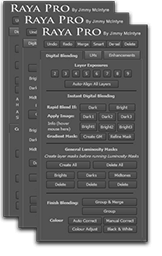 Raya Pro 2.0 & InstaMask 1.0 fix - panel for Adobe Photoshop
Photography177.85 MB
Raya Pro 2.0 & InstaMask 1.0 fix - panel for Adobe Photoshop
Photography177.85 MB
-
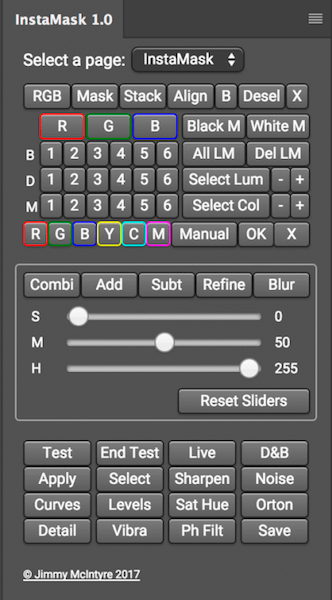 Instamask 1.0 - panel for Adobe Photoshop СС
Mac Apps295.32 MB
Instamask 1.0 - panel for Adobe Photoshop СС
Mac Apps295.32 MB
-
 iPastels 2.13.1
Graphic Design5.96 MB
iPastels 2.13.1
Graphic Design5.96 MB
-
 Topaz Software & Plug-ins Bundle for Adobe Photoshop (Updated 07.2019)
Photography4.13 GB
Topaz Software & Plug-ins Bundle for Adobe Photoshop (Updated 07.2019)
Photography4.13 GB
-
 Magic Retouch Pro 4.3 - panel for Adobe Photoshop
Graphic Design103.06 MB
Magic Retouch Pro 4.3 - panel for Adobe Photoshop
Graphic Design103.06 MB
Information
Visitors in the group Guests cannot leave comments on this publication.
Choose a download source
Raya Pro 3.0 - panel for Adobe Photoshop · 99.64 MB