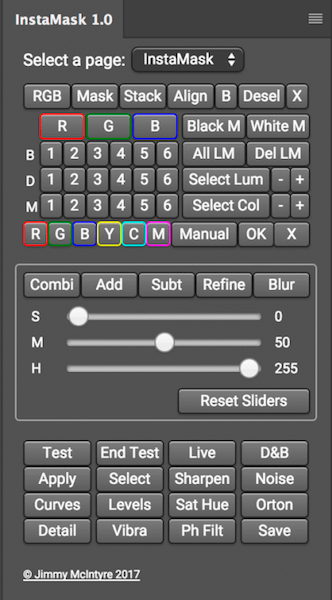
Instamask 1.0 - panel for Adobe Photoshop СС
A fantastic new panel that will make luminosity masks and exposure blending easier than ever. InstaMask will allow you to create and craft any mask to suit your needs with just a few clicks. And the great news is, although this is a separate panel.
Here are a few of the powerful new features of InstaMask:
- We can create 18, 16 bit luminosity masks. These are done individually so they keep our file size to a minimum.
- Going further, we can also build these 18 masks around any of the Red, Green or Blue channels, so we have a total of 72 masks at our disposal.
- We can intersect any of these mask with each other. So we can add/subtract any mask to/from the RGB channel, for example, with any mask from the Red, Green or Blue channels, should we wish.
- We have two new point-and-click methods for developing advanced selections based on colour or luminosity. We simply click on an area of the image and a mask will be built around it. And we can refine these masks even more with + and – buttons, which restrict or loosen the selection.
- InstaMask has 3 convenient sliders which compliment a 16bit workflow, allowing us to craft our masks to the perfect selection.
- There are also a whole range of new colour masks.
- We can apply any mask to any layer. Taking this further, before applying the mask, we can test it on any layer and make adjustments as need.
- With split screen, we can use our sliders and adapt the mask, while also see the direct change on the image itself.
- With all of the apply buttons, we have more or less everything type of layer covered, so that we can apply our masks to and adjustment layer.
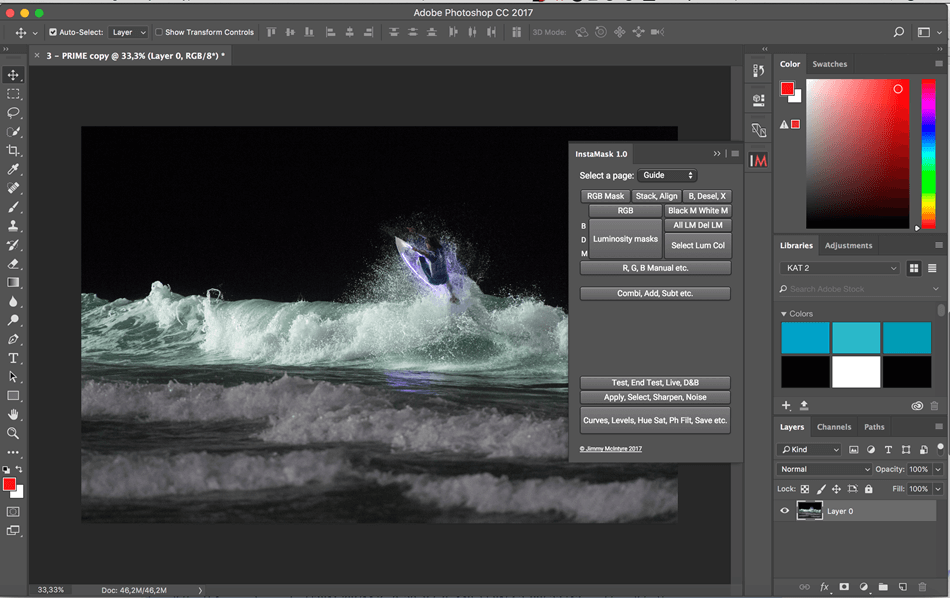
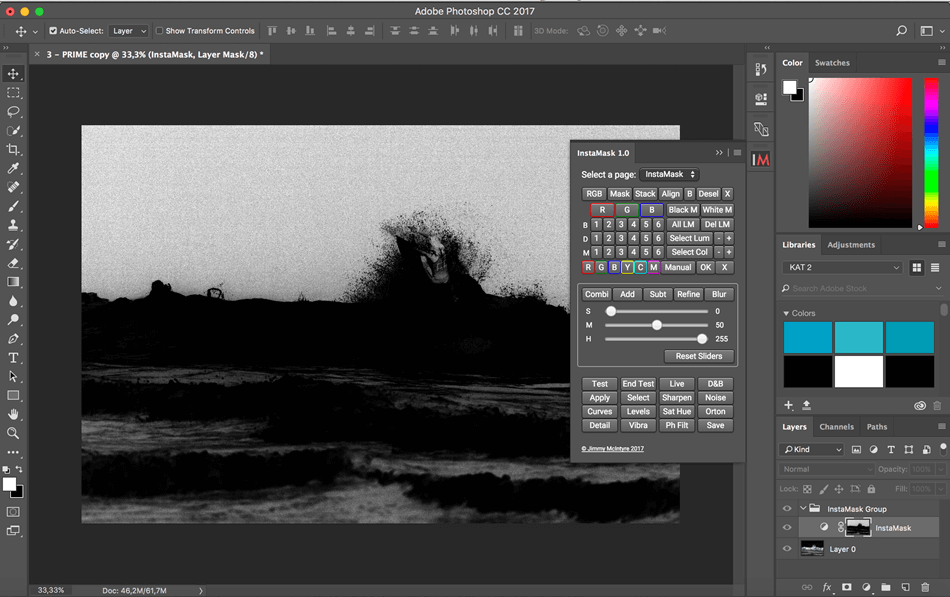
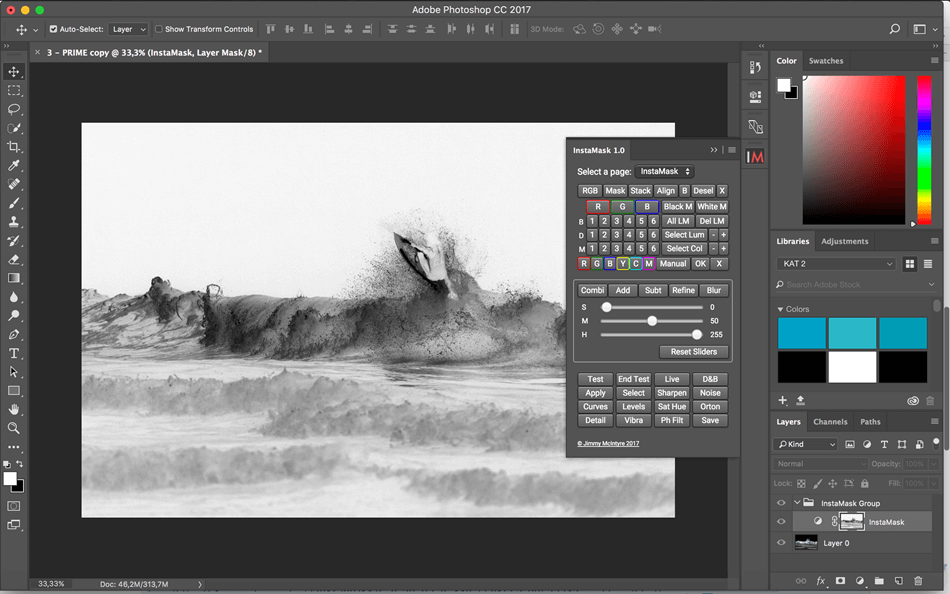
SCREENSHOTS
Frequently asked questions
How do I install the app?
Mount the image, drag the app into the "Applications" folder and launch it. If the system blocks the launch, allow it in "System Settings → Privacy & Security".
The app is damaged or won't launch
Reinstalling from a fresh image usually helps. Make sure your macOS version matches the one listed in the compatibility specs.
How do I update?
Download the new version from the site and install it over the current one — your settings will be preserved.
The download link doesn't work
Try a mirror or a download manager. For large files the browser often drops the connection.
How do I completely remove the app?
Use an uninstaller utility — it cleans up the service files that remain after moving the app to the trash.
VersionInstamask 1.0 - panel for Adobe Photoshop СС
DeveloperJimmy McIntyre
CompatibilityOS X / Windows
LanguageEnglish
IncludesPre-K'ed
Related posts
-
 Raya Pro 2.0 & InstaMask 1.0 fix - panel for Adobe Photoshop
Photography177.85 MB
Raya Pro 2.0 & InstaMask 1.0 fix - panel for Adobe Photoshop
Photography177.85 MB
-
 Raya Pro 3.0 - panel for Adobe Photoshop
Photography99.64 MB
Raya Pro 3.0 - panel for Adobe Photoshop
Photography99.64 MB
-
 Picture Instruments Chroma Mask 2.0.10 fix
Mac Apps21.85 MB
Picture Instruments Chroma Mask 2.0.10 fix
Mac Apps21.85 MB
-
 Picture Instruments Mask Integrator 2.0.10 fix
Photography21.81 MB
Picture Instruments Mask Integrator 2.0.10 fix
Photography21.81 MB
-
 Vertus Fluid Mask 3.3.18
Graphic Design62.71 MB
Vertus Fluid Mask 3.3.18
Graphic Design62.71 MB
Choose a download source
Instamask 1.0 - panel for Adobe Photoshop СС · 295.32 MB
Comments 1