
ProcessTimer 1.7.4
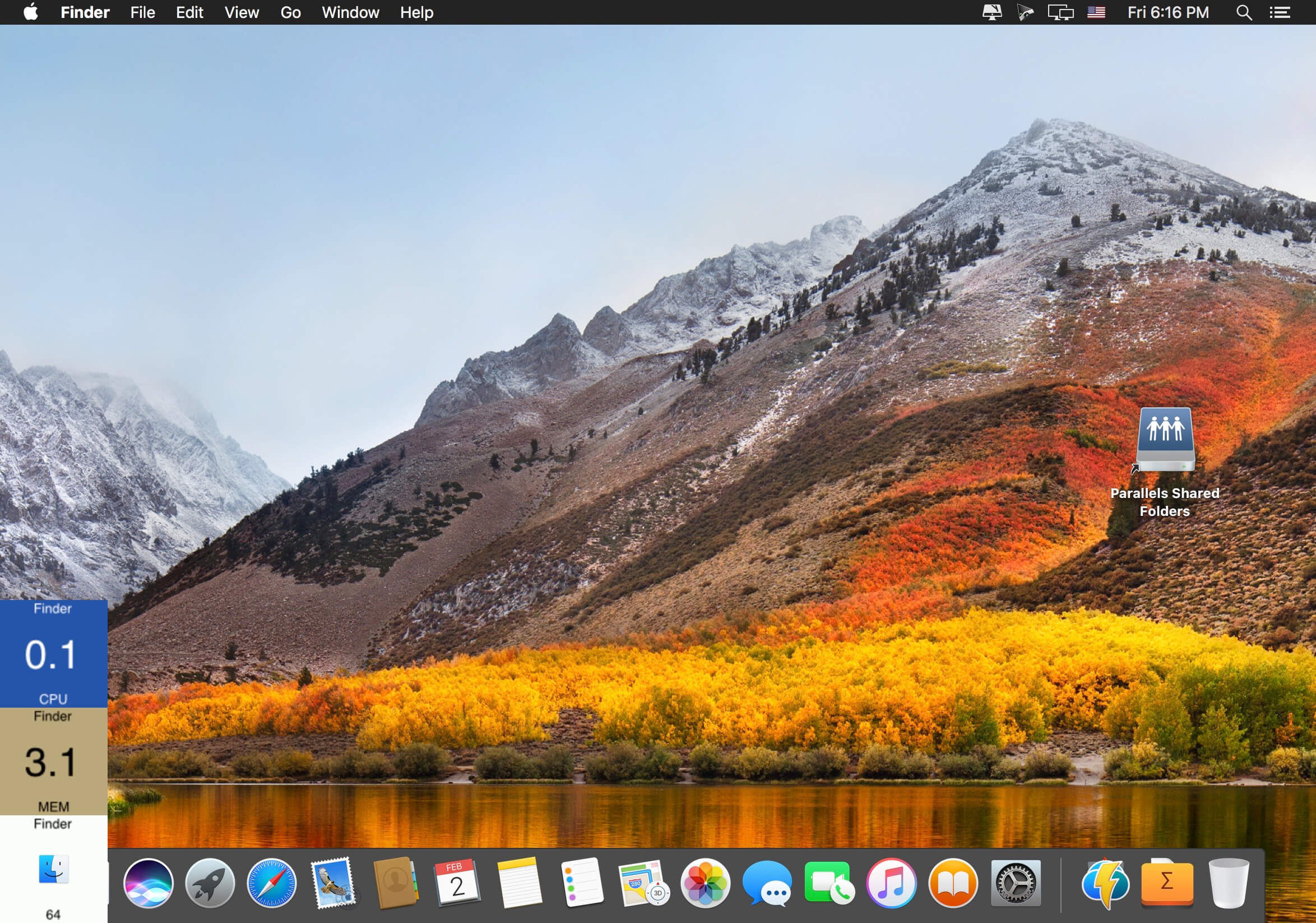
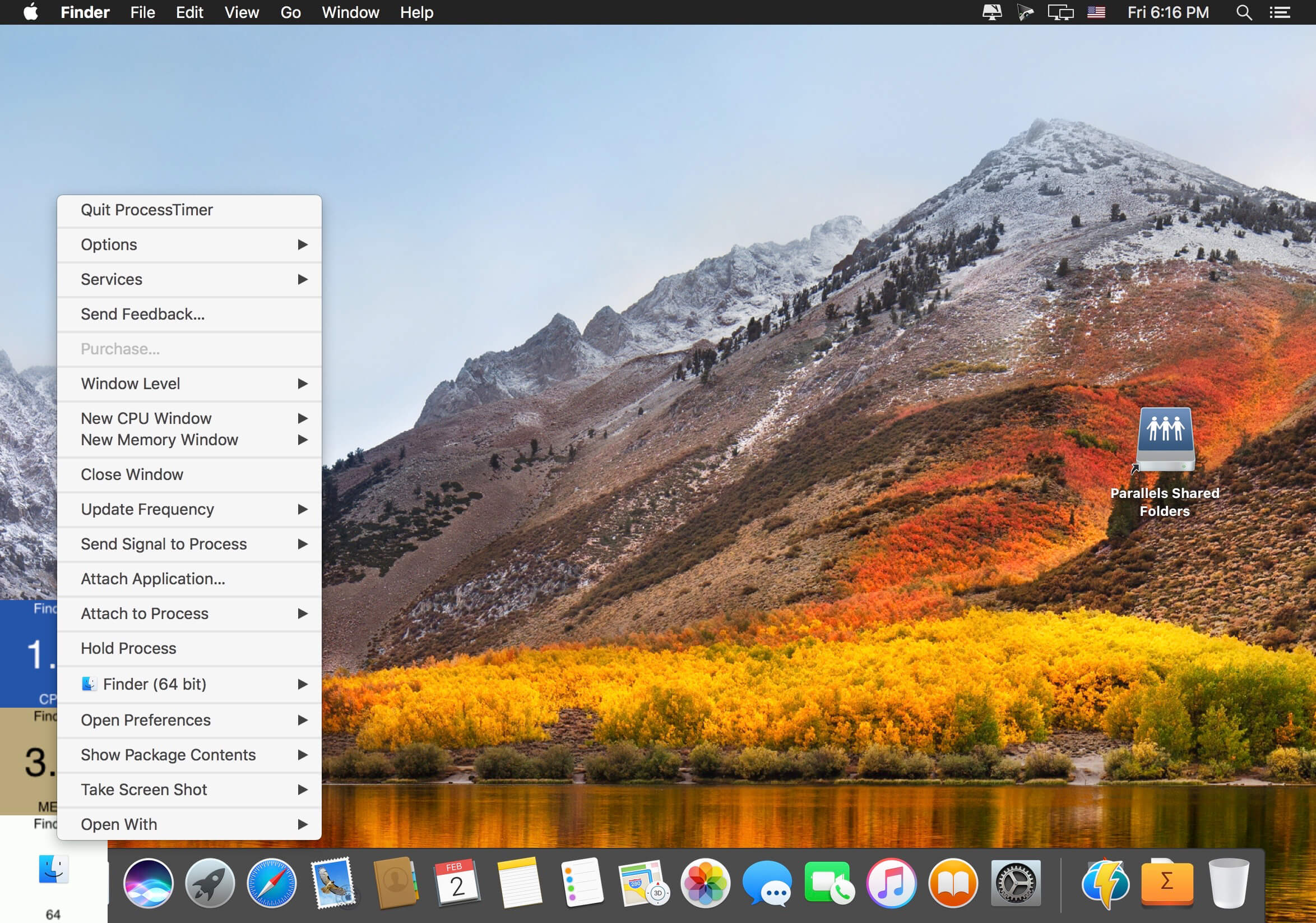
ProcessTimer displays the architecture, CPU utilization and percentage of real memory used by the process that has GUI focus. By default, it "follows" the process that has GUI focus, the frontmost app. The default behavior can be changed by Hold Process, and ProcessTimer will follow the specific process for the remainder of the lifetime of the process, regardless if the frontmost app has changed.
There are plenty of features packed in ProcessTimer besides CPU utilization reporting. It also has formidable screenshot grabbing capabilities. It can grab a screenshot of an app in five unique ways.
Features
- Open/activate an app
- Set an app to open at login
- Open the preferences file (plist) of an app
- Show the Finder info panel for an app
- Reveal an app's location in Finder
- Grab a screenshot of an app in five unique ways
Version 1.7.4:
Changed
Changed
- Code rewrite
- Add incompatible version check
- Fix for Attach to Process menu population (new algorithm)
- Fix memory calculation (was using total memory installed vs memory available for use)
- Add Show All and Hide Others
- Recode File Manager, show one level less and rename to Show Package Contents and speed up icon generation and Open With menu has been improved, does not show duplicate entries if they have the same build version
- Recode Open Preferences File and rename to Open Preferences (click to reveal)
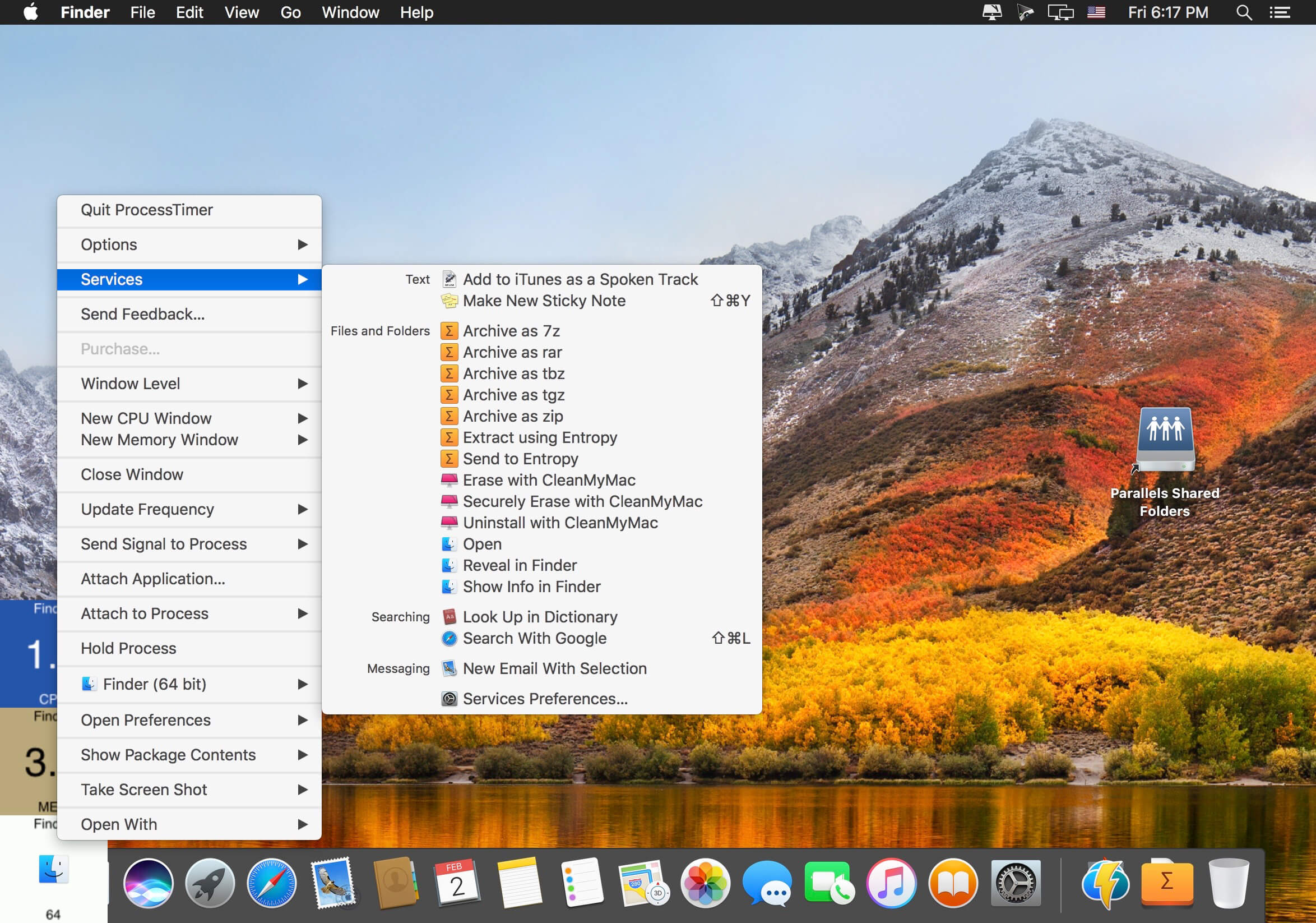
- Add Services menu item and disable context menu plug-ins
- Implement Force Quit (use alt modifier key to show Force Quit)
- Implement Force Quit detection (Quit automatically changes to Force Quit)
- Add more services! (Finder services, etc.)
- Add support for color palettes
- Add Open With (click to open)
- Bug fix for Take Screen Shot, apps like google chrome work now! (status bar items are not captured)
- Click process name to activate
- Preview taking screenshots 12 x 12 pixels bug
Frequently asked questions
How do I install the app?
Mount the image, drag the app into the "Applications" folder and launch it. If the system blocks the launch, allow it in "System Settings → Privacy & Security".
The app is damaged or won't launch
Reinstalling from a fresh image usually helps. Make sure your macOS version matches the one listed in the compatibility specs.
How do I update?
Download the new version from the site and install it over the current one — your settings will be preserved.
The download link doesn't work
Try a mirror or a download manager. For large files the browser often drops the connection.
How do I completely remove the app?
Use an uninstaller utility — it cleans up the service files that remain after moving the app to the trash.
VersionProcessTimer 1.7.4
Developer1951fdg
CompatibilityOS X 10.8 or later, 64-bit processor
LanguageEnglish
IncludesK'ed by TNT





Information
Visitors in the group Guests cannot leave comments on this publication.
Choose a download source
ProcessTimer 1.7.4 · 5.06 MB