
SixtyFour 1.7.4
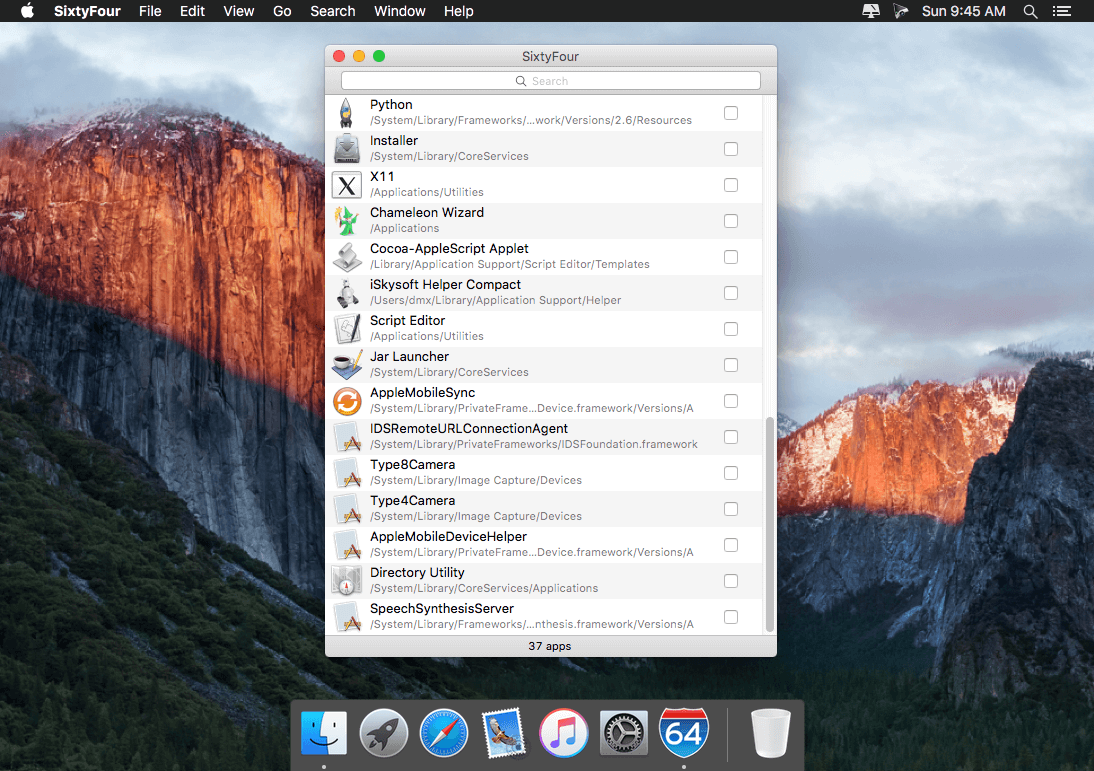
SixtyFour facilitates the setting of a preference to force a 64-bit app to open in 32-bit mode. Forcing a 64-bit app to open in 32-bit mode reduces its memory usage significantly. Running most if not all apps in 32-bit mode on systems that have little memory available can potentially lead to an increase in overall system performance. That means you can keep your Mac running longer, but running better.
If you intend to run more apps at the same time, and, at the same time, maintain system performance, but can't upgrade to the newer, faster Macs with more RAM, this is the app for you!
Features
- Quick Look plug-in: Quick Look displays extra info: app architectures, app platform info and bundle version
- Single Volume Scanning: scanning a volume finds all apps even unregistered apps
- SixtyFour Agent: it's a standalone app, which displays the bit mode of an application when launched
- Performance Tools: the latest version of ProcessTimer is included along with other tools
WHAT’S NEW
Version 1.7.4:
Changes
- New icon drawing code
- Open with menu changes
- Services menu changes
- Updated ProcessTimer
SCREENSHOTS
Frequently asked questions
How do I install the app?
Mount the image, drag the app into the "Applications" folder and launch it. If the system blocks the launch, allow it in "System Settings → Privacy & Security".
The app is damaged or won't launch
Reinstalling from a fresh image usually helps. Make sure your macOS version matches the one listed in the compatibility specs.
How do I update?
Download the new version from the site and install it over the current one — your settings will be preserved.
The download link doesn't work
Try a mirror or a download manager. For large files the browser often drops the connection.
How do I completely remove the app?
Use an uninstaller utility — it cleans up the service files that remain after moving the app to the trash.
VersionSixtyFour 1.7.4
Developer1951FDG
CompatibilityOS X 10.7.4 or later, 64-bit processor
LanguageEnglish
IncludesPre-K'ed



Information
Visitors in the group Guests cannot leave comments on this publication.
Choose a download source
SixtyFour 1.7.4 · 3.94 MB