

Loopback 2.5.1
Loopback: Audio Routing Software and Virtual Audio Device for Mac
Screenshots
Click to enlarge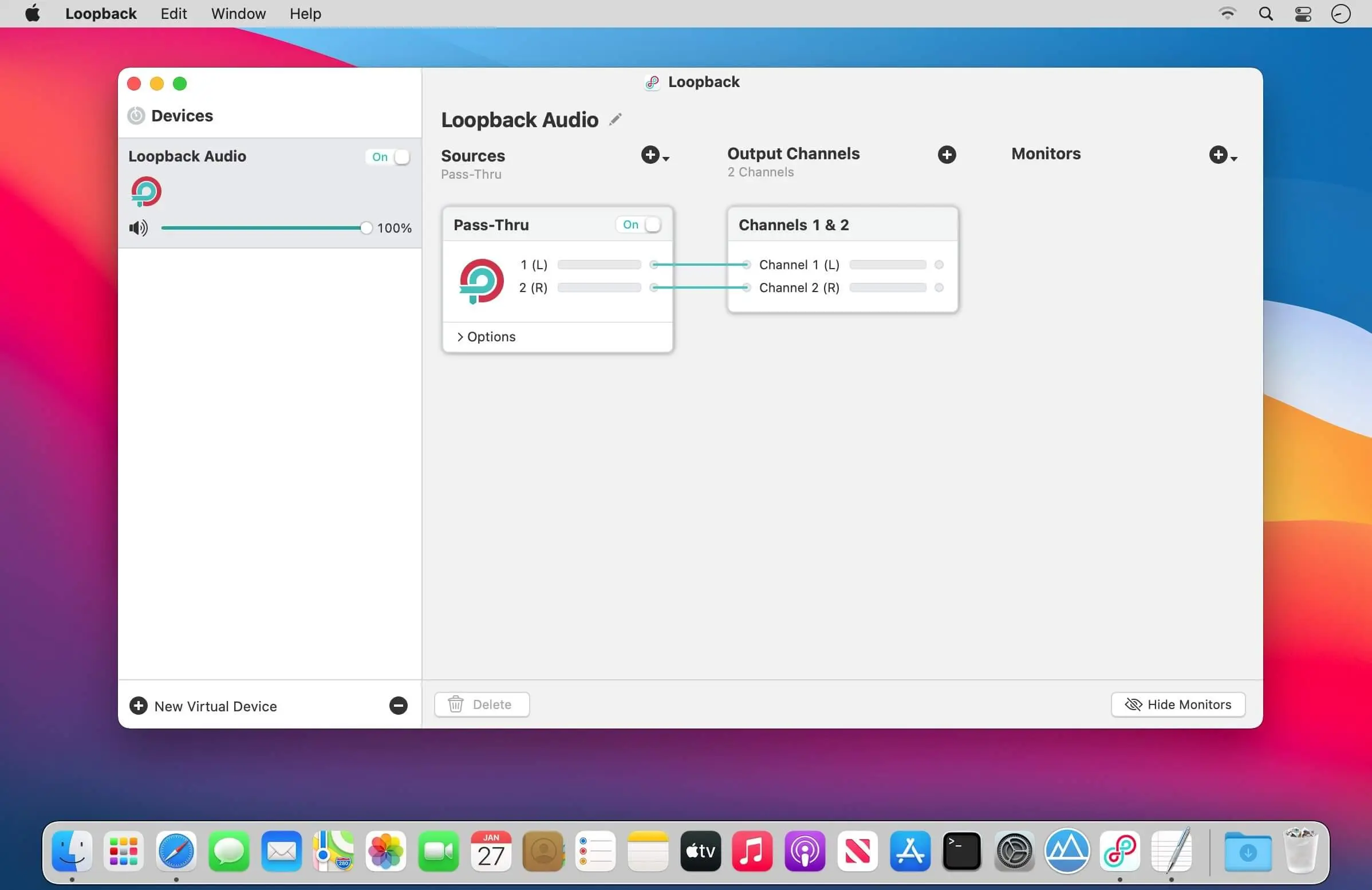
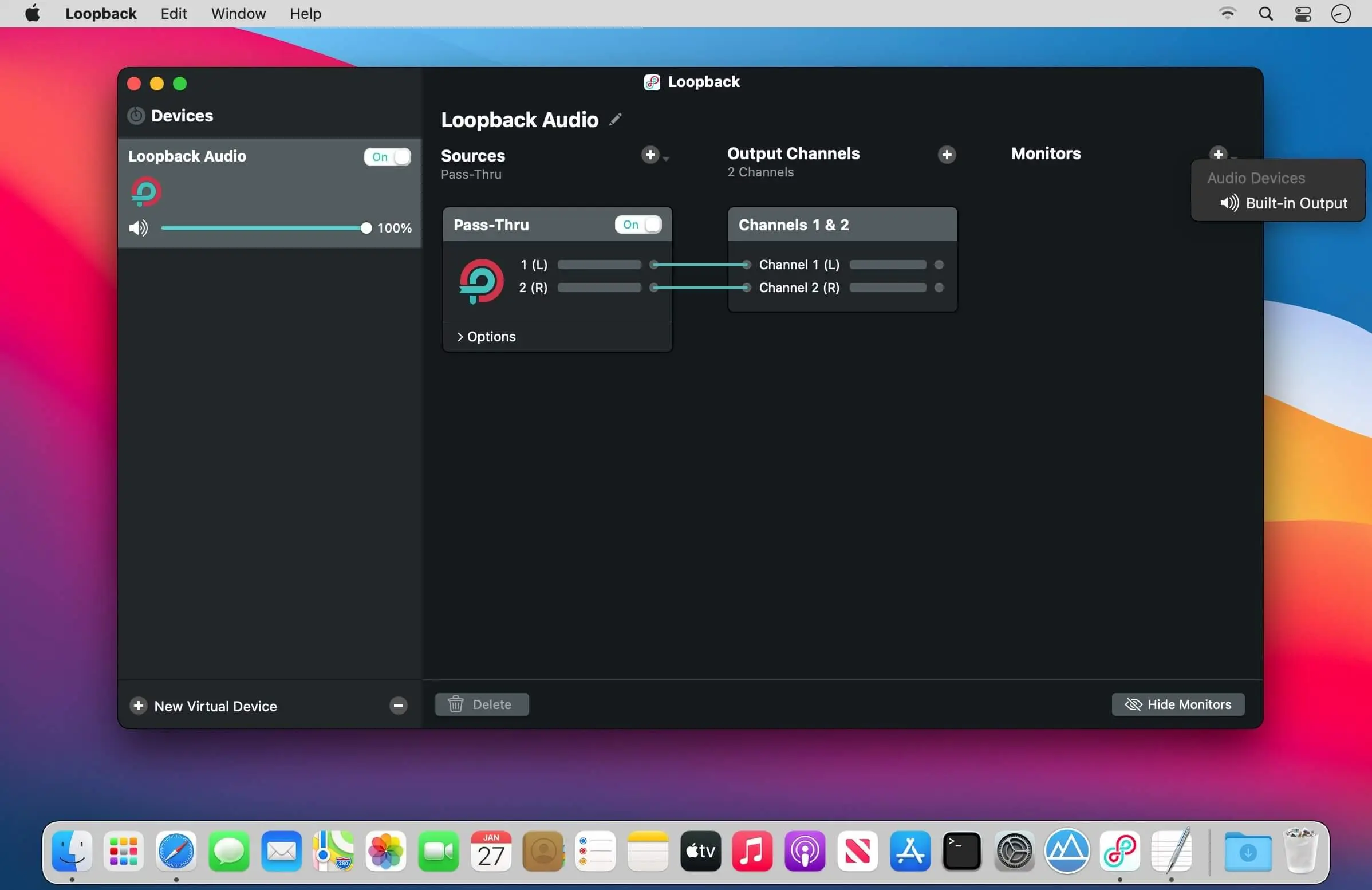
Cable-Free Audio Routing for Mac
Suddenly, it's easy to pass audio between applications on your Mac. Create virtual audio devices to take the sound from applications and audio input devices, then send it to audio processing applications. Loopback gives you the power of a high-end studio mixing board, right inside your computer!
A Transit System for Your Audio
Combine Audio Sources
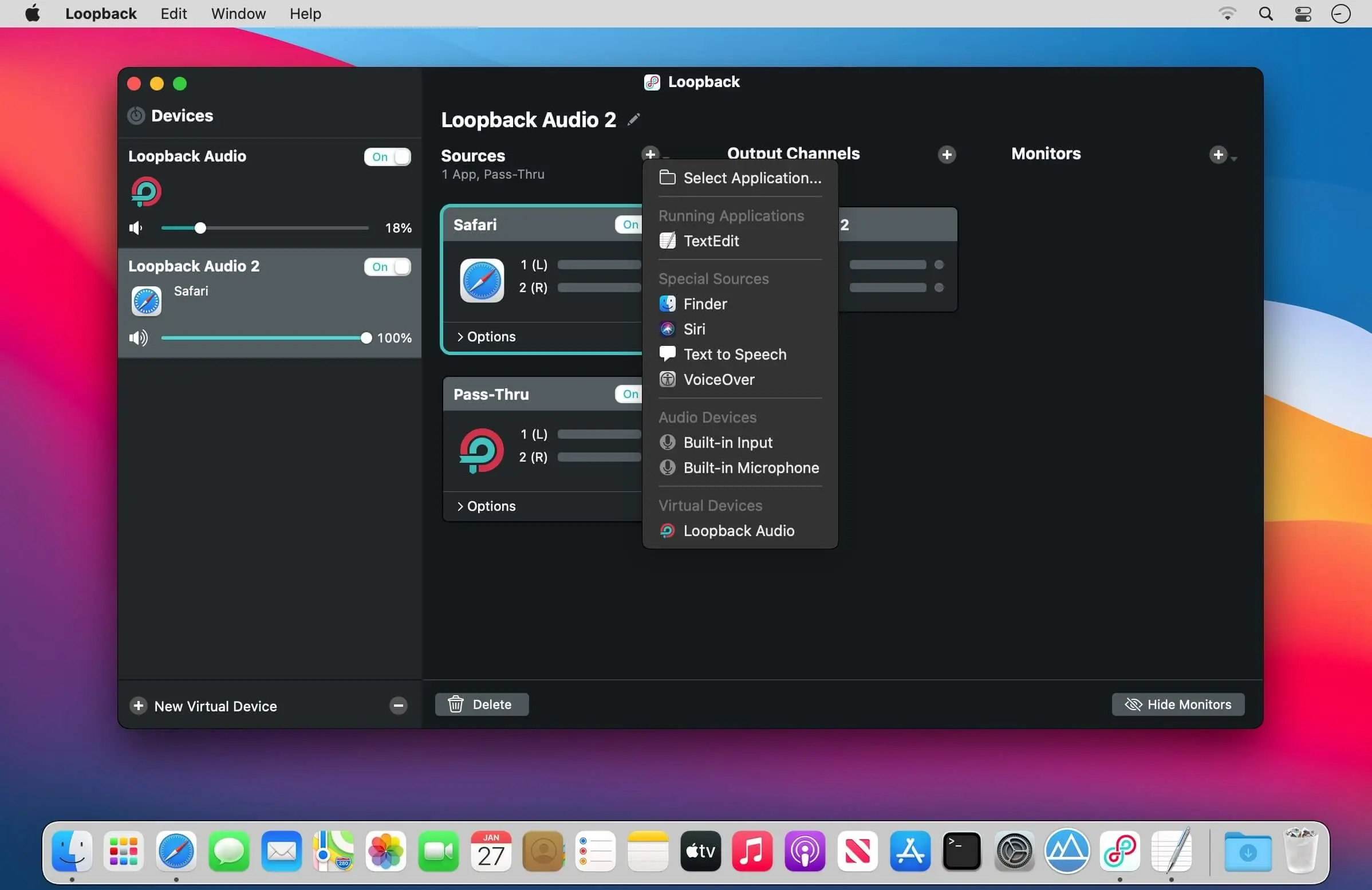
Configuring a virtual audio device from multiple sources is easy. Just add the applications and physical audio devices you want to include to the Audio Sources table to get started.
Available System-Wide
Your Mac will show Loopback's virtual devices exactly like physical devices. Find them listed among other devices in System Preferences or select them as an input or output in any audio app.
Send Audio Between Apps
Loopback can also create pass-thru devices, which send audio from one app to another. Set the Loopback device as the output in one app and the input in another to make audio flow directly between the applications.
A Massive Interface Overhaul:
- The most noticeable change in Loopback 2 is its brand-new user interface. The first version of Loopback offered tremendous audio routing capability, but harnessing that power was not as simple as it could've been.
- For version 2, we worked hard on a redesigned interface that will be intuitive for everyone. Loopback now features a simple new wiring system that lets you easily visualize and adjust how your audio will flow.
Volume Controls Galore:
- Users asked for it, and we provided it. Loopback 2 provides control over volume levels at every step of the way. The volume from individual sources can be tweaked relative to other sources, to get the perfect mix. Audio levels sent to monitoring devices can also be adjusted, as can the audio level from the virtual audio device itself.
More Powerful Monitoring:
- Monitoring virtual audio devices is now simpler than ever. Just add a monitor at the end of the device, and wire it up to get the exact audio desired. Listen in to the entire device, or use the custom wiring to monitor just part of the audio. You can even have multiple Monitors per virtual audio device, so you can hear exactly what you need to.
Capture Hidden Sources:
- Audio can now be captured from previously unavailable sources, like Siri, VoiceOver, and Text-to-Speech. Hold down the option key while clicking the Add Source button to reveal the "Running Processes" menu, then select the correct hidden source.
Up to 64 Channels:
- Virtual audio devices can now provide up to 64 channels of input and output, for amazing power.
Fully Configurable Channels:
- Just about any setup is now possible, with configurable routing of audio from all audio sources to output channels, as well as from output channels to the new, more powerful monitoring devices.
An Explicit Pass-Thru Source:
- Pass-Thru functionality, previously an implicit part of Loopback, is now visible as an actual audio source. This allows for more power and control over the audio passing through your virtual audio devices.
On/Off Toggles for Sources and Monitors:
- Loopback's virtual audio devices are more configurable than ever, with the ability to turn off individual sources and monitors within a device. Rather than deleting a source or monitor, and losing its settings, you can now temporarily toggle it off as you make adjustments to get exactly the audio you need.
Version 2.5.1:
- New “Control Center” Special Source
On MacOS 27 (Golden Gate) and higher, the new “Control Center” special source captures audio the Mac receives via AirPlay, as well as volume adjustment blips. This replaces the former “AirPlay Receiver” special source due to changes in Golden Gate. More details on special sources can be found in this support article. - The ARK plugin which powers Loopback’s audio handling has been updated to version 13.5.6, bring further reductions in latency and a fix for a rare issue where certain apps, most notably Music.app, could fail to be captured properly if Loopback was not open.
- The ARK plugin installer has also been hardened, to eliminate a potential privilege escalation bug. Thank you to Morris Richman for reporting this issue.
- Loopback’s main window again properly restores its location on a secondary monitor.
- The “Restore icons in menus” hidden setting has been removed from the “Debugging” window. For more on the “Debugging” window, see this support article.
Comments
No comments yet. Be the first.