Pastebot 2.4.8
astebot clipboard manager and clippings organizer with smart filters
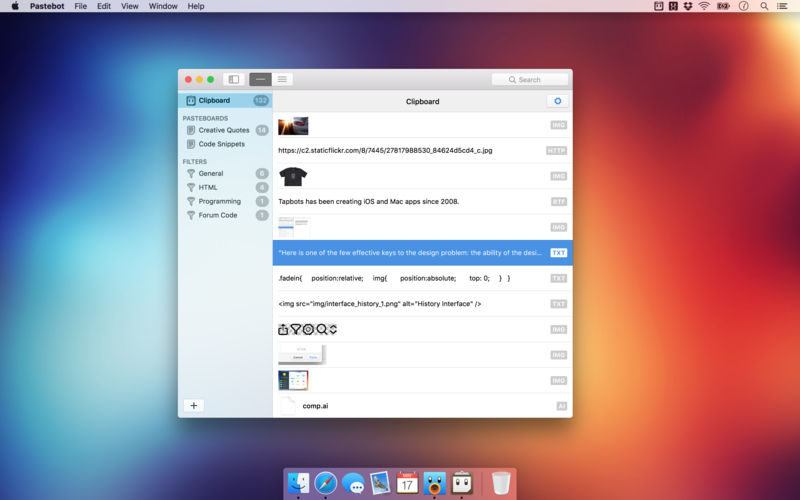
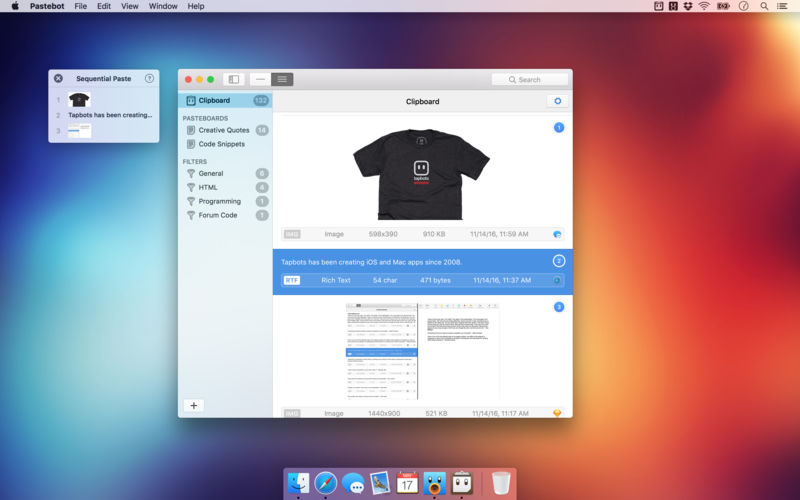
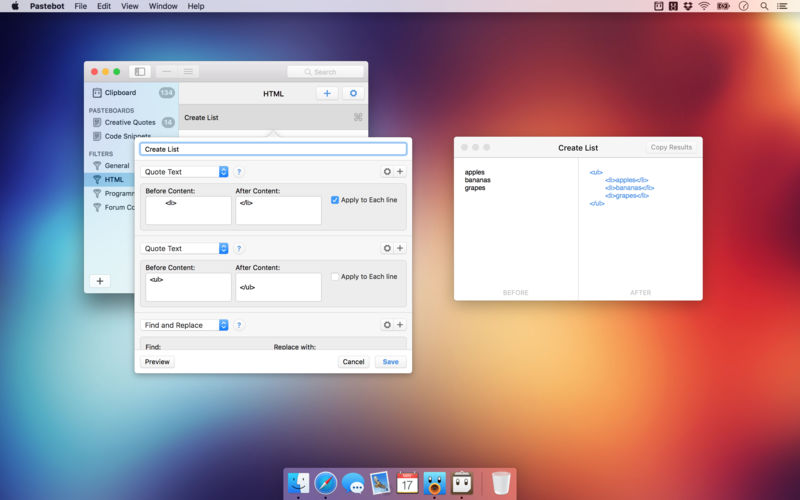
Pastebot saves everything you copy so that you can quickly recall them in the future. Save and organize frequently-used clippings into custom pasteboards and create keyboard shortcuts to access pasteboards and paste specific clippings. Build filters with a live preview and apply them as you paste. Create keyboard shortcuts to quickly paste using your filters and export your filters to share with other Pastebot users. Pastebot is there when you need it and invisible when you don’t. Quickly access your clippings from any app and search, preview, or filter clippings before pasting. You can even set the order of clippings to paste in sequence.
With iCloud enabled, your main clipboard, custom pasteboards and filters sync across all of your computers running Pastebot. Your clipboard and filters will be on every mac you work on. Create custom pasteboard groups to organize important clippings you want to save and re-use. Assign keyboard shortcuts to clippings you use most often. macOS Sierra’s Universal Clipboard works alongside Pastebot. Copy a clipping in Pastebot and paste it on your iOS device via Universal Clipboard.
Features
- Pastebot works in full-screen and split-screen mode. Running in split-screen mode allows you to use Pastebot as a scratch pad.
- Choose from various quick paste window styles to suit your preferences, always paste in plain text, enable release-to-paste and more.
- There are apps you copy from that you never want stored in Pastebot. Just add that application to the blacklist and Pastebot will ignore it.
- Find a clipping quickly with Pastebot’s powerful search capabilities. Search based on content or metadata. You can search by application, date, data type and more.
- Pastebot features many keyboard shortcuts to satisfy any copy & paste maestro. Paste the previous item on the clipboard or paste the current clipping while applying the last used filter.
Version 2.4.8
- Release notes were unavailable when this listing was updated.
Frequently asked questions
How do I install the app?
Mount the image, drag the app into the "Applications" folder and launch it. If the system blocks the launch, allow it in "System Settings → Privacy & Security".
The app is damaged or won't launch
Reinstalling from a fresh image usually helps. Make sure your macOS version matches the one listed in the compatibility specs.
How do I update?
Download the new version from the site and install it over the current one — your settings will be preserved.
The download link doesn't work
Try a mirror or a download manager. For large files the browser often drops the connection.
How do I completely remove the app?
Use an uninstaller utility — it cleans up the service files that remain after moving the app to the trash.





Choose a download source
Pastebot 2.4.8 · 10.63 MB
Previous versions
Pastebot 2.4.8
Previous versions are available to registered users.