
Aiseesoft Mac FoneLab 10.6.28
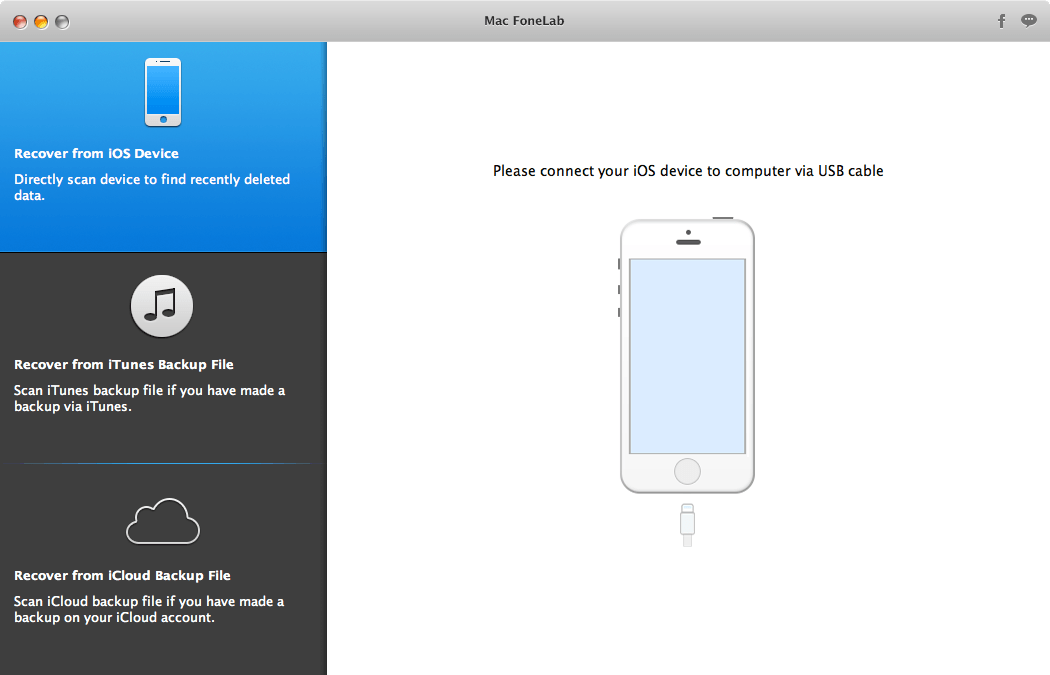

A straightforward recovery application that makes it easy for you to browse the content of your iOS device and backup files in order to restore lost data. Mac FoneLab is a smooth-running and intuitive macOS application designed to help you effortlessly recover lost data directly from your iPhone, iPad and iPod touch or from your iCloud and iTunes backup files.
With Mac FoneLab’s help you’ll be able to retrieve lost photos, contacts, messages, call entries, calendar events, notes, reminders, Safari bookmarks and other important data from your iOS device.
From Mac FoneLab’s user-oriented main window, you can easily decide from where you want to retrieve data and choose to recover directly from your iOS device, iTunes or iCloud backup file. Once the iOS device or backup file is scanned, you can browse its content and preview the retrieved data.
What is more, the Mac FoneLab app groups the collected data into different categories that you can easily access from the left side panel.
Retrieve data from iTunes backup
Mac FoneLab helps you to easily recover data from iTunes backup, as long as you have made a backup of your iDevice with iTunes. It assists you retrieving 8 types of deleted backup files, including Contacts, Messages, Call History, Calendar, Notes, Reminders, Safari Bookmarks and Whatsapp data. In addition, you can extract your Camera Roll, Photo Library, Photo Stream, Message Attachments and Voice Memos from existing backup files.
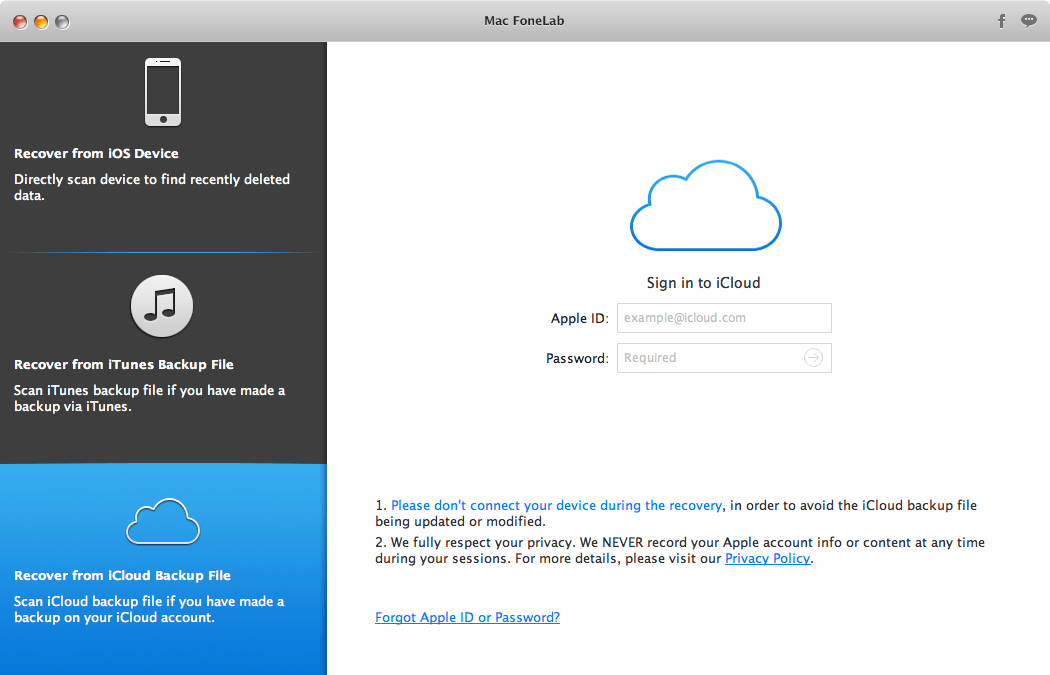
Restore data from iCloud backup files
If you can't recover deleted data from iPhone/iPad/iPod directly, or can't recover from iTunes backup files, you can try this recovery method - recovering from iCloud backup files. You can sign in your iCloud account from FoneLab interface and restore the deleted files from the iCloud backup files.
Save time and check the data before recovering
Apart from its three recovery modes, Mac FoneLab also enables you to preview the lost data info before recovery, which is especially useful when you need to recover only certain files. You'll find all scanned files displayed in the preview window in category; both lost and existing files are visible. Just click the file type to see detailed information. This will make your work much more efficient and save you a lot of time!
Version 10.6.28:
- Release notes were unavailable when this listing was updated.
Frequently asked questions
How do I install the app?
Mount the image, drag the app into the "Applications" folder and launch it. If the system blocks the launch, allow it in "System Settings → Privacy & Security".
The app is damaged or won't launch
Reinstalling from a fresh image usually helps. Make sure your macOS version matches the one listed in the compatibility specs.
How do I update?
Download the new version from the site and install it over the current one — your settings will be preserved.
The download link doesn't work
Try a mirror or a download manager. For large files the browser often drops the connection.
How do I completely remove the app?
Use an uninstaller utility — it cleans up the service files that remain after moving the app to the trash.





Choose a download source
Aiseesoft Mac FoneLab 10.6.28 · 77.35 MB
Previous versions
Aiseesoft Mac FoneLab 10.6.28
Previous versions are available to registered users.