
MenuGlide 1.0
Mac menu bar app switcher with pinned apps and folders
Screenshots
Click to enlarge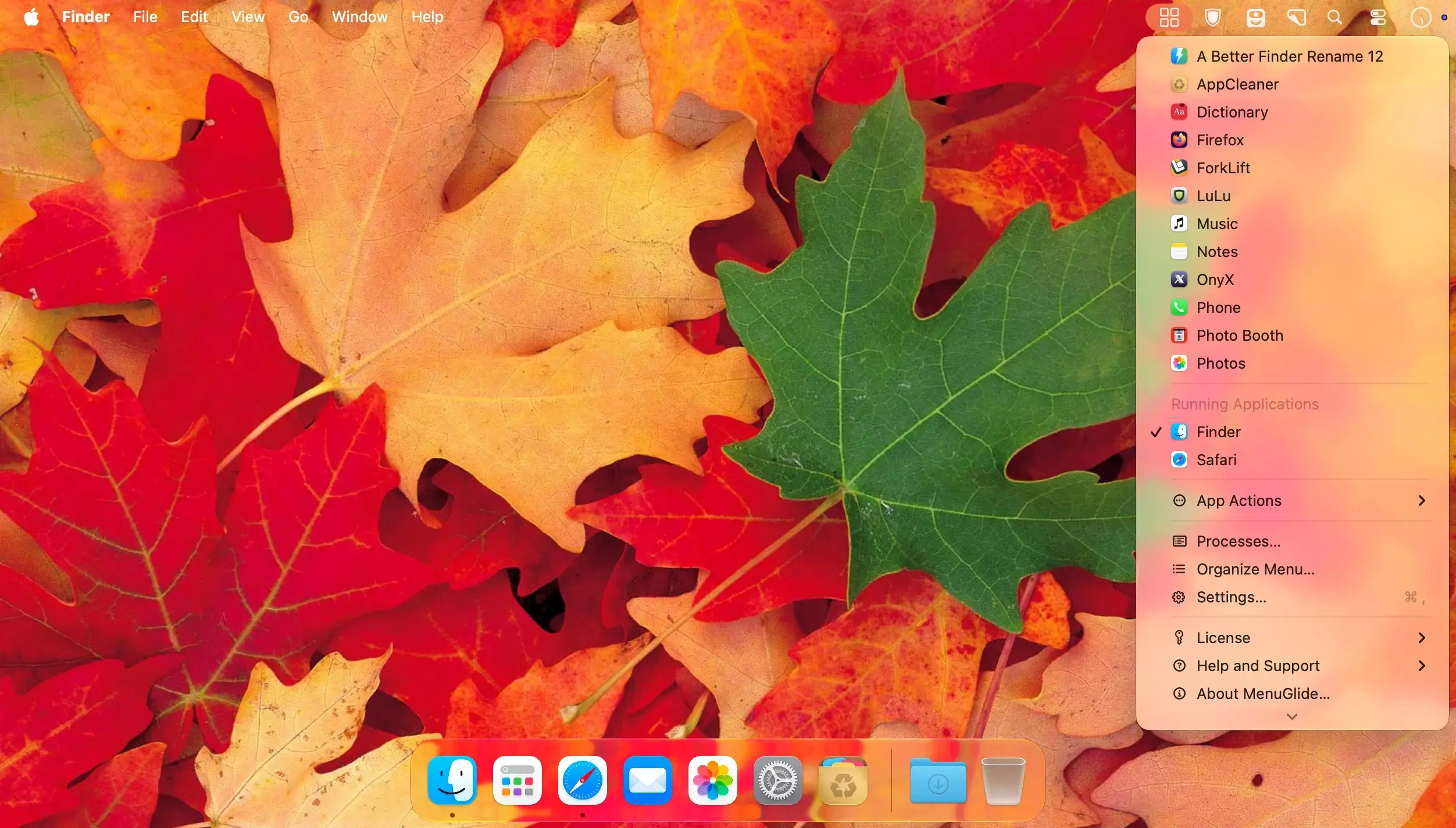
Description
MenuGlide brings a classic application menu to modern macOS, so your apps and folders are one click away in the menu bar. Switch to running apps, keep favourites pinned when they are closed, and arrange everything in the order that suits the way you work.
Your apps, within reach
Switch to a running app with a click. Pinned apps stay in the menu whether they are open or closed, and useful actions stay close in an application submenu.
A menu in your order
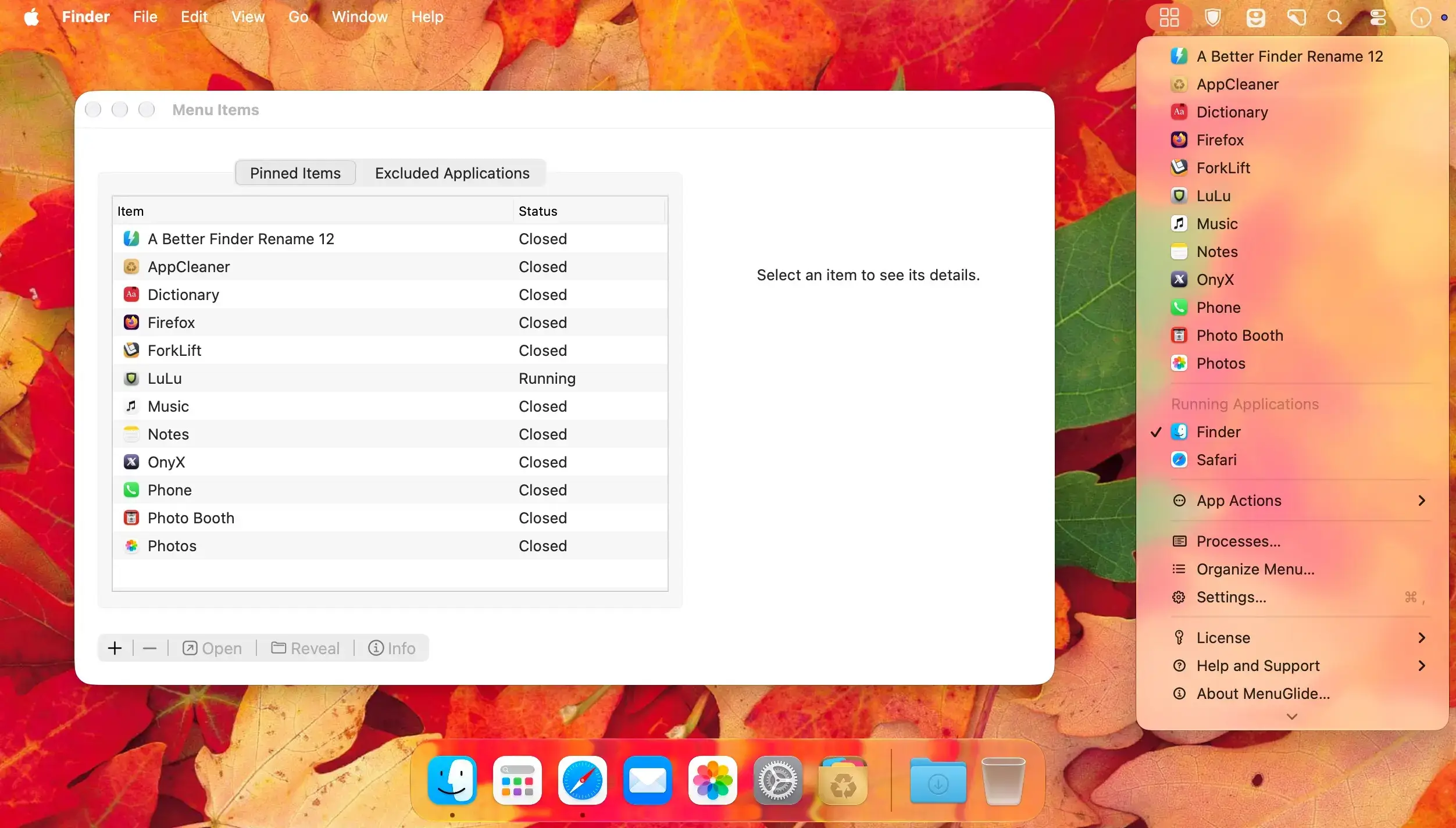
Arrange pinned apps, folders, labels and separators. Browse folder contents from the menu or jump straight to Finder. Your menu can be as simple or as organized as your day needs.
Know what needs attention
Check memory use, inspect app information or capture a Sample Activity report. Compact badges flag unresponsive apps and sustained CPU or memory use in the main menu and the Processes list. Optional notifications take you straight to the process's Info window.
Features
- Pinned apps: Keep applications in the menu in your chosen order, with your own labels, whether they are open or closed.
- App Actions: Reach Hide, Show, Quit, Relaunch, Reveal and other applicable commands from the application submenu.
- Folder shortcuts: Browse up to 100 sampled entries and ten levels of a pinned folder, or use Show in Finder to open the complete folder.
- Live process information: View memory use and responsiveness, search or sort running apps and other processes, and open Info for a closer look.
- Resource warnings: Spot unresponsive apps and sustained CPU or memory use with compact badges.
- Optional resource alerts: Turn on native macOS notifications for sustained high CPU or memory use, and click an alert to open Info for that process. Monitor graphical apps, or include your own background processes.
- Sample Activity: Capture a diagnostic sample where macOS permits it, review or save the report, and open Activity Monitor to investigate further.
- Hide All: Clear applications from view and bring an already-open Finder forward while your apps keep running.
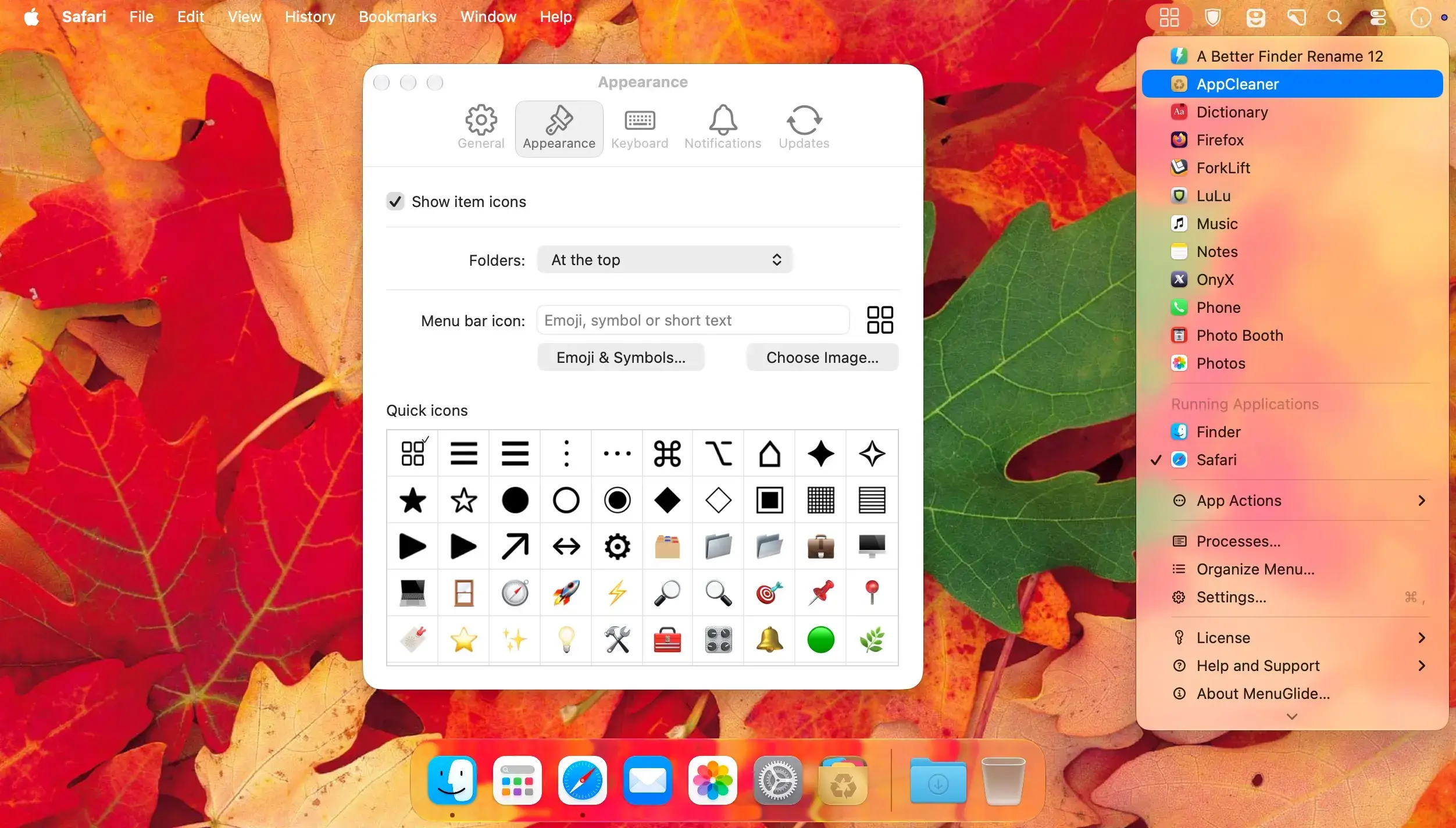
- Custom menu bar item: Choose an icon, emoji, symbol, custom image or short text label for MenuGlide.
- Keyboard shortcut: Record an optional key combination to open the menu, and clear it whenever you prefer.
- Menu control: Customize table columns and keep unwanted applications out of the menu.
Comments
No comments yet. Be the first.