
VectorView 4.2.2
VectorView: Professional Vector File Viewer and Design Library Manager
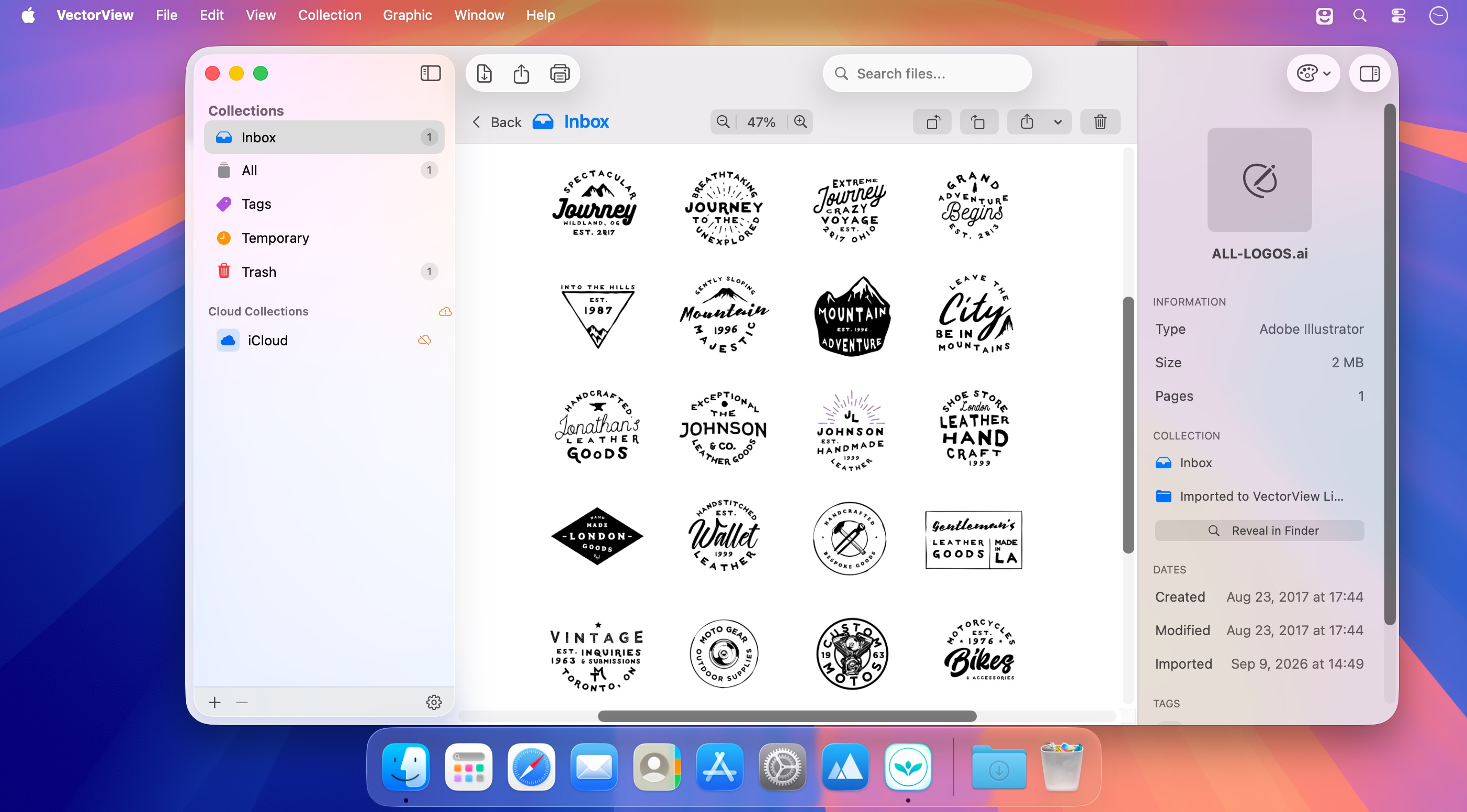
Open, preview, organize, and export professional design files directly on your Mac—without launching complex creative applications.
VectorView gives designers, print shops, and creative teams convenient access to a wide range of vector, raster, CAD, and camera formats. Quickly preview client artwork, manage design libraries, and find the files you need with powerful organization tools.
Open More File Formats
View files from popular professional workflows, including:
- CorelDRAW: CDR, CMX, WPG
- Adobe Illustrator: AI
- Encapsulated PostScript: EPS, EPSF, EPSI
- PostScript: PS
- Autodesk: DXF
- Photoshop: PSD
- Windows Metafile: WMF, EMF, EMZ
- Microsoft Visio: VSD, VSS, VSDX, VSSX
- SVG, PDF, PNG, JPEG, TIFF, and other common image formats
- RAW camera files from Sony, Canon, Nikon, Olympus, Fujifilm, Samsung, Panasonic, Pentax, Epson, Minolta, and Sigma
Organize Your Design Library
Keep your files easy to manage with tools designed for professional workflows:
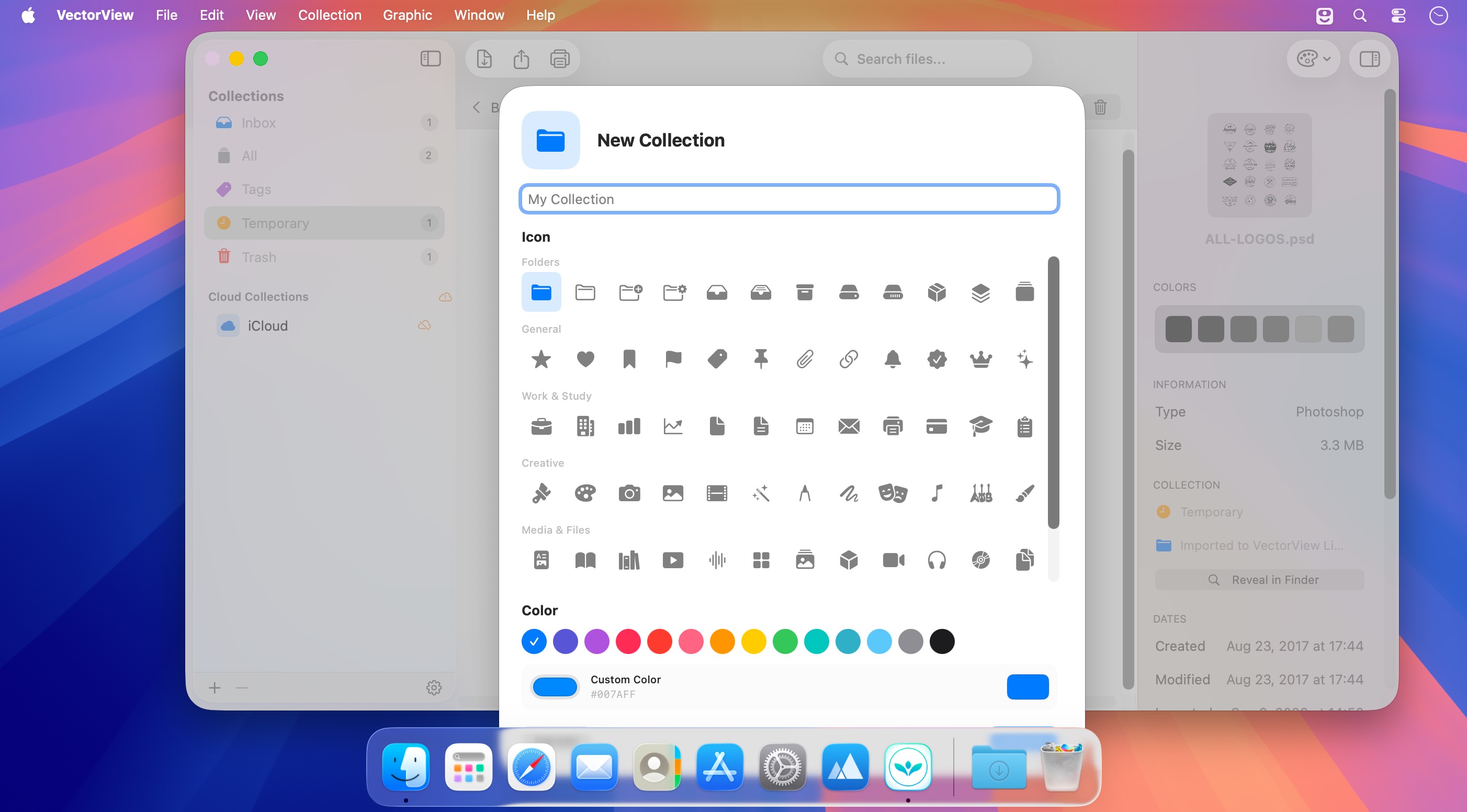
- Smart Collections for projects, clients, and categories
- Color-coded organization with custom icons
- Fast search and filtering
- Quick previews without opening heavy design software
- Batch file operations for efficient management
Export with Professional Control
With VectorView Pro, export your files to SVG, PNG, JPG, PDF, or TIFF. Customize resolution with precise DPI controls and set exact dimensions for print, web, and production workflows.
Built for Mac
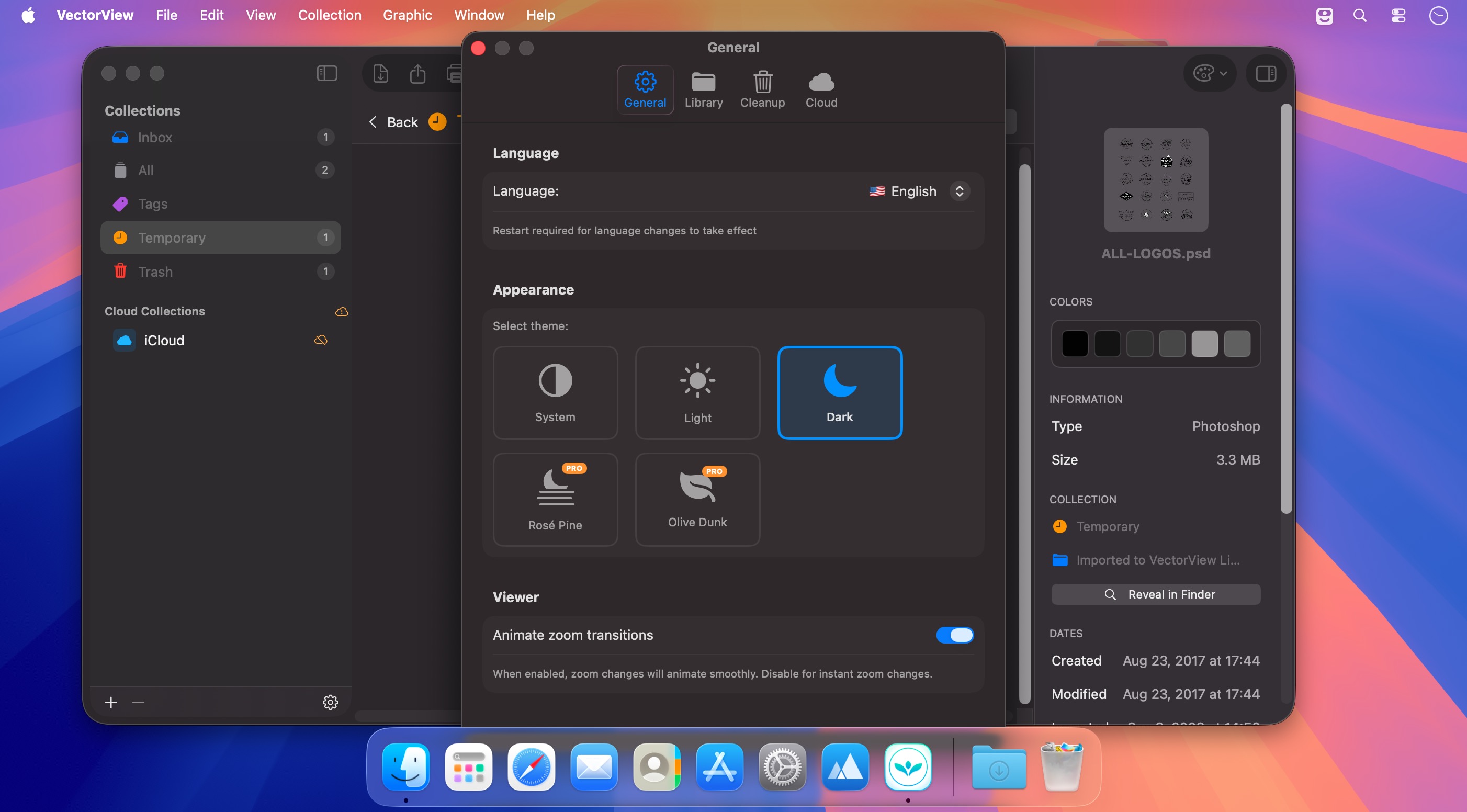
VectorView is designed specifically for macOS, with a familiar native interface and optimized performance on Apple silicon and Intel Macs. It works seamlessly with Finder and Spotlight while keeping file processing local to your Mac.
Whether you manage client artwork, receive files from multiple platforms, or maintain a large collection of design assets, VectorView helps you preview and organize your creative files faster.
Version 4.2.2:
Fixed changing Library location.
Frequently asked questions
How do I install the app?
Mount the image, drag the app into the "Applications" folder and launch it. If the system blocks the launch, allow it in "System Settings → Privacy & Security".
The app is damaged or won't launch
Reinstalling from a fresh image usually helps. Make sure your macOS version matches the one listed in the compatibility specs.
How do I update?
Download the new version from the site and install it over the current one — your settings will be preserved.
The download link doesn't work
Try a mirror or a download manager. For large files the browser often drops the connection.
How do I completely remove the app?
Use an uninstaller utility — it cleans up the service files that remain after moving the app to the trash.





Choose a download source
VectorView 4.2.2 · 47.91 MB