
Dropover 5.3.0
Dropover: file transfer app for drag-and-drop shelves
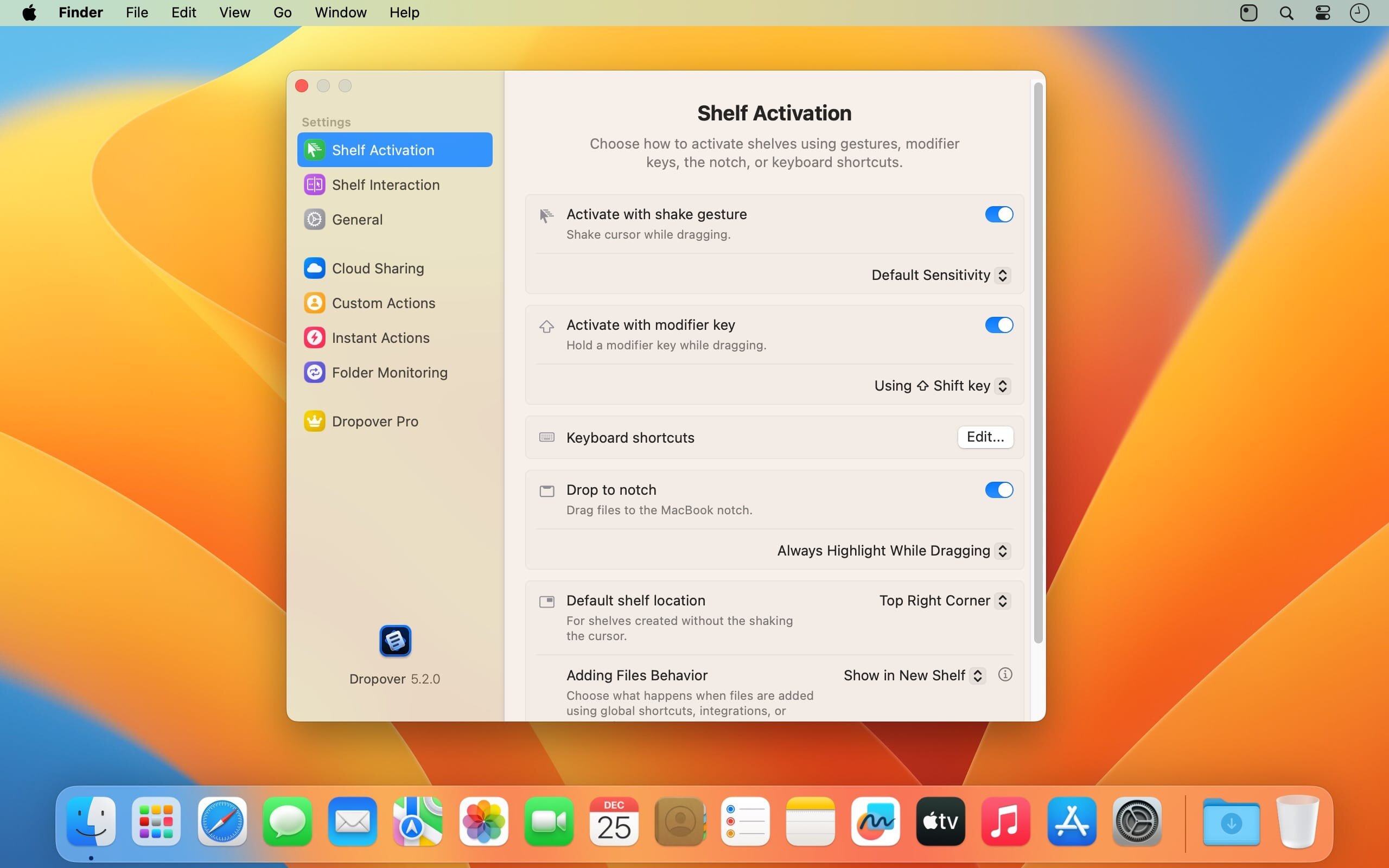
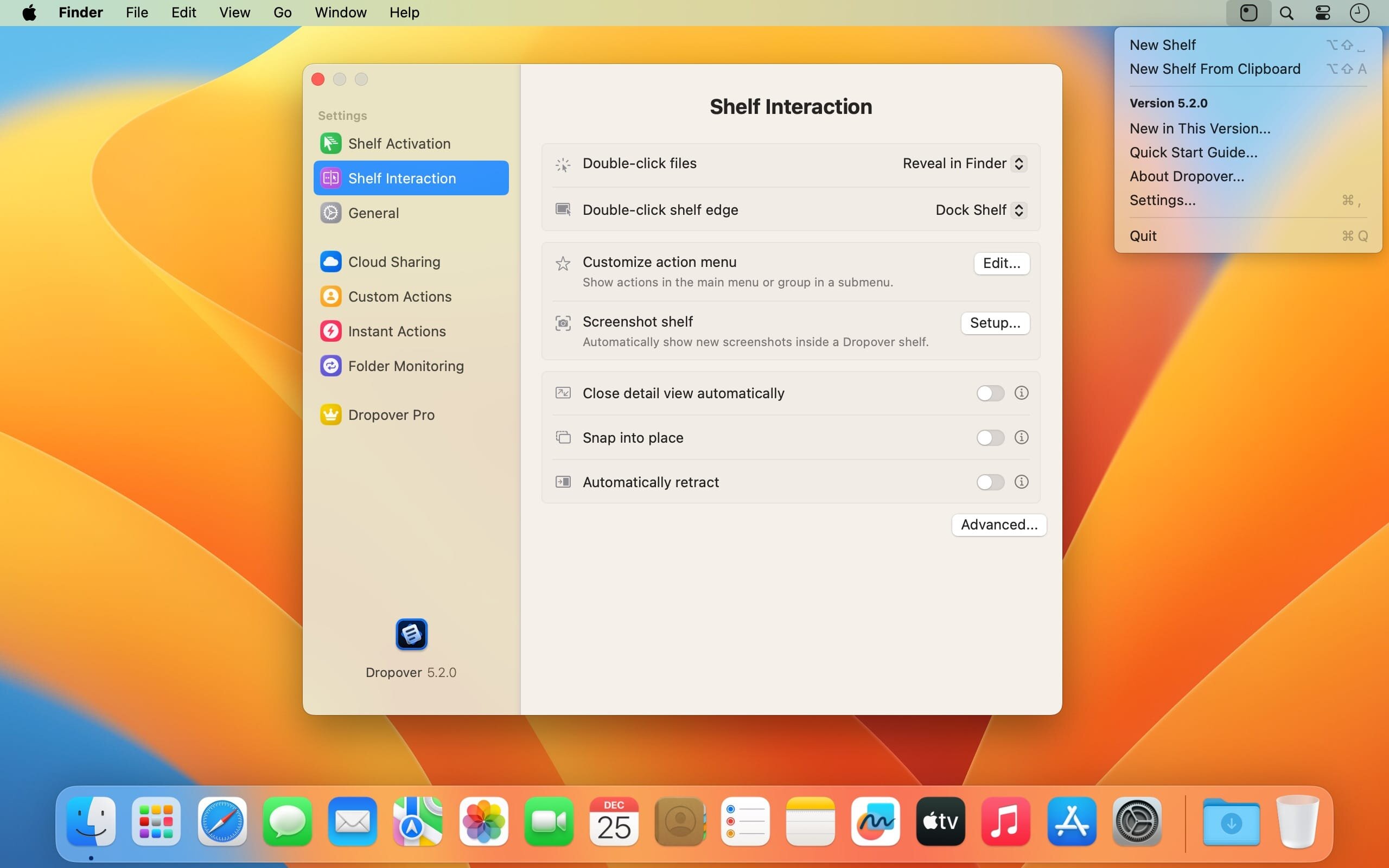
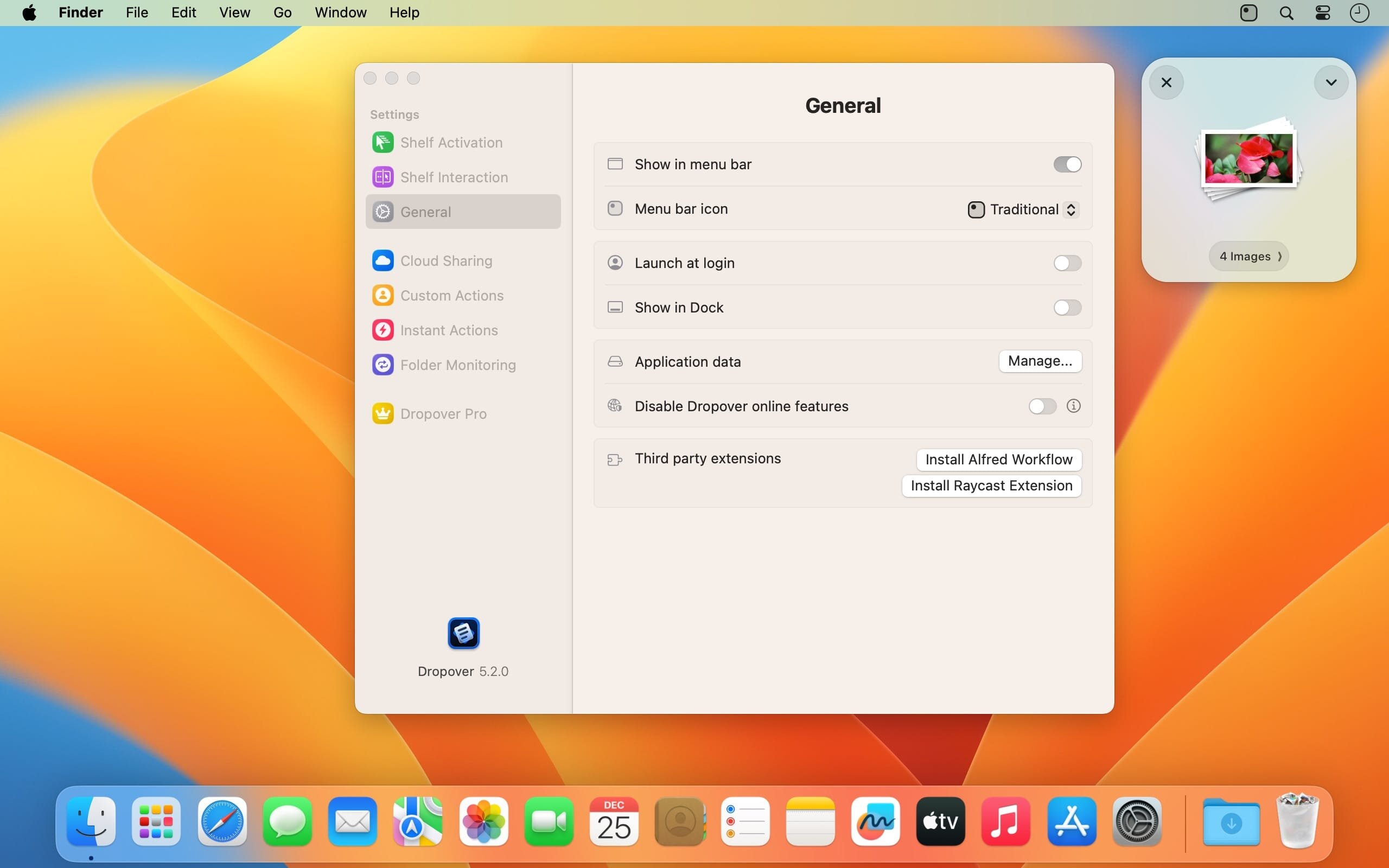
Finder could definitely use some improvements when it comes to moving files from one location to another, as it's not uncommon to find yourself juggling several windows just to keep items from different folders close at hand.
Dropover was designed to help with this, and much more. It's a fairly simple app that allows you to create "shelves" where you can place files, folders, images, and even text. These can then be moved to other locations with drag and drop, or just uploaded or shared with others.
Just shake the mouse cursor to create a shelf
When you want to save something, just shake the mouse cursor while dragging the item and drop it in the shelf that appears. All files and folders are supported, as well as text snippets and images from the web. You can load multiple items at once or even add more later.
The app allows you to create multiple shelves, which remain on top of all other windows for easy access. They can also be created with a hotkey or from the menu bar. To move something from the shelf, just drag the item to a different location on your Mac.
Upload and share content
From the new workspace, you can send files via Mail or Messages, as well as add images to Photos. If you use iCloud Drive or log in to your Dropbox account, Dropover can generate shareable links for anything you place in a shelf.
Accessible workspace for managing files and web content
This app can make a number of tasks easier, and it's ideal for users who find it hard to manage multiple files, web images or text snippets that need to be shared or moved. Essentially, it provides you with a convenient place to store items temporarily until you need them for something else. It is very intuitive, and it has a multitude of potential uses.
Version 5.3.0:
New:
- Adds support for macOS Golden Gate, including an updated appearance for shelves and controls.
- Adds Action Suggestions. Hold Option while a shelf is active to see and repeat recently used actions.
- Adds Intelligent Shelf Names, which use on-device intelligence to name shelves based on their contents. The feature is available on supported Macs and can be turned off in Settings > Shelf Interaction.
- Adds support for dragging messages directly from Mail.
- Adds support for Italian and Spanish.
Improvements:
- Moves action and sharing settings into panels attached to the shelf. Panels stay open when you switch apps, resize to fit their content, and offer improved keyboard navigation.
- Shows completion messages below the shelf so you can keep working without dismissing them. Adds haptic feedback on supported Macs.
- Makes pinned and recent shelves directly accessible from the menu bar, without opening a submenu.
- Adds a processing delay option to Folder Monitoring to collect files that arrive together and give other apps time to finish writing them.
- Improves reliability when accessing previously selected files and folders.
- Improves action handling, shelf visibility, and overall reliability.
- Improves app detection and management in Ignored Applications.
Fixes:
- Fixes an issue that prevented PNG files from being compressed on Intel-based Macs.
- Fixes a crash and reduces memory usage when opening the detail view.
- Fixes an issue where apps in Ignored Applications might not be recognized when their process name differed from their app name.
- Fixes blurry text in the button below a shelf's contents.
- Fixes an issue that could cause Dropover to quit unexpectedly when opening S3 settings.
- Fixes an issue where actions could not be canceled while being prepared.
- Fixes an issue where opening files with Dropover could ignore the Adding Files Behavior setting.
- Fixes an issue where Snap into place could move a shelf downward unexpectedly.
- Fixes an issue where a shelf could appear too close to the notch.
- Fixes an issue where batch renaming did not correctly include the counter in previews or renamed file names.
- Fixes several shelf layout issues, including overflowing titles and incorrect spacing.
Frequently asked questions
How do I install the app?
Mount the image, drag the app into the "Applications" folder and launch it. If the system blocks the launch, allow it in "System Settings → Privacy & Security".
The app is damaged or won't launch
Reinstalling from a fresh image usually helps. Make sure your macOS version matches the one listed in the compatibility specs.
How do I update?
Download the new version from the site and install it over the current one — your settings will be preserved.
The download link doesn't work
Try a mirror or a download manager. For large files the browser often drops the connection.
How do I completely remove the app?
Use an uninstaller utility — it cleans up the service files that remain after moving the app to the trash.





Choose a download source
Dropover 5.3.0 · 47.65 MB
Previous versions
Dropover 5.3.0
Previous versions are available to registered users.