
VirtualBuddy 2.2 Beta 5
irtualBuddy: macOS virtualization software for testing macOS on Apple Silicon.
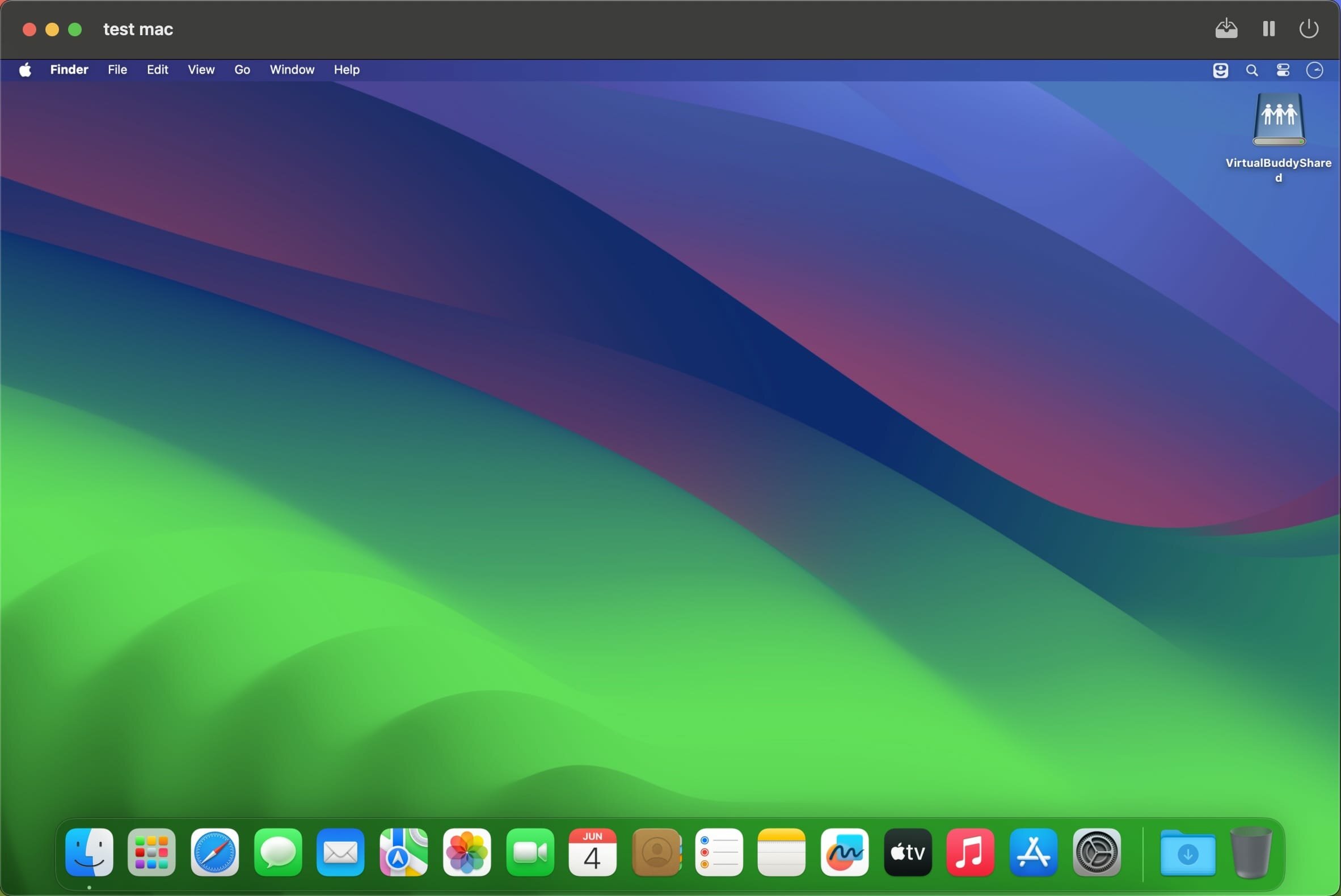
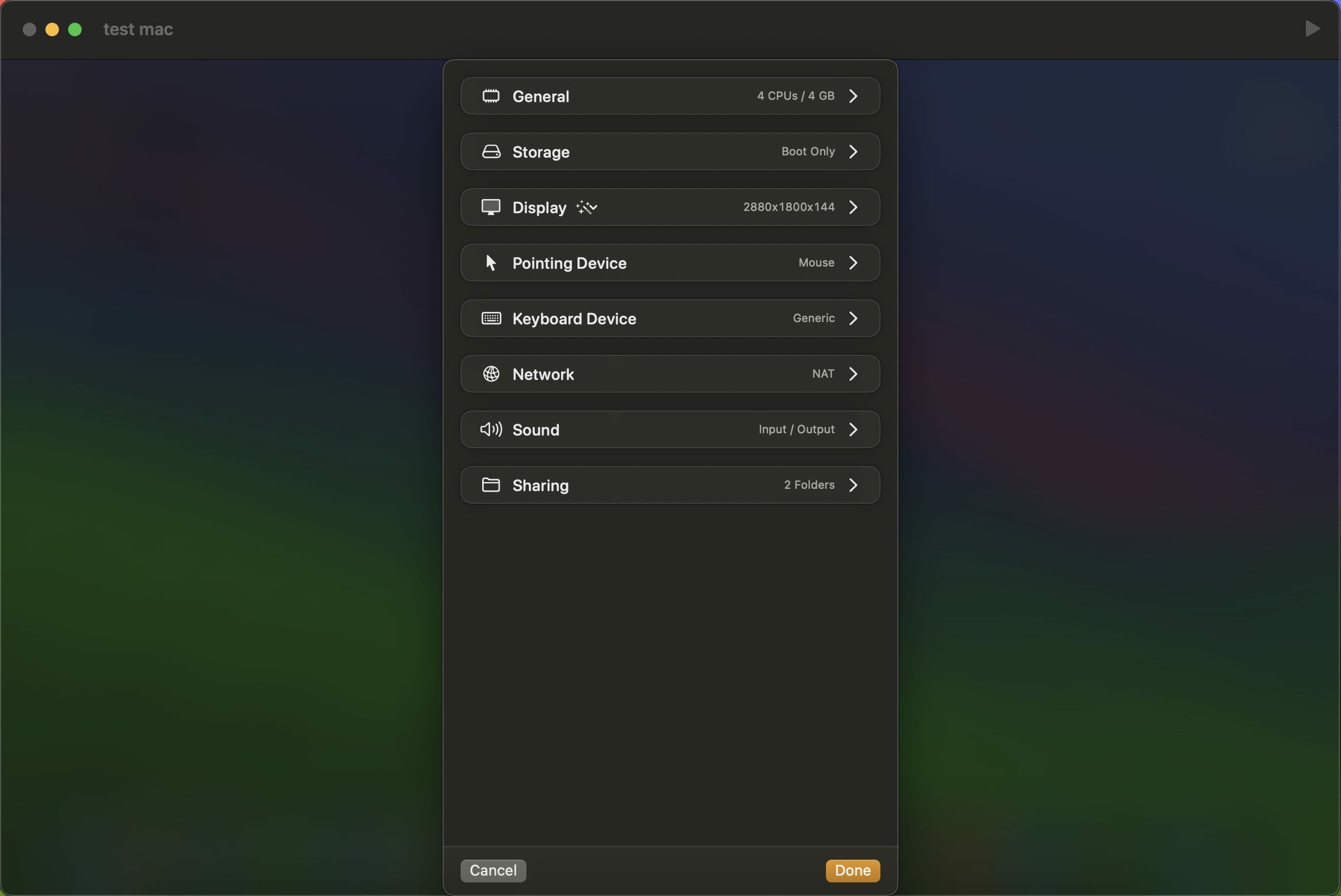

VirtualBuddy can virtualize macOS 12 and later on Apple Silicon, with the goal of offering features that are useful to developers who need to test their apps on multiple versions of macOS, especially betas.
VirtualBuddyGuest app
VirtualBuddy automatically mounts a disk image with the VirtualBuddyGuest app when you boot up a virtual machine running macOS. To install the VirtualBuddyGuest app, just select the "Guest" disk on Finder's side bar then double-click the "VirtualBuddyGuest" app icon.
VirtualBuddyGuest enables clipboard sharing between host and guest and automatic mounting of the shared folders configured for the virtual machine.
Taking Advantage of APFS
Sometimes when trying things out in the OS installed in one of the virtual machines, things might break, requiring a full install of the guest operating system again, which is a pain.
Thanks to APFS cloning though, you can just duplicate a virtual machine within your library folder (using Command + D in Finder), and the copy will take almost no additional disk space. This way you can have a "clean" copy of your VM, do whatever you want with a duplicate of it, and then throw the copy away and re-duplicate the clean version if things break.
Sharing Folders Between Host and Virtual Machine
You can share folders from your Mac to the Virtual Machine and vice-versa using regular macOS file sharing that can be configured in System Preferences/Settings.
When both the Virtual Machine and the host are running macOS 13 or later, it's possible to share folders directly by configuring them in the VM settings within VirtualBuddy before booting up the VM.
Version 2.2 Beta 5:
- Adds a new socket-based implementation of the VirtualBuddyGuest app protocol for faster and more reliable clipboard sharing; requires guests running macOS 14 or later
- Adds new toggles to the virtual machine window toolbar that can be used to toggle mouse and keyboard input on/off
- Addresses an issue where boot deep links would not work when the virtual machine window was already open
- Adds support for managed preferences that can be used to restrict shared folders, USB passthrough, bridged networking, guest app, and microphone input
Frequently asked questions
How do I install the app?
Mount the image, drag the app into the "Applications" folder and launch it. If the system blocks the launch, allow it in "System Settings → Privacy & Security".
The app is damaged or won't launch
Reinstalling from a fresh image usually helps. Make sure your macOS version matches the one listed in the compatibility specs.
How do I update?
Download the new version from the site and install it over the current one — your settings will be preserved.
The download link doesn't work
Try a mirror or a download manager. For large files the browser often drops the connection.
How do I completely remove the app?
Use an uninstaller utility — it cleans up the service files that remain after moving the app to the trash.


Choose a download source
VirtualBuddy 2.2 Beta 5 · 20.89 MB
Previous versions
VirtualBuddy 2.2 Beta 5
Previous versions are available to registered users.