Virtual Wall 2.2
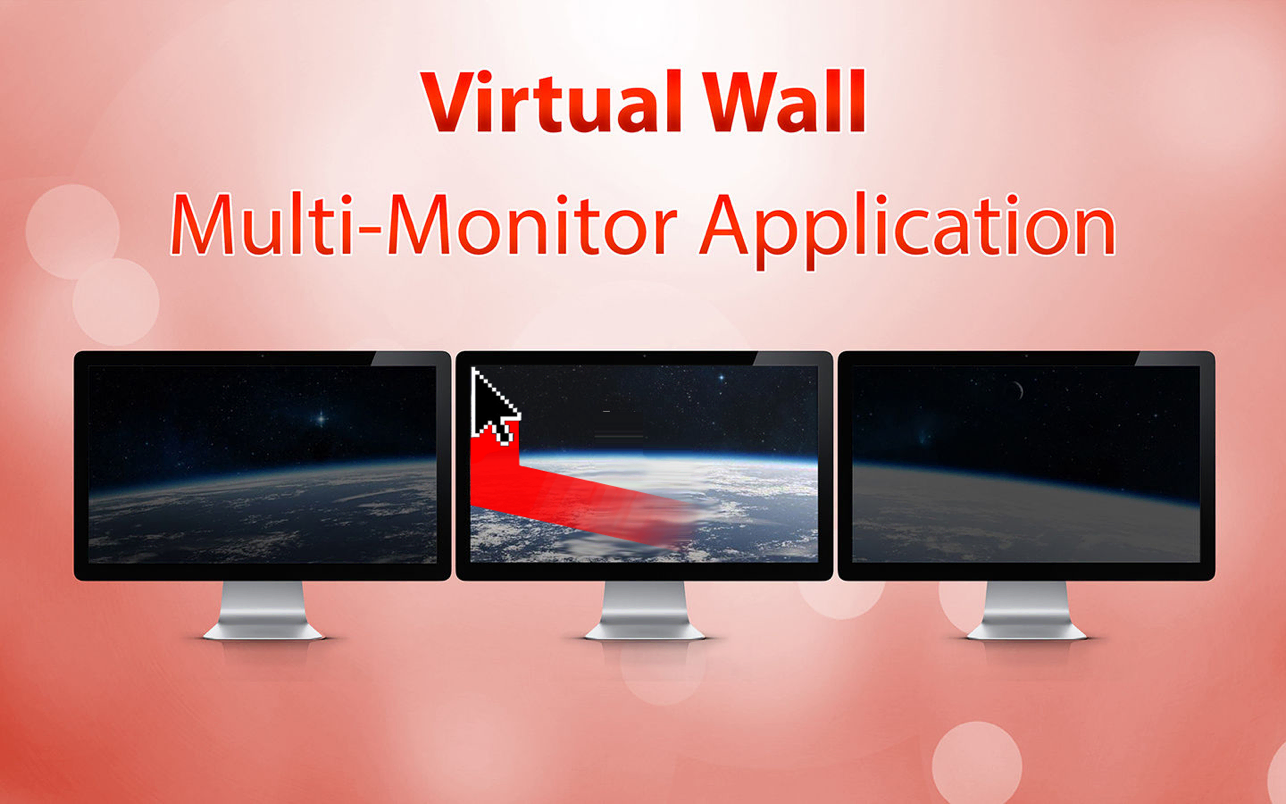
Virtual Wall confines the mouse cursor in one monitor per time without turning off or disconnecting the unused other monitors. Virtual Wall prevent to go in the near monitor accidentally. Furthermore it's possible to set a ‘shadow’ on unused monitors until they are fully dark.
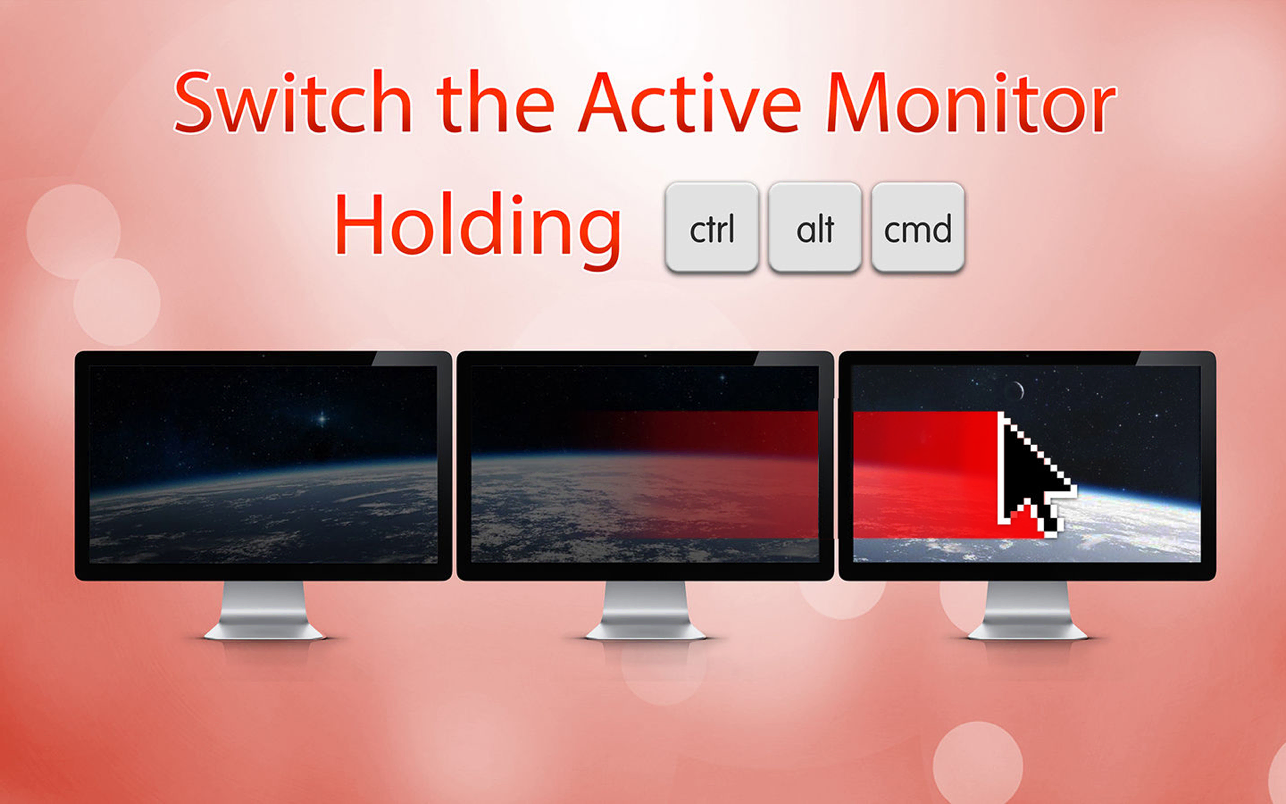
- Keep holding CTRL + ALT + CMD to temporarily disable the function for changing the active monitor.
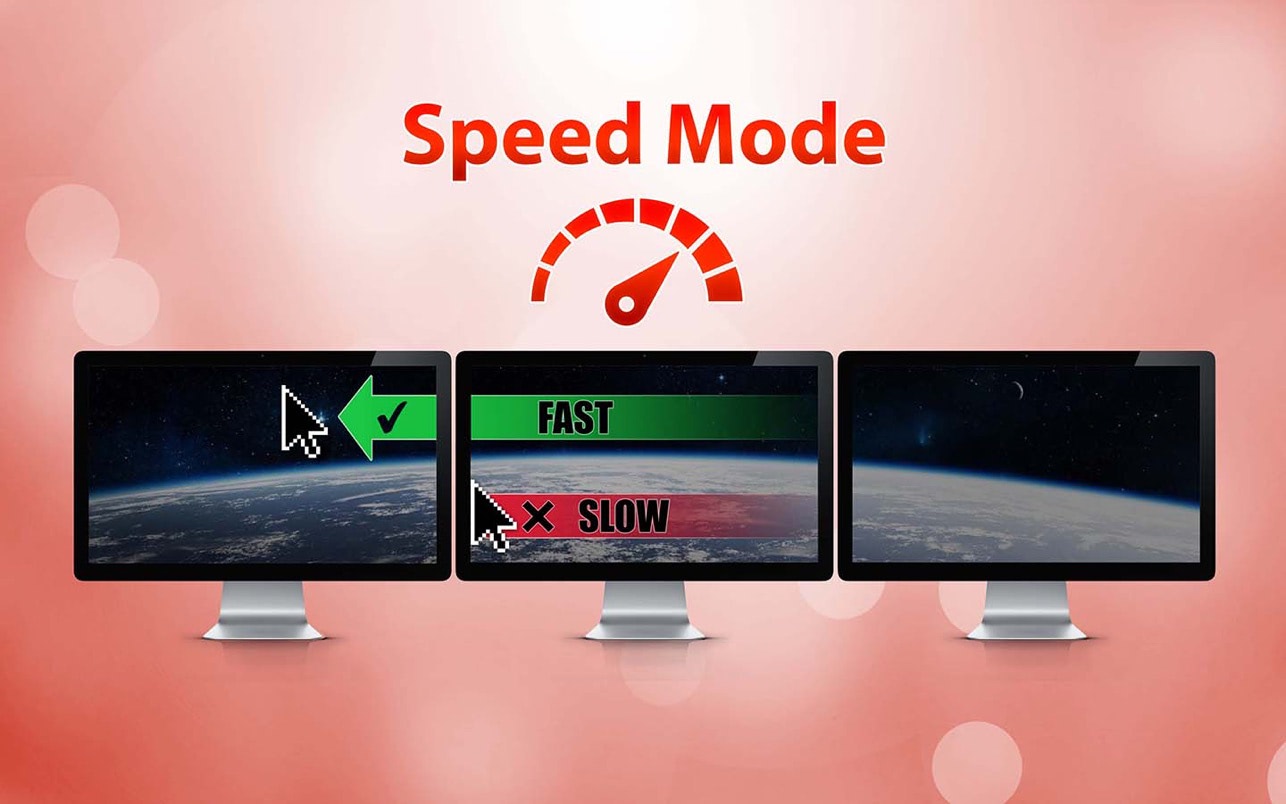
- Change the active monitor by using the mouse speed, thanks to the new Speed Mode.
- Everything is manageable from the menu bar icon on the top right.
- Custom Keyboard Shortcut to Enable/Disable Virtual Wall without clicks.
Notice: Virtual Wall is useful only for multi monitor users. The app is not useful with the 'Mirror Displays' mode. For using the Speed Mode, the monitors should be in horizontal sequence only.
Version 2.2
- Bugfixes
Frequently asked questions
How do I install the app?
Mount the image, drag the app into the "Applications" folder and launch it. If the system blocks the launch, allow it in "System Settings → Privacy & Security".
The app is damaged or won't launch
Reinstalling from a fresh image usually helps. Make sure your macOS version matches the one listed in the compatibility specs.
How do I update?
Download the new version from the site and install it over the current one — your settings will be preserved.
The download link doesn't work
Try a mirror or a download manager. For large files the browser often drops the connection.
How do I completely remove the app?
Use an uninstaller utility — it cleans up the service files that remain after moving the app to the trash.




Choose a download source
Virtual Wall 2.2 · 2.09 MB