MaxCommander 2.6
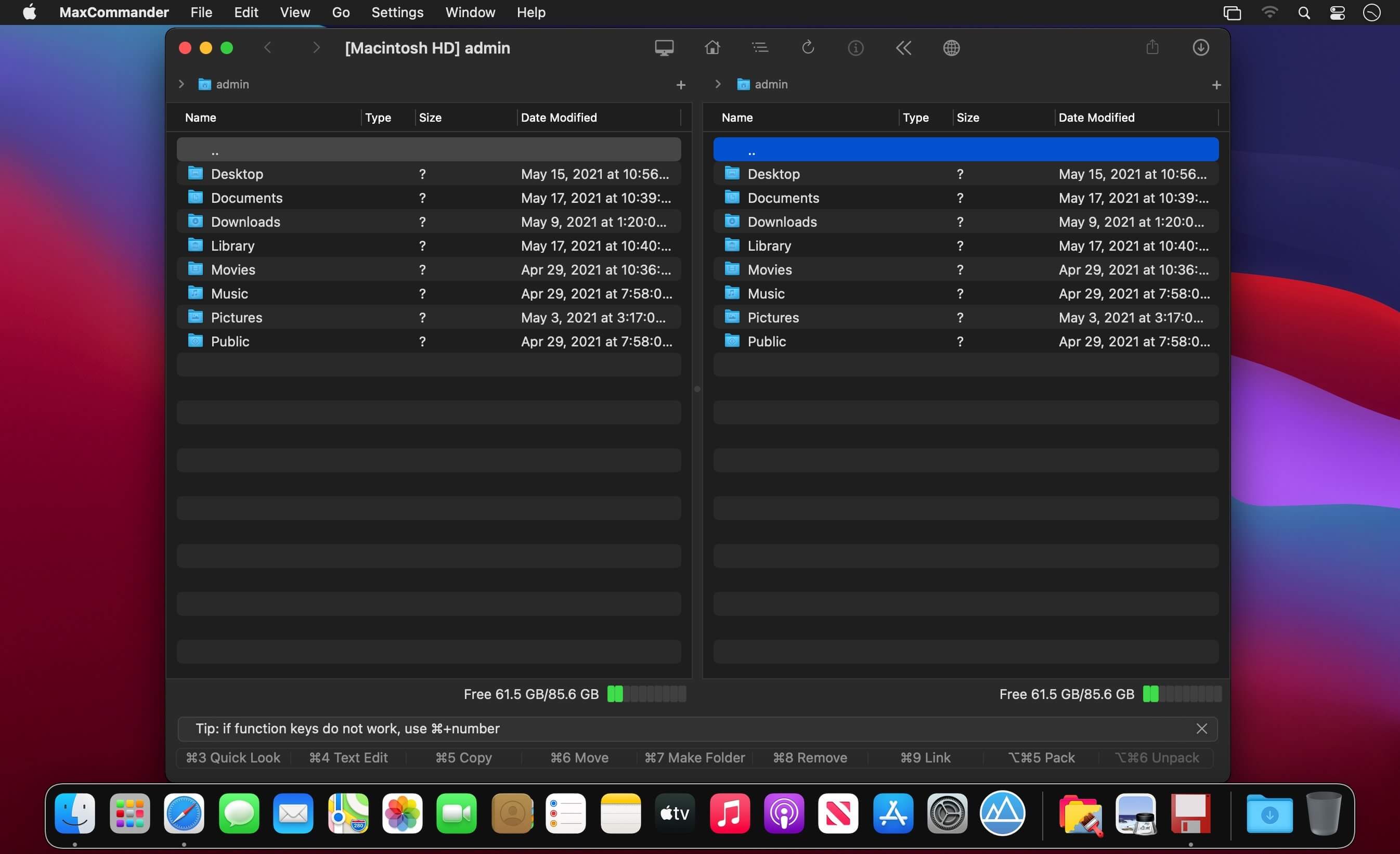


Manage files as always - using two panels and the keyboard (and sometimes the mouse). Introducing the MaxCommander application.
MaxCommander is all you need to manage files on your local drives and remote file servers. The app supports the following operations:
- Browsing folders
- Previewing files with QuickLook
- Editing files
- Copying, moving, deleting, renaming files and folders
- Creating folders
- Creating links
- Packing and unpacking archives
- Searching for files
You can browse and manage content of an archive as it was a folder on a local drive. You can browse, create, modifie, and unpacke archives of these types:
- zip
- 7z
- jar
- tar
- wim
You can browse, create, and unpacke these archive types:
- tgz, taz, tbz2
- gz, bz2, xz
These archives are supported for browsing and unpacking:
- rar, arj, lha, iso, xar, cpio, rpm, cab, z, lzma, adz
- vdi, vmdk, vhd, msi, hfs, fat, sfs, wim, chm
Encrypted 7z, zip and rar archives are also supported.
If you have an archive file created on an operating system that does not use Unicode you can open it in MaxCommander and select the right characters encoding for file names (available for arj, lha/lzh, zip, rar and tar archives).
MaxCommander can connect to file servers and you can manage remote files and folders on such servers. The following servers are supported:
- FTP
- FTPS - implicit FTP over SSL/TLS
- FTPES - explicit FTP over SSL/TLS
- SFTP
- SMB
- AFP
- WebDAV
Files servers for a local network can be discovered using Bonjour.
Version 2.6
- Added a special support for cloud files (showing a cloud icon, options for download and remove local copy)
- The Item Info dialog shows item's size on a disk
- Improved calculation of an operation speed and estimated time to complete
- Added option to display item size along with attached resource fork size
- BUGFIX: When moving to/from FTP/SFTP with following symbolic links, items outside of the source folder that are target by links may be removed
- BUGFIX: Moving items to a tar archive does not remove the source when some of its subitems are symlinks
- BUGFIX: After changing sort column with having „..” selected, the table no longer shows „..” on top
- BUGFIX: „No Spotlight” search skips lines containing non ASCII characters
- BUGFIX: „No Spotlight” search does not work when there are national characters in the search pattern
Frequently asked questions
How do I install the app?
Mount the image, drag the app into the "Applications" folder and launch it. If the system blocks the launch, allow it in "System Settings → Privacy & Security".
The app is damaged or won't launch
Reinstalling from a fresh image usually helps. Make sure your macOS version matches the one listed in the compatibility specs.
How do I update?
Download the new version from the site and install it over the current one — your settings will be preserved.
The download link doesn't work
Try a mirror or a download manager. For large files the browser often drops the connection.
How do I completely remove the app?
Use an uninstaller utility — it cleans up the service files that remain after moving the app to the trash.



Choose a download source
MaxCommander 2.6 · 13.82 MB
Previous versions
MaxCommander 2.6
Previous versions are available to registered users.