
Markster 3.0.12
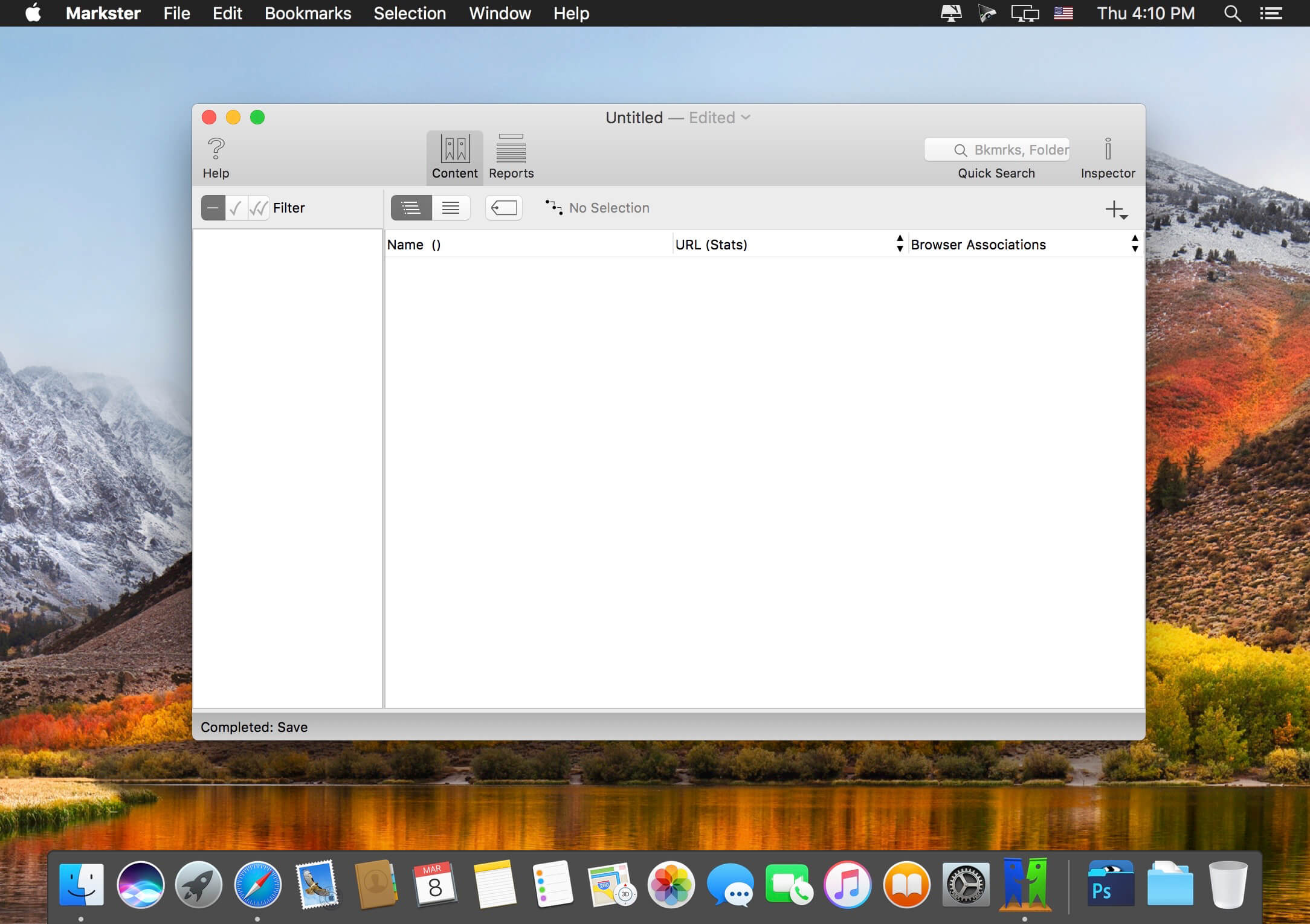

Markster keeps your internet bookmarks in a central store. People use Markster because either:
- The internal bookmarks facilities (Bookmarks Bar, Bookmarks Menu, Favorites Bar, etc.) in their web browser(s) do not meet their feature expectations.
- They use more than one web browser, and prefer to keep all their bookmarks in a separate app, independent of the web browsers, instead of syncing the browsers' internal bookmarks facilities together.
When Markster users want to visit a bookmark they have previously stored, or add a new bookmark, instead of reaching for the Bookmarks Bar or Bookmarks Menu in the browser, they bring up Markster's Floating Menu. Markster provides three ways to do that:
- Global Keyboard Shortcut, for example Cmd-Shift-D.
- Dock Menu
- Status Menulet (right side of Menu Bar)
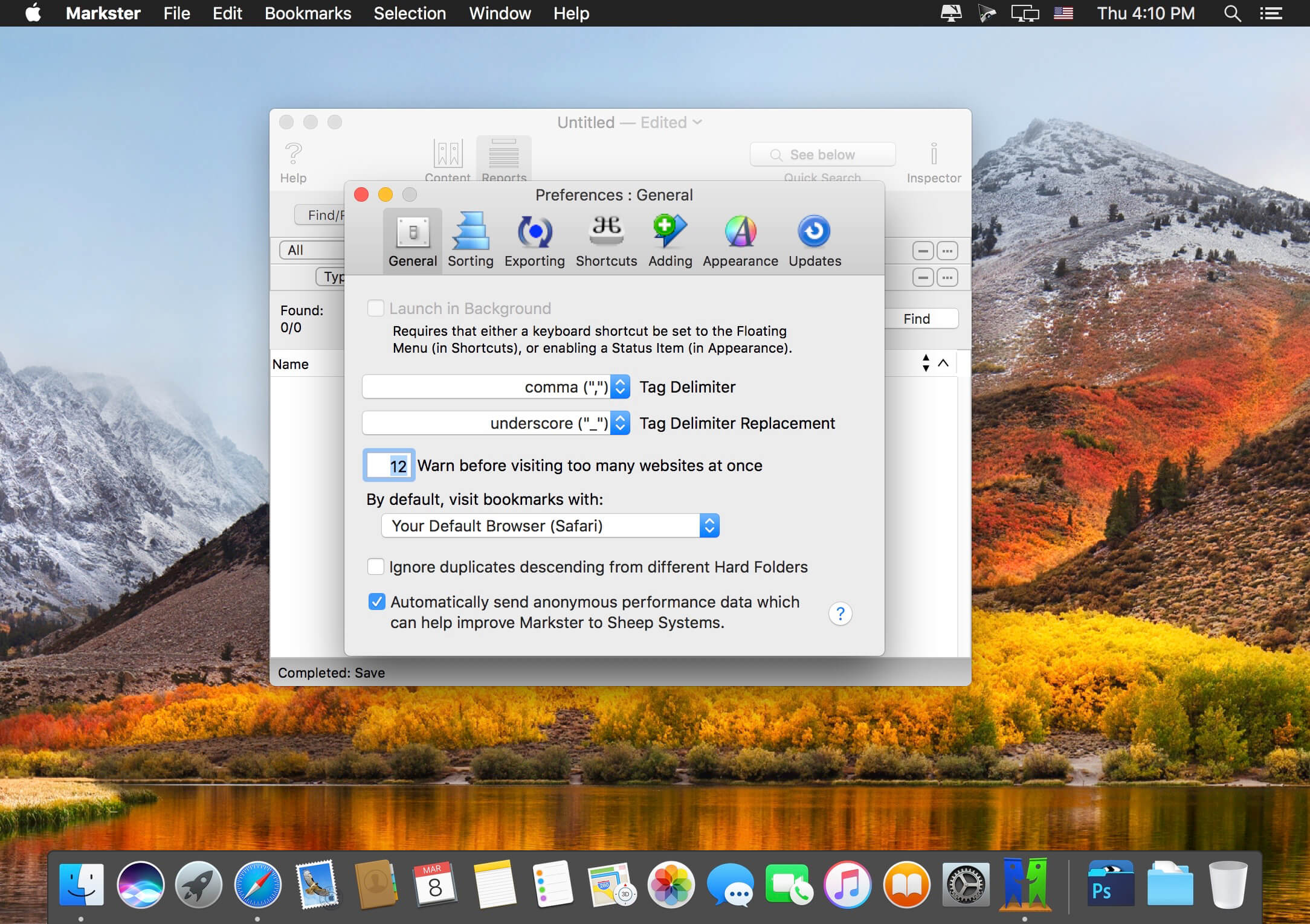
The keyboard shortcut and/or status menulet are enable/disabled in Markster's preferences.
Version 3.0.12:
- Release notes were unavailable when this listing was updated.
Frequently asked questions
How do I install the app?
Mount the image, drag the app into the "Applications" folder and launch it. If the system blocks the launch, allow it in "System Settings → Privacy & Security".
The app is damaged or won't launch
Reinstalling from a fresh image usually helps. Make sure your macOS version matches the one listed in the compatibility specs.
How do I update?
Download the new version from the site and install it over the current one — your settings will be preserved.
The download link doesn't work
Try a mirror or a download manager. For large files the browser often drops the connection.
How do I completely remove the app?
Use an uninstaller utility — it cleans up the service files that remain after moving the app to the trash.




Choose a download source
Markster 3.0.12 · 20.52 MB
Previous versions
Markster 3.0.12
Previous versions are available to registered users.