
EasyCrop 2.6.1
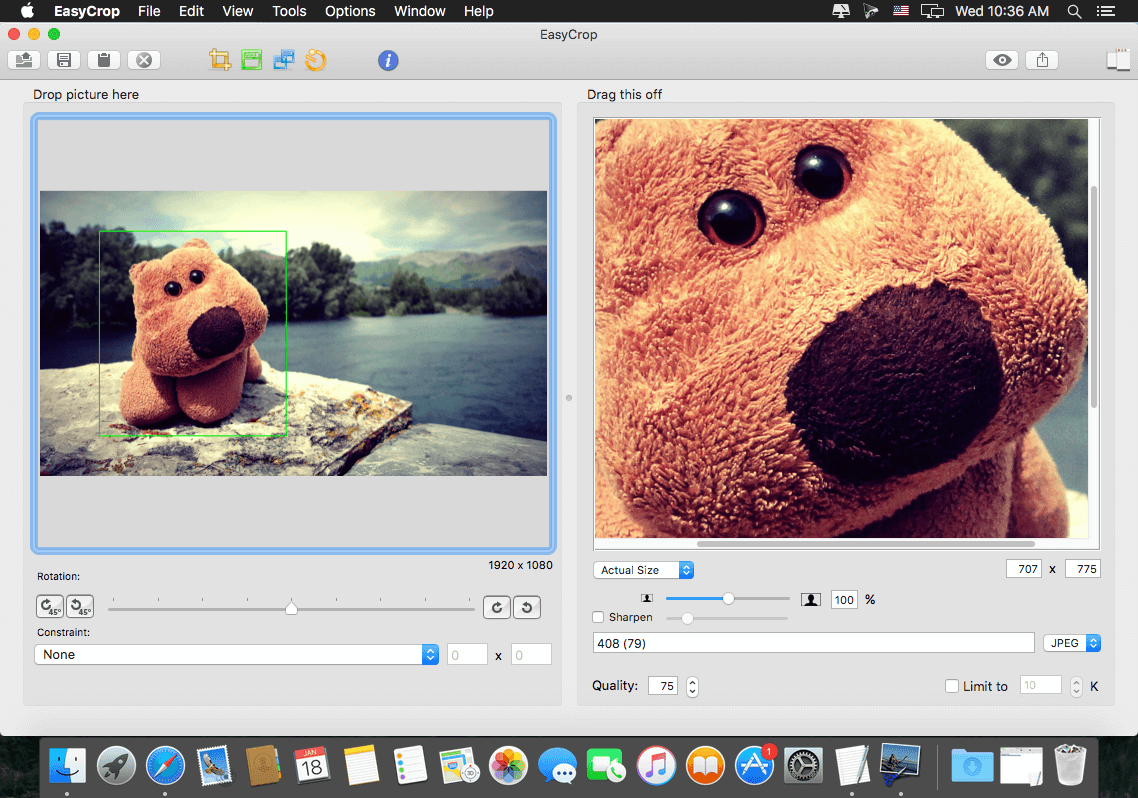
To illustrate the power of EasyCrop, consider the following scenario.
You wish to crop and scale down a photo to send in an email, and you want the file size to be under 50 KB. With a full-featured graphics application, these are the steps you would take:
- Launch the app, and watch the app icon bounce and bounce and bounce ...
- Navigate clumsy file dialogs to reach the file you wish to open.
- Crop the image and scale the result.
- Check file size; if it's too big, back up two steps or try a different JPEG Quality setting.
- Open the folder containing the temporary file in the Finder.
- Drag the file into the email you are composing.
- Finally, delete the temporary file now that you no longer need it.
WHAT’S NEW
Version 2.6.1:
- Added QuickLook support
Screenshots
Frequently asked questions
How do I install the app?
Mount the image, drag the app into the "Applications" folder and launch it. If the system blocks the launch, allow it in "System Settings → Privacy & Security".
The app is damaged or won't launch
Reinstalling from a fresh image usually helps. Make sure your macOS version matches the one listed in the compatibility specs.
How do I update?
Download the new version from the site and install it over the current one — your settings will be preserved.
The download link doesn't work
Try a mirror or a download manager. For large files the browser often drops the connection.
How do I completely remove the app?
Use an uninstaller utility — it cleans up the service files that remain after moving the app to the trash.
VersionEasyCrop 2.6.1
DeveloperYellow Mug Software
CompatibilityOS X 10.7 or later, 64-bit processor
LanguageEnglish
IncludesK





Information
Visitors in the group Guests cannot leave comments on this publication.
Choose a download source
EasyCrop 2.6.1 · 3.77 MB