
Highlights - Export PDF Notes 1.5.1
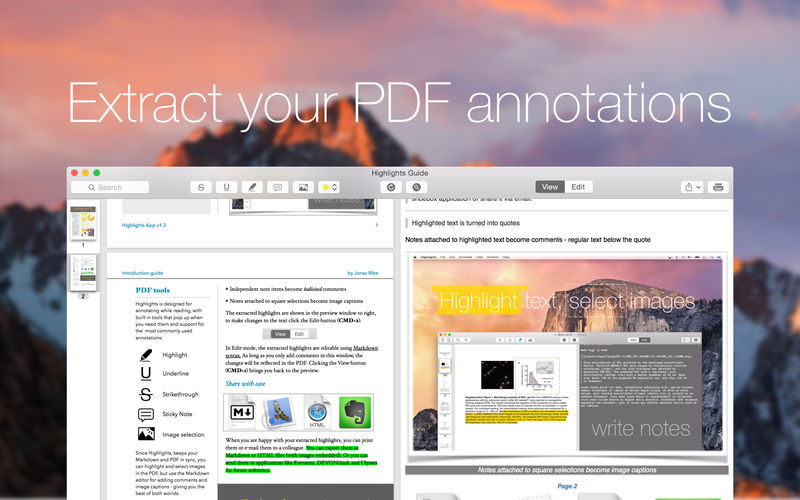
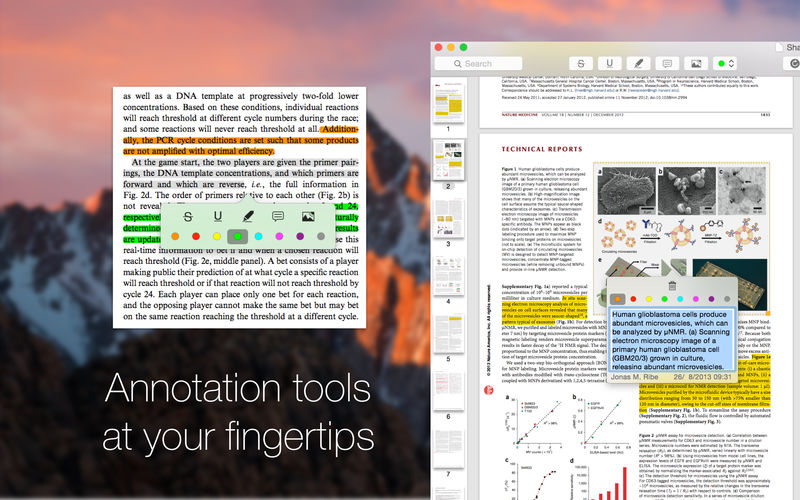
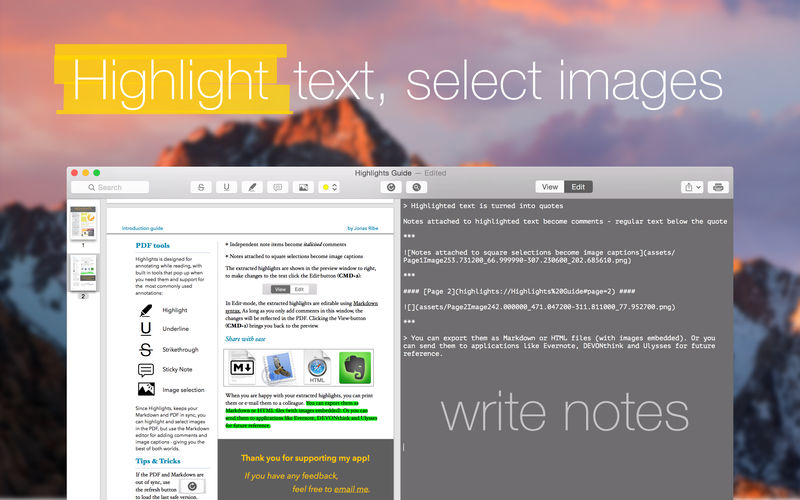
Highlights is a PDF reader that extracts highlighted text, notes, and image selections from PDFs and lets you share them via email, archive them to shoebox applications such as Evernote, DEVONthink, and VoodooPad, or just save them to portable formats such as Markdown and HTML.
PDFs are like paper, abundant and made for reading. And like paper, they are typically the end-point of creation, making them difficult to edit or interact with. However, many of us like to highlight, comment, and make notes on PDFs to give feedback, bring out important parts, or summarize the content. If you end up having to go back through PDFs looking for your own notes, Highlights can be of service. When you open an annotated PDF in Highlights, the annotations are extracted, organized, and neatly formatted.
FEATURES
- Designed for macOS and Retina displays
- No lock-in, all your PDF annotations are embedded and readable by other applications
- Native support for the new TextBundle-format for Markdown with embedded images
- Direct export to shoebox applications: Evernote, DEVONthink, Ulysses, Together, Quiver and nvALT
- Save your notes in a range of formats: Markdown, TextBundle, HTML or PDF
POWER USER FEATURES
- Fetch metadata for scientific articles*
- Lookup references using text underlined with a specific color
- Add OS X tags from text underlined with a specific color
- Integrate with Papers reference manager
Version 1.5.1
New features:
New features:
- Improves compatibility with macOS High Sierra (10.13)
- Adds support for MultiMarkdown equations using MathJax (Disabled by default. Preferences --> Markdown)
- Adds compatibility for exporting to the new version of Ulysses
- Fixes an issue where the app would get very slow when sorting annotations spanning multiple text columns
- Lots of bug fixes
Frequently asked questions
How do I install the app?
Mount the image, drag the app into the "Applications" folder and launch it. If the system blocks the launch, allow it in "System Settings → Privacy & Security".
The app is damaged or won't launch
Reinstalling from a fresh image usually helps. Make sure your macOS version matches the one listed in the compatibility specs.
How do I update?
Download the new version from the site and install it over the current one — your settings will be preserved.
The download link doesn't work
Try a mirror or a download manager. For large files the browser often drops the connection.
How do I completely remove the app?
Use an uninstaller utility — it cleans up the service files that remain after moving the app to the trash.
VersionHighlights - Export PDF Notes 1.5.1
DeveloperJonas Myren Ribe
CompatibilityOS X 10.10 or later, 64-bit processor
LanguageEnglish
IncludesK'ed by TNT


Information
Visitors in the group Guests cannot leave comments on this publication.
Choose a download source
Highlights - Export PDF Notes 1.5.1 · 8.16 MB