
App Cleaner Pro 4.5


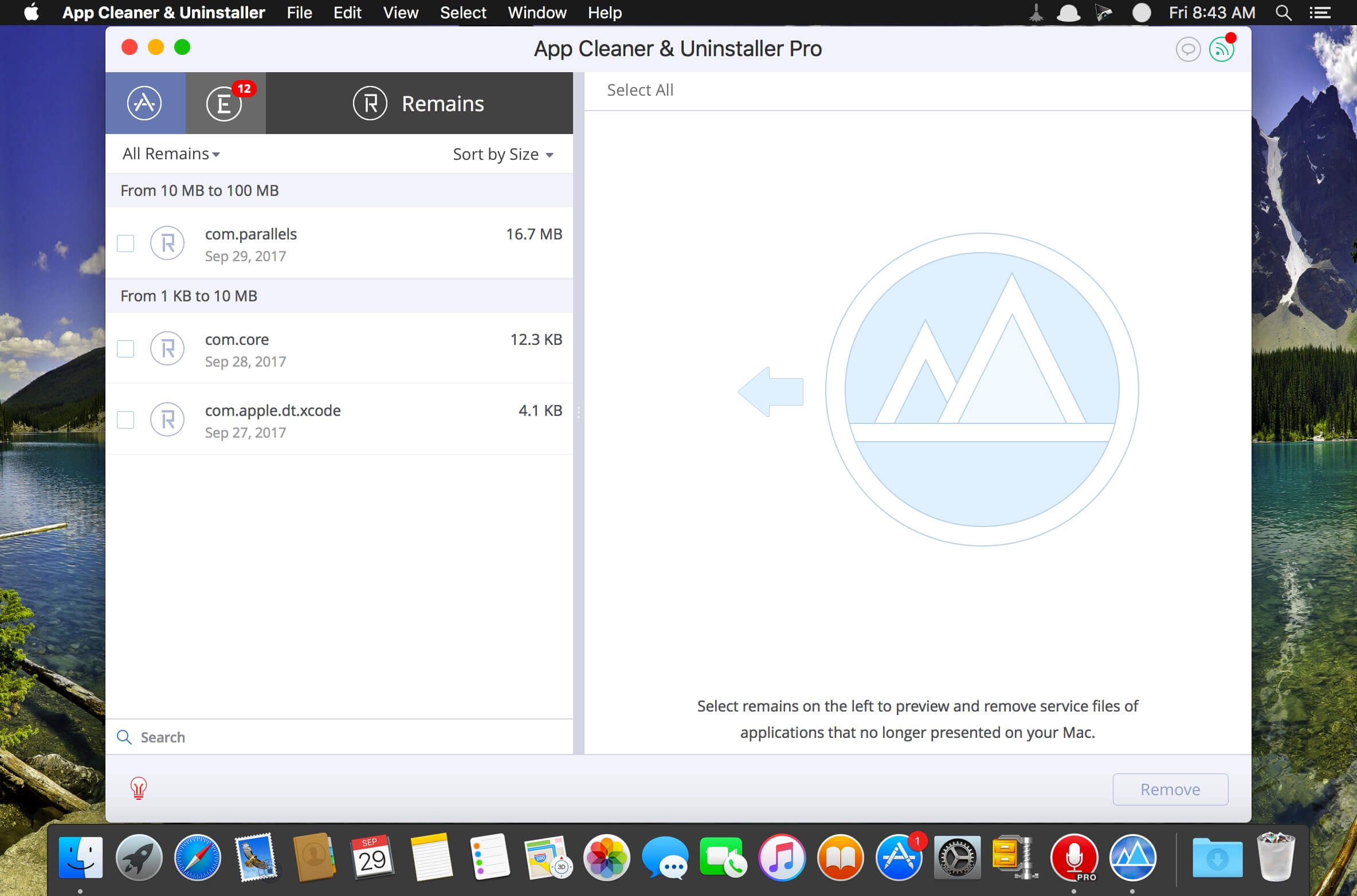
Preview Installed Applications and Remove Service Files to Complete Uninstall.
App Cleaner - The best app to remove applications service files on Mac OS X and uninstalling applications*.
Delete application's service files. Make sure they aren't eating up precious space on your Mac with this helpful app that does the legwork for you.
Disable unneeded login items to launch Mac faster.
Get PRO features and remove even System Extensions.
Main Gained Value - Speed up Your Mac by:
- deleting apps' files taking performance resources
- deleting debris of apps that were simply put into Trash
- managing all types of service files (caches, logs, preferences, etc.)
- removing unneeded System Extensions
- removing login items and disabling startup programs
Main Advantage: App Cleaner deletes Remains (or leftovers) - files of previously removed apps.
Thus, you uninstall applications completely.
Main Features:
- Scan the system and preview installed applications
- Remove all types of service files
- Remove remains of previously uninstalled apps
- Reset application to a first-launch state
- Preview launch agents and system daemons
- Preview login items
- Disable launch agents and login items
- Find and preview installed System Extensions
- Remove System Extensions
- Easy-to-use shortcuts
- Any file or app quick preview
- Specific app-associated file formats preview
- In-app help assistance
- Show unused applications
- Skip list option
How to Uninstall an application using App Cleaner:
- Launch App Cleaner.
- Scan all applications for service files.
- Choose unneeded application (left view). In-app purchase required.
- Select all its’ service files on right view.
- Click Remove.
- If some apps were not removed, due to access rights, switch to Finder and move them manually to Trash*.
*Some applications can not be removed because they require administrator privileges. In this case, switch to the Finder and delete the application file in usual way.
PRO mode required to:
- Remove executable part of applications
- Remove system extensions
- Disable ads
FREE mode allows to:
- Preview all installed apps
- Preview service files for apps
- Remove service files for apps
- Reset apps to first-run state
- Preview installed extensions and widgets
- Disable launch agents and startup items
- Remove Remains - broken service files
Version 4.5
- Improved Launch agents supporting
Frequently asked questions
How do I install the app?
Mount the image, drag the app into the "Applications" folder and launch it. If the system blocks the launch, allow it in "System Settings → Privacy & Security".
The app is damaged or won't launch
Reinstalling from a fresh image usually helps. Make sure your macOS version matches the one listed in the compatibility specs.
How do I update?
Download the new version from the site and install it over the current one — your settings will be preserved.
The download link doesn't work
Try a mirror or a download manager. For large files the browser often drops the connection.
How do I completely remove the app?
Use an uninstaller utility — it cleans up the service files that remain after moving the app to the trash.
VersionApp Cleaner Pro 4.5
DeveloperSergiy Savenko
CompatibilityOS X 10.9 or later, 64-bit processor
LanguageEnglish
IncludesK'ed by TNT



Information
Visitors in the group Guests cannot leave comments on this publication.
Choose a download source
App Cleaner Pro 4.5 · 12.63 MB