
Capto 1.2.29

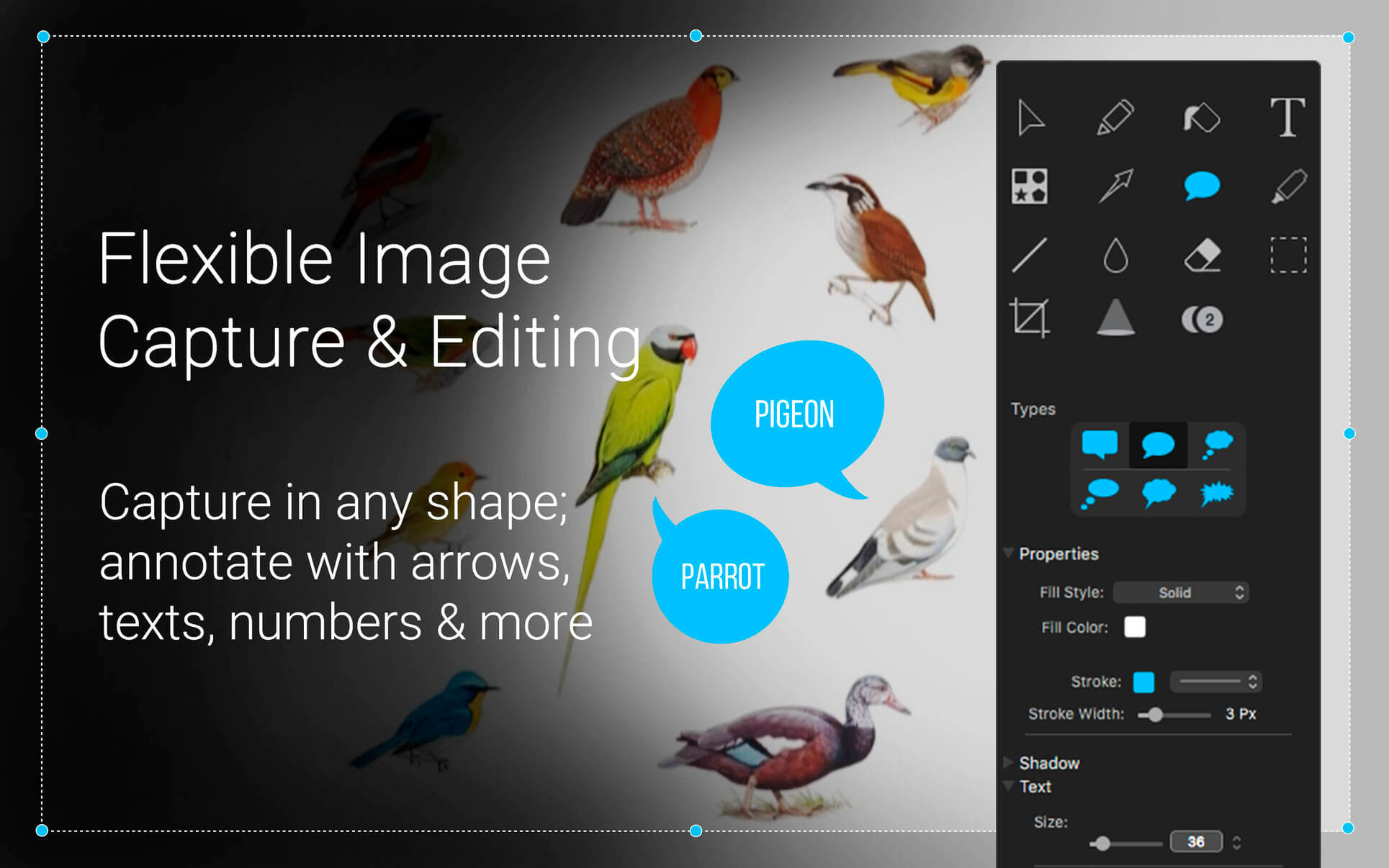
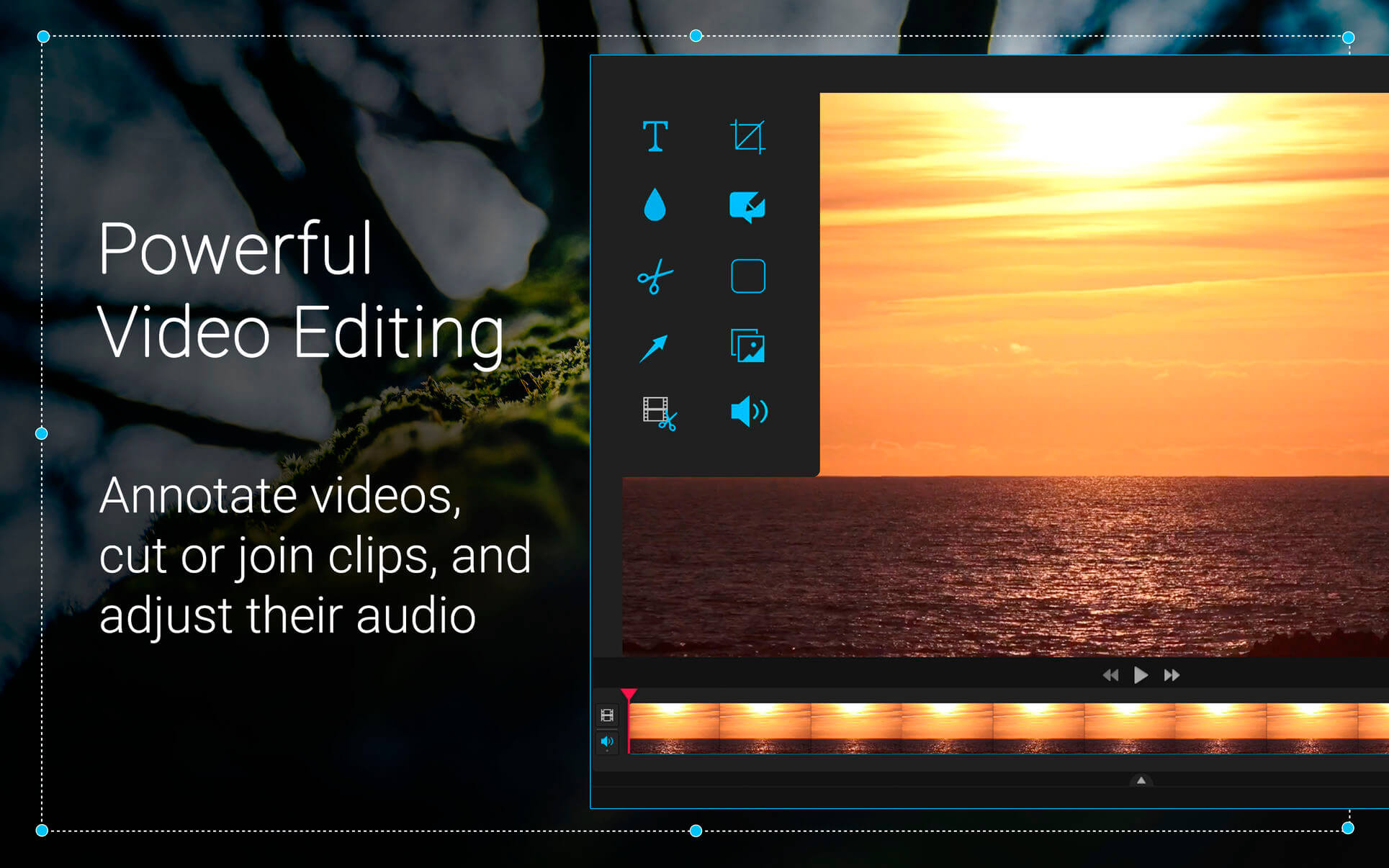
Capto (was Voila) is an easy-to-use app that takes capturing, recording, video and image editing to the next level. With an intelligent file manager and quick sharing options, Capto is perfect for teachers, students, creative professionals and anyone in need of a powerful screen capture tool.
Features
- Screen Recorder - Capture your screen in all its high-definition glory along with clear audio! By doing so at a smooth 60 FPS, you get sharp and clear recordings that look great on any device.
- Video Editor - Make your screen recordings look professional. Capto's powerful video editing suite gives you all the tools necessary to perfect your screen recordings, post-capture.
- Screen and Web Capture - Capto's options allow for effortless capturing of screenshots in different ways. Capture fullscreen or just select parts as required. You can also save a whole webpage in one click!
- Image Editor - Expand and build upon captured screenshots with Capto's image editing features. Annotate, correct, or adjust the properties of the image and make them informative and easy to comprehend.
- iOS Screen Recording - Video record your iPhone or iPad's screen by connecting it to a Mac running Capto. Capture, add a voiceover and edit them to instantly create tutorials.
- File Management - Capto has the best file management structure for quick searches. Your screen captures and recordings are placed in easy-to-spot folders by default. You can also add custom rules to place captures in folders of your choice.
- Easy Sharing - Upload or share screenshots and screen recordings to Facebook, Tumblr, Dropbox, Evernote, YouTube and more without leaving the app. If you have your own FTP/SFTP setup, upload them in a click!
Version 1.2.29
Additions:
- Capto now supports 3 new languages: Chinese (Simplified), Portuguese (BR), and Japanese.
Fixes & performance improvements:
- We’ve also gotten rid of bugs related to editing of iOS screen recordings that were recorded along with the Mac screen.
Frequently asked questions
How do I install the app?
Mount the image, drag the app into the "Applications" folder and launch it. If the system blocks the launch, allow it in "System Settings → Privacy & Security".
The app is damaged or won't launch
Reinstalling from a fresh image usually helps. Make sure your macOS version matches the one listed in the compatibility specs.
How do I update?
Download the new version from the site and install it over the current one — your settings will be preserved.
The download link doesn't work
Try a mirror or a download manager. For large files the browser often drops the connection.
How do I completely remove the app?
Use an uninstaller utility — it cleans up the service files that remain after moving the app to the trash.




Choose a download source
Capto 1.2.29 · 54.88 MB
Previous versions
Capto 1.2.29
Previous versions are available to registered users.