SMART Utility 3.2.7
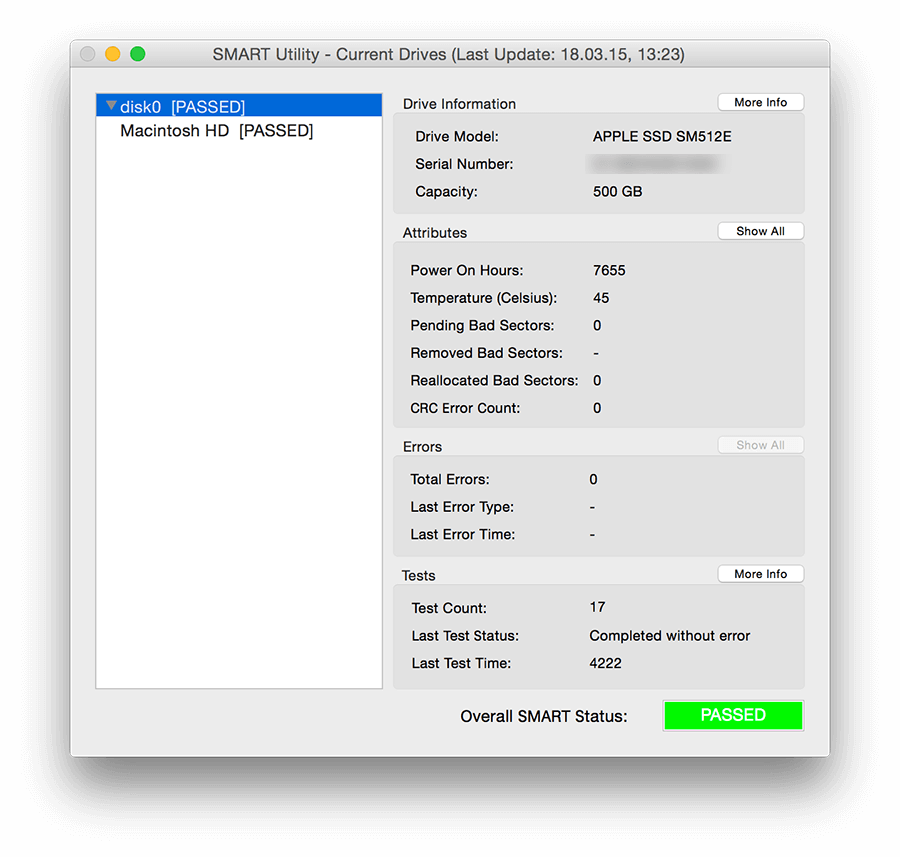
SMART Utility - a system utility that reads SMART (Self-Monitoring Analysis and Reporting Technolodgy - self-test technology, analysis and reporting) to your hard drive. It supports all chips SMART hard drives, announced in today's market, so it can display the full information about your storage devices, namely, the model name, serial number, the amount of space, temperature, amount of bad (broken sectors) shows the current state of health, based on the judgment of the drive. Is also supported Growl.
Most interestingly, the program offers - is the number of hours spent in the hard drives. Be aware of and follow the work of their HDD.
Does SMART Utility SSD drives?
Yes! SSD-drives are fully supported SMART Utility. Support for new drives is always added and the algorithm constantly reworked to provide better, more accurate information on the state of health.
Features:
- Shows all supported internal hard disks and partitions, as well as some external hard drives (if the option SMART);
- Shows important information about the disc in the main window: model, capacity, number of hours worked and the number of starts, poor-sectors and the error, if any;
- Shows the overall SMART status of the disk;
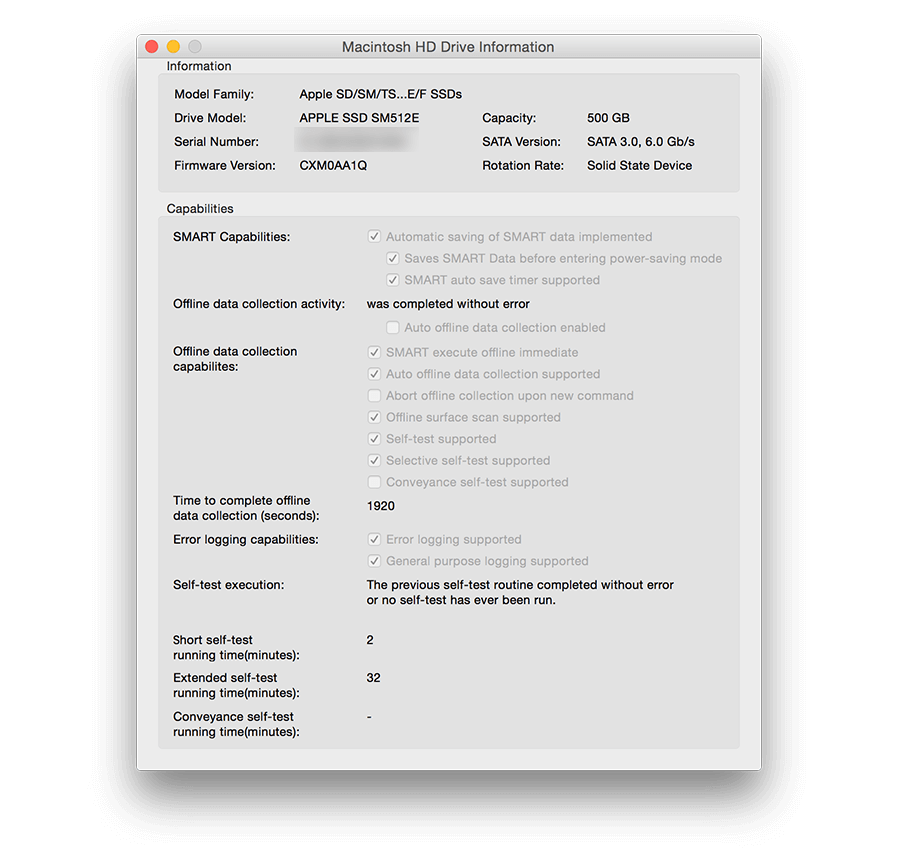
- Shows more information about the disk in a separate window;
- Supports the preservation and display of reports and printing;
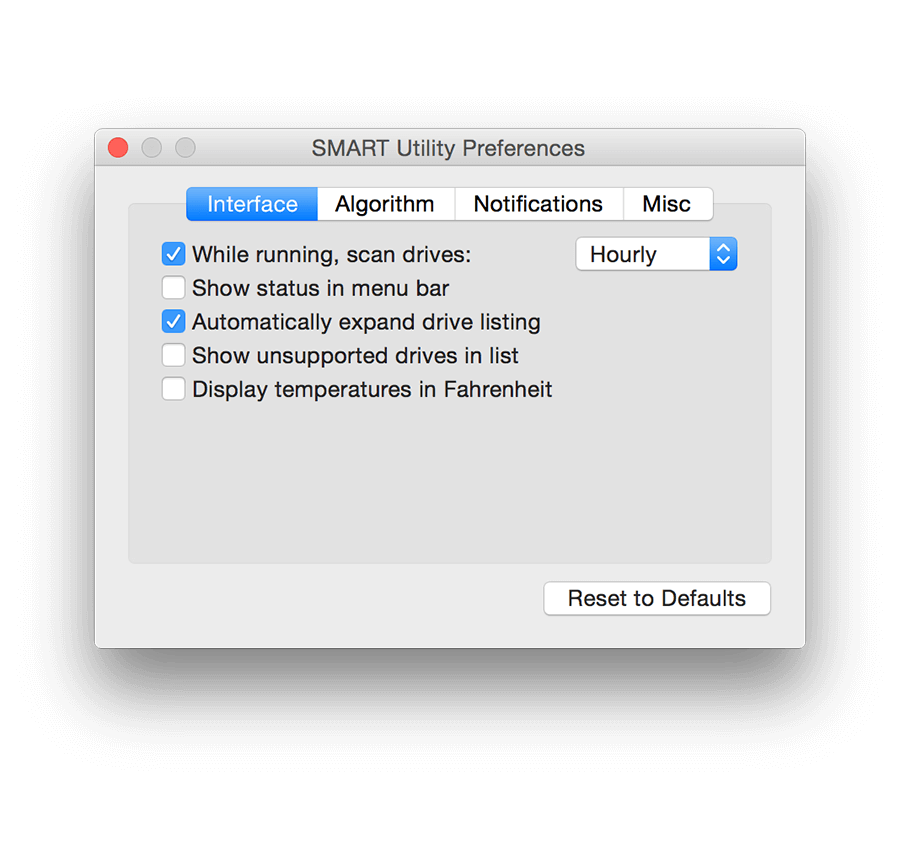
- Supports disk scan in the background;
- Support the launch of the built-in self-test drives and corporate displays the test results;
- Supports scanning OS X software RAID drives;
- Retains all its operating information in the logs;
- Support pre-fail algorithm - informs about changes of the critical parameters of the disc.
Version 3.2.7:
- Added support for Little Snitch Internet Access Policy
- Disabled Dark Mode appearance until fully ready
- Fixed bug with IDs on NVMe drives
- Fixed extra unnecessary logging
- Updated to Sparkle 1.27.1
- Updated to smartctl 7.3 which supports many more drives
Frequently asked questions
How do I install the app?
Mount the image, drag the app into the "Applications" folder and launch it. If the system blocks the launch, allow it in "System Settings → Privacy & Security".
The app is damaged or won't launch
Reinstalling from a fresh image usually helps. Make sure your macOS version matches the one listed in the compatibility specs.
How do I update?
Download the new version from the site and install it over the current one — your settings will be preserved.
The download link doesn't work
Try a mirror or a download manager. For large files the browser often drops the connection.
How do I completely remove the app?
Use an uninstaller utility — it cleans up the service files that remain after moving the app to the trash.



Choose a download source
SMART Utility 3.2.7 · 8.36 MB
Previous versions
SMART Utility 3.2.7
Previous versions are available to registered users.