
iOS UI Development with Visual Tools
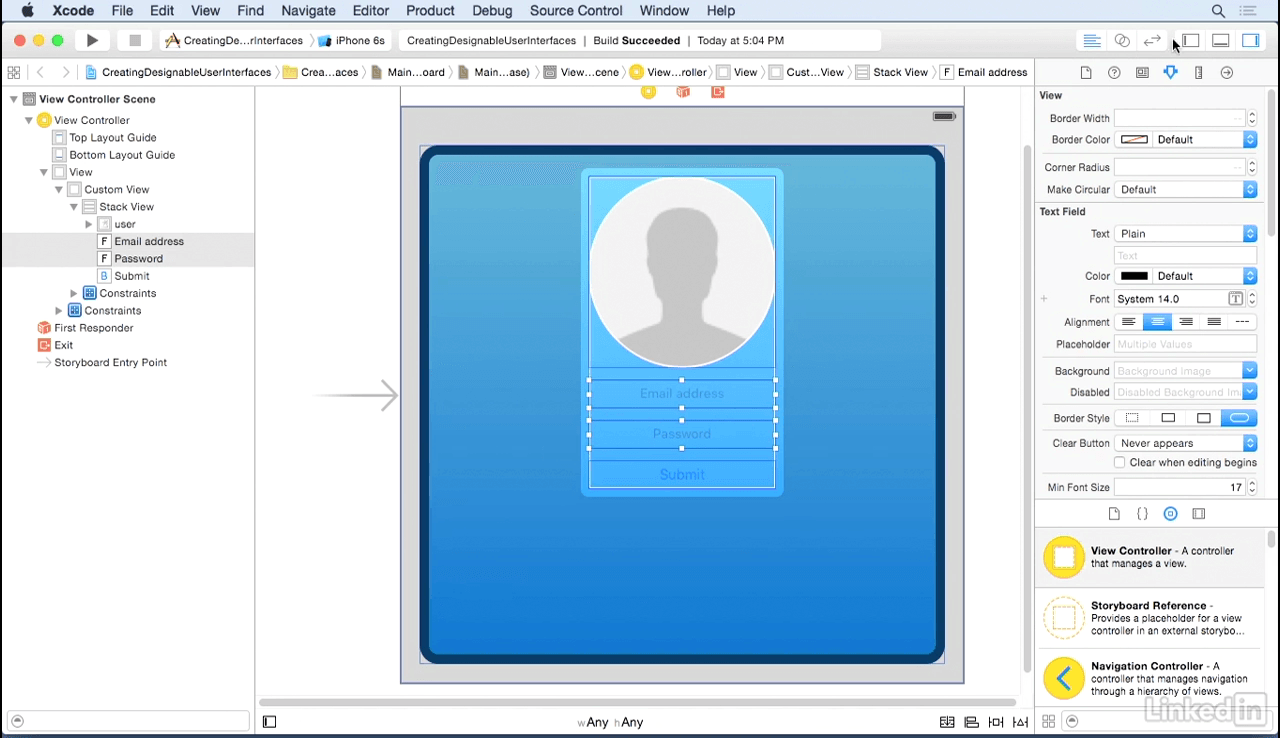
iOS has visual UI development tools built right into Xcode, the IDE that iOS developers use the most. Xcode's Interface Builder provides graphical tools for manipulating layouts and views—which means little to no programming required. Interface design is a great way to break into iOS app development, or expand your programming skills to the realm of UX.
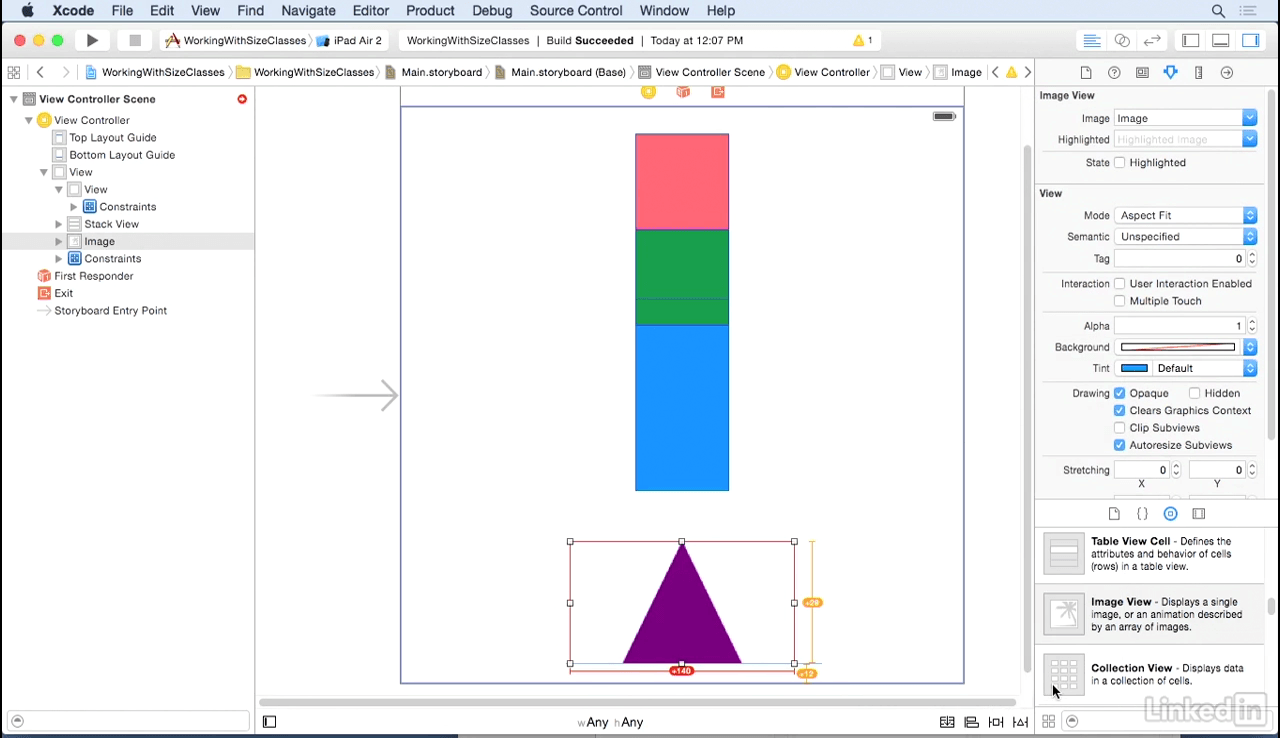
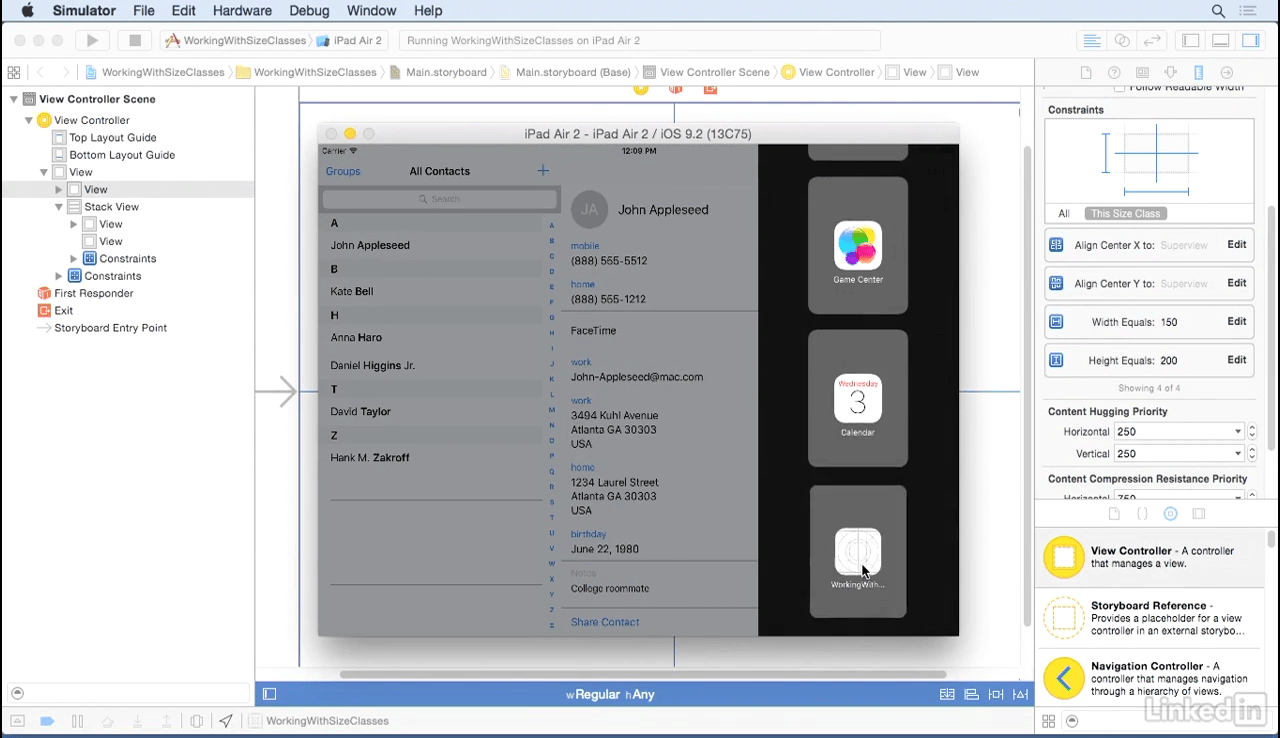
Here iOS app architect Scott Gardner explains how to create designable views and dynamic and adaptive user interfaces for any screen size or orientation. He shows how to work with stack views, images, custom fonts, and Interface Builder's Auto Layout tools, which speed up your design process and help adhere to Apple's interface guidelines. Along the way, he provides best practices for designing interfaces that are clean, efficient, and enjoyable for users.
Topics include:
- Creating and customizing views
- Laying out a user interface
- Working with dynamic Auto Layout designs
- Stacking views
- Creating an adaptive layout
- Handling orientation changes
- Working with images
- Customizing fonts
Screenshots
Frequently asked questions
How do I install the app?
Mount the image, drag the app into the "Applications" folder and launch it. If the system blocks the launch, allow it in "System Settings → Privacy & Security".
The app is damaged or won't launch
Reinstalling from a fresh image usually helps. Make sure your macOS version matches the one listed in the compatibility specs.
How do I update?
Download the new version from the site and install it over the current one — your settings will be preserved.
The download link doesn't work
Try a mirror or a download manager. For large files the browser often drops the connection.
How do I completely remove the app?
Use an uninstaller utility — it cleans up the service files that remain after moving the app to the trash.
Information
Users of Guests are not allowed to comment this publication.
Choose a download source
iOS UI Development with Visual Tools · 293.25 MB