
Learn Swift 2: The Basics
Learn Swift 2. These tutorials take you through the basics of Swift, the fast, interactive codebase for programming iOS, Mac OS X, tvOS, and even Watch OS apps. Swift is ideal for new programmers who want to build their first apps, as well as experienced developers who are migrating from Objective-C.
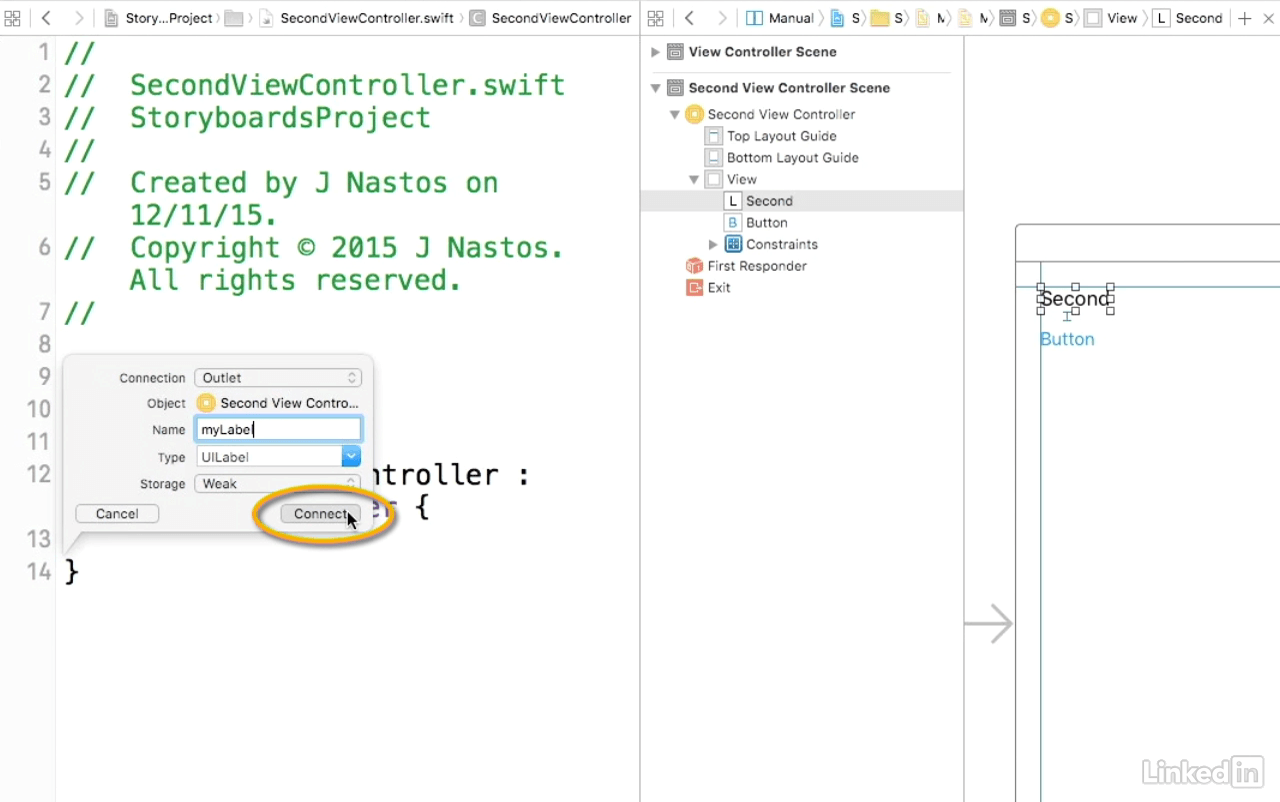
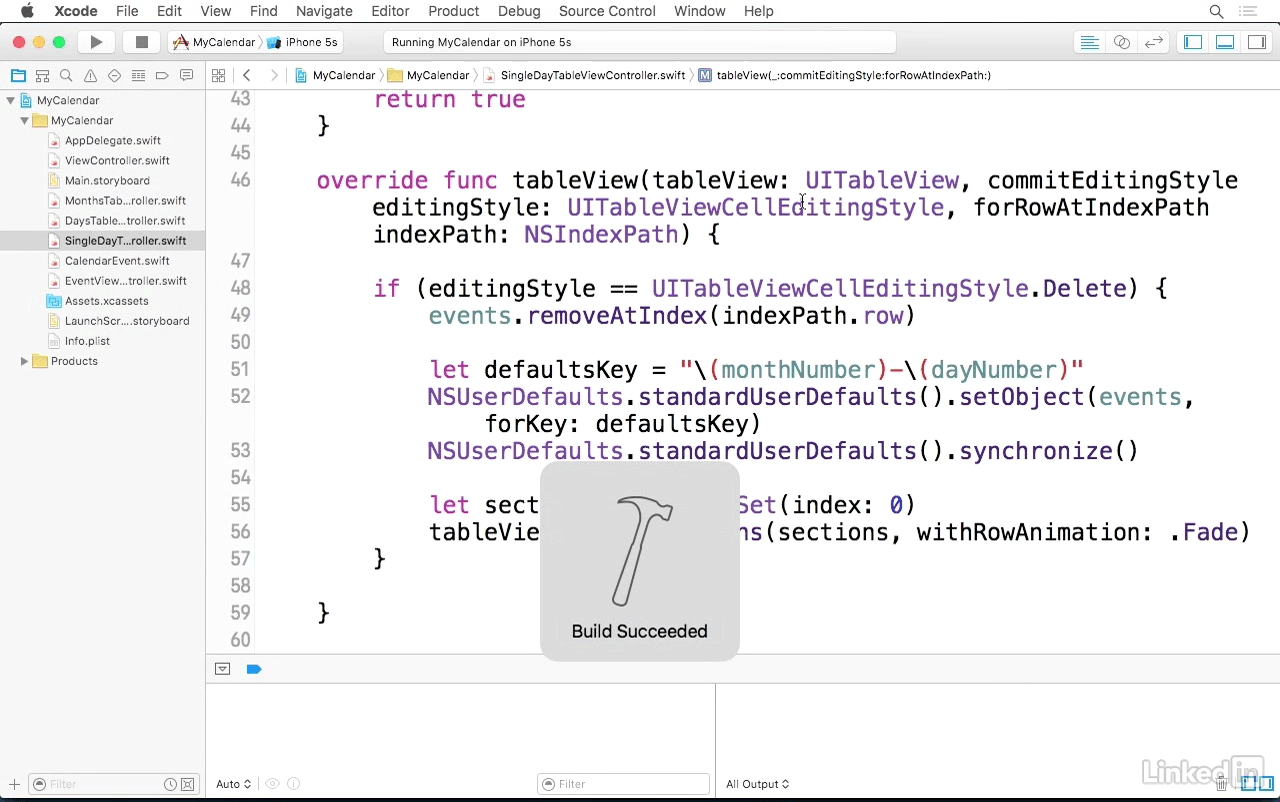
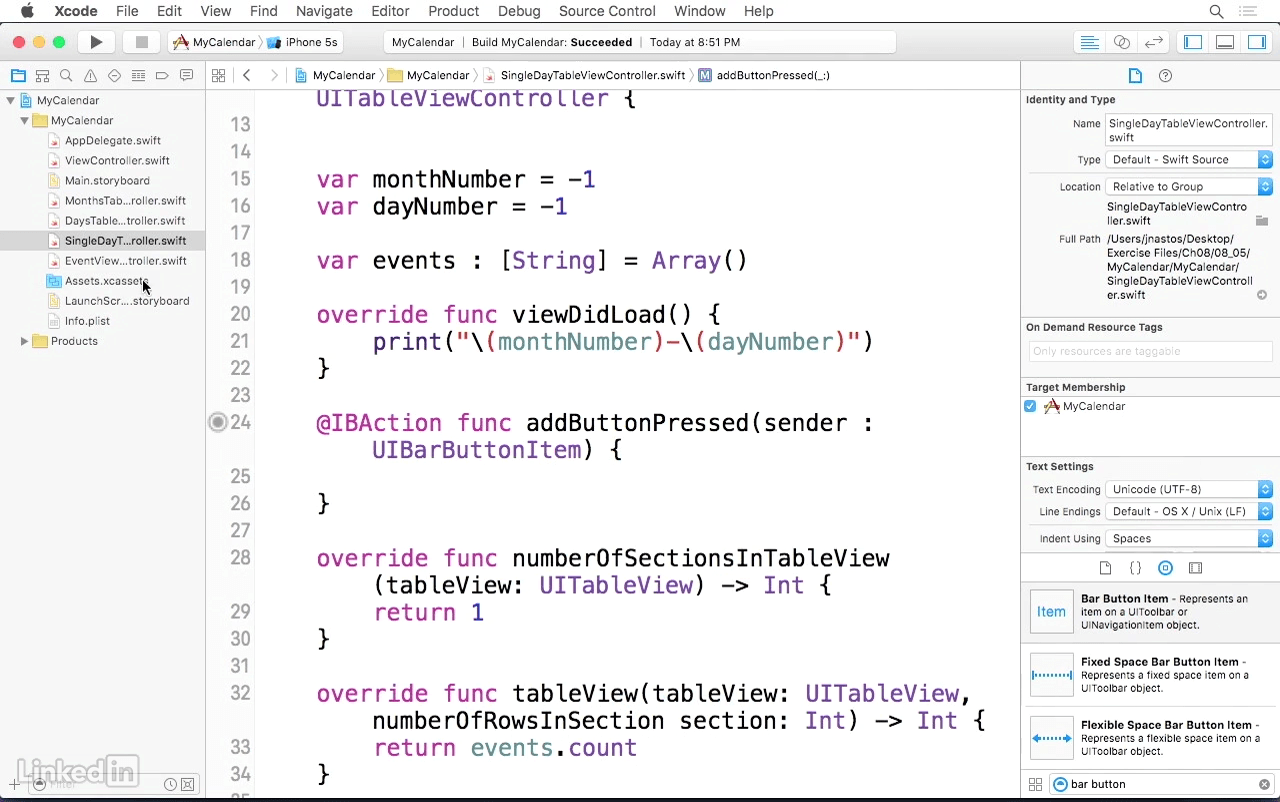
First, learn how to install Xcode, the IDE designed for Apple developers, and use Swift playgrounds, an innovative coding environment that displays results as you code. Author John Nastos then dives deep into Swift syntax: the variables and constants, data types, arrays, loops, classes, and functions that make your apps run. Next, discover how to build an engaging app interface with storyboards and Interface Builder, connect the interface and code, and use table views to present lists. John shows how to store and retrieve data, and interact with Objective-C, the original app development language that still integrates beautifully with Swift. Using the exercise files provided with the course, you'll assemble a complete working app with Swift while gaining the skills to go create the next one on your own.
Topics include:
- Downloading and installing Xcode
- Using Swift playgrounds
- Understanding Swift syntax
- Debugging Swift code
- Controlling flow with expressions, conditional statements, and loops
- Using and writing Swift functions
- Creating classes, structs, and enums
- Using storyboards in Interface Builder
- Building an app with table views
- Storing and retrieving data
- Interacting with Objective-C
Screenshots
Frequently asked questions
How do I install the app?
Mount the image, drag the app into the "Applications" folder and launch it. If the system blocks the launch, allow it in "System Settings → Privacy & Security".
The app is damaged or won't launch
Reinstalling from a fresh image usually helps. Make sure your macOS version matches the one listed in the compatibility specs.
How do I update?
Download the new version from the site and install it over the current one — your settings will be preserved.
The download link doesn't work
Try a mirror or a download manager. For large files the browser often drops the connection.
How do I completely remove the app?
Use an uninstaller utility — it cleans up the service files that remain after moving the app to the trash.
Information
Users of Guests are not allowed to comment this publication.
Choose a download source
Learn Swift 2: The Basics · 437.96 MB