
Bloom 1.5.42
Bloom: Fast file manager for macOS replacing Finder with instant search
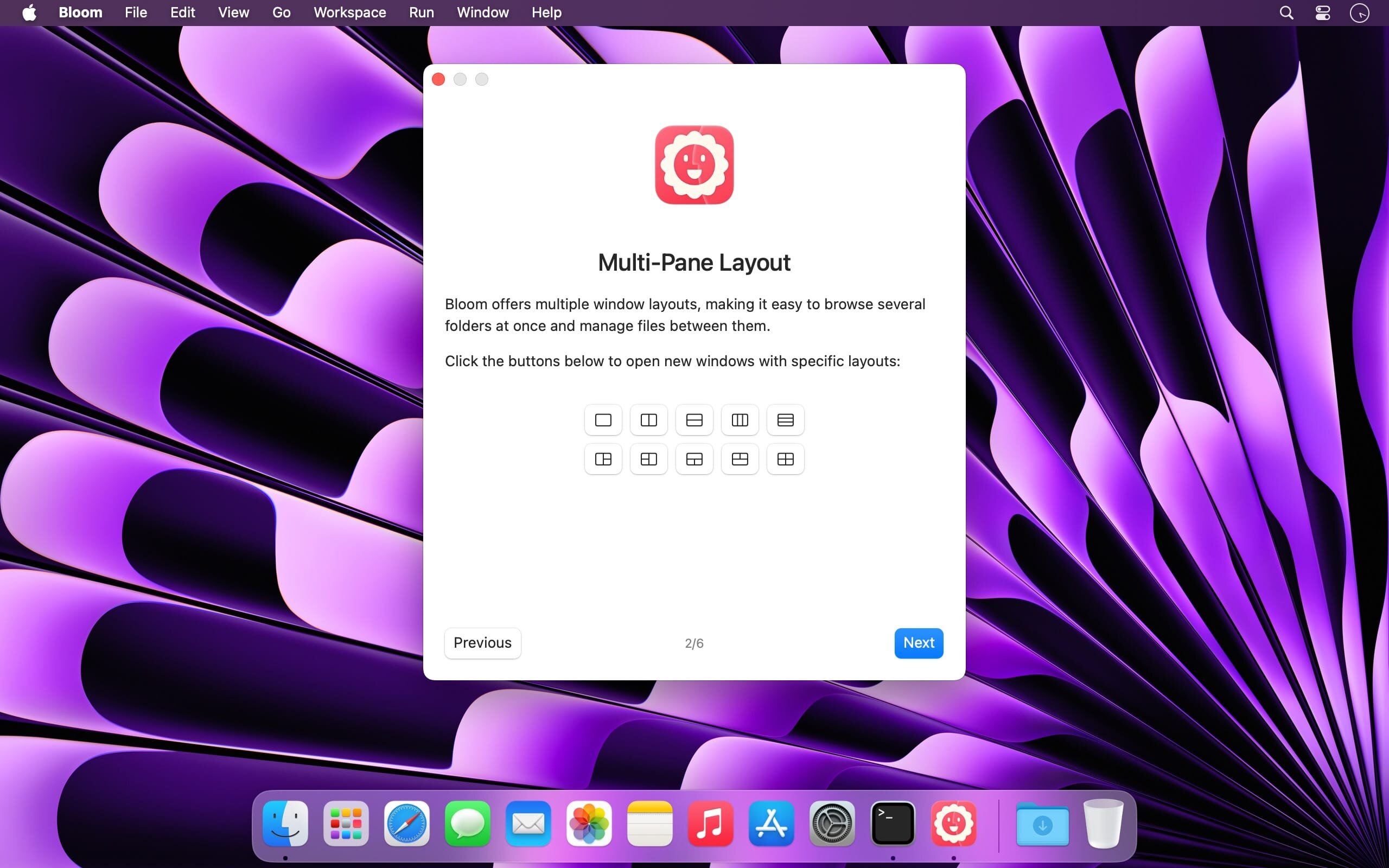
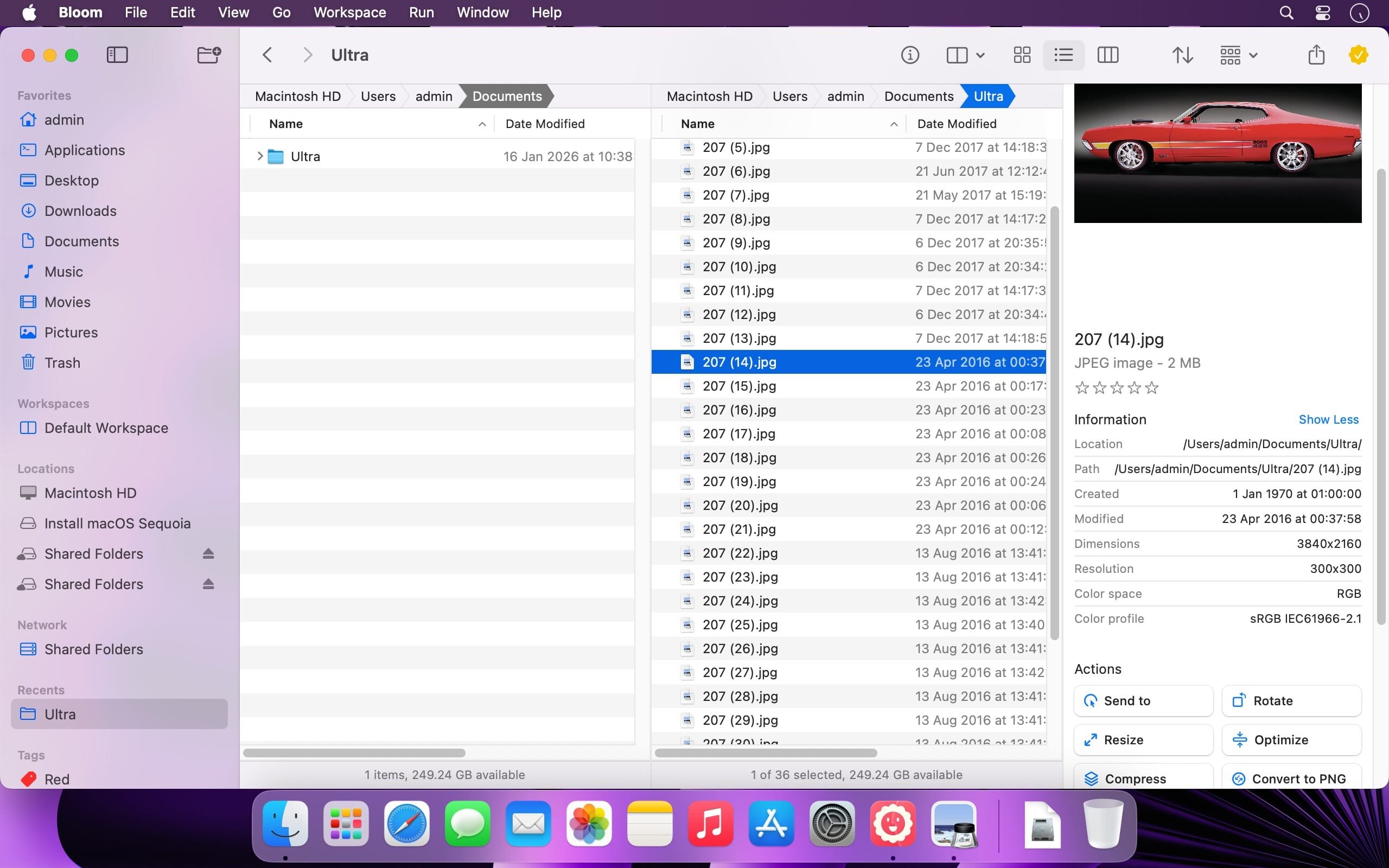
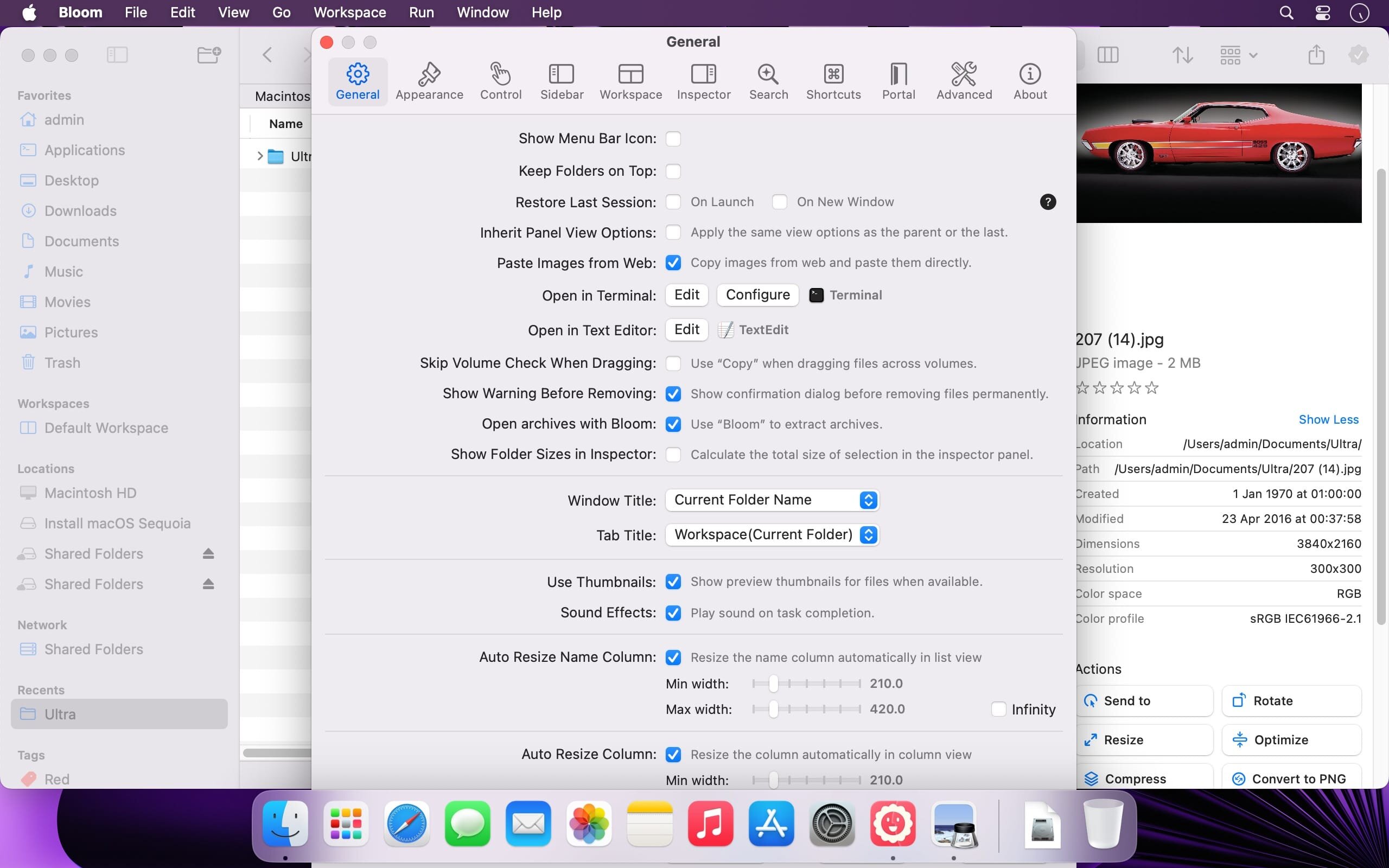
Bloom is a high-performance file manager for macOS. It replaces Finder with faster navigation, precise search, and professional-grade file control.
Jump to any location system-wide instantly with ⌘⇧⏎.
Core Capabilities
- Fast, Scoped Search
Search tens of thousands of files in seconds across predefined locations. Filter by keyword, search within any folder using ⌘F, and refresh results with ⌘R—no indexing delays, no friction. - Portal Mode
A compact, keyboard-driven window with no sidebar or preview. Pin it above all windows or collapse it to the screen edge for immediate access. - Archive Inspection
Browse compressed archives without extracting them. Preview text files, images, and PDFs (≤10MB) directly. - Advanced File Operations
Auto-resizing columns, batch renaming with regex, workspace layouts, iCloud Drive integration, and full tag management. - Media & Automation Tools
Convert and optimize images, generate common file types, paste images directly from the web, and organize files by kind or date. Every operation is logged and reversible. Launch Terminal sessions from any folder. - Disk & Task Control
Analyze disk usage with an interactive treemap using Folder Scan. Track file operations in real time with the Task Scheduler.
Version 1.5.42:
Features
- Add date-related fields to rule-based text coloring
- Edit default content for built-in text file templates
Fixes
- fix layout menu icon on macOS Golden Gate
Frequently asked questions
How do I install the app?
Mount the image, drag the app into the "Applications" folder and launch it. If the system blocks the launch, allow it in "System Settings → Privacy & Security".
The app is damaged or won't launch
Reinstalling from a fresh image usually helps. Make sure your macOS version matches the one listed in the compatibility specs.
How do I update?
Download the new version from the site and install it over the current one — your settings will be preserved.
The download link doesn't work
Try a mirror or a download manager. For large files the browser often drops the connection.
How do I completely remove the app?
Use an uninstaller utility — it cleans up the service files that remain after moving the app to the trash.





Choose a download source
Bloom 1.5.42 · 15.28 MB
Previous versions
Bloom 1.5.42
Previous versions are available to registered users.