
Folder Preview 1.9.0
Quick Look is invaluable, but it doesn’t always provide all the information you need. Using it on a folder only gives you some basic details, but nothing useful about what's inside.
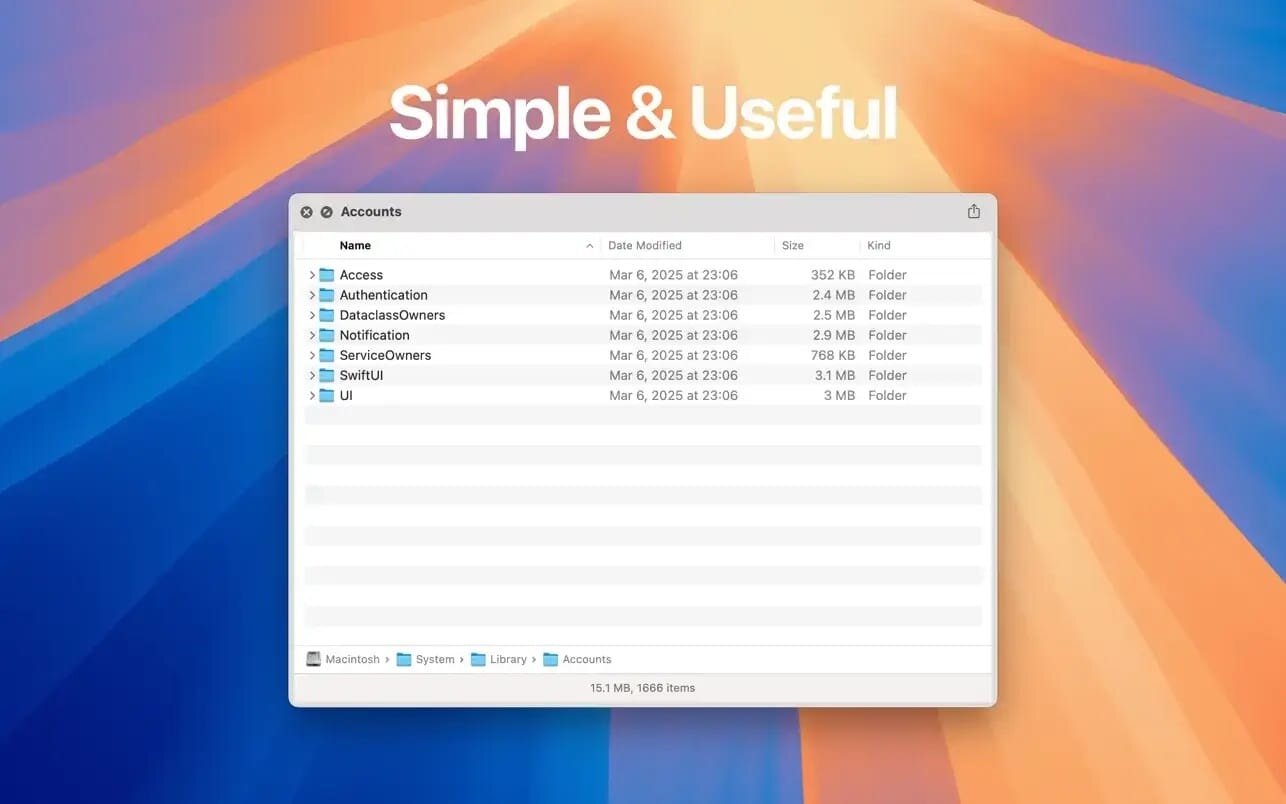
Folder Preview is a Quick Look extension that lists the contents of folders when you preview them. You’ll be able to see files, with some basic details about each item, and subdirectories can be expanded automatically to give you a quick overview of the folder structure.
Quick Look with a new ability
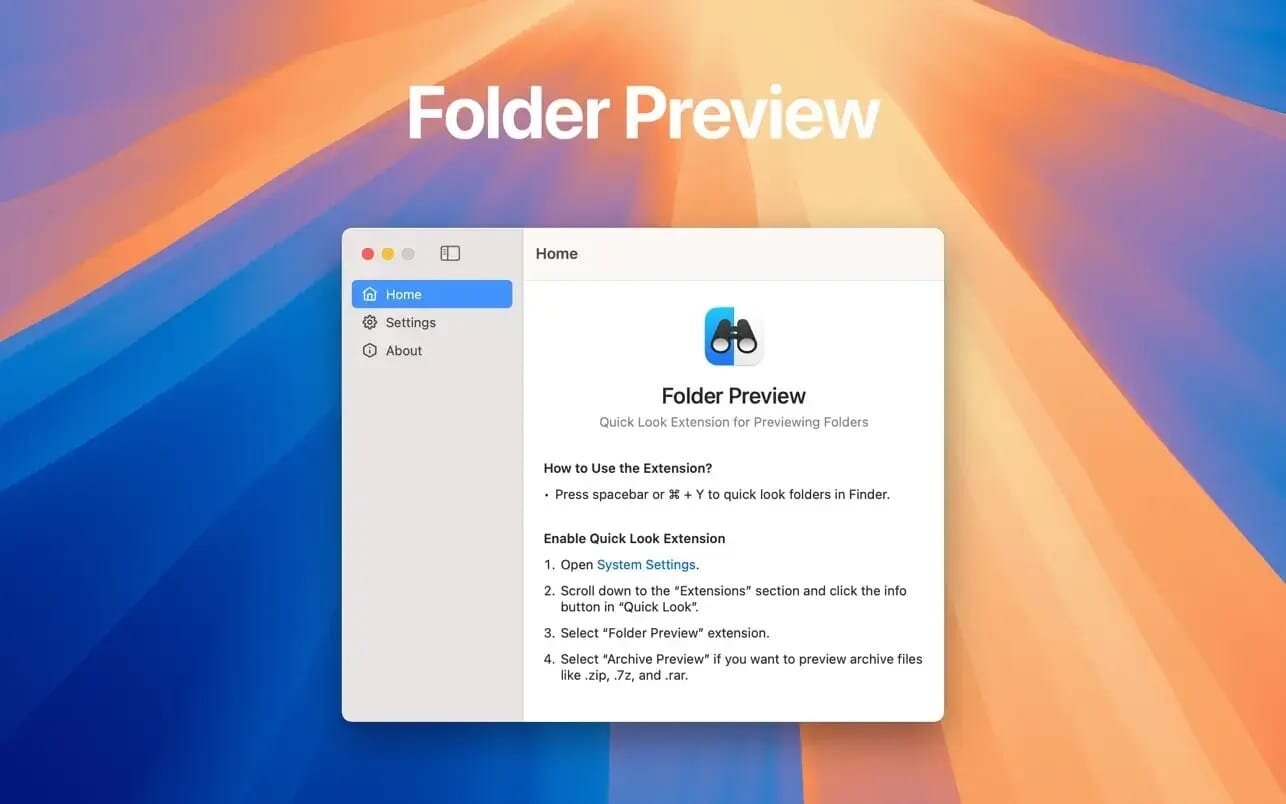
Keep in mind that, after installing the app, you’ll need to enable the extension in System Settings. The app only needs to be launched when customizing the extension’s settings.
The great thing about Folder Preview is that it integrates perfectly into macOS. You can activate Quick Look the same way you did before, except that it will be much more informative when used on folders.
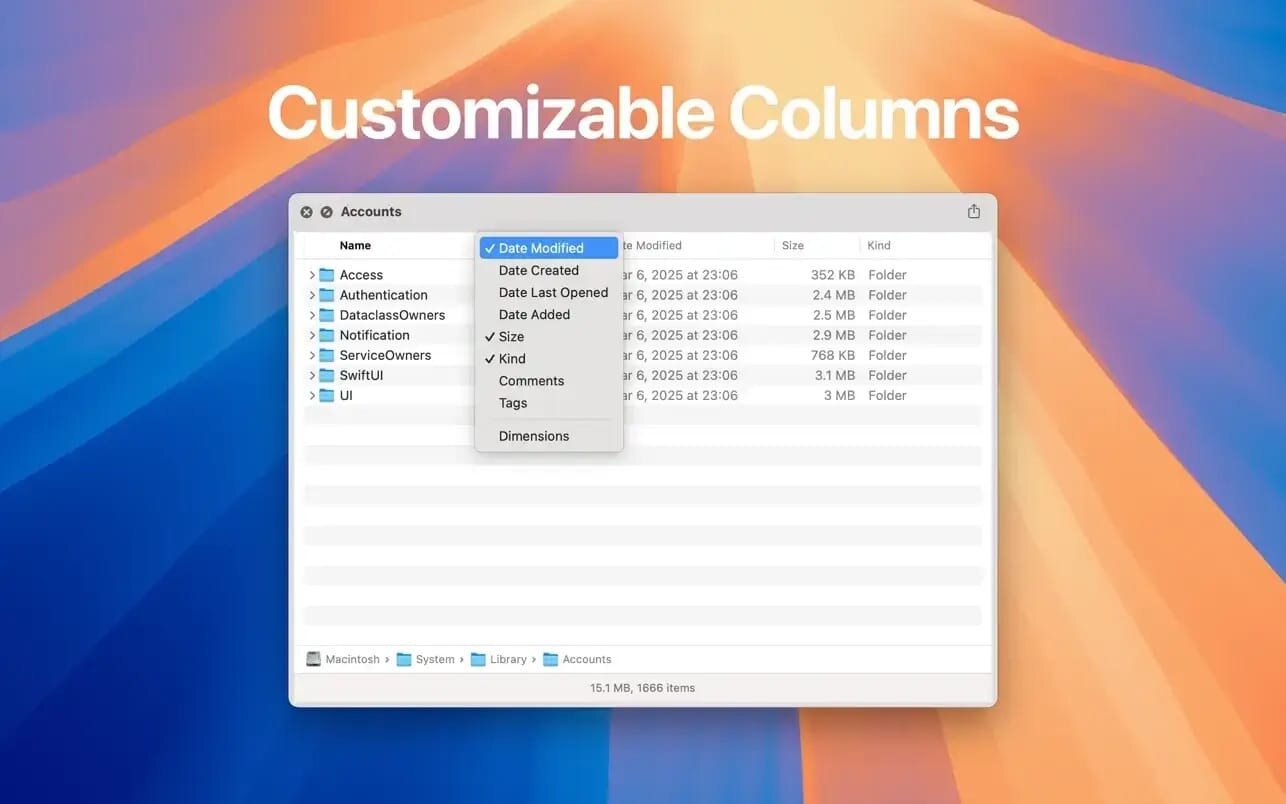
The extension lists all contained files, their size, type, tags, dates, and dimensions. Any of these parameters can be toggled by right-clicking the column header, and you can change their order if needed.
Some visual and functional customization
By default, child folders are expanded automatically, down to a customizable folder depth. This can give you a better view of the directory structure, but it can also slow down the preview when dealing with large numbers of subfolders.
You can choose between two icon sizes, with the smaller one being ideal in my opinion. Hidden files aren’t shown initially, but you can enable them if you don’t mind a bit of extra clutter.
Folder Preview is such a great idea that I’m surprised Apple hasn’t implemented something like this already. It saves you a lot of time when going through folders, particularly if they have complex structures. All the information Quick Look used to provide is still there, but you can now also see what's inside the folder at a glance.
Folder Preview 1.9.0
- Redesign app window.
Frequently asked questions
How do I install the app?
Mount the image, drag the app into the "Applications" folder and launch it. If the system blocks the launch, allow it in "System Settings → Privacy & Security".
The app is damaged or won't launch
Reinstalling from a fresh image usually helps. Make sure your macOS version matches the one listed in the compatibility specs.
How do I update?
Download the new version from the site and install it over the current one — your settings will be preserved.
The download link doesn't work
Try a mirror or a download manager. For large files the browser often drops the connection.
How do I completely remove the app?
Use an uninstaller utility — it cleans up the service files that remain after moving the app to the trash.



Choose a download source
Folder Preview 1.9.0 · 6.8 MB