
Pearcleaner 5.4.3
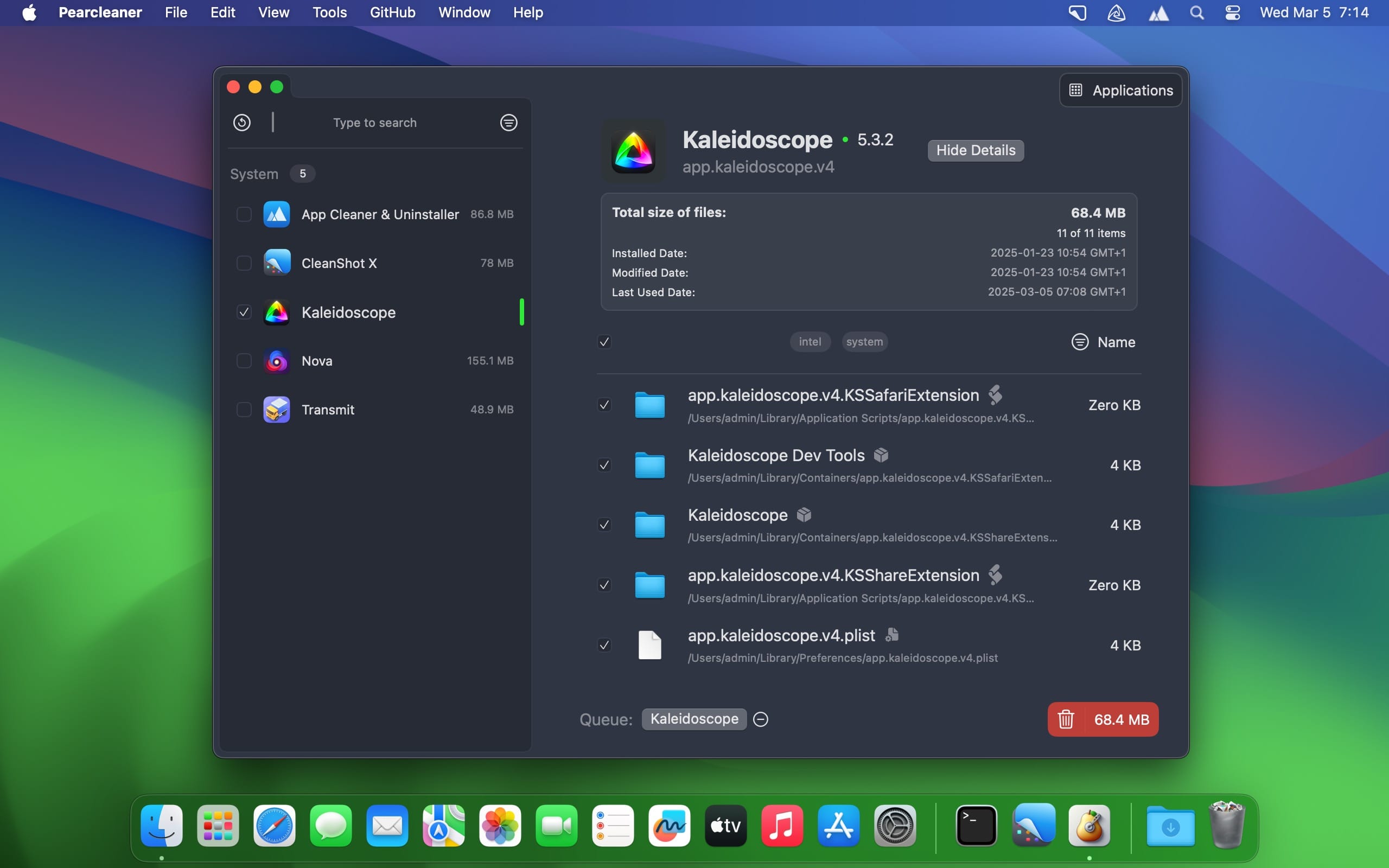
If you install and uninstall lots of apps, you’re going to need some way to get rid of the files they leave behind. Most apps create additional files outside of the Applications folder, and these are not normally removed when sending the app to the Trash.
Pearcleaner is an open-source tool that can help you with this. It searches for related files when an app is removed and gives you the option to delete them as well. It’s quite simple to use, but it does have some flaws at the moment.
Easily get rid of app leftovers
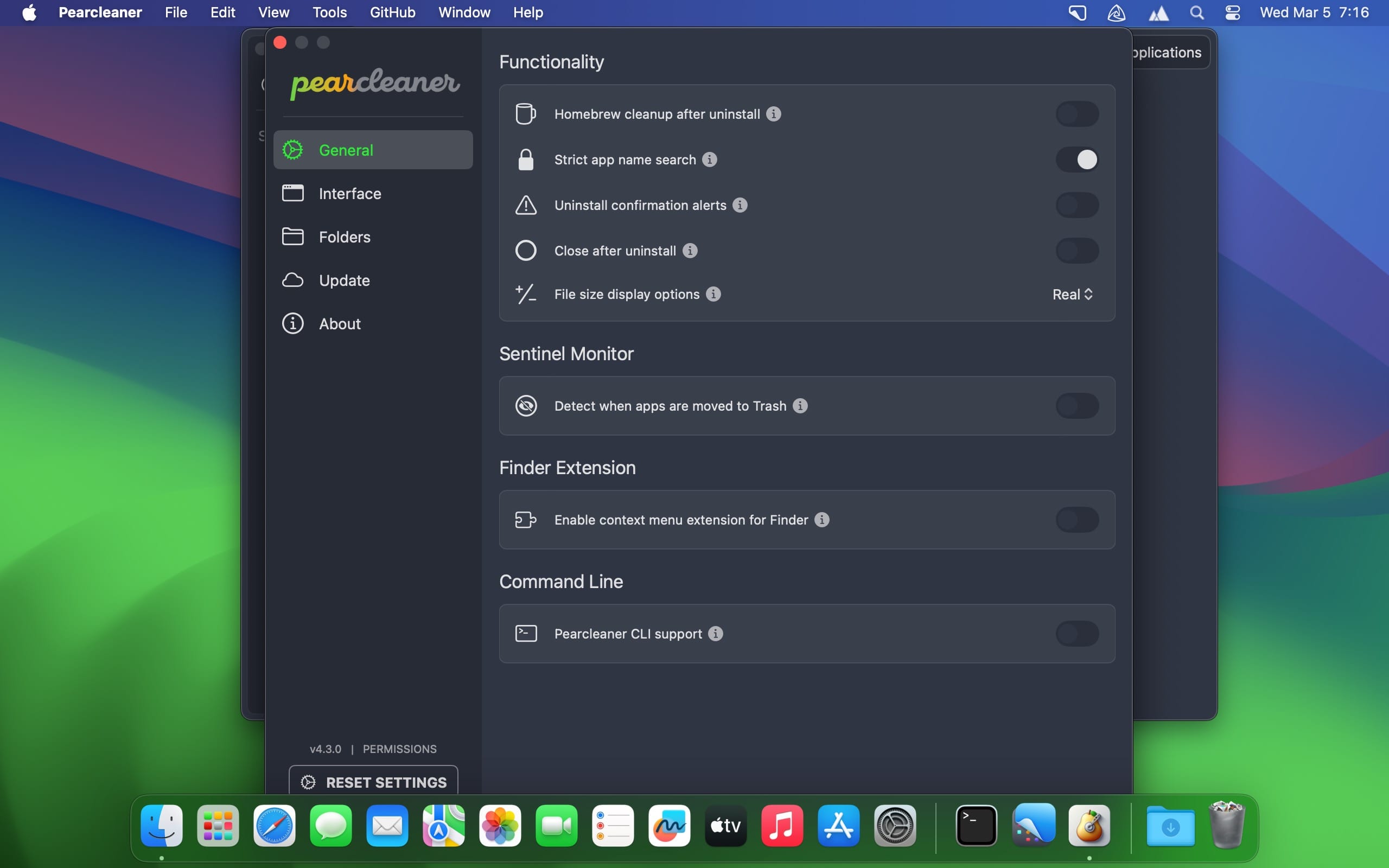
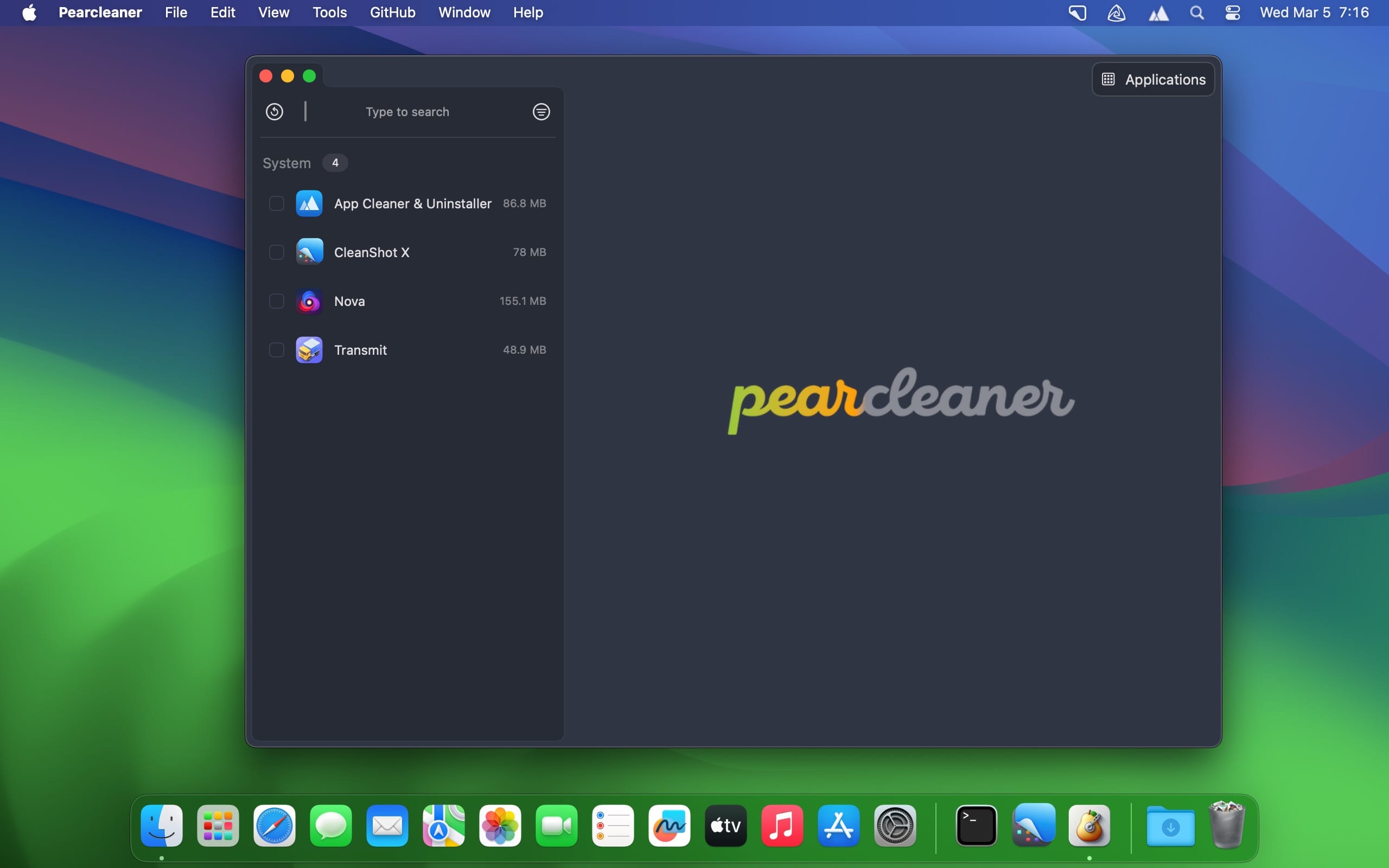
There are a few ways to use the app. First, you can just open the main window, browse through your app collection, and uninstall them from there. Second, you can drop apps onto the Pearcleaner Dock icon. Lastly, the Sentinel feature can monitor your Trash folder for software and automatically start up the leftover remover.
Whichever way you choose to go about it, the process is very straightforward. You can inspect the files the app has identified and deselect the ones you would like to keep. There’s also a mini UI mode with a smaller desktop footprint.
Prone to deleting the wrong files, and other issues
Pearcleaner uses a combination of an app’s bundle ID and app name to find associated files. Unfortunately, this leads to some cases of mistaken identity. When uninstalling Logitech G HUB, it also attempted to remove GarageBand’s Application Support/Logic folder, and when uninstalling Text Case, files from a bunch of other apps were also selected.
There are other problems as well. It’s not possible to remove multiple apps at once, like with AppCleaner, leftover files aren’t ranked by confidence level, and dropping apps onto the Dock icon with mini UI mode activated fails to display their details properly.
Version 5.4.3:
What's New:
- Ability to hide unused utility pages from global menu in Settings > Interface > Startup View
- "Update All" button now shows progress in toolbar for Updater view
- Add pinyin sorting to homebrew view and updater view
- Warn if updating MAS app with a different source as it can break MAS connection
Fixes:
- Fix pear list-orphaned cli command
- Fix owner of receipt to root:wheel for installd workaround
- Add contentShape around sidebar toggle icons
- Fix computed property not refreshing action buttons in some cases for Updater view
- Reorder some layout components in Updater view
- Translations
Frequently asked questions
How do I install the app?
Mount the image, drag the app into the "Applications" folder and launch it. If the system blocks the launch, allow it in "System Settings → Privacy & Security".
The app is damaged or won't launch
Reinstalling from a fresh image usually helps. Make sure your macOS version matches the one listed in the compatibility specs.
How do I update?
Download the new version from the site and install it over the current one — your settings will be preserved.
The download link doesn't work
Try a mirror or a download manager. For large files the browser often drops the connection.
How do I completely remove the app?
Use an uninstaller utility — it cleans up the service files that remain after moving the app to the trash.





Choose a download source
Pearcleaner 5.4.3 · 10.11 MB