

List My Apps 1.9.0
Screenshots
Click to enlarge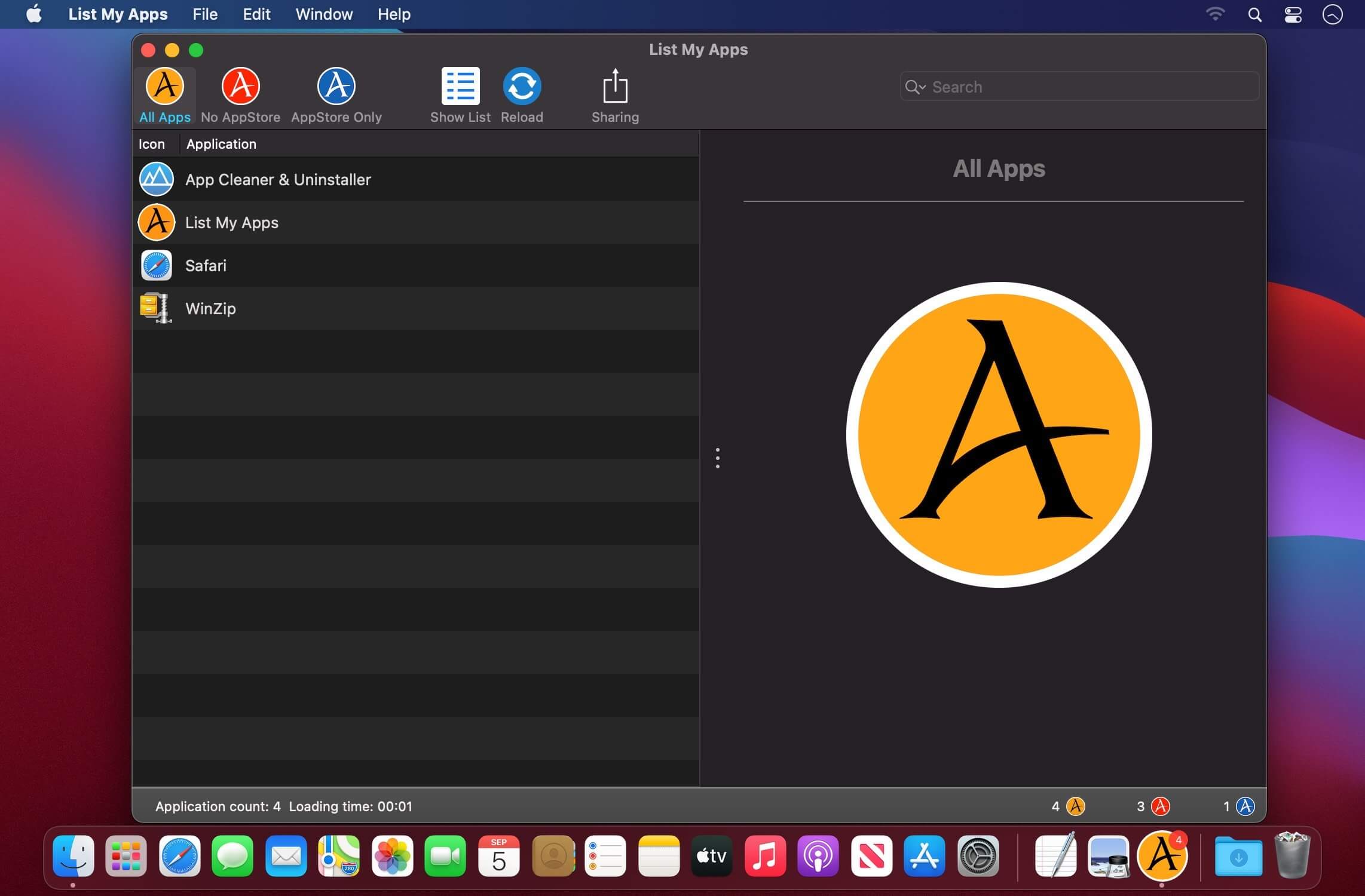
This app lists all purchased apps from AppStore that are installed on your computer.
Features:
- Show all applications from the folder «/Applications» (for the current operating system also /System/Applications)
- Show all purchased apps from the Apple AppStore that are installed on your computer
- Show the count of applications in the Dock
- Window with details about the selected application
- Application name
- Version
- Date and time of purchase
- Date and time of the last update
- Copyright
- Application category
- Application folder
- Application bundle information
- Application bundle name
- Minimum OS
- Retina support
- Application from AppStore
- Manufacturer URL
- Application Icon
- Context menu with this features
- Start application
- Show app in Finder
- Show details
- Open manufacturer URL
- Finder tags
- Copy details to the clipboard
- Open details in TextEdit
- Context menu with the following functions
- Start Application
- Show App in Finder
- Show details
- Open Manufacturer URL
- You can start the application with a double click
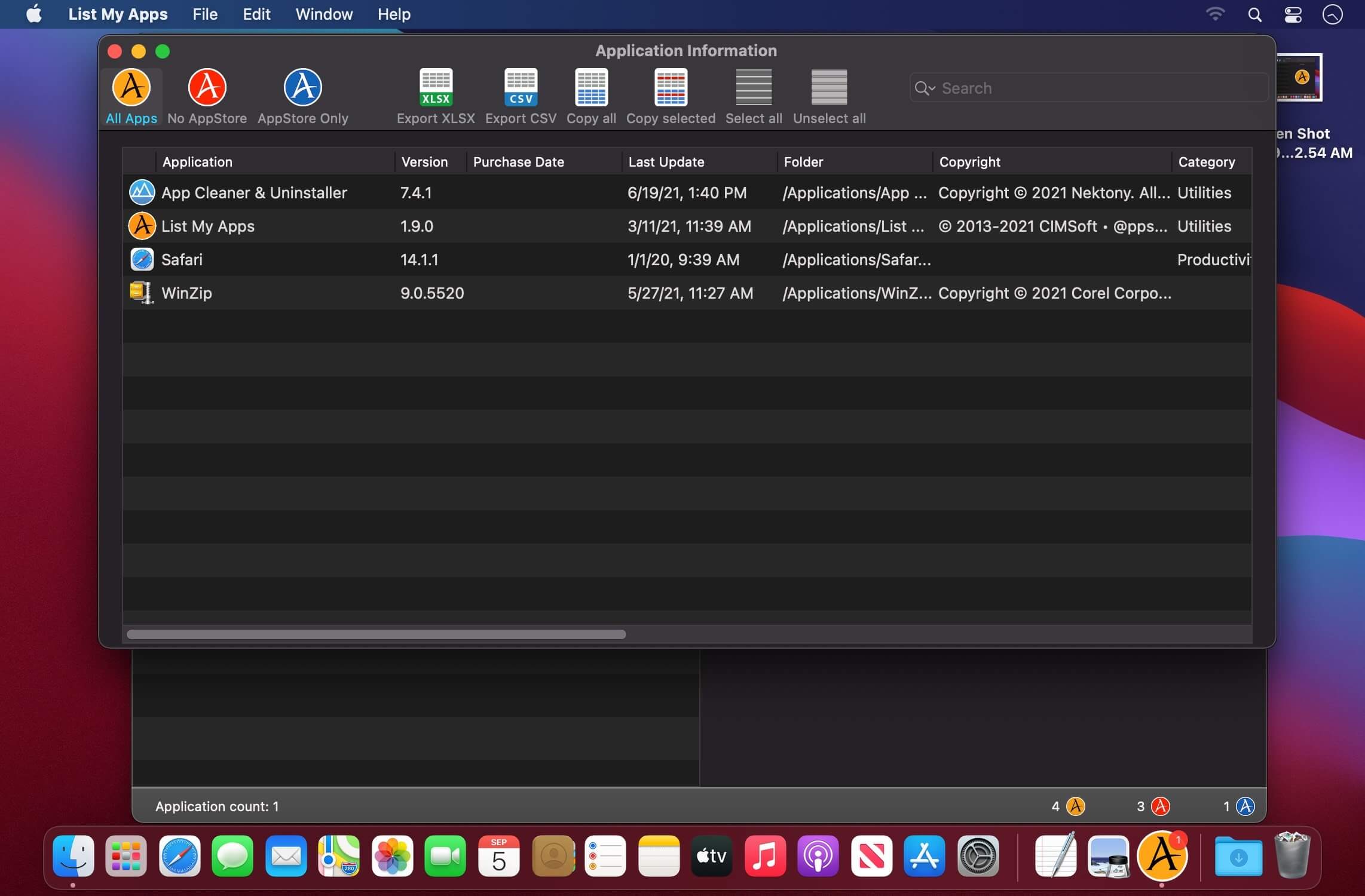
- List of all applications with all details
- Show all applications
- Show all applications that are not from AppStore
- Show all applications from AppStore
- Copy all data to the clipboard (for further processing in Excel®, Numbers® or LibreOffice etc.)
- Copy all data of the selected entries to the clipboard (for further processing in Excel®, Numbers® or LibreOffice etc.)
- Export as CSV file
- Export as Excel® XLSX file
Version 1.9.0
- Now you can reload all applications
- When application appearance changed, it change some icons and text to the right color
- Touch Bar icons are back again on macOS 10.16.0
- More icons in Touch Bar
- Touch Bar can now be fully customized
- All lists now use the macOS system colors
Comments
No comments yet. Be the first.
Information
Visitors in the group Guests cannot leave comments on this publication.