
Micromat Lifespan 1.0.1
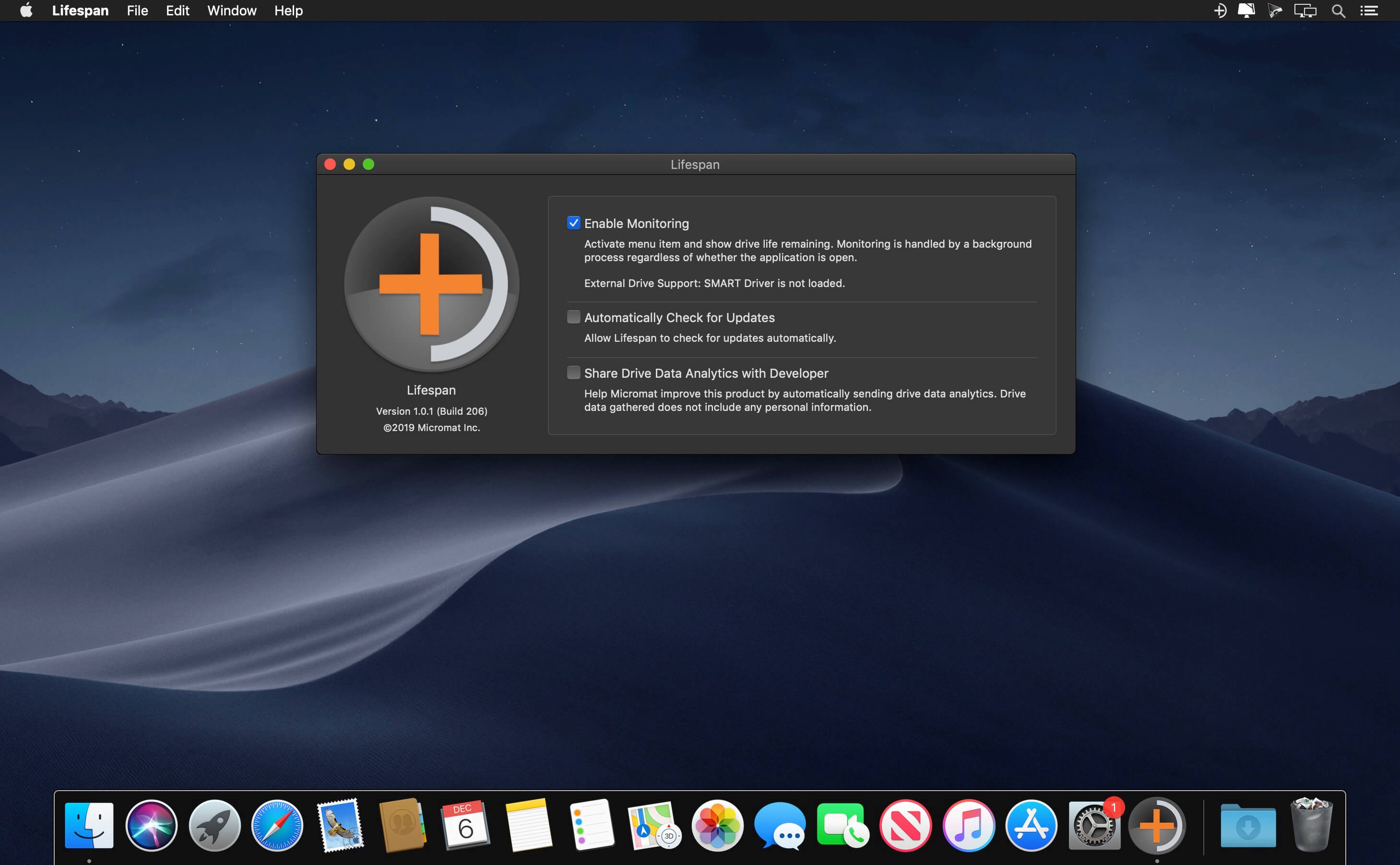
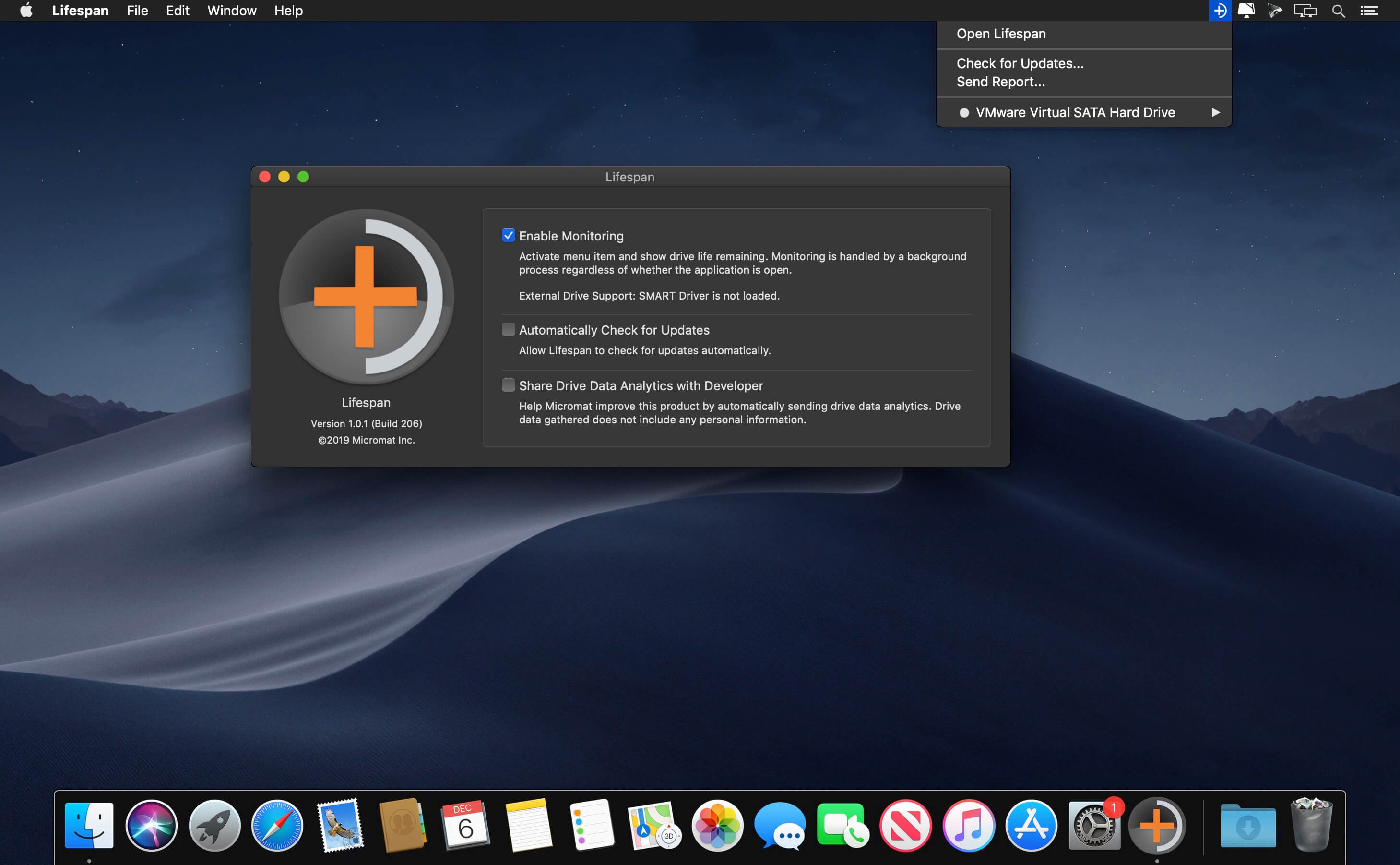
Lifespan is intended to address the ever increasing use and reliance on flash-based storage. If you require the most out of your solid state drives or other flash-based storage devices, you can benefit from knowing how much useful life is remaining on those drives. Flash-based storage devices have a finite life, and when they exceed this lifespan, their performance can begin to degrade, or they can stop working entirely. It can be extremely valuable to be aware of the available life remaining, particularly in scenarios where these devices are used vigorously.
Most flash-based storage devices store your data on non-volatile NAND solid state memory. Each cell of this flash memory can only be 'programmed and erased' a limited number of times. Drives can have fewer than 2,000 or over 10,000 of these program erase cycles or p/e cycles, depending on the type and quality of the NAND chips used. For a middle of the road solid state drive, this translates into about 100 TB of useful life, but this can vary greatly in either direction. Regardless, for every flash-based storage device, there will come a point when no more data can be stored, and the device will fail.
Lifespan is a macOS Menu Bar application which is designed to monitor the remaining useful life for flash-based storage devices. It will display the remaining useful life for your solid state drive (SSD), and we hope to support CompactFlash and CFast devices soon. The Lifespan menu will display current life usage and will alert you when the device is below the threshold of useful life remaining. Armed with this knowledge, these flash-based storage devices can be retired before the risk of losing data becomes likely.
Frequently asked questions
How do I install the app?
Mount the image, drag the app into the "Applications" folder and launch it. If the system blocks the launch, allow it in "System Settings → Privacy & Security".
The app is damaged or won't launch
Reinstalling from a fresh image usually helps. Make sure your macOS version matches the one listed in the compatibility specs.
How do I update?
Download the new version from the site and install it over the current one — your settings will be preserved.
The download link doesn't work
Try a mirror or a download manager. For large files the browser often drops the connection.
How do I completely remove the app?
Use an uninstaller utility — it cleans up the service files that remain after moving the app to the trash.
VersionLifespan 1.0.1
DeveloperMicromat Inc
CompatibilityOS X 10.10 or later, 64-bit processor
LanguageEnglish
IncludesK





Information
Visitors in the group Guests cannot leave comments on this publication.
Choose a download source
Micromat Lifespan 1.0.1 · 8.46 MB