Screenshot Editor 2.3.3
Best way to capture and modify screenshots on Mac.Screenshot Editor for Mac provides a quick and simple solution to capture and edit your screenshot. It lets you quickly capture screen, annotate your screenshot with rich annotation tools, and send to clipboard or share it easily.
Easy-to-use Application
Screenshot Editor for Mac is designed for improving your productivity, it helps you easily capture, annotate and share screenshots.
- Clear interface lets you get started immediately, all the tools are listed within the app.
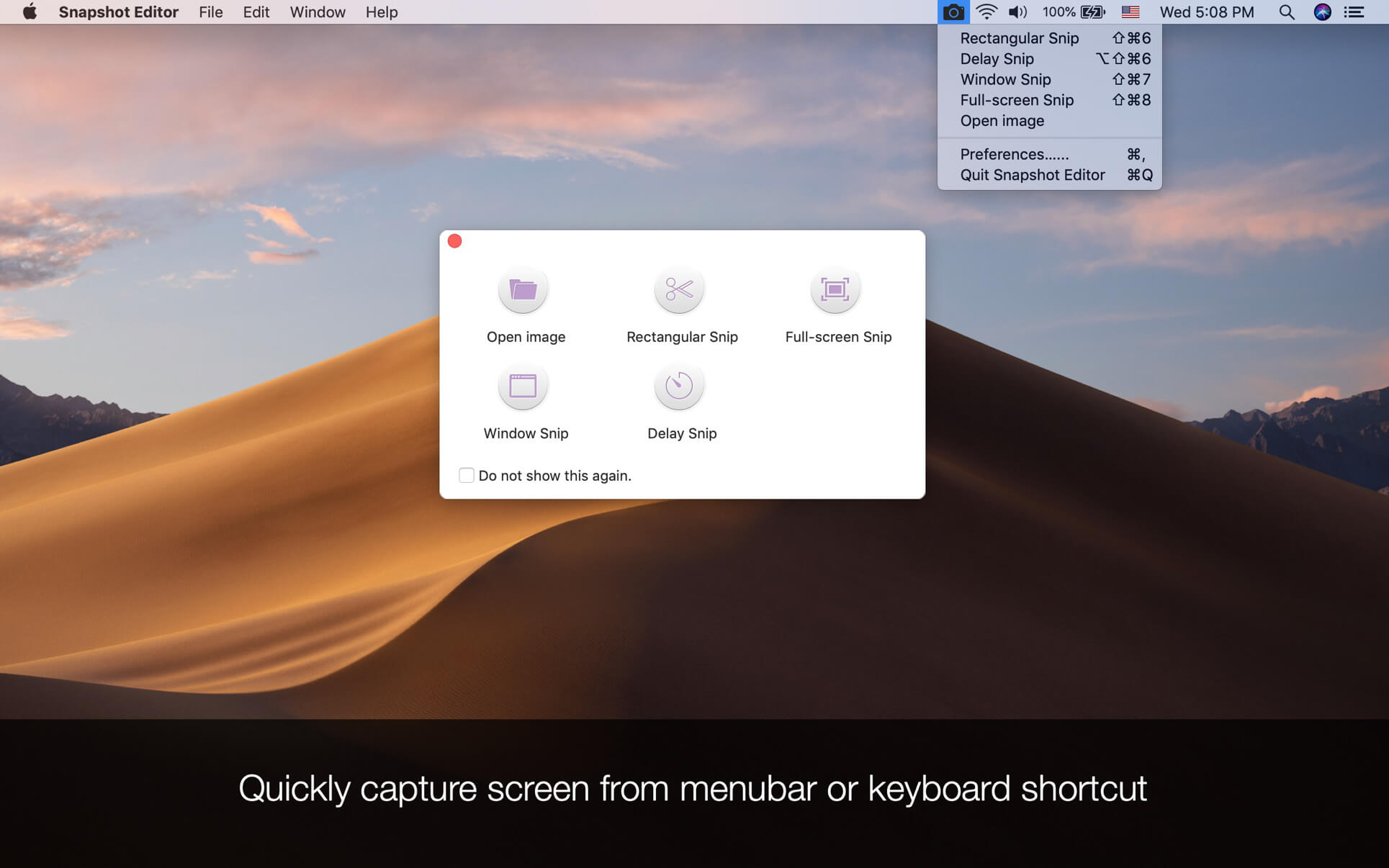
- Capture screen anytime instantly, it runs in menu bar.
- With Intelligent capture ability, you can grab entire screen, any selected area or any windows with one simple click.
- You can choose a capture method from the icon on menu bar or start window;
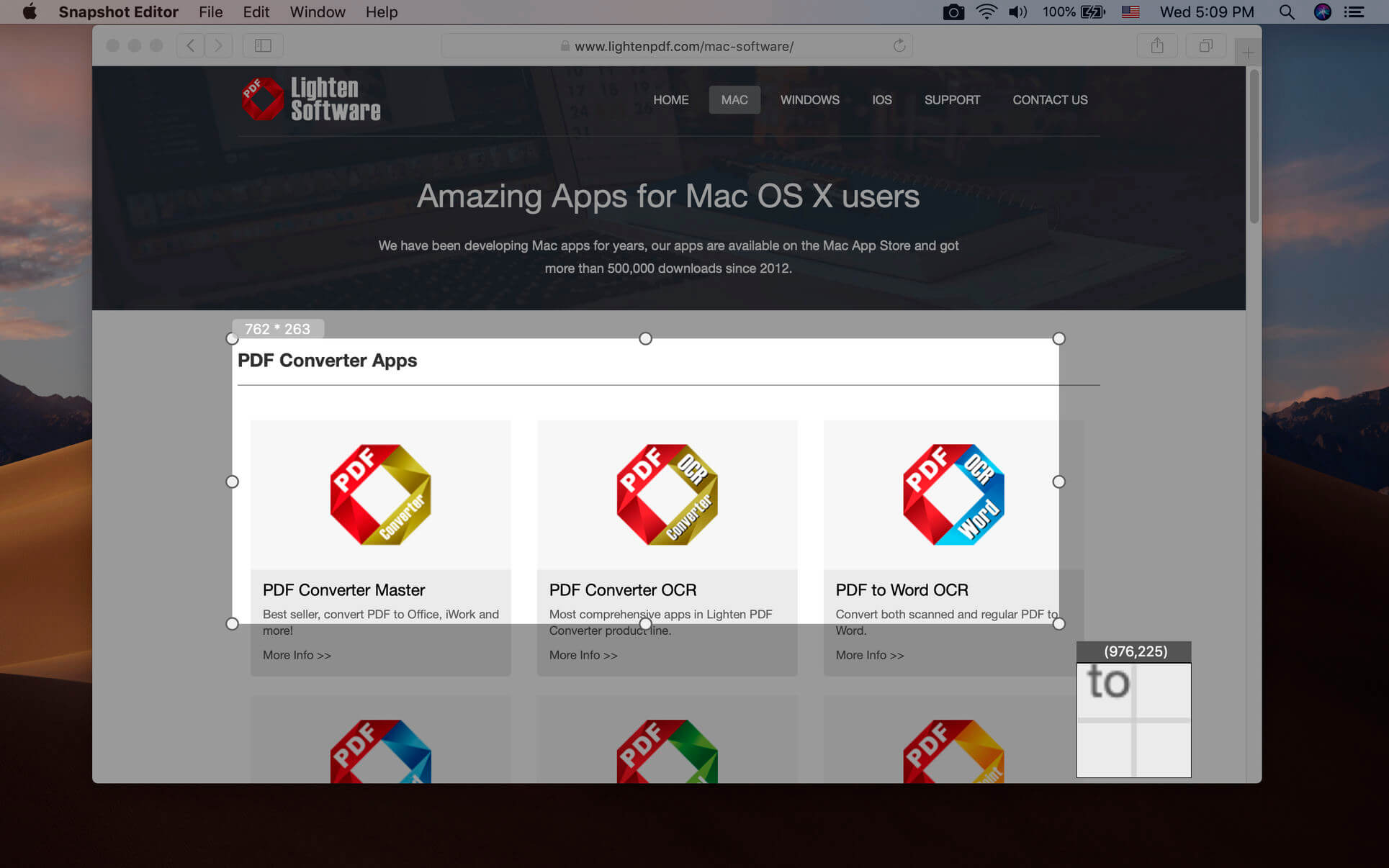
- Capture a selected window only, without dragging windows before capturing;
- Capture fullscreen by one click;
- Customize shortcut keys for quick snap;
- Magnifying tool and region size info help you capture screen precisely.
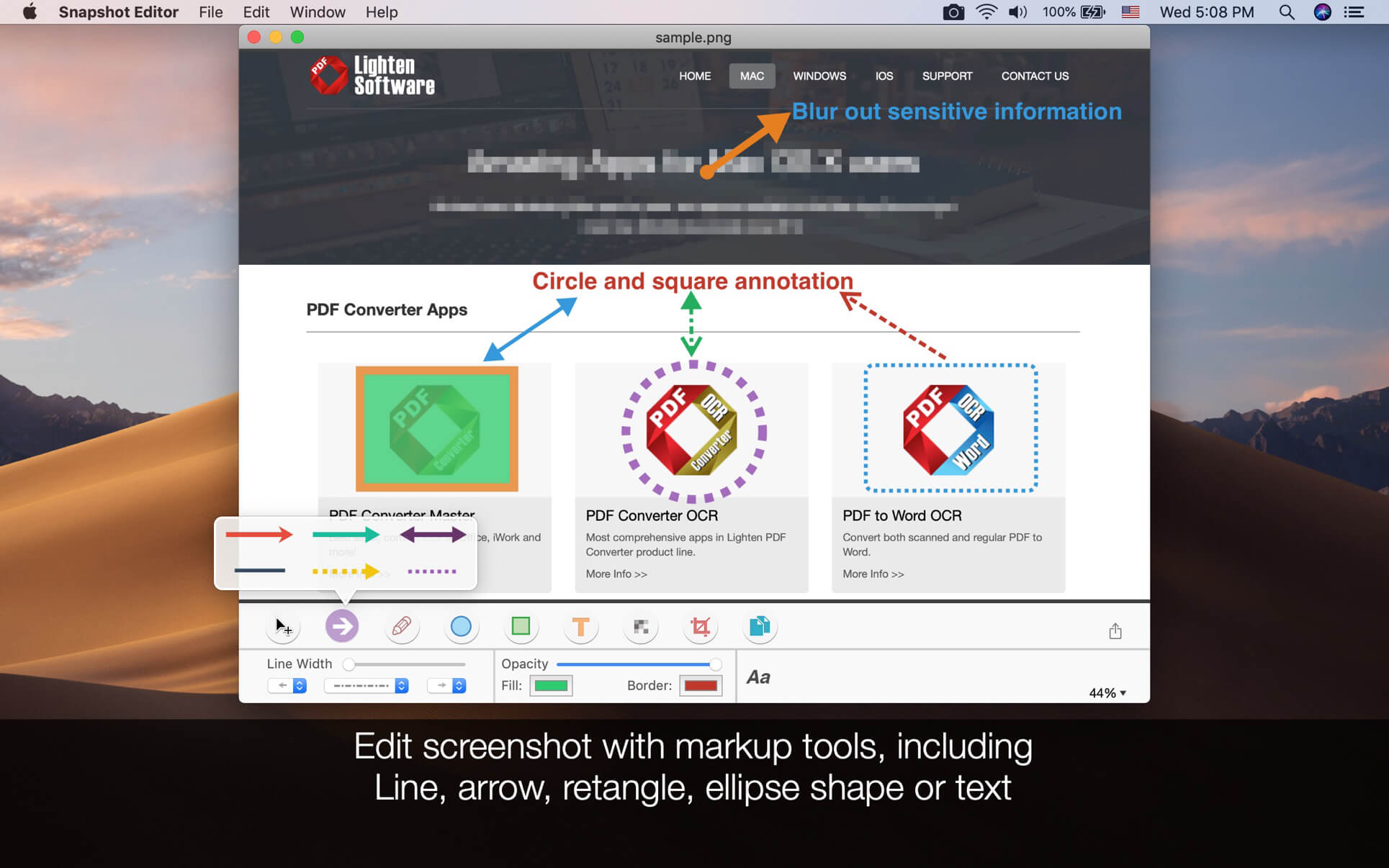
Screenshot Editor provides rich functions and fully customizable annotation tools for you, including:
Line, arrows & shapes
Draw their attention with customizable and vector-based objects, including:
- Line - Full line or dotted line;
- Arrows - Double headed or single headed arrows with full or dotted line, you can customize the line weight, opacity and color;
- Shapes - Rectangle, rounded rectangle, ellipse shapes etc. You can choose fill-only, stroke-only or fill & stroke style. You can customize fill color or stroke color, stroke weight or opacity.
- Text annotation
Blur out sensitive information with Mosaic overlay: Apply a mosaic to blur out a face, sensitive information, email address, phone number or anything you don't want to show with Mosaic overlay tool.
Format Compatibility
- If you want to annotate an image, it supports most of the common image formats;
- When you save the annotated image or screenshots, you output wide range of image formats, including PNG, BMP, JPG, TIFF, PDF, GIF.
Version 2.3
- Fixed the delay capturing for Retina Display;
- Added border to the edited screenshot image;
- The UI is translated into 16 languages;
- Added shortcut for copy to clipboard, now press Command+C can copy the edited screenshot;
- Optimized the screenshot from Retina display.
Frequently asked questions
How do I install the app?
Mount the image, drag the app into the "Applications" folder and launch it. If the system blocks the launch, allow it in "System Settings → Privacy & Security".
The app is damaged or won't launch
Reinstalling from a fresh image usually helps. Make sure your macOS version matches the one listed in the compatibility specs.
How do I update?
Download the new version from the site and install it over the current one — your settings will be preserved.
The download link doesn't work
Try a mirror or a download manager. For large files the browser often drops the connection.
How do I completely remove the app?
Use an uninstaller utility — it cleans up the service files that remain after moving the app to the trash.
VersionScreenshot Editor 2.3.3
DeveloperGerald Ni
CompatibilityOS X 10.7 or later, 64-bit processor
LanguageMultilangual
IncludesK'ed by TNT


Information
Visitors in the group Guests cannot leave comments on this publication.
Choose a download source
Screenshot Editor 2.3.3 · 5.62 MB