PDFpen 11.1.1
Features
- Add text, images and signatures to PDF
- Correct text in original PDF with editable text blocks
- Fill out interactive PDF forms and sign them
- Redact or erase text, including OCR text
- Search and redact text; search and replace text
- Export in Microsoft® Word format
- Scan directly from Image Capture or TWAIN scanners
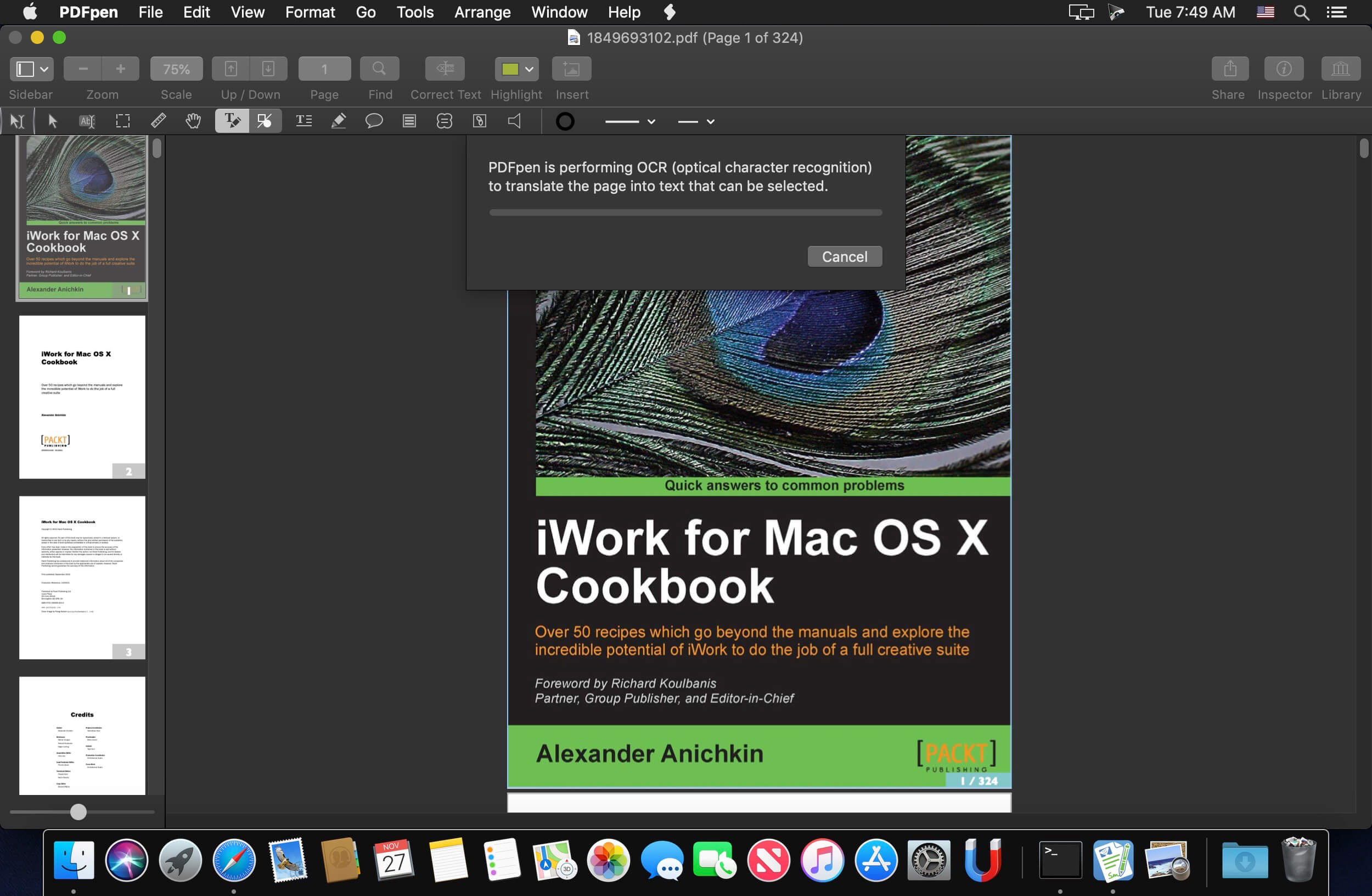
- Perform OCR (Optical Character Recognition) on scanned documents
- Viewable OCR layer for proofing OCR text from scanned pages
- Adjust resolution, color depth and contrast, skew, and size of an image or scanned document
- Sign PDF forms via interactive signature fields (not digital signatures)
- Insert and remove pages; re-order pages in a PDF by drag-and-drop; combine PDFs
- Move, resize, copy and delete images in original PDF
- Save PDFs directly to Evernote
- Copy and paste rich text; retain fonts and formatting when copying from PDFs, including columns
- Context-sensitive popup-menus enable quick edits
- Add (and print) notes and comments
- Mark up documents with highlighting, underscoring and strikethrough
- Save frequently-used images, signatures, objects and text in the Library
- Apply business-related and sign here stamps via the Library
- Print notes and comments with or without the original text
- Print a list of all annotations along with the document
- Full screen mode, as well as zoom to document width and zoom to actual document size
- Password protect a document with up to 256-bit AES encryption
- Compatible with iCloud Drive
- Sync Library items with PDFpen for iPad and iPhone via iCloud
- Automate PDF manipulations with AppleScript
- Available in English, Japanese, German, French, Italian, and Spanish
Version 11.1.1:
- Improves ability to select and copy column and table data
- Adds automatic page rotation option for scans:
- Rotate and deskew scanned pages independently of OCR
- Rotate and deskew scanned pages when performing OCR
- Other fixes and improvements
Frequently asked questions
How do I install the app?
Mount the image, drag the app into the "Applications" folder and launch it. If the system blocks the launch, allow it in "System Settings → Privacy & Security".
The app is damaged or won't launch
Reinstalling from a fresh image usually helps. Make sure your macOS version matches the one listed in the compatibility specs.
How do I update?
Download the new version from the site and install it over the current one — your settings will be preserved.
The download link doesn't work
Try a mirror or a download manager. For large files the browser often drops the connection.
How do I completely remove the app?
Use an uninstaller utility — it cleans up the service files that remain after moving the app to the trash.
VersionPDFpen 11.1.1
DeveloperSmile
CompatibilitymacOS 10.12 or later, 64-bit processor
LanguageMultilangual
IncludesK'ed by TNT




Choose a download source
PDFpen 11.1.1 · 79.73 MB
Comments 2