
Unite 5.1.1

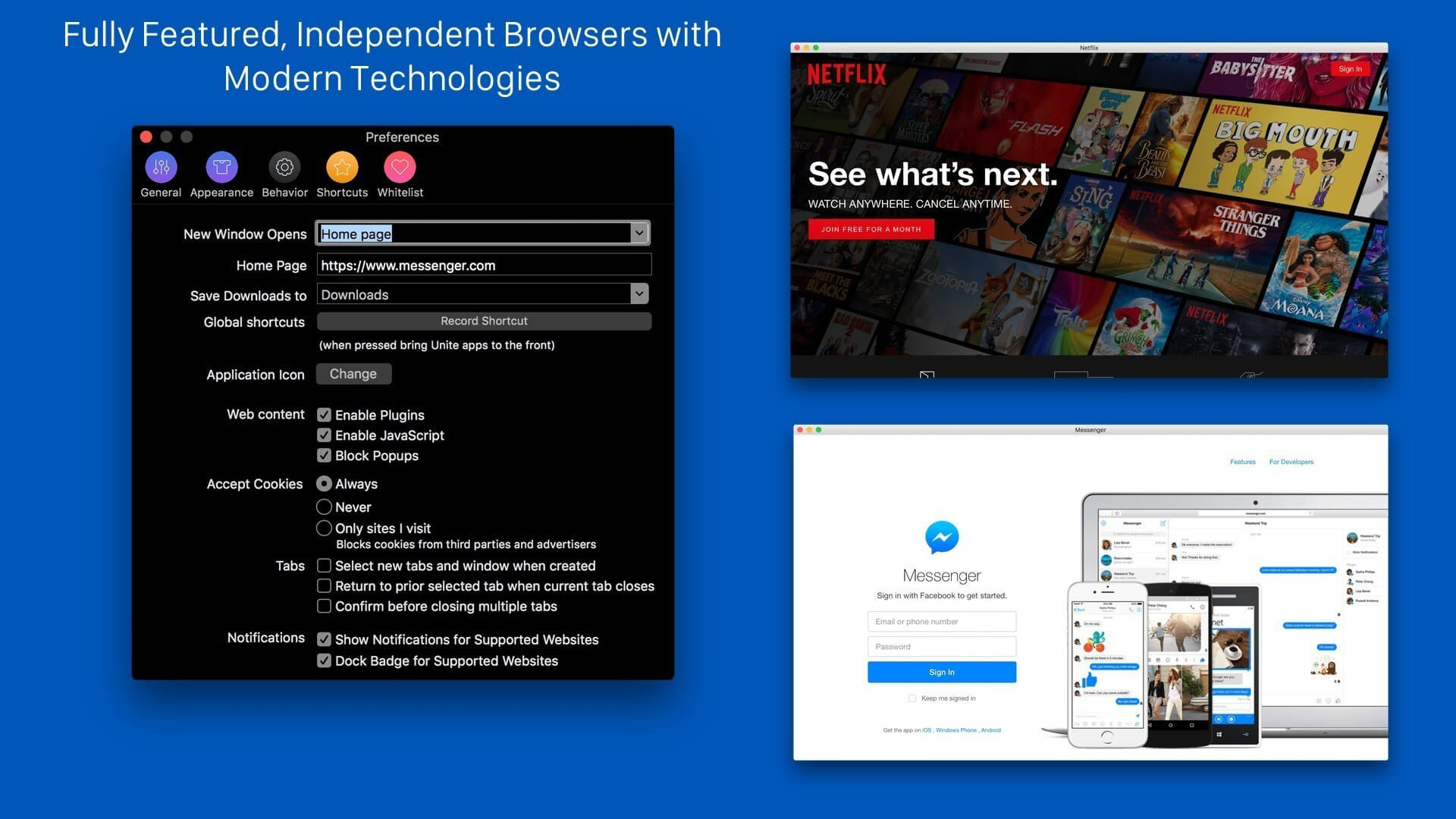
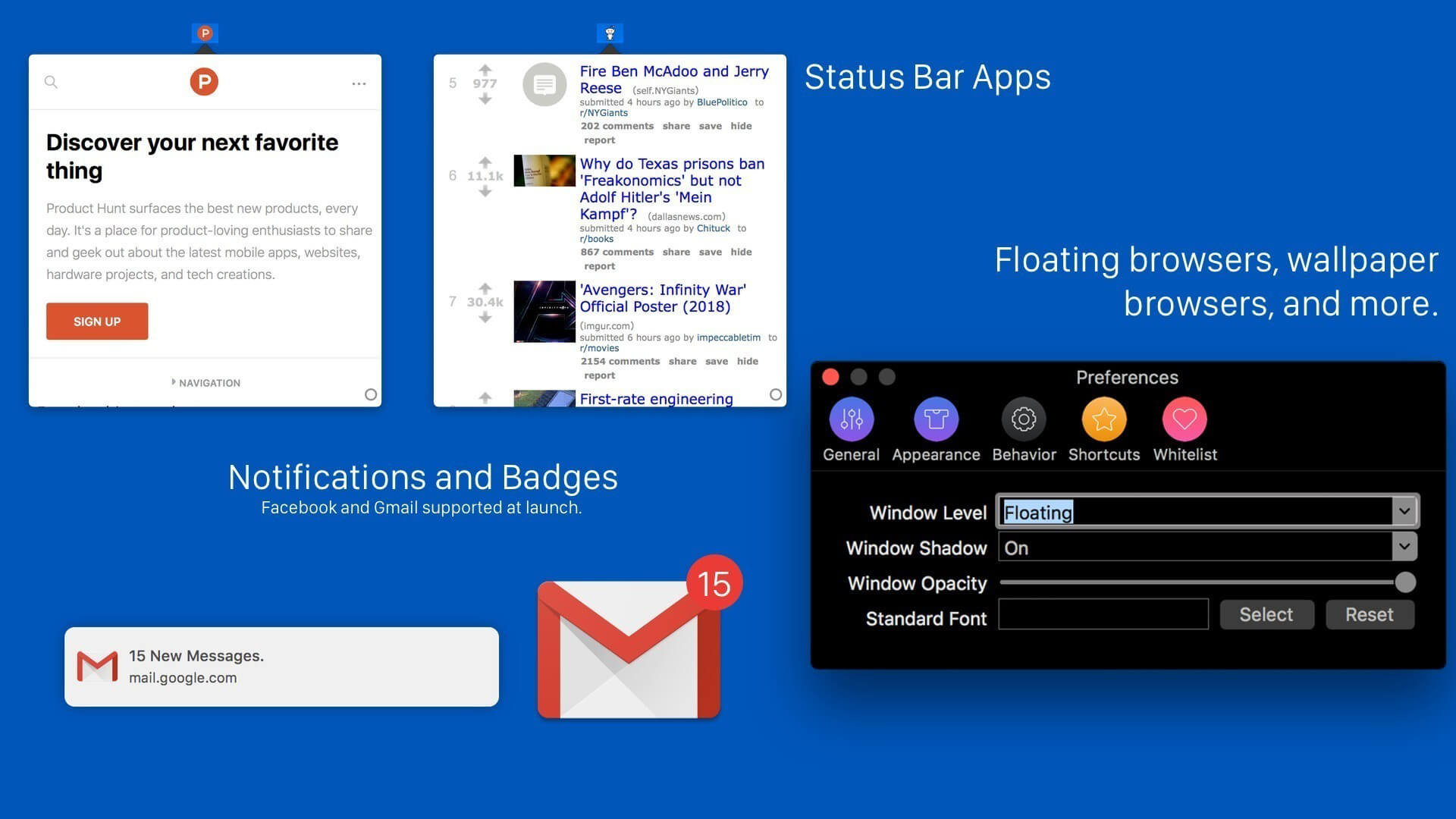
Unite allows you to quickly and easily turn websites into full-featured, native apps on macOS. Using the revolutionary Unite browser as a backend, each Unite app features its own browser, while remaining incredibly small and full-featured. And, because Unite apps are each a unique browser, they feature separate cookies and settings, as well as support for user scripts and user styles. In addition to modern web browsing features, Unite apps include macOS-specific features, including notifications, TouchBar support, the ability to pin apps to the status bar, and much more.
Version 5.0:
- macOS 14 Sonoma Improvements: Various improvements and fixes for macOS 14 Sonoma.
- Enhanced Link Forwarding: Support for wildcard rules, subdomains, and subdirectories in Link Forwarding.
- Global Shortcut Revival: The global shortcut to bring an app back to the front has been restored.
- URL Bar Animations: Improvements to animations in the URL bar.
- Close Rightmost Window: You can now close the rightmost window when the titlebar is hidden.
- Delete Key Fix: Resolved an issue where the delete key wasn't working on some sites.
- Command-W Fix: Fixed an issue where command-w was not working in Unite apps.
- License Verification Fix: Resolved a crash issue after license verification that made Unite 5.0.1 unusable for some users.
- Icon Fetching Improvements: Improved the process of fetching icons, and added a new default icon.
- Microsoft Support: Enhanced support for Microsoft services, though Teams is still not supported. We continue to investigate fixes for Teams support.
- URL Management: New shortcuts for copying the current URL (command-shift-c) and editing the URL (command-l).
- Unite 4 App Upgrades: Upgraded Unite 4 apps will now include user scripts, styles, andtab positions.
- Additional Bug Fixes: Various other improvements and bug fixes have been made.
Frequently asked questions
How do I install the app?
Mount the image, drag the app into the "Applications" folder and launch it. If the system blocks the launch, allow it in "System Settings → Privacy & Security".
The app is damaged or won't launch
Reinstalling from a fresh image usually helps. Make sure your macOS version matches the one listed in the compatibility specs.
How do I update?
Download the new version from the site and install it over the current one — your settings will be preserved.
The download link doesn't work
Try a mirror or a download manager. For large files the browser often drops the connection.
How do I completely remove the app?
Use an uninstaller utility — it cleans up the service files that remain after moving the app to the trash.





Choose a download source
Unite 5.1.1 · 17.84 MB
Previous versions
Unite 5.1.1
Previous versions are available to registered users.