InfoClick 1.2.8
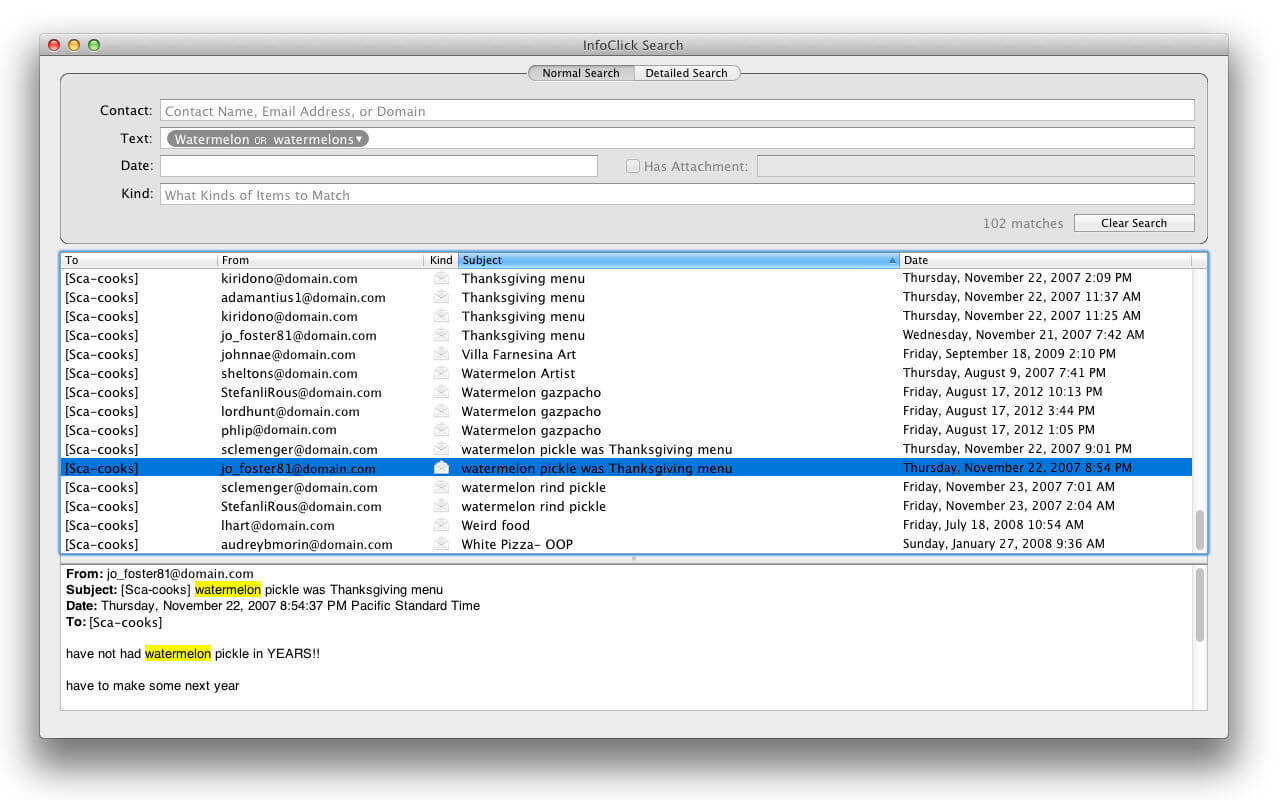
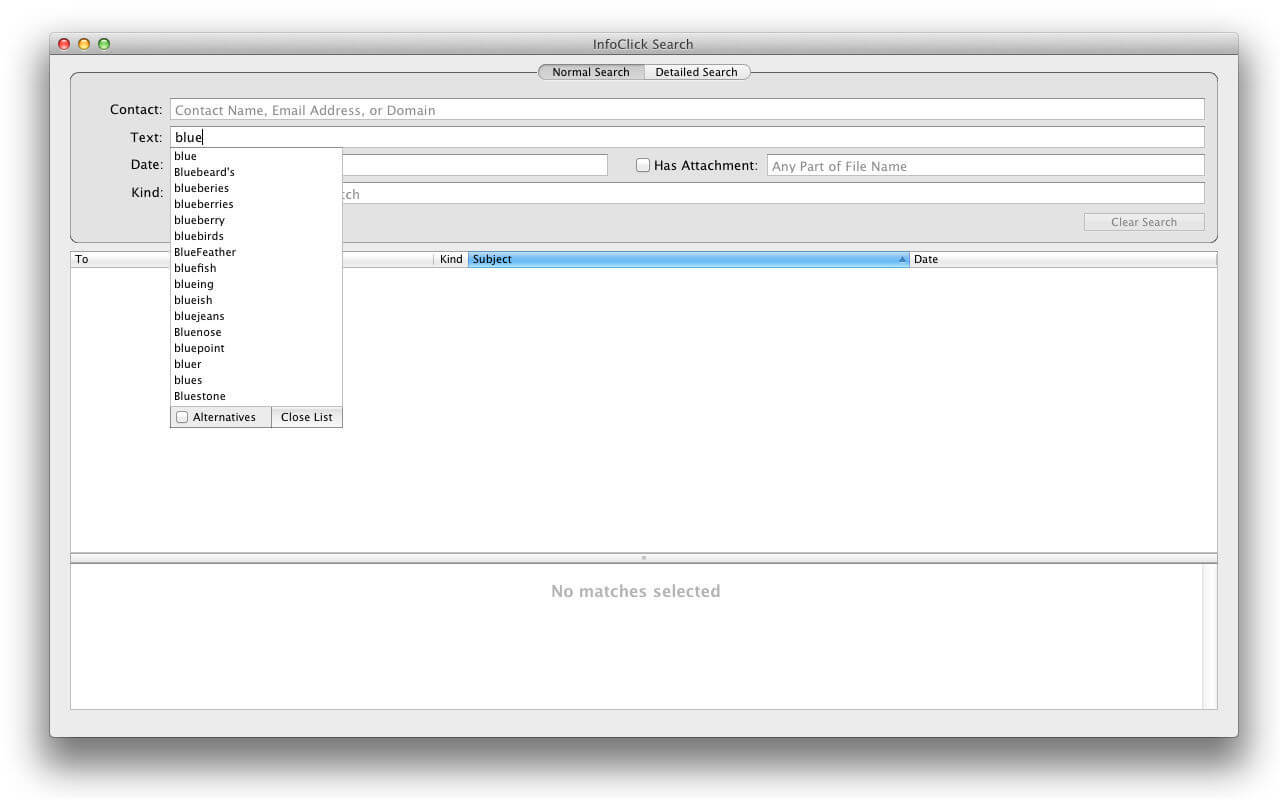
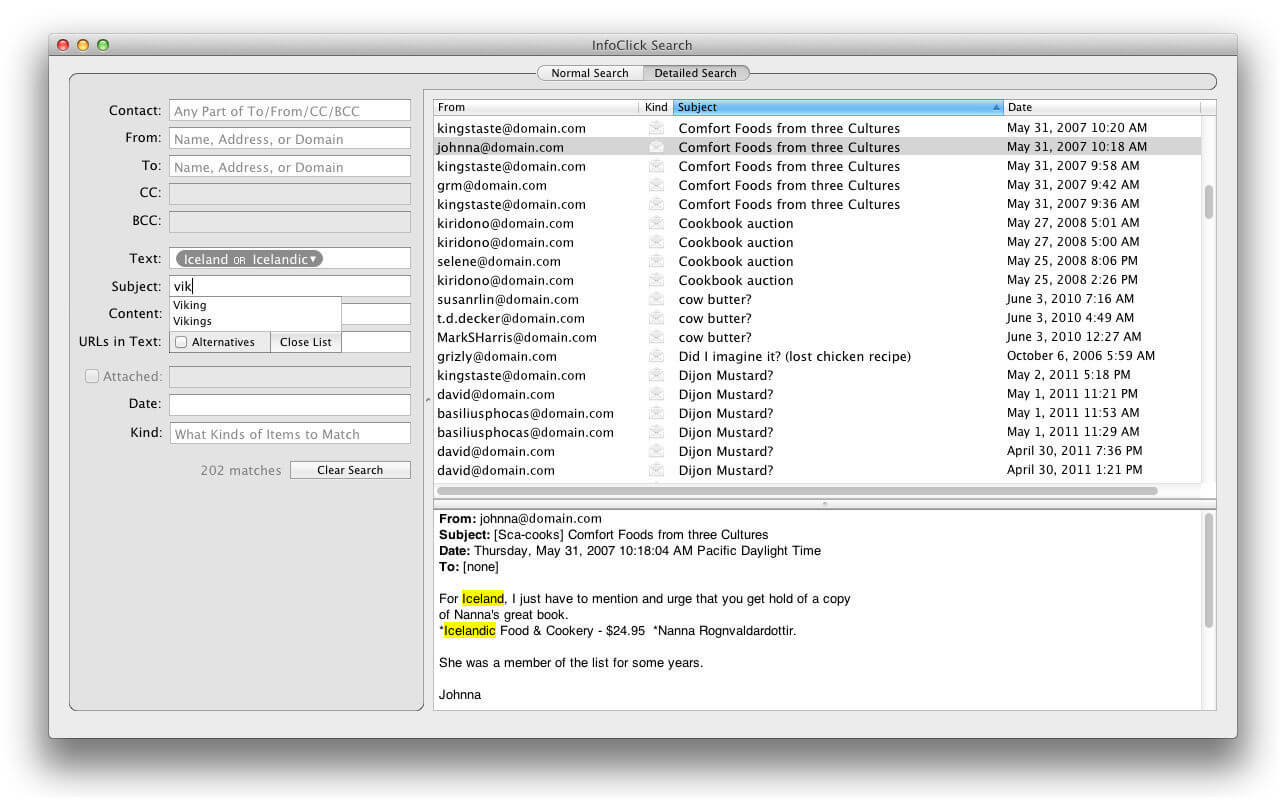
InfoClick is designed to be used with Apple's Mail application to navigate through your emails to see the words, contacts, and information within. InfoClick knows precisely what words you've used, so there's no guessing; it offers a guided process of progressively narrowing down the matches in a series of simple choices. That means you can't ever produce a search with zero matches. For example, when you're searching for all emails containing a particular word, InfoClick would show the completions "connection", "connexion", and (the misspelled) "connecsion", if you'd actually used those words in your emails.
InfoClick offers additional features to make searching your emails easier. To see all emails received from educational organizations in the US, simply type .edu in the From field. With a single click, you can narrow-down your search to only those emails that had an attachment, and/or those received in a given date range, and/or those that contain specific words. You can choose, as alternatives, all displayed word spellings used in the emails, so you don't miss an email because of spelling errors.
InfoClick also offers a note editor, allowing you to collect and organize links to emails, files, Web pages, and other URLs (notes are completely searchable).
Version 1.2.8:
Changed:
- Restored native support for Apple Silicon (M1).
- Fixed: possible crash when indexing malformed emails at higher indexing speeds.
- Changed: higher indexing speeds should use additional background resources.
- Fixed: skipping draft emails should update the progress bar.
- Fixed: don't let users close the progress window.
- Fixed: email counts in the progress window should be formatted using thousands separator.
Frequently asked questions
How do I install the app?
Mount the image, drag the app into the "Applications" folder and launch it. If the system blocks the launch, allow it in "System Settings → Privacy & Security".
The app is damaged or won't launch
Reinstalling from a fresh image usually helps. Make sure your macOS version matches the one listed in the compatibility specs.
How do I update?
Download the new version from the site and install it over the current one — your settings will be preserved.
The download link doesn't work
Try a mirror or a download manager. For large files the browser often drops the connection.
How do I completely remove the app?
Use an uninstaller utility — it cleans up the service files that remain after moving the app to the trash.





Choose a download source
InfoClick 1.2.8 · 18.7 MB