
iBackupBot 5.4.4
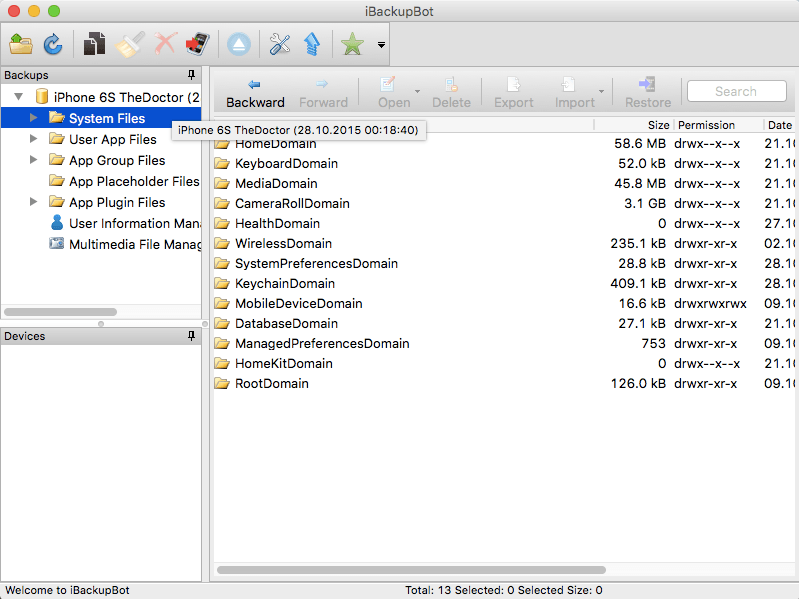
iBackupBot gives you the ability to browse, view, export, and modify iTunes backup files. With its built-in plist editor, hex editor, text editor, database viewer, image viewer, SMS message viewer, notes viewer, address book viewer, and media browser, you can view and edit any file that iTunes backed up from iPad/iPhone/iPod Touch to your computer.
When you connect your iPad, iPhone or iPod touch to your computer, or right click iPad, iPhone or iPod Touch in iTunes and select Back Up, certain files and settings on your iPhone or iPod touch are automatically backed up to your computer. You can restore this information if you need to (if you get a new iPhone, for example, and want to transfer your previous settings to it).
The backed-up information includes text messages, notes, call history, contact favorites, sound settings, widget settings, and more. In addition, photos in Camera Roll on your iPhone or in Saved Photos on your iPod touch are also backed up.
iBackupBot can export SMS messages, notes, and address book to a text file or an Excel file. It also gives you the ability to edit backup files and restore them to your iPhone/iPod Touch, so you can do many things that you could not do before, e.g., customize carrier name, modify game data files, and more--and no jailbreak required!
Why would I use iBackupBot?
- If you to want view and export SMS messages, Contacts, Notes for sharing with friends or for archiving.
- If you lost your iPhone, you need iTunes Backup Manager to view and export your SMS messages, Contacts, Notes, and so on.
- If you want to maintain multiple backups of different times for one iPhone or iPod Touch, and freely select which one to restore.
- If you want browse and export media contents include Camera Roll, Voice Memo, Voicemail and others.
WHAT’S NEW
Version 5.4.4:
- Release notes were unavailable when this listing was updated.
SCREENSHOTS
Frequently asked questions
How do I install the app?
Mount the image, drag the app into the "Applications" folder and launch it. If the system blocks the launch, allow it in "System Settings → Privacy & Security".
The app is damaged or won't launch
Reinstalling from a fresh image usually helps. Make sure your macOS version matches the one listed in the compatibility specs.
How do I update?
Download the new version from the site and install it over the current one — your settings will be preserved.
The download link doesn't work
Try a mirror or a download manager. For large files the browser often drops the connection.
How do I completely remove the app?
Use an uninstaller utility — it cleans up the service files that remain after moving the app to the trash.
VersioniBackupBot 5.4.4
DeveloperVOWSoftware Ltd.
CompatibilityOS X 10.6 or later, 64-bit processor
LanguageEnglish
IncludesSerial





Information
Visitors in the group Guests cannot leave comments on this publication.
Choose a download source
iBackupBot 5.4.4 · 12.39 MB