
Tomatoes 2.4
Be more productive!
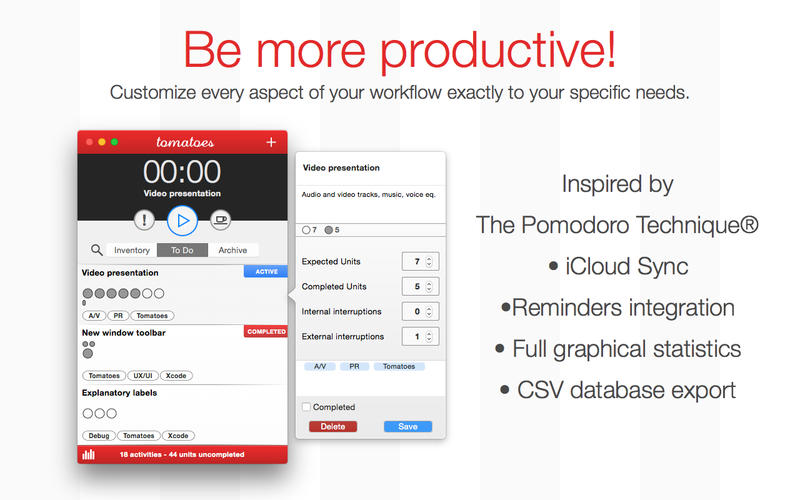
With Tomatoes you can organize your tasks, improve your efficiency and make your time more productive.
Tomatoes uses iCloud to sync beetwen your Macs and Tomatoes for iPhone.
Inspired by The Pomodoro Technique®, Tomatoes allows you to subdivide your tasks in activities, providing as many units of time are necessary for their realization.
The activities are organized into groups to keep them always under control. You can use a generic timer or associate an activity with it. Tomatoes will keep track of the used units for you.
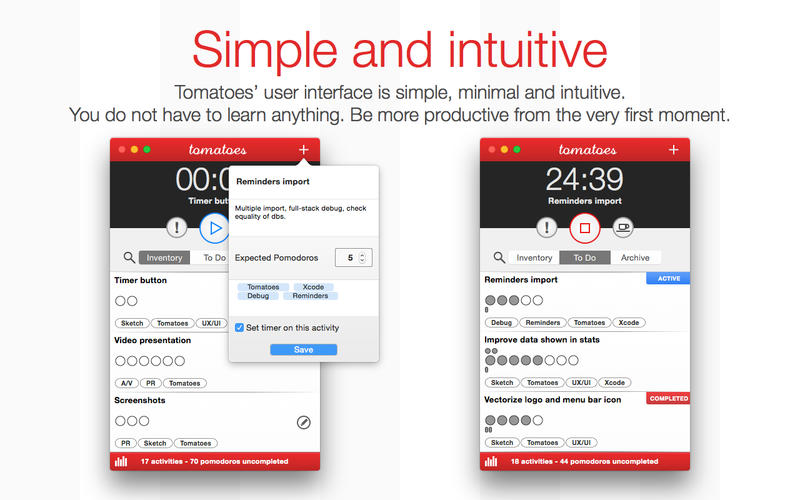
Activities can be created from Reminders. Tomatoes uses system Reminders to add new activities.
Tomatoes is HiDPI ready and looks gorgeous on Macs with Retina Display.
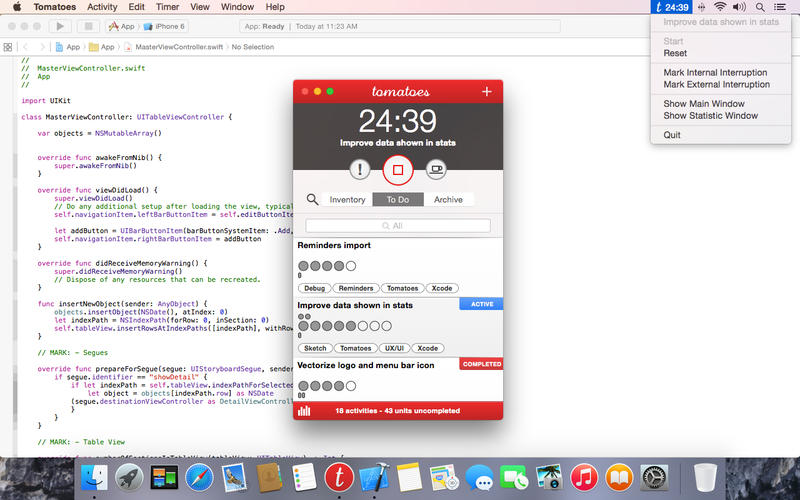
Tomatoes user interface is simple, minimal and intuitive. You do not have to learn anything. Be more productive from the very first moment. If your screen is used by other applications with Tomatoes you can monitor your timer by a handy menu-bar item.
Reorganize your activities with a simple drag and drop, move them from one group to another, rearrange their order, associate an activity with the timer and do much more.
Tomatoes is fully customizable: choose the duration of your timer and of your breaks, set if you prefer to hide the Tomatoes menu-bar item, decide which dialog alerts to display and which sounds to play.
If you prefer to use the keyboard Tomatoes can be controlled by comfortable keyboard-shortcuts.
A complete set of sounds will help you to achieve a more effective control of your activities and of your time.
Tomatoes has a dedicated window for graphical and textual statistics. Keep your productivity always under control with a set of fully customizable graphs.
Export Tomatoes database in CSV format to browse and manipulate all your historical data.
Tomatoes has a full VoiceOver support that lets you interact with every feature of the application.
Many more features coming soon...
WHAT’S NEW
Version 2.4
- We added a new Contact Us feature under the Help menu
- Overall stability improvements
SCREENSHOTS
Frequently asked questions
How do I install the app?
Mount the image, drag the app into the "Applications" folder and launch it. If the system blocks the launch, allow it in "System Settings → Privacy & Security".
The app is damaged or won't launch
Reinstalling from a fresh image usually helps. Make sure your macOS version matches the one listed in the compatibility specs.
How do I update?
Download the new version from the site and install it over the current one — your settings will be preserved.
The download link doesn't work
Try a mirror or a download manager. For large files the browser often drops the connection.
How do I completely remove the app?
Use an uninstaller utility — it cleans up the service files that remain after moving the app to the trash.
VersionTomatoes 2.4
DeveloperDollaropath srl
CompatibilityOS X 10.10 or later, 64-bit processor
LanguageEnglish
IncludesPre-K'ed



Information
Visitors in the group Guests cannot leave comments on this publication.
Choose a download source
Tomatoes 2.4 · 8.13 MB