
Favorite FTP 3.4
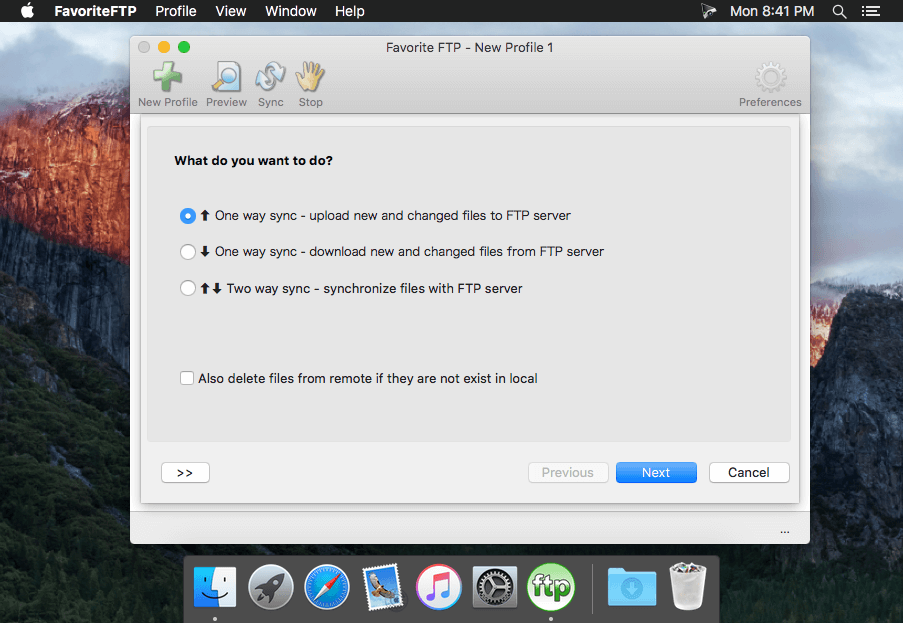
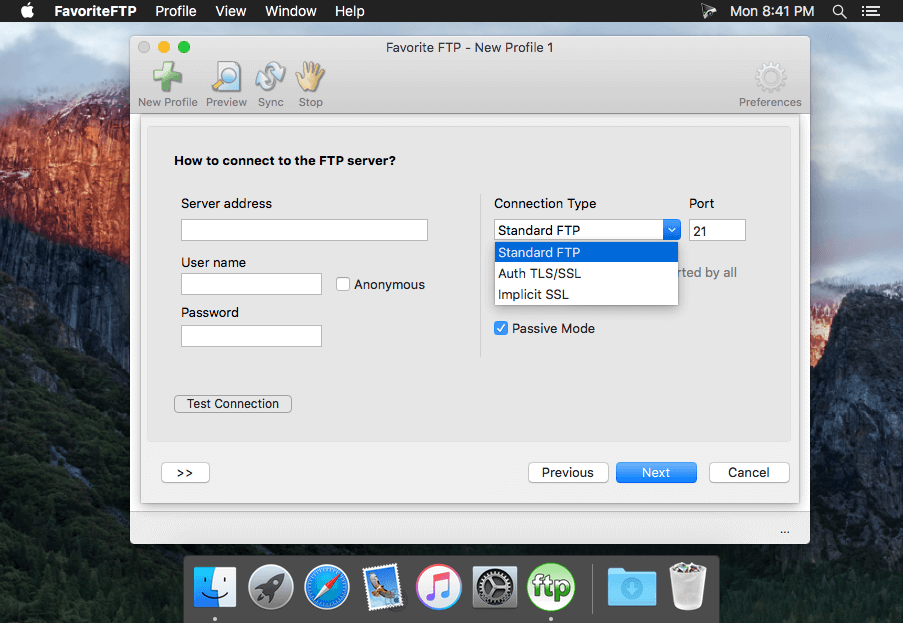
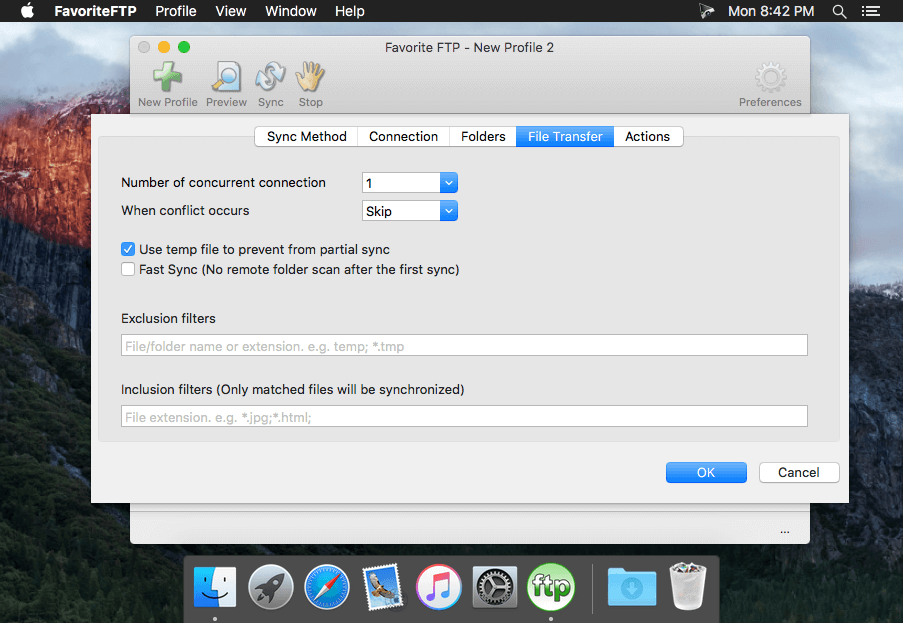
FavoriteFTP is a product to help you synchronize files between Mac and FTP servers. Do you still need to manually upload files you just edited? Do you still need to pickup files in different directories in order to upload them? Do you still need to check every directories in FTP server to download files your partners just updated? Please, leave it to FavoriteFTP. It detects new and changed files on Mac and FTP server, then synchronizes them automatically. All you need to do is a button click.
Features:
- Only changed files will be synchronized!
- Unlike other software which copy all files every time, even if they are not changed. Favorite FTP synchronizes changed files only. It'll save a lot of bandwidth, and more important, your precious time.
- Automatic FTP sync
- Sync files automatically without user interaction and receive email notification when it's completed. You can use built-in scheduler or any other scheduler program to automate FTP sync.
- Secure FTP connection
- Secure SSL and SFTP connection ensures nobody can see your data during transfer.
- Integrity verification
- Favorite FTP can verify (CRC, MD5 or SHA1) the files after sync to make sure they were synchronized 100% correctly.
- High performance multiple connections file transferring
- Uploading/downloading multiple files with different servers at the same time.
- Handle different time zone
- Synchronize files correctly even if the time zone between Mac and FTP server is different.
- Conflict detection
- How about if you modified a same file in both Mac and remote computer? Most software can NOT handle this, they simply overwrite older files by newer. Please, don't do this! Favorite FTP takes care this situation. You can ensure your files will not be overwritten by mistakes!
- Proxy and fire wall support
- SOCKS4, SOCKS5, HTTP Proxy, Simply Relay, SOCKS4A, SITE hostname, OPEN hostname, USER user@host. etc
Version 3.4:
- Minor bug fixes
Frequently asked questions
How do I install the app?
Mount the image, drag the app into the "Applications" folder and launch it. If the system blocks the launch, allow it in "System Settings → Privacy & Security".
The app is damaged or won't launch
Reinstalling from a fresh image usually helps. Make sure your macOS version matches the one listed in the compatibility specs.
How do I update?
Download the new version from the site and install it over the current one — your settings will be preserved.
The download link doesn't work
Try a mirror or a download manager. For large files the browser often drops the connection.
How do I completely remove the app?
Use an uninstaller utility — it cleans up the service files that remain after moving the app to the trash.
VersionFavorite FTP 3.4
Developer© 2016 Fevosoft
CompatibilityOS X 10.7 or later, 64-bit processor
LanguageEnglish
IncludesKG



Information
Visitors in the group Guests cannot leave comments on this publication.
Choose a download source
Favorite FTP 3.4 · 6.68 MB