Tahoe Cache Cleaner 26.6
Tahoe Cache Cleaner: Mac maintenance, optimization, and cache cleaning tools
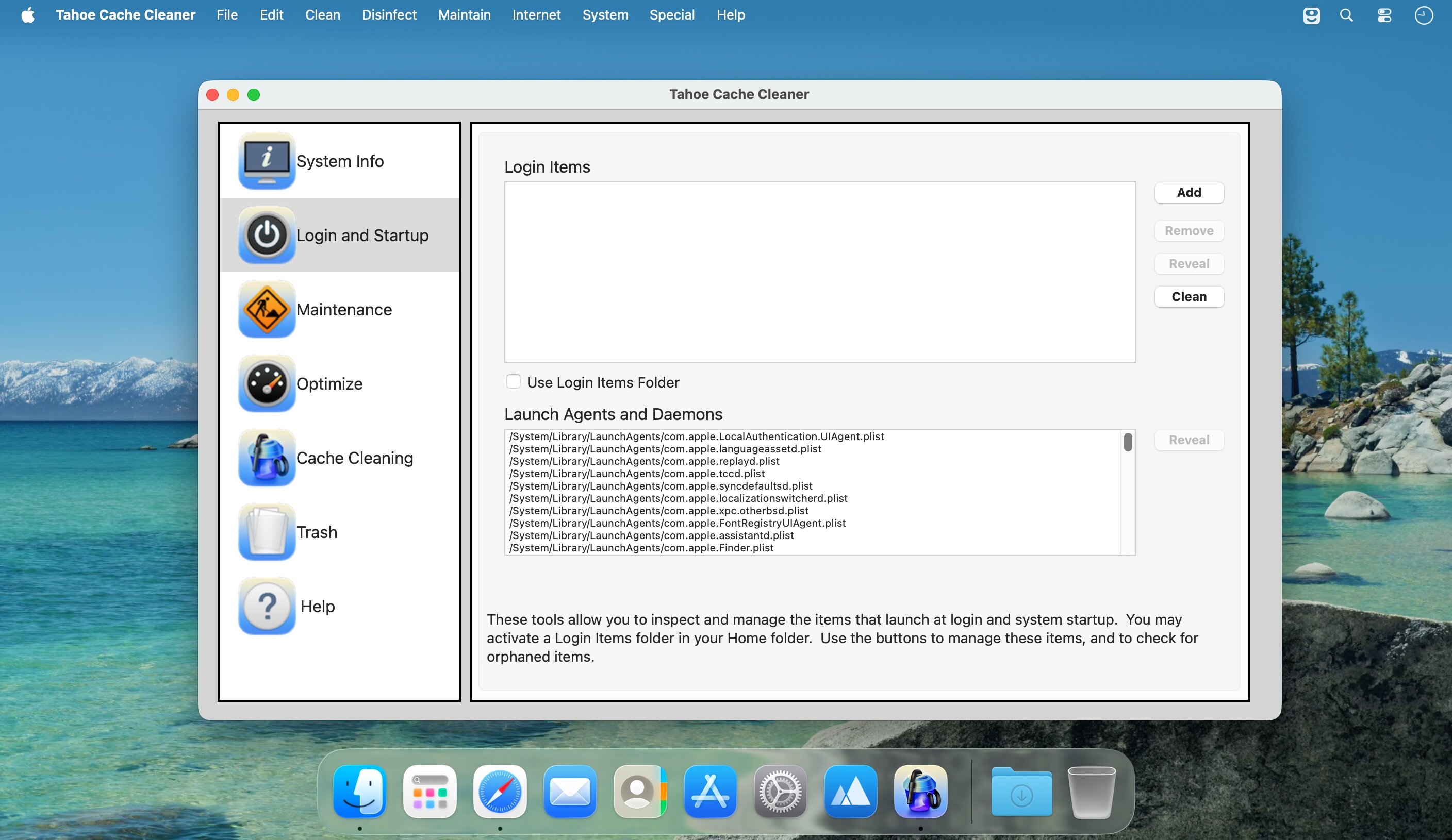
Tahoe Cache Cleaner has been around for over 20 years, and you may know it by a different name, since it’s been renamed with each new macOS release. Even so, it’s long remained a favorite among Mac users.
It’s hard to sum up everything this app can do, because it offers so many tools. In short, if it involves macOS maintenance, optimization, or customization, this app probably has a feature for it.
For routine maintenance, Tahoe Cache Cleaner can run several tasks at once, including verifying disk volumes, clearing log files and internet caches, and repairing permissions. If ClamAV is installed, it can also perform a virus scan.
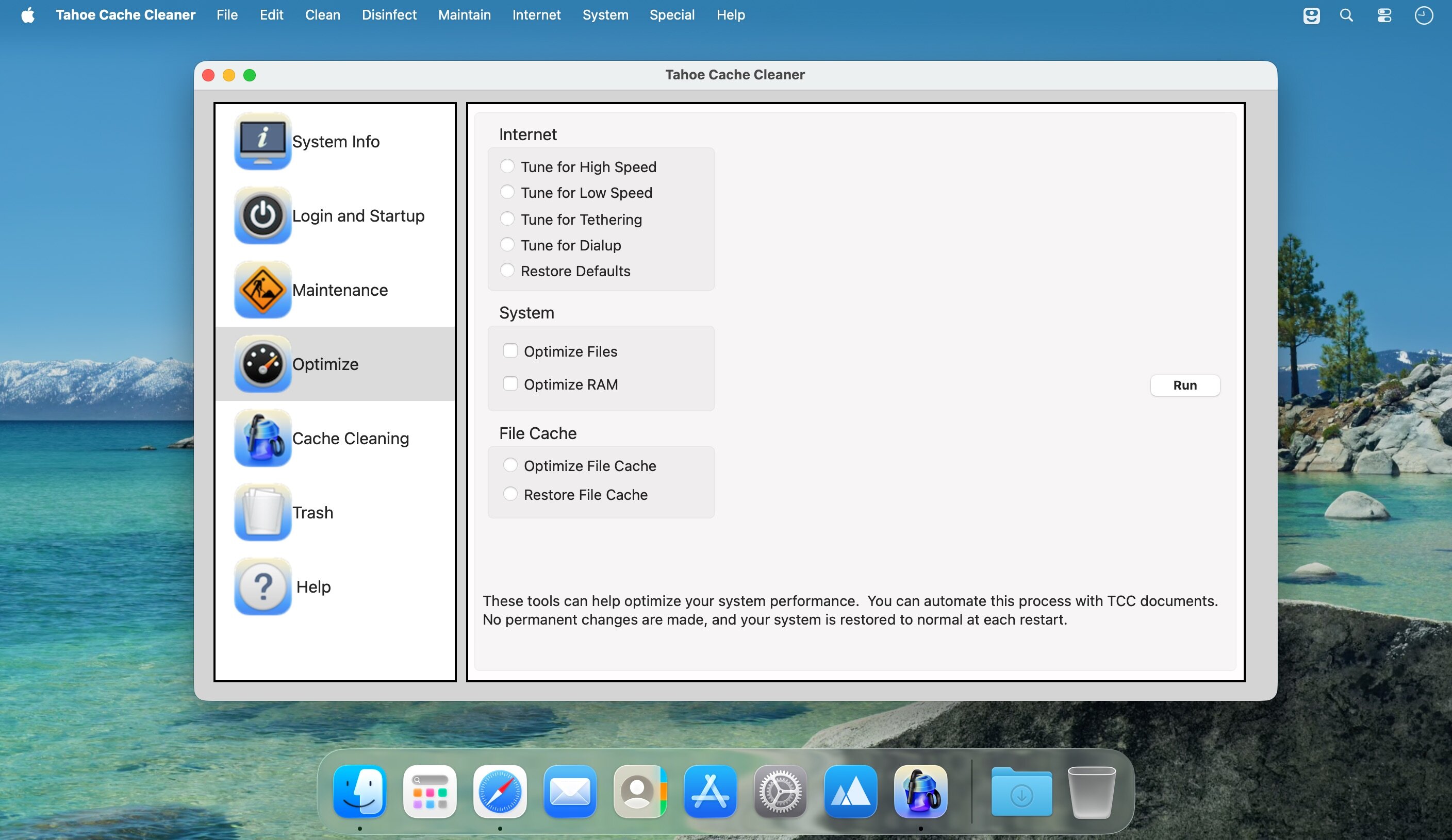
On the optimization side, it can adjust internet settings for different connection types, optimize RAM, and optimize or restore the file cache. These features are safe to use anytime, though the results may not always be dramatic.
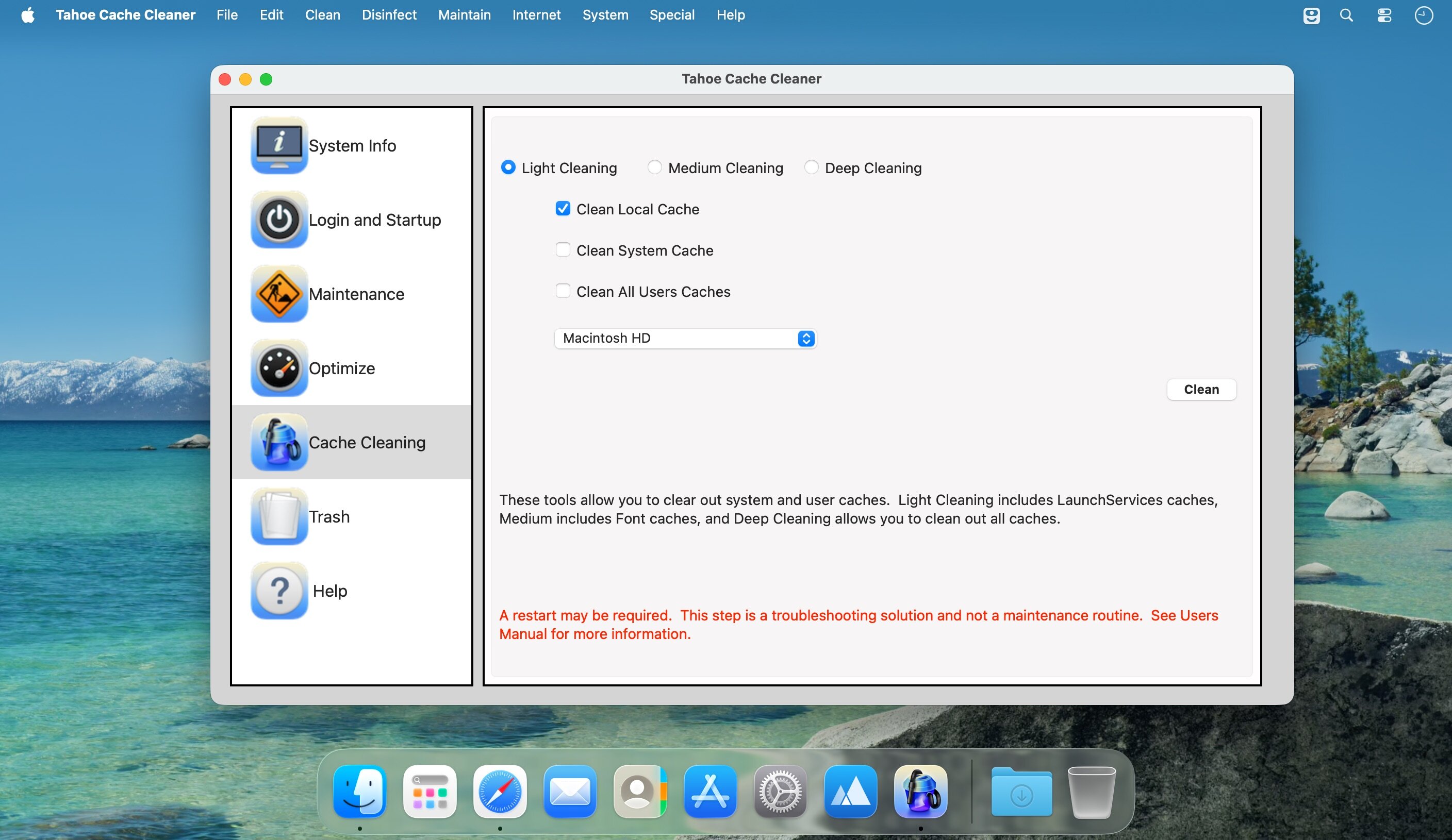
Cache cleaning is more advanced and usually best reserved for situations where you’re already having issues. The app offers three cache-cleaning options, along with clear instructions for each.
There’s even more tucked away in the menus. The main interface only shows part of what the app can do; the rest is available through advanced menus better suited to experienced users. If you’re not familiar with those tools, the documentation is worth reading first.
Beyond cleaning, maintenance, and customization, the app can also download macOS installers, create bootable USB drives, and prepare a bootable emergency disk for system recovery.
The design is clearly intentional: simple, low-risk tools are easy to access, while more powerful features are kept out of the way. A more advanced UI mode would be welcome, but the current layout does make the app approachable.
Overall, Tahoe Cache Cleaner is impressively capable and reasonably priced. Its documentation is thorough, and if you need a tool for Mac maintenance, it’s hard to find one that does more.
Version 26.6:
- Release notes were unavailable when this listing was updated.
Frequently asked questions
How do I install the app?
Mount the image, drag the app into the "Applications" folder and launch it. If the system blocks the launch, allow it in "System Settings → Privacy & Security".
The app is damaged or won't launch
Reinstalling from a fresh image usually helps. Make sure your macOS version matches the one listed in the compatibility specs.
How do I update?
Download the new version from the site and install it over the current one — your settings will be preserved.
The download link doesn't work
Try a mirror or a download manager. For large files the browser often drops the connection.
How do I completely remove the app?
Use an uninstaller utility — it cleans up the service files that remain after moving the app to the trash.




Choose a download source
Tahoe Cache Cleaner 26.6 · 282.21 MB