
Video Cut&Crop&Join 4.3
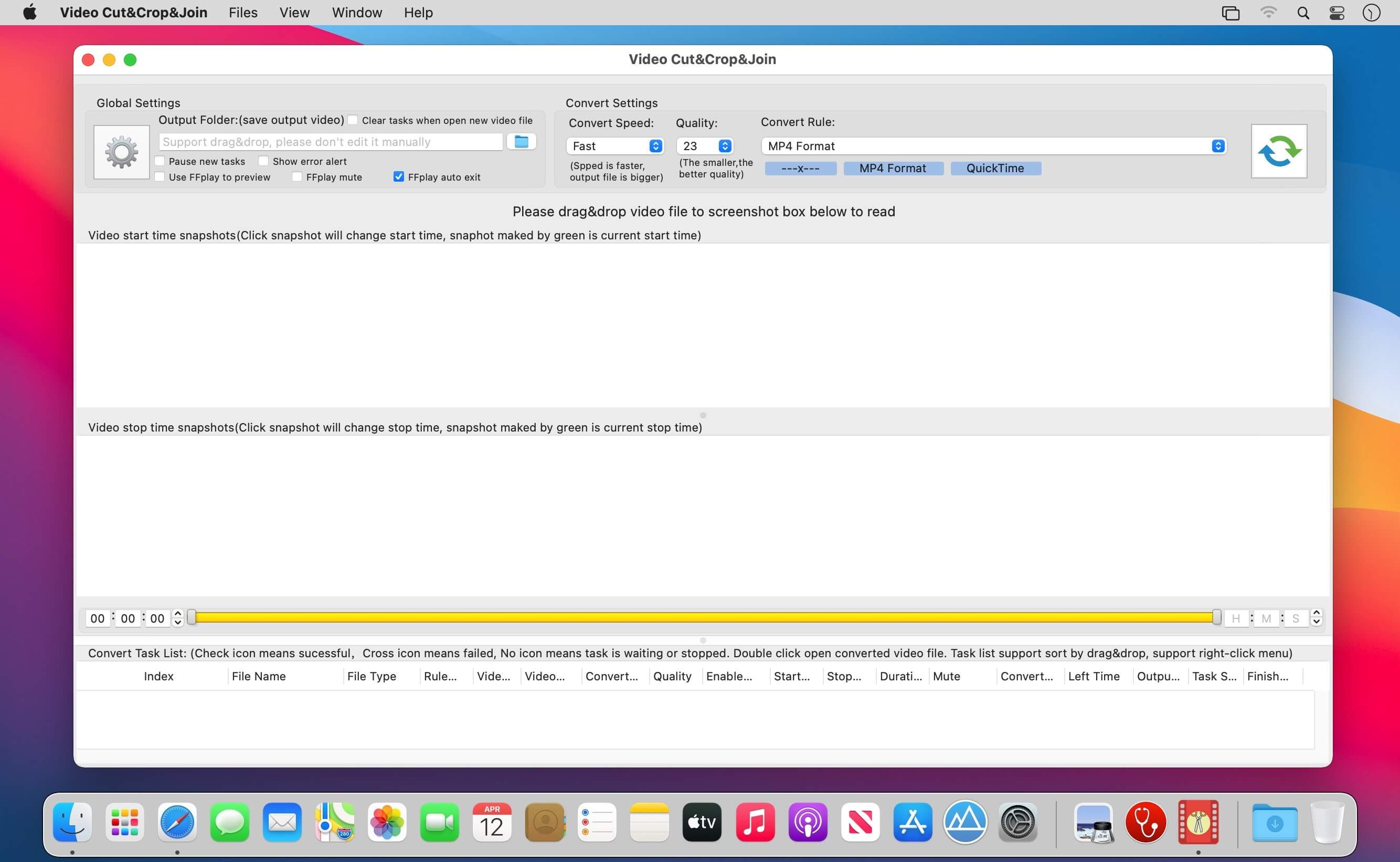
A handy video cut&crop tool. It can help to cut interesting video clips and compress it to small size and various format, help to share on websites.
How to use
1. Cut Videos:
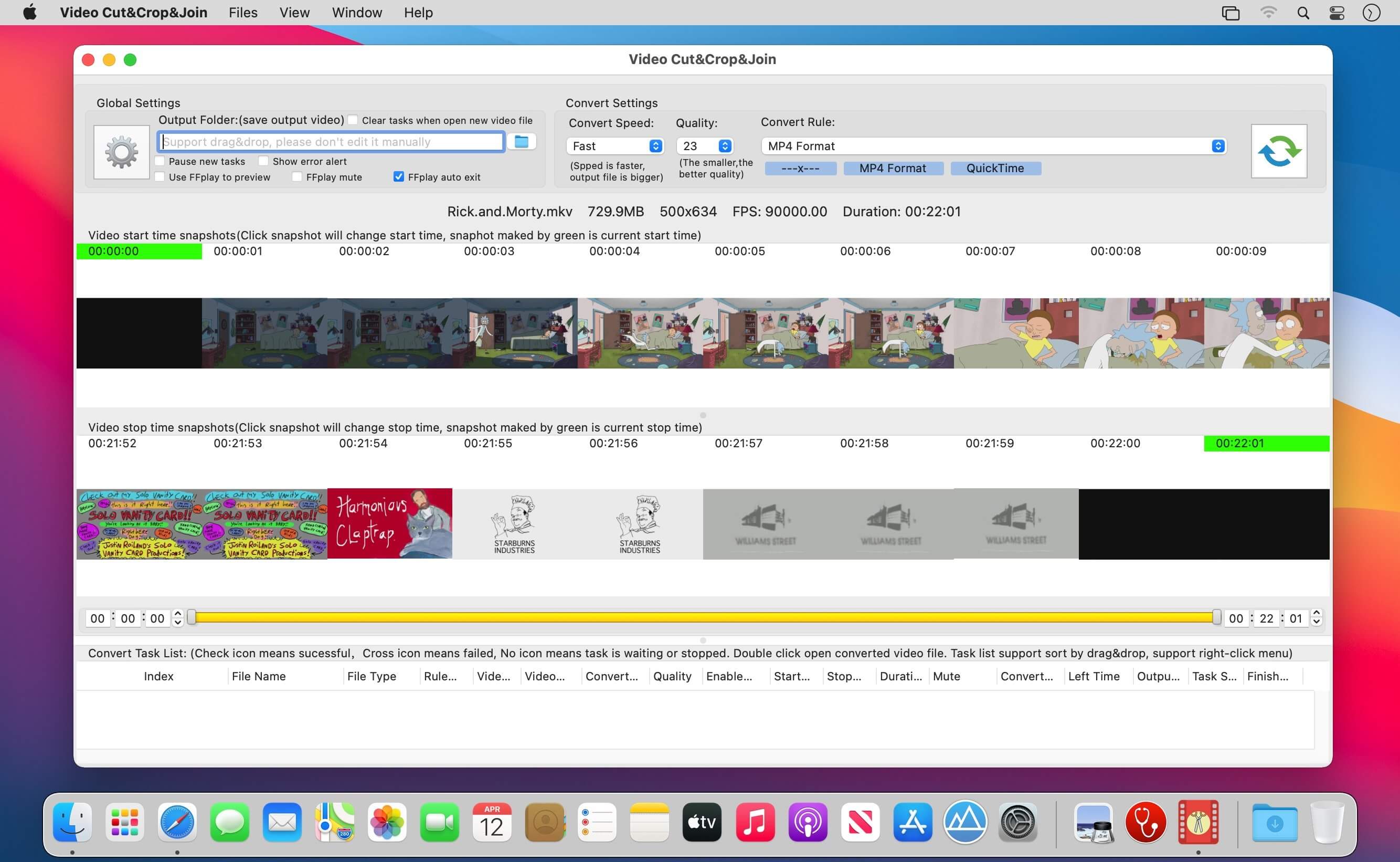
Step1: Drag&Drop video file to app's snapshot view, it will read the video file automatically.
Step2: Choose the video clip, and Choose video convert option
Step3: Click the "submit" button to submit cut task
2. Merge Video Clips:
Step1: use the step in "Cut Videos"
Step2: Select the Clips to merge
Step3: right-click the task list, and select "Merge vidoes" menu to merge video clips
Key Feature
1. Base on FFmpeg, cut&merge&crop video extreme fast, support all popular video formats.
2. Handy and powerful video clip selection
3. Support video frame crop, deduce the size of output file greatly.
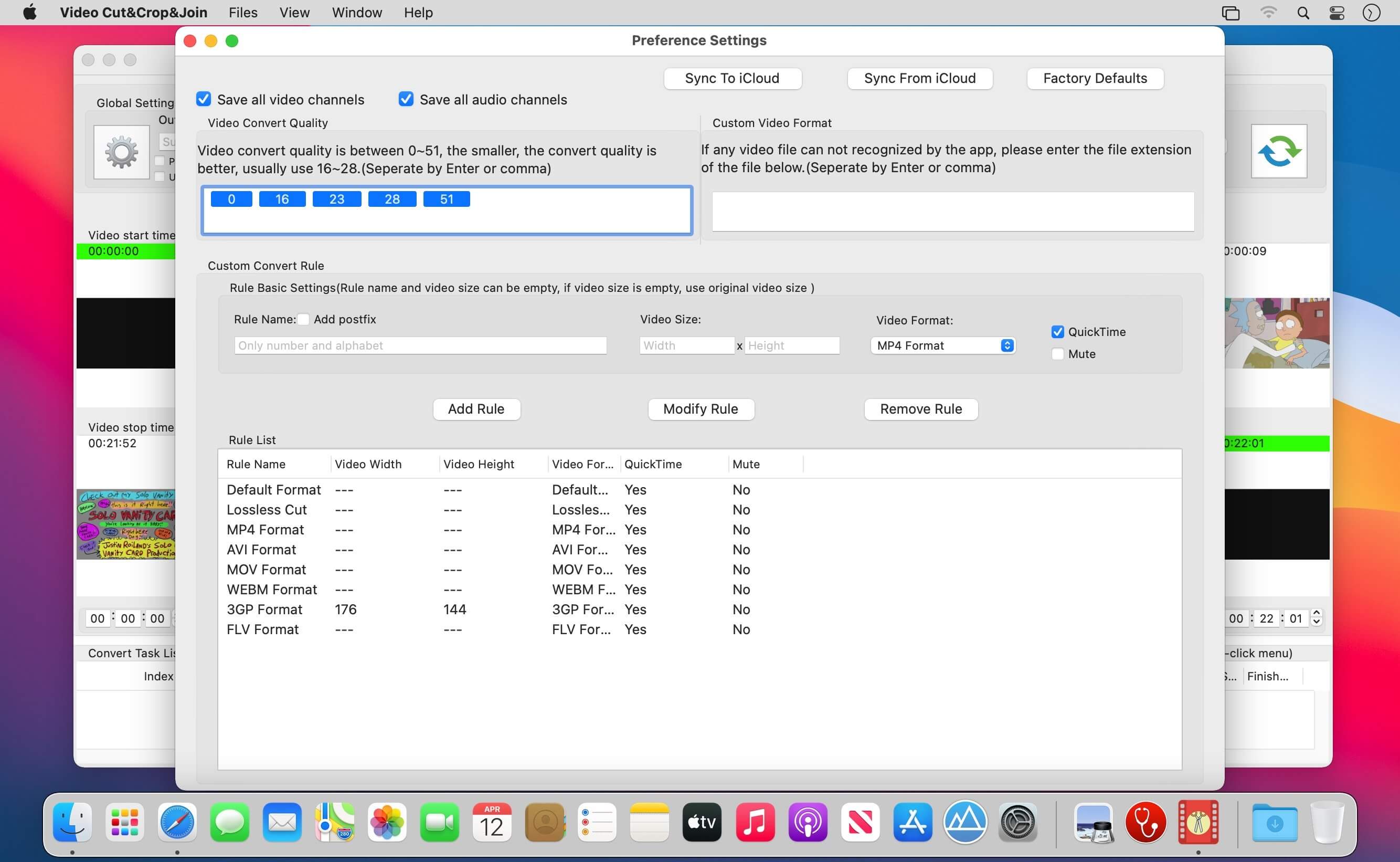
4. Rich video convert option, support iCloud sync
5. Support multi convert task
6. Embed powerful and efficient FFplay, right click video snapshot to play video from the snapshot's timestamp, help to select video clips more accurate
FQAs
1. How to crop part of video frame?
Answer:please follow the steps below:
1) In "Screenshot&crop" window, use mouse to draw the rectangle you want to crop in screenshot , and click "set crop rectangle"
2) In the main interface, choose the convert rule and click the "convert" button
3) To clear crop selection, in "Screenshot&crop" window, click "clear crop"
2. How to join video clips?
A:(Please note: Only video clips from the same video file and cut with the same rule can be joined)
1) Add video to the app
2) Cut clips from the video
3) Sort clips by drag&drop
4) Select clips to merge
5) Right click and select "Merge Video" from the right menu
2. How to select video clip?
Answer: There are 5 way to select video clips:
1) Drag the time slides
2) Change the start&end time text field, and press ENTER key
3) Click start&end time text field and click the steppers to change each field
4) Click the start&end screenshot, it will jump to the correspond timestamp
5) From the menu or use shortcuts.
3. Why sometimes conversion fail?
Answer:
1)Please clear or reset the output folder and try again. the filename and output folder don't be too long, and the file name don't contain illegal characters
2) Please try other output video format
4. How to use the embed FFplay?
A:the embed ffplay is a powerful and efficient video player.
1) Left/Right Arrow: Move Backward/Forward
2) Q key: quit the player
3) S: Step frame
4) Space key: Pause replay
5) Mouse right click: video jump to the click point
Please goole "FFPlay" for more more shortcuts
Version 4.3
* support to create custom crop box in crop window.
The format is x:y:w:h:ratioW:ratioH.For example: 1. 10:20:100:200. Create a cropping box with a length of 100 and a width of 200, using (10, 20) as the coordinate origin.
2. 10:20:100:0:16:9. Create a cropping box with a width of 100 and an aspect ratio of 16:9, using (10, 20) as the coordinate origin. The height of the cropping box is calculated as 100/(16/9).
Frequently asked questions
How do I install the app?
Mount the image, drag the app into the "Applications" folder and launch it. If the system blocks the launch, allow it in "System Settings → Privacy & Security".
The app is damaged or won't launch
Reinstalling from a fresh image usually helps. Make sure your macOS version matches the one listed in the compatibility specs.
How do I update?
Download the new version from the site and install it over the current one — your settings will be preserved.
The download link doesn't work
Try a mirror or a download manager. For large files the browser often drops the connection.
How do I completely remove the app?
Use an uninstaller utility — it cleans up the service files that remain after moving the app to the trash.





Choose a download source
Video Cut&Crop&Join 4.3 · 161.28 MB