
FileZilla 3.67.1
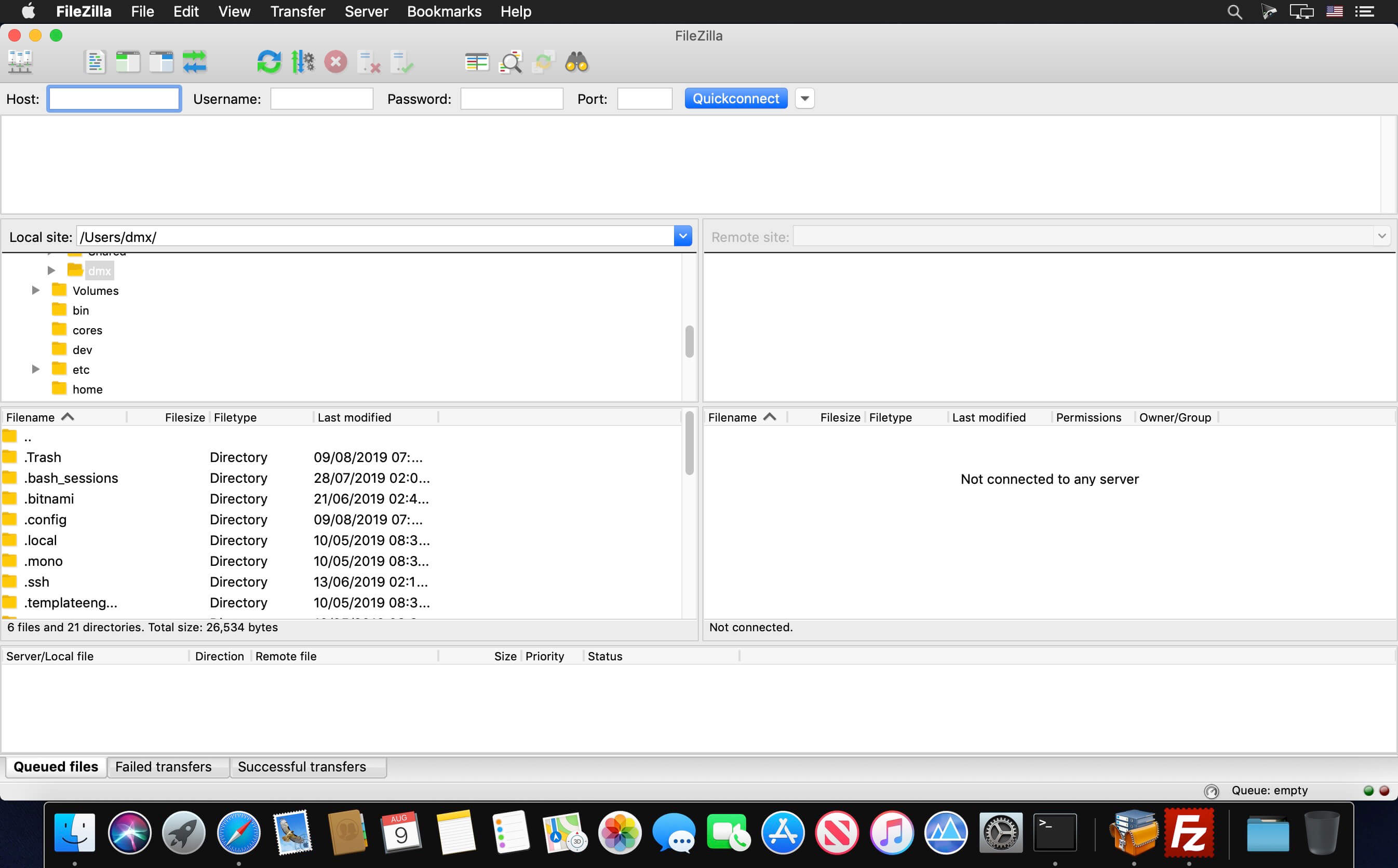
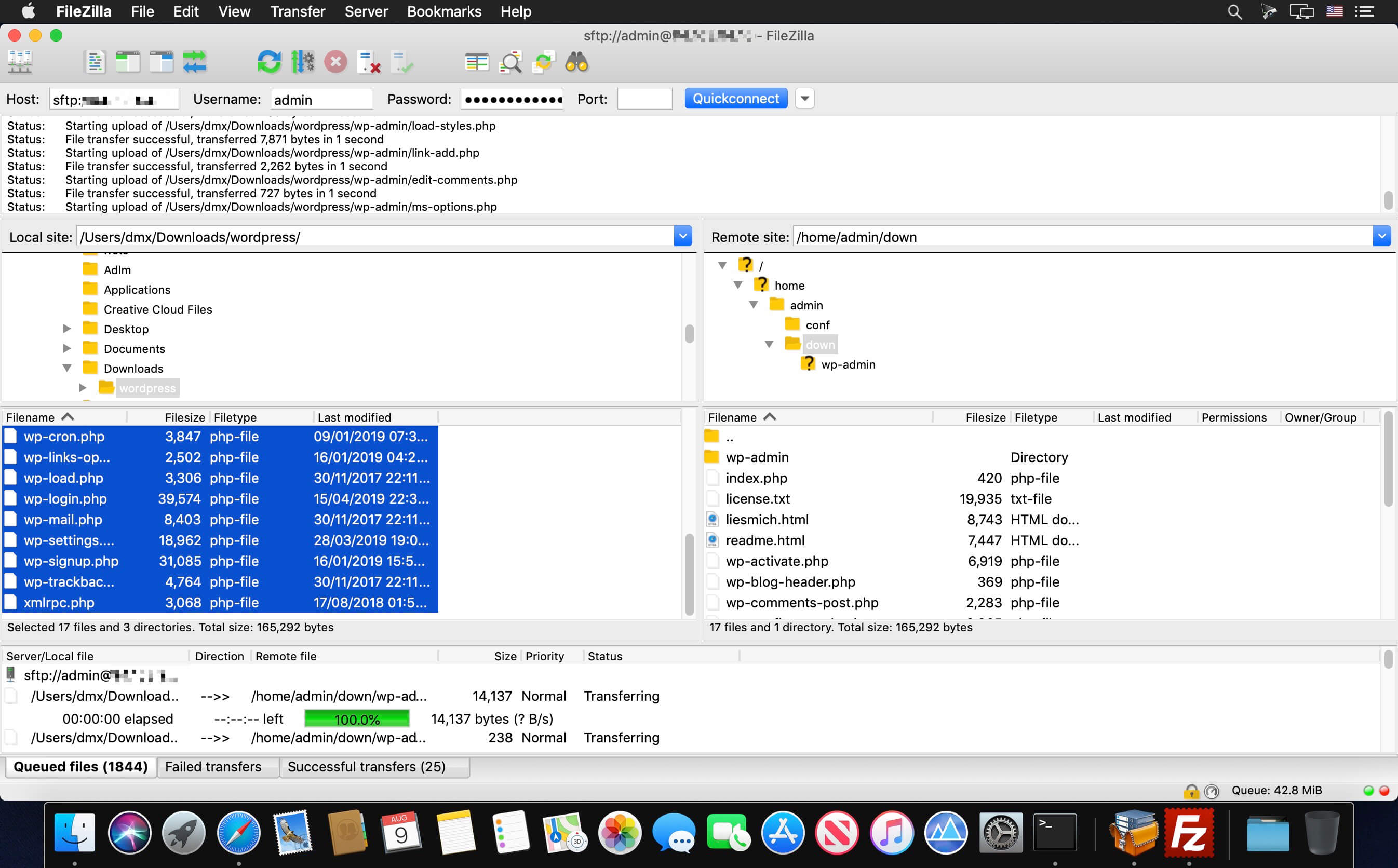
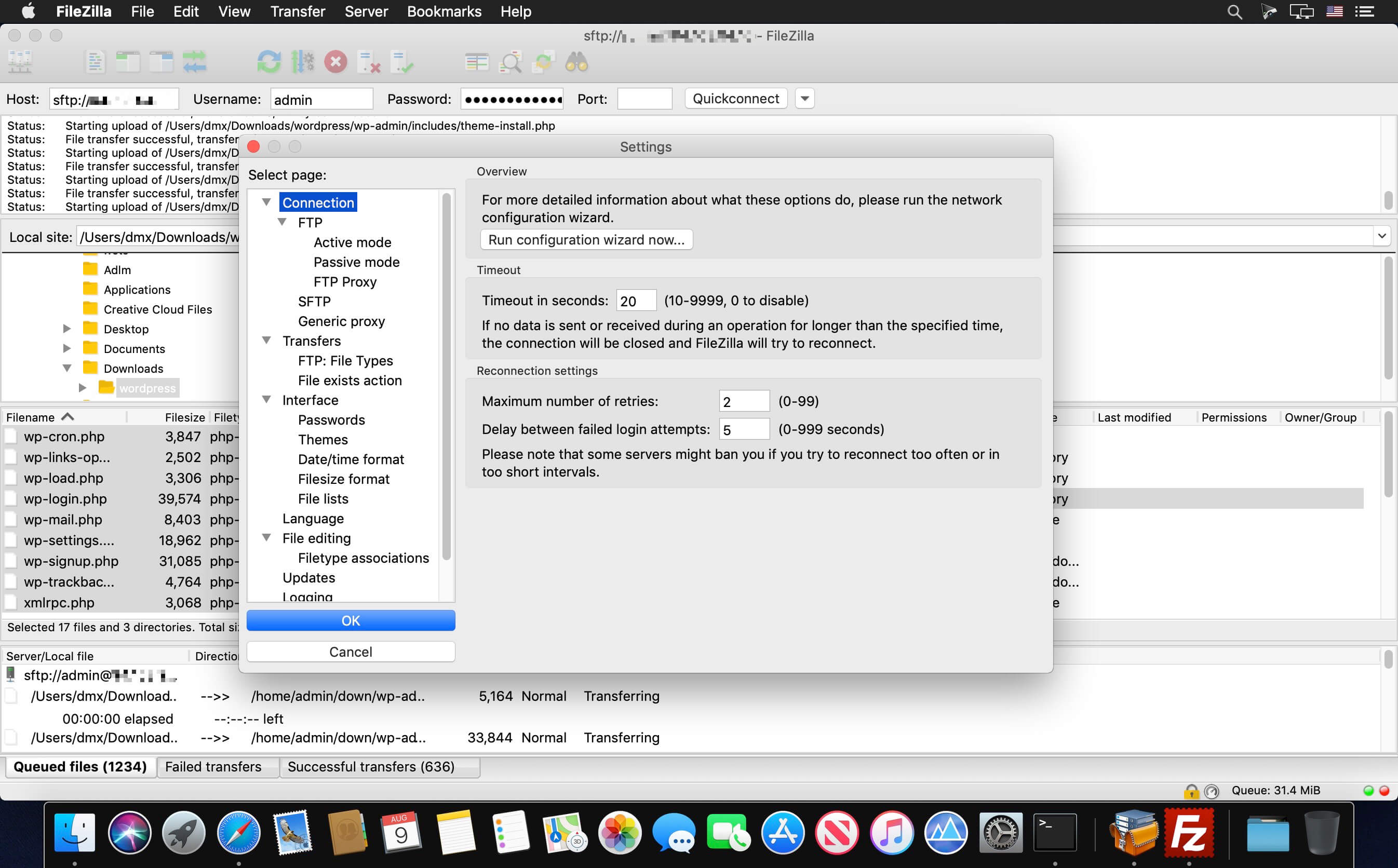
FileZilla is a straightforward macOS application that enables you to quickly and effortlessly transfer files between your Mac and multiple FTP servers.
Support for FTP, FTPS and SFTP servers
FileZilla comes with a user-friendly and intuitive interface from which you can quickly and effortlessly connect to multiple servers and instantly transfer files and folders. What is more, FileZilla features support for FTP, FTP over SSL/TLS (FTPS) and SSH File Transfer Protocol (SFTP).
What is more, FileZilla offers IPv6 support and is available in numerous languages. Thanks to the built-in Site Manager, you can add, rename, delete or copy websites and bookmarks. The General tab helps you provide the host name, port, protocol and encryption method in addition to the login type, user, password and account info.
By accessing the Advanced tab, you can choose the server type and use a bypass proxy. Additionally, you can choose between different transfer modes and charset encodings. When you are happy with your settings you can connect to multiple sites and start transferring files.
Dual panel interface
From FileZilla’s main window you can view the content of the local and remote site, and initiate transfers with just a couple of mouse clicks.
The top toolbar helps you hide or show the message log, as well as the local or remote directory tree, the transfer queue, refresh the files and folder list, cancel the current operation and disconnect from the currently visible server.
Furthermore, you can quickly connect to a host and analyze the list of files and folders on both the local and remote site. You can use the contextual menu to upload or download files and folders, create new directories, edit the existing ones and refresh the list.
Pause and resume transfers
All new connections can be opened in a new tab and you can apply various transfer speed limits and remotely find the desired file. Moreover, you can pause and resume transfers of all files including those that are larger than 4GB.
Version 3.67.1:
- MSW: Fixed an issue with confirmation dialogs for file deletion not being modal
- Updated to libfilezilla 0.48.1
Frequently asked questions
How do I install the app?
Mount the image, drag the app into the "Applications" folder and launch it. If the system blocks the launch, allow it in "System Settings → Privacy & Security".
The app is damaged or won't launch
Reinstalling from a fresh image usually helps. Make sure your macOS version matches the one listed in the compatibility specs.
How do I update?
Download the new version from the site and install it over the current one — your settings will be preserved.
The download link doesn't work
Try a mirror or a download manager. For large files the browser often drops the connection.
How do I completely remove the app?
Use an uninstaller utility — it cleans up the service files that remain after moving the app to the trash.





Choose a download source
FileZilla 3.67.1 · 14.74 MB