Art of Weird 2.12.1
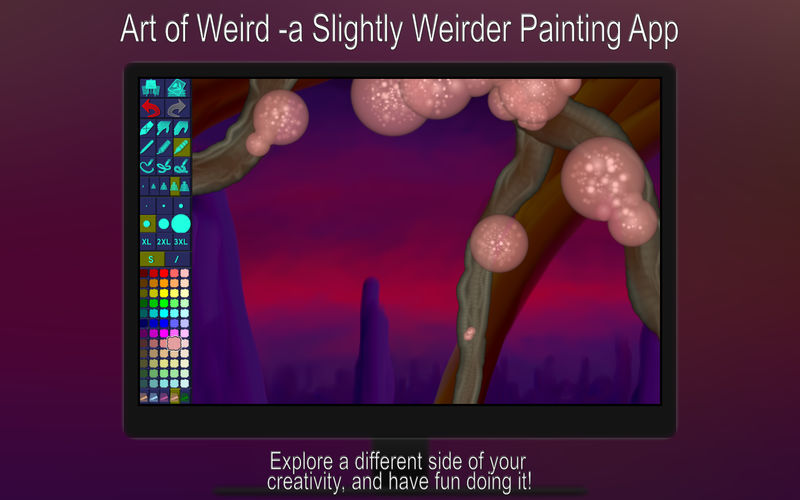
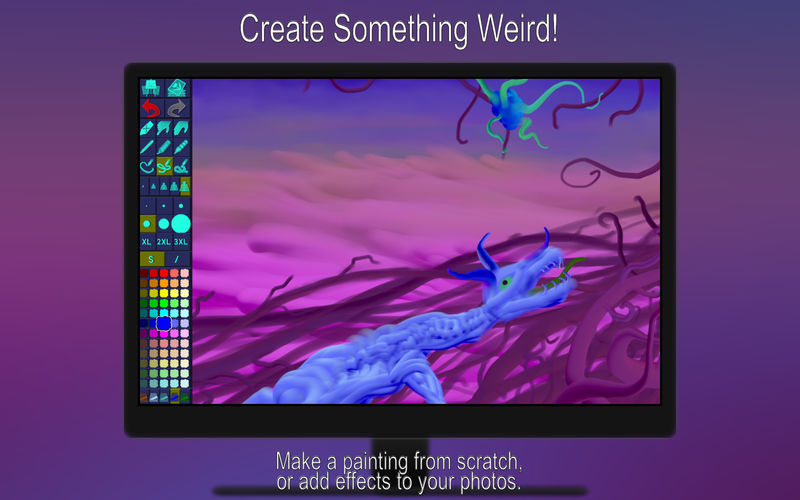
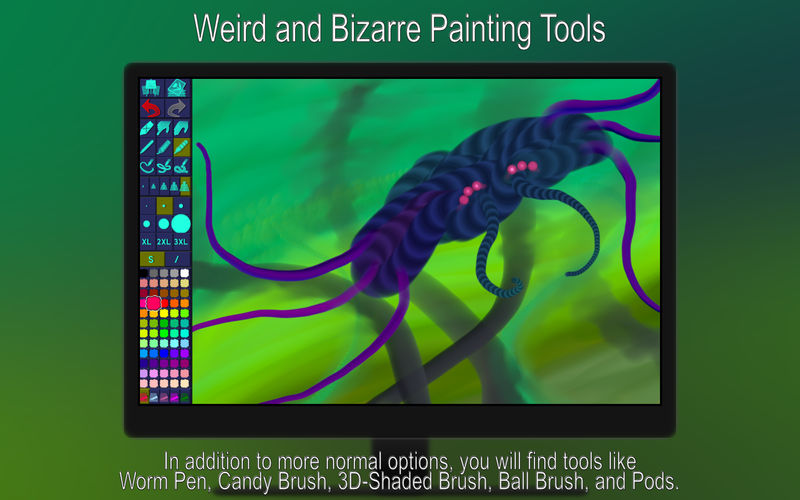
An art app with everything from standard painting tools to the truly weird and bizarre, such as Worm Pen, Candy Brush, 3D-Shaded Brush, Ball Brush, and Pods.
You will explore a different side of your artistic creativity, and have fun doing it!
- We have put years of research and hard work into making our own painting engine from scratch, and we continuously work to improve it.
- The engine uses 128-bit color and it always utilizes floating-point arithmetic for increased accuracy and a high dynamic color range.
- Pinch (trackpad) or use keyboard shortcuts to zoom in/out.
- To pan, drag with two fingers (trackpad) or use arrow keys.
- Double tap with two fingers (trackpad) or press Space to reset the zoom/pan.
- In addition, you can press the Tab key to hide the toolbar or Shift-Tab to move it to the other side.
- You can opt to have different functionality for normal painting and 2nd/Ctrl-Click painting.
- Go to 'Settings' -> '2nd/Ctrl-Click', and choose from the list of modes.
- The most advanced mode lets the 2nd/Ctrl-Click have a separate tool/size/color/etc when you select with a 2nd/Ctrl-Click instead of a normal click.
- The simpler modes permanently assign a tool such as Eraser to the 2nd/Ctrl-Click, which can be really useful!
- The app supports layers.
- To open the Layer Control, use the button that has what looks like a stack of papers and a small symbol (e.g. a mountain) on it.
- In the Layer Control, use the + button to add layers and the - button to delete.
- You can temporarily toggle a layer on/off using the checkbox to the left.
- To rename a layer, click on its name.
- Click on the thumbnail to bring up a menu of layer options that includes an opacity slider.
- To move a layer within the stack, drag it up/down.
- You can also change the color of the paper, beneath the layer(s).
- Click once on a color to select it. Click a second time to bring up a menu where you can change or adjust the color in a number of ways (this menu also features an Eyedropper tool if you upgrade to Pro).
- Adjacent to the colors you will find buttons to switch between the different color sets.
- Press a second time if you want to replace the color set with one of the default ones.
- In addition to creating normal paintings, you can also use this app to make repeating patterns.
- Switching on the Pattern Edit Mode (horizontally and/or vertically) will display your painting as tiles next to each other.
- You're free to paint anywhere on these tiles, so you can easily create seamless patterns for use as website/desktop backgrounds, in print, or for textures in 3d modelling.
- Toggle this feature on/off in the Picture menu.
Version 2.12.1
- [BUG FIX] Some common actions, such as adding a new layer, or changing the background color, could cause the app to crash.
Frequently asked questions
How do I install the app?
Mount the image, drag the app into the "Applications" folder and launch it. If the system blocks the launch, allow it in "System Settings → Privacy & Security".
The app is damaged or won't launch
Reinstalling from a fresh image usually helps. Make sure your macOS version matches the one listed in the compatibility specs.
How do I update?
Download the new version from the site and install it over the current one — your settings will be preserved.
The download link doesn't work
Try a mirror or a download manager. For large files the browser often drops the connection.
How do I completely remove the app?
Use an uninstaller utility — it cleans up the service files that remain after moving the app to the trash.
VersionArt of Weird 2.12.1
DeveloperNorbyte
CompatibilityOS X 10.11 or later, 64-bit processor
LanguageEnglish
IncludesK'ed by TNT

Information
Visitors in the group Guests cannot leave comments on this publication.
Choose a download source
Art of Weird 2.12.1 · 5.92 MB