Cinch 1.2.4
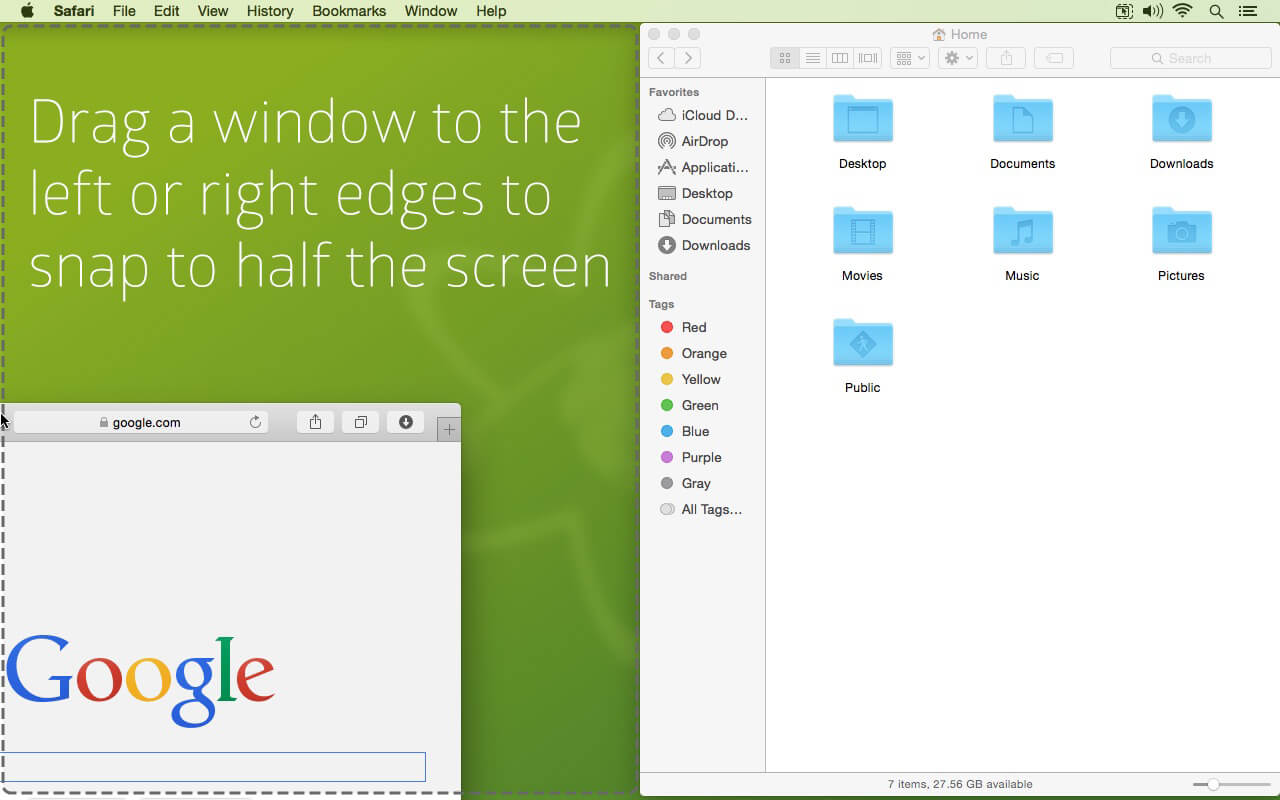
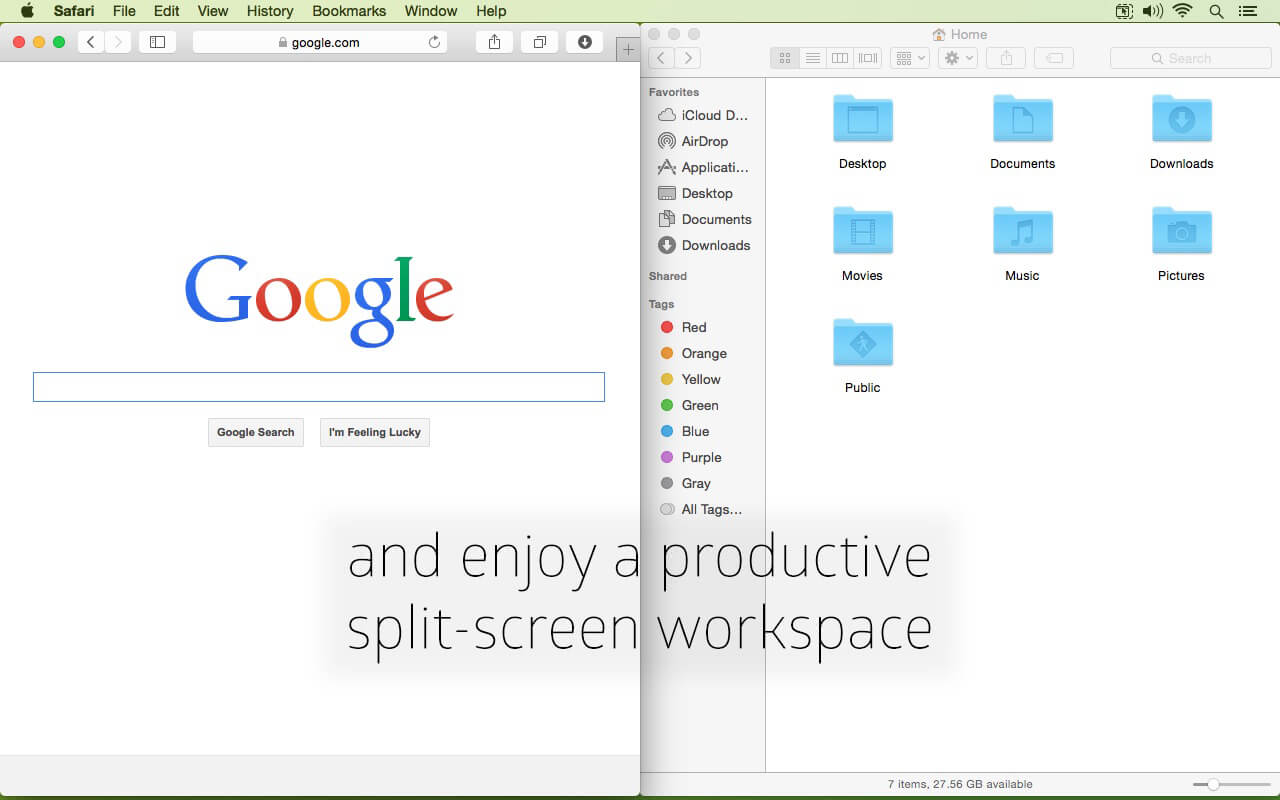
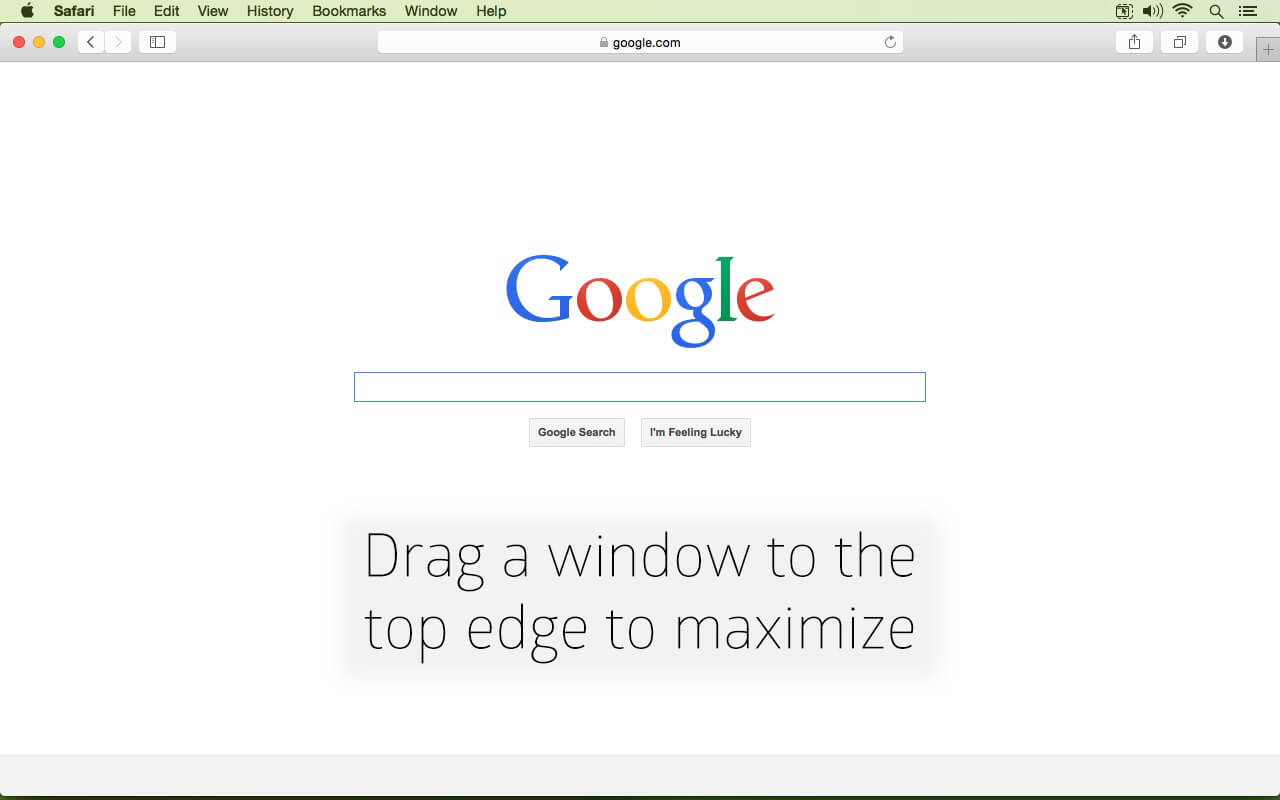
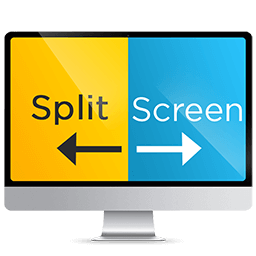
Cinch gives you simple, mouse-driven window management by defining the left, right, and top edges of your screen as 'hot zones'. Drag a window until the mouse cursor enters one of these zones then drop the window to have it cinch into place. Cinching to the left or right edges of the screen will resize the window to fill exactly half the screen, allowing you to easily compare two windows side-by-side (splitscreen). Cinching to the top edge of the screen will resize the window to fill the entire screen (fullscreen). Dragging a window away from its cinched position will restore the window to its original size.
If you prefer a keyboard-centric approach to window management, you might also take a look at our other products SizeUp or TwoUp. Use Cinch together with either SizeUp or TwoUp to cover both your mouse and keyboard needs.
Version 1.2.4
- Compatibility update
Frequently asked questions
How do I install the app?
Mount the image, drag the app into the "Applications" folder and launch it. If the system blocks the launch, allow it in "System Settings → Privacy & Security".
The app is damaged or won't launch
Reinstalling from a fresh image usually helps. Make sure your macOS version matches the one listed in the compatibility specs.
How do I update?
Download the new version from the site and install it over the current one — your settings will be preserved.
The download link doesn't work
Try a mirror or a download manager. For large files the browser often drops the connection.
How do I completely remove the app?
Use an uninstaller utility — it cleans up the service files that remain after moving the app to the trash.


Choose a download source
Cinch 1.2.4 · 5.02 MB