Disk Cleaner 1.6
How to use it:
Key features:
User FAQs
1. How to add custom folders?
Three methods you can follow:
1) From "Add Folder ..." menu item
2) Drag folders from Finder to "Disk Cleaner"
3) If you can not access folders from Finder, you can execute command "cd FOLDER_PATH_YOU_WANT_TO_ACCESS" and "open ." from terminal, it will be opened in Finder, then you can drag it to App panel as option 2.
2. What's the most popular folder to watch?
1) ~/Library/Caches
2) ~/Library/Logs
3) ~/.Trash
Version 1.6
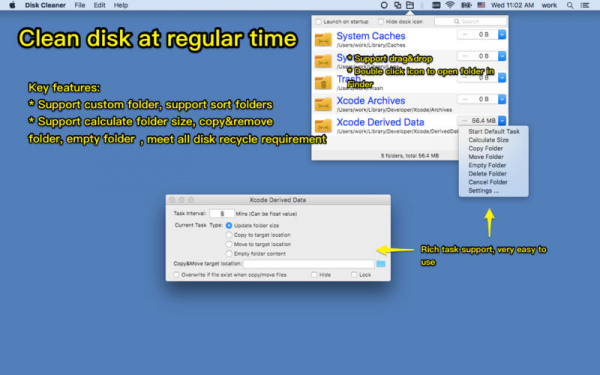
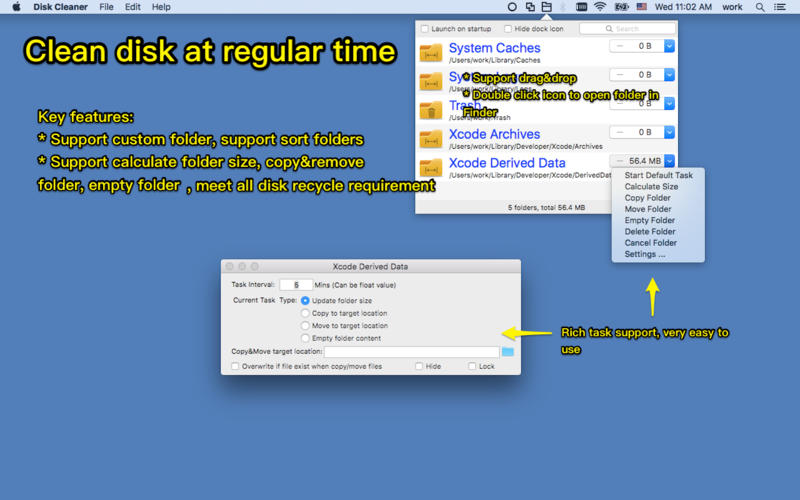
- Drag or add folders to app.
- Setting folder task from menu.
Key features:
- Empty folder content regularly, save disk space.
- Copy folder content to target location regularly.
- Move folder content to target location regularly.
- Calculate folder size regularly.
- Support to add any number of custom folders.
User FAQs
1. How to add custom folders?
Three methods you can follow:
1) From "Add Folder ..." menu item
2) Drag folders from Finder to "Disk Cleaner"
3) If you can not access folders from Finder, you can execute command "cd FOLDER_PATH_YOU_WANT_TO_ACCESS" and "open ." from terminal, it will be opened in Finder, then you can drag it to App panel as option 2.
2. What's the most popular folder to watch?
1) ~/Library/Caches
2) ~/Library/Logs
3) ~/.Trash
WHAT’S NEW
Version 1.6
- Add preinstalled folders to monitor
- Add an option whether delete to trash or delete directly
- Fix problem
SCREENSHOTS
Frequently asked questions
How do I install the app?
Mount the image, drag the app into the "Applications" folder and launch it. If the system blocks the launch, allow it in "System Settings → Privacy & Security".
The app is damaged or won't launch
Reinstalling from a fresh image usually helps. Make sure your macOS version matches the one listed in the compatibility specs.
How do I update?
Download the new version from the site and install it over the current one — your settings will be preserved.
The download link doesn't work
Try a mirror or a download manager. For large files the browser often drops the connection.
How do I completely remove the app?
Use an uninstaller utility — it cleans up the service files that remain after moving the app to the trash.
VersionDisk Cleaner 1.6
DeveloperDummy Apps
CompatibilityOS X 10.7 or later, 64-bit processor
LanguageEnglish
IncludesPre-K'ed

Information
Visitors in the group Guests cannot leave comments on this publication.
Choose a download source
Disk Cleaner 1.6 · 2.32 MB