
UTM Virtual Machines 5.0.8
Run Windows, Linux, and macOS virtual machines on Mac
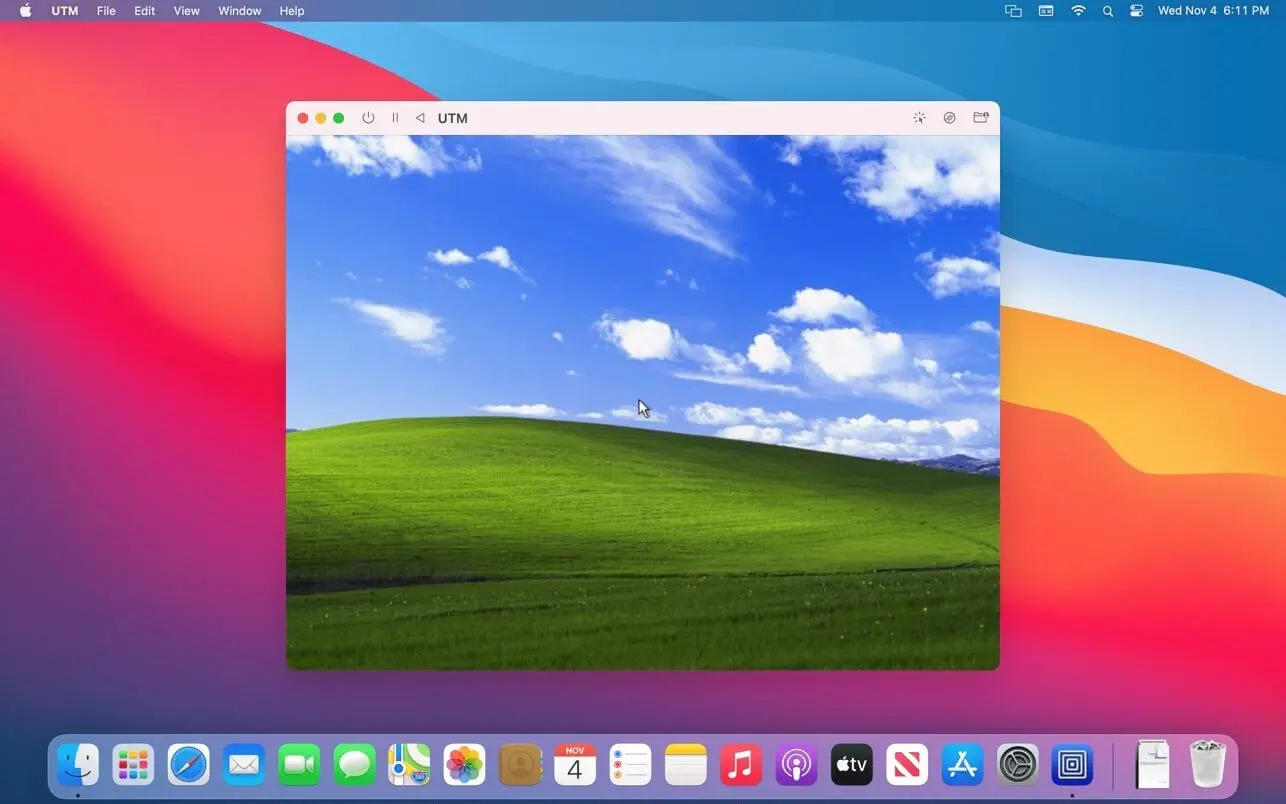
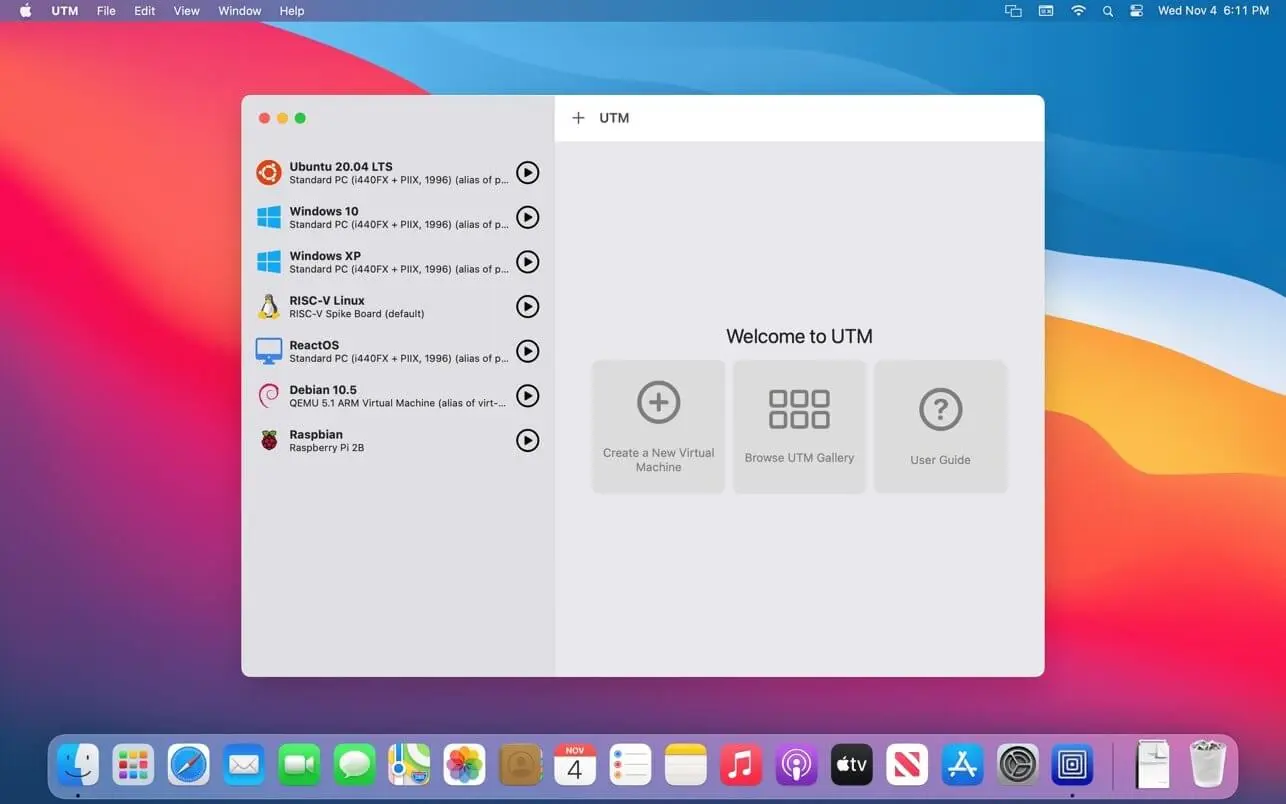
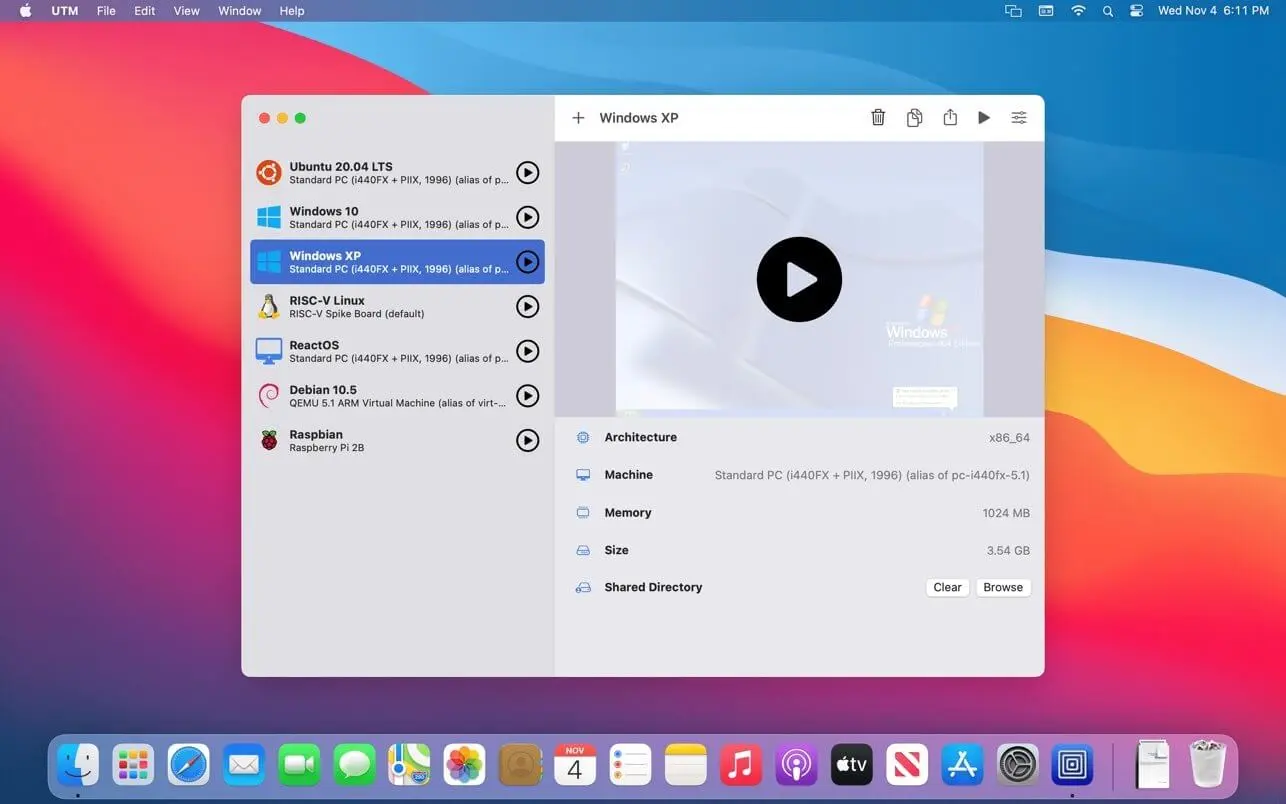
UTM brings full operating system virtualization and emulation to your Mac, letting you run Windows® 11, Ubuntu®, or macOS alongside your existing setup with near native performance. Older systems such as Windows® 7 and Windows® XP run as well, using emulation for broad compatibility. Everything happens inside a secure, sandboxed environment powered by the QEMU system emulator, keeping your data isolated from any viruses or malware that might exist inside the emulated operating system.
Built from the ground up for macOS
UTM is designed specifically for macOS, using the latest Apple technologies to take full advantage of Apple Silicon and Intel Macs. On Apple Silicon, ARM64 operating systems such as Windows® for ARM and Ubuntu® ARM run fully virtualized at near native speeds, while Intel/AMD systems like Windows® 7, Windows® XP, and Ubuntu® Linux are emulated with limited performance. On Intel Macs, these same Intel/AMD operating systems run fully virtualized. UTM also lets you run macOS 12 or higher in a virtualized environment, and run Intel applications on Linux using Rosetta.
- ARM64 virtualization: run Windows® for ARM, Ubuntu® ARM, and other ARM64 operating systems fully virtualized at near native speeds on Apple Silicon Macs.
- Intel/AMD support: run Windows® 7, Windows® XP, Ubuntu® Linux, and more — emulated on Apple Silicon Macs or fully virtualized on Intel Macs.
- macOS virtualization: run macOS 12 or higher inside a virtualized environment.
- Rosetta support: run Intel applications on Linux with Rosetta.
- Broad processor emulation: access over 30 QEMU-emulated processors, including i386, x64, ARM32, ARM64, MIPS, PPC, and RISC-V, for developers and enthusiasts.
- Sandboxed security: macOS Sandbox support keeps your data protected by isolating viruses or malware that might infect the emulated operating system.
- Flexible display modes: use GUI, terminal console, or headless mode, with support for multiple displays.
- USB device support: attach USB devices directly to your virtual machine.
- Experimental 3D acceleration: try GPU accelerated OpenGL+Vulkan on Linux VMs and DirectX® on Windows® VMs, including running Windows® games on your Mac.
- Networking options: connect with bridged and shared networking support.
- External drive support: run and store virtual machines from external drives.
- Snapshot management: save and restore VM states with snapshot management.
- Simplified VM setup: create and configure virtual machines through an easy to understand UI, with no need to learn QEMU command line arguments.
Download UTM and start running the operating systems you need, right on your Mac.
Version 5.0.8
- Directx® graphics support for Windows: Modern accelerated graphics for Windows 11 is now available on UTM for the first time. The driver is still experimental and games compatibility is currently limited.
- Vulkan 1.3 graphics support for Linux: Vulkan 1.3 is now supported on Linux guests with Virtlo Venus drivers in Mesa. Additionally, OpenGL 4.1 is supported with the new Apple Core
- OpenGL backend (macOS only).
- Snapshots: Save your VM at any point and go back to it later from the new Snapshots tab. Works with QEMU VMs on macOS and iOS 26, and with Apple Virtualization VMs on macOS 27.
- Apple Virtualization on macOS 27: Pass USB devices through to your VM, turn on Secure Boot for Linux, run a VM without saving changes, and let VMs talk to each other with new networking modes.
Frequently asked questions
How do I install the app?
Mount the image, drag the app into the "Applications" folder and launch it. If the system blocks the launch, allow it in "System Settings → Privacy & Security".
The app is damaged or won't launch
Reinstalling from a fresh image usually helps. Make sure your macOS version matches the one listed in the compatibility specs.
How do I update?
Download the new version from the site and install it over the current one — your settings will be preserved.
The download link doesn't work
Try a mirror or a download manager. For large files the browser often drops the connection.
How do I completely remove the app?
Use an uninstaller utility — it cleans up the service files that remain after moving the app to the trash.


Choose a download source
UTM Virtual Machines 5.0.8 · 290.21 MB