
FocuSee 1.6.0
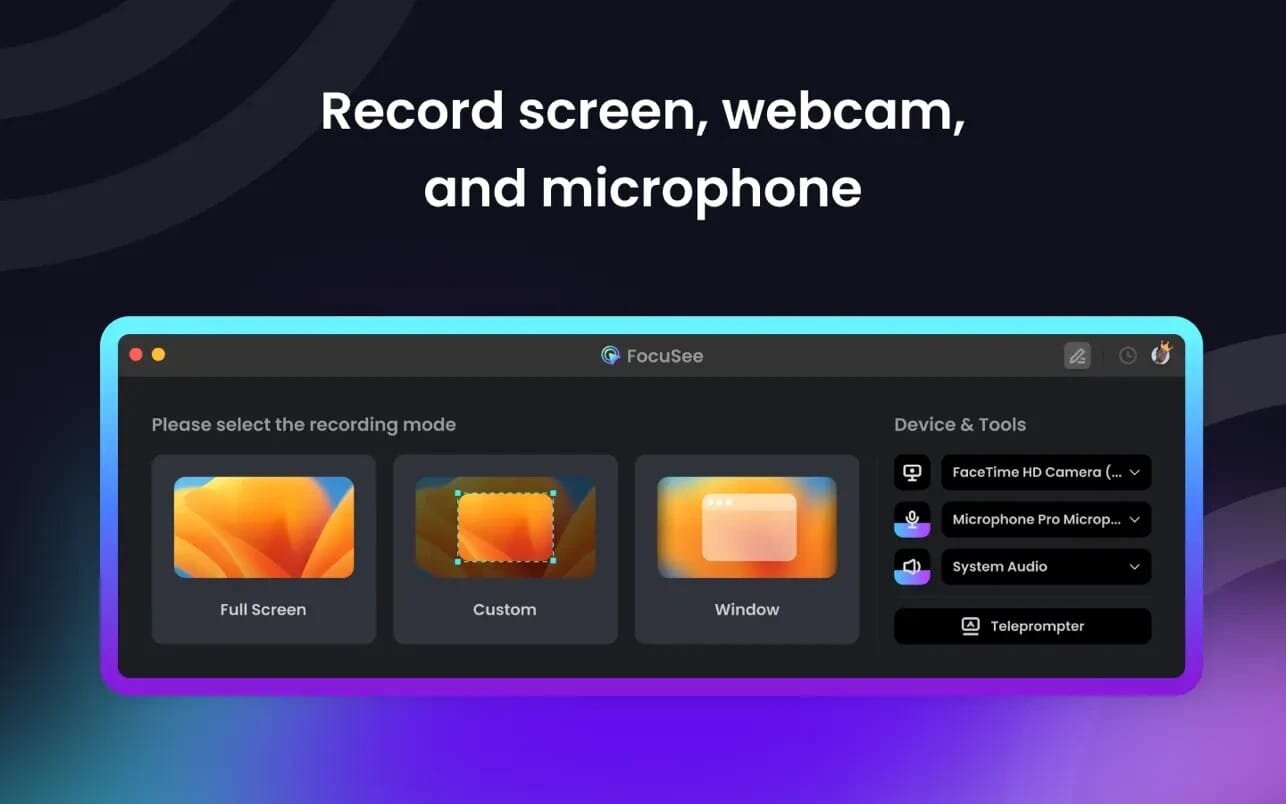
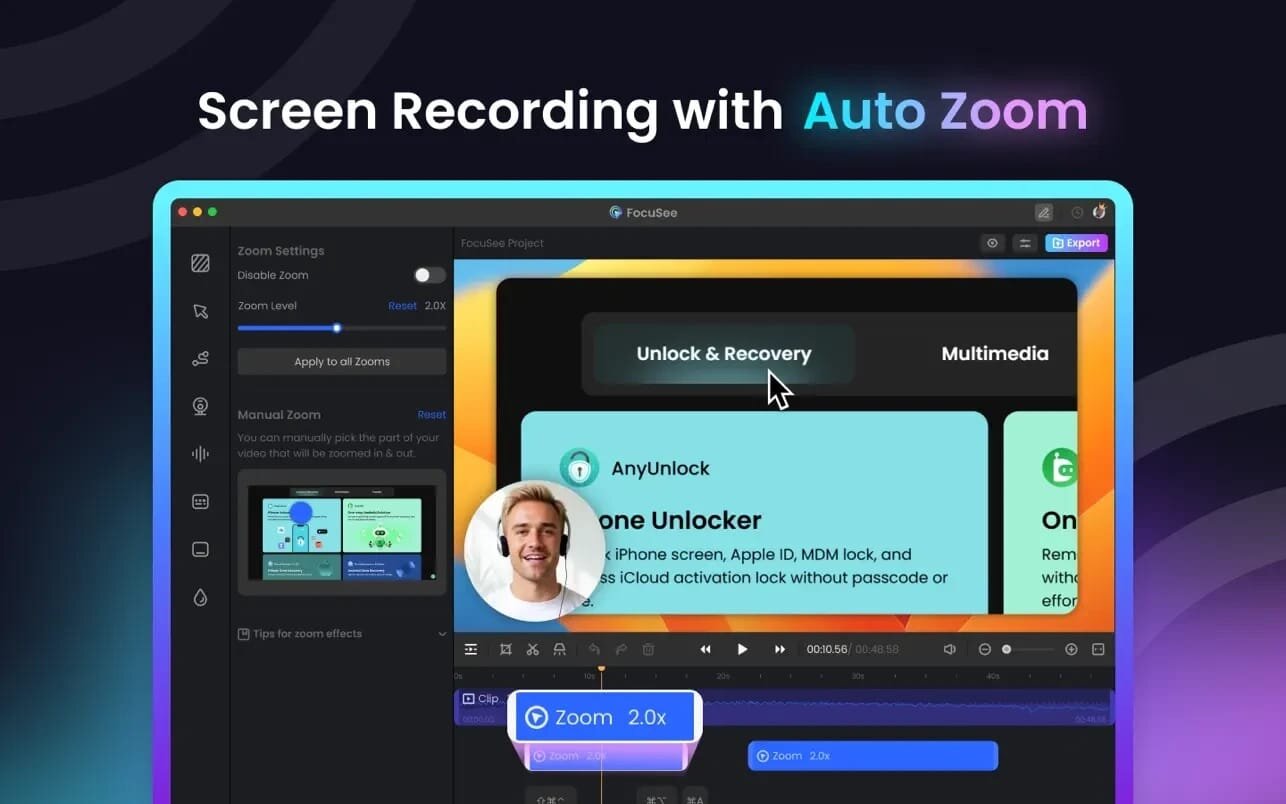
FocuSee is a screen recording and editing app to create eye-catching product videos. It allows you to record Full-screen, Custom area, or a Window with an auto zoom-in effect. After stopping the recording, you’ll have access to the video editing interface to enhance your video before exporting.
- Adding a Zoom-In Effect: You can enhance your video by incorporating a zoom effect, guiding viewers to specific areas of interest. You can manually direct where you want it to zoom in or let the app auto-zoom by default.
- Adding Automatic Captions: Automatically generate captions for your videos and you can do manual adjustment of the captions.
Adjusting Canvas Size: You can change the video canvas size like 1:1, 4:3, 16:9, and 9:16 in the app, making it fit for various platforms like YouTube, LinkedIn, or TikTok. - Background Customization: Change the video’s background using preset images, a solid shade, or a custom color.
- Adjusting Video Style:
- Padding: Adjusts spacing between video content and canvas edges.
- Inset: Controls distance between video content and canvas borders.
- Roundness: Modifies corners of video canvas.
- Shadow: Adds or reduces shadow effect around video canvas.
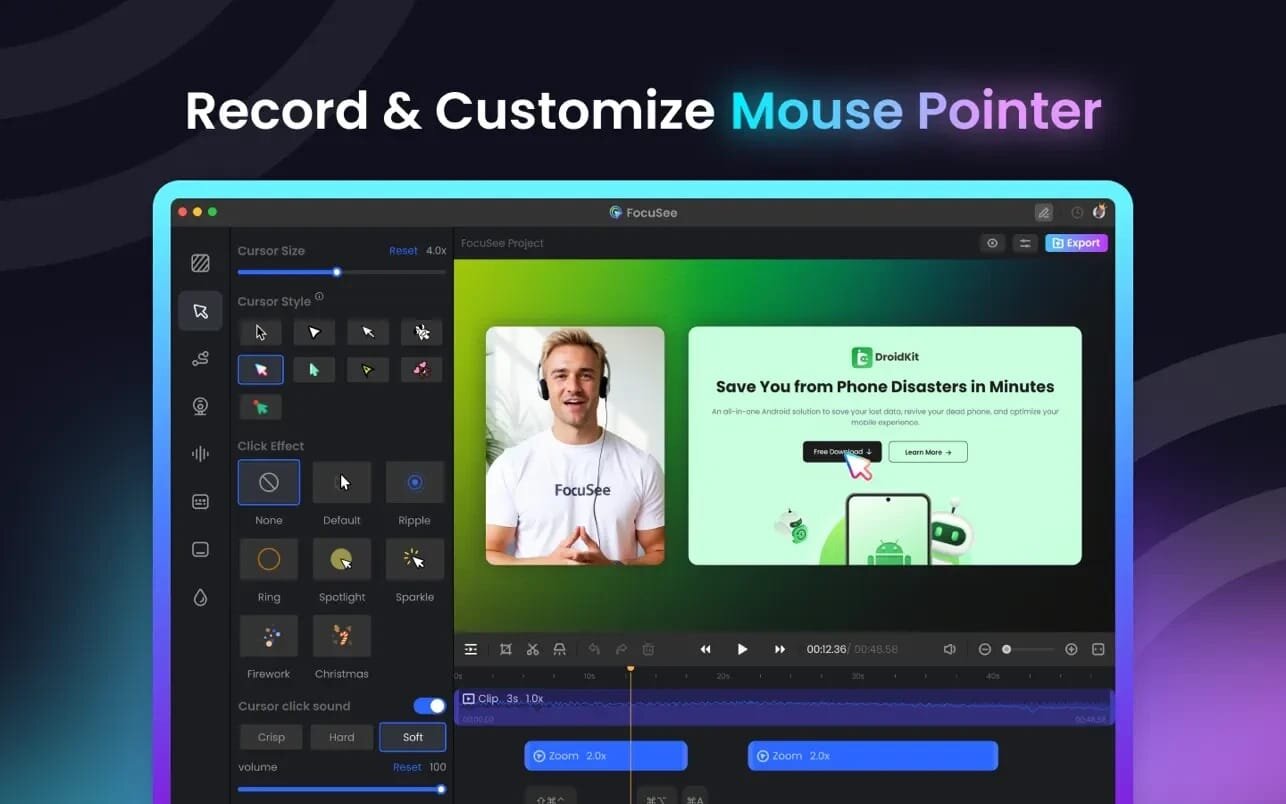
- Cursor Modifications: In the Cursor section, customize the cursor’s appearance, size, and add mouse click effects.
- Creating a Highlight Effect: You can add a highlight effect in the screen recording to emphasize the position you selected.
- Shortcut Key Recognition: Automatically identifies the shortcut keys you press during recording and allows custom styling.
- Teleprompter: Use a teleprompter during recording to make your videos smoother and more natural.
- Spotlight: Use the spotlight to highlight the focus in the video and attract users’ attention.
Version 1.6.0:
- Release notes were unavailable when this listing was updated.
Frequently asked questions
How do I install the app?
Mount the image, drag the app into the "Applications" folder and launch it. If the system blocks the launch, allow it in "System Settings → Privacy & Security".
The app is damaged or won't launch
Reinstalling from a fresh image usually helps. Make sure your macOS version matches the one listed in the compatibility specs.
How do I update?
Download the new version from the site and install it over the current one — your settings will be preserved.
The download link doesn't work
Try a mirror or a download manager. For large files the browser often drops the connection.
How do I completely remove the app?
Use an uninstaller utility — it cleans up the service files that remain after moving the app to the trash.





Choose a download source
FocuSee 1.6.0 · 65.73 MB