
Default Folder X 5.7.8
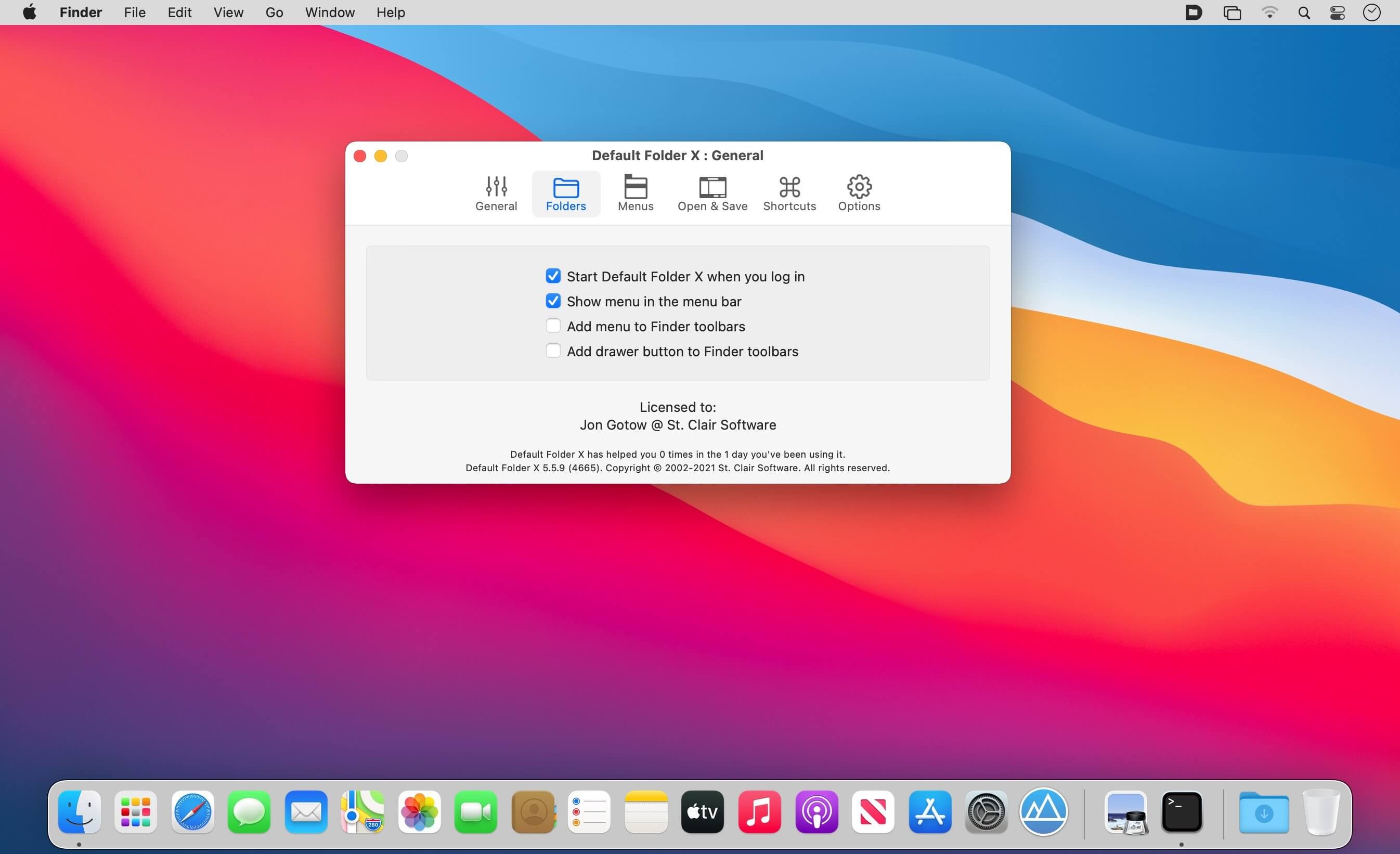
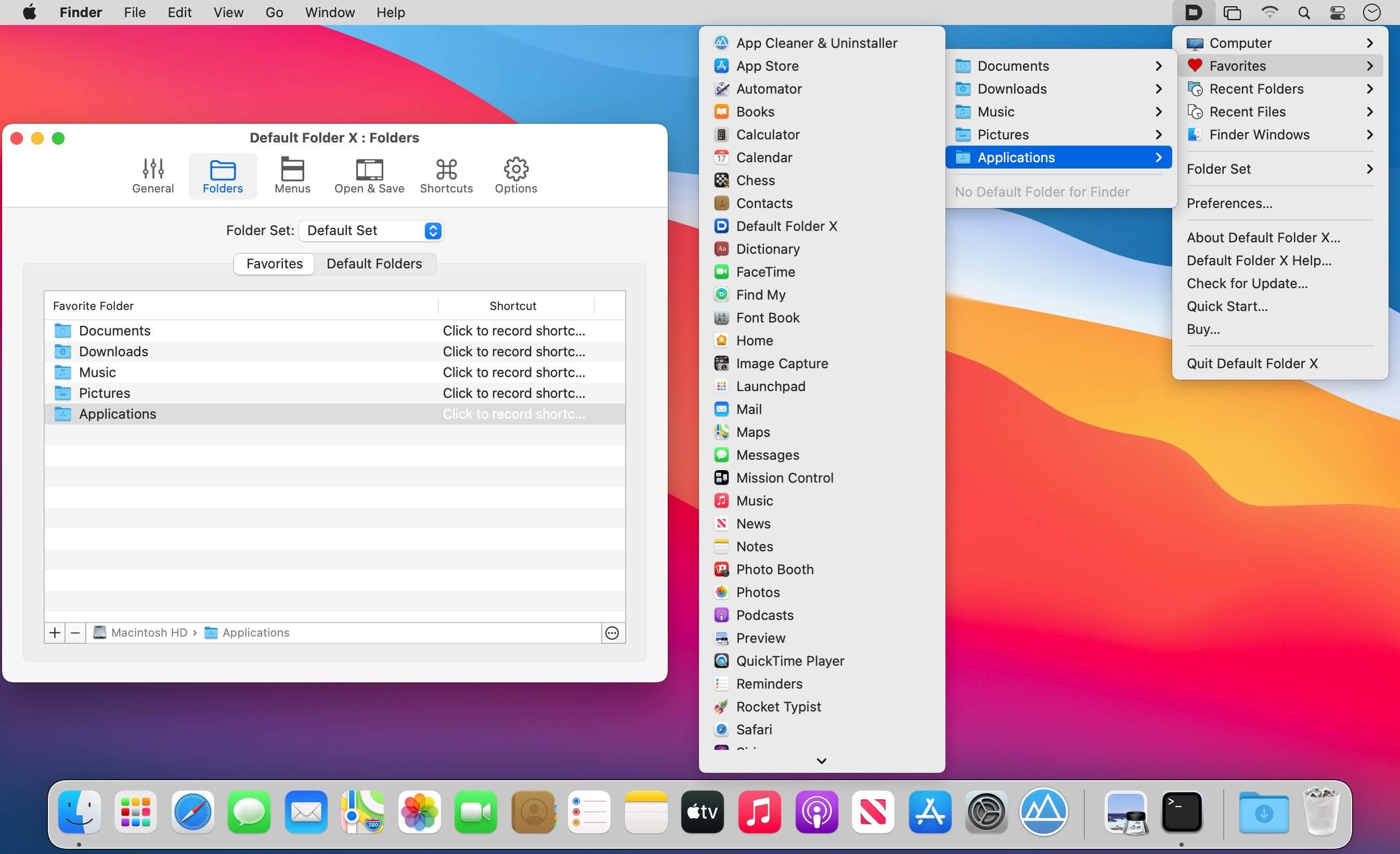

Default Folder X attaches a toolbar to the right side of the Open and Save dialogs in any macOS-native application. The toolbar gives you fast access to various folders and commands. You just click on the buttons to go to your favorite and recently used folders, manage the folders and files shown in the list, and make changes to your settings. It also fixes a number of problems in Open and Save dialogs, "rebounding" to the last selected file, putting the path listing back in the top menu, and correcting bugs in scrolling column views.
Features
- Directory assistant: You can access the contents of your recent, favorite, and open folders right from Default Folder X's toolbar.
- Real time saving: If you're constantly saving things inside the same folder, Default Folder X can remember that folder for you.
- Finder management: Default Folder X lets you open up or save to any Finder window with a single click.
- Instant Recall: To help you quickly return to folders you've recently used, Default Folder X remembers them for you.
- Spotlight on the spot: Default Folder X lets you add Spotlight keywords, OpenMeta tags, and Finder labels on the spot, while you're still in the Save dialog.
- Information central: With Default Folder X you get previews below every Open dialog, expanded to fill the available space. Need to see more detail? Click on the image and it zooms up to full size.
- Workflow without work: Rather than make you learn and set up a new application, Default Folder X blends into OS X.
Version 5.7.8:
- Worked around a bug in the Finder that would cause the Finder-click feature to fail after browsing Time Machine backups. A big thank you goes to A. Bornstein, who finally found the correlation with Time Machine that allowed me to get to the root of the problem!
- Finder-click now distinguishes between Finder, ForkLift and Path Finder windows by showing the icon of the app that owns them.
Frequently asked questions
How do I install the app?
Mount the image, drag the app into the "Applications" folder and launch it. If the system blocks the launch, allow it in "System Settings → Privacy & Security".
The app is damaged or won't launch
Reinstalling from a fresh image usually helps. Make sure your macOS version matches the one listed in the compatibility specs.
How do I update?
Download the new version from the site and install it over the current one — your settings will be preserved.
The download link doesn't work
Try a mirror or a download manager. For large files the browser often drops the connection.
How do I completely remove the app?
Use an uninstaller utility — it cleans up the service files that remain after moving the app to the trash.




Choose a download source
Default Folder X 5.7.8 · 16.35 MB
Previous versions
Default Folder X 5.7.8
Previous versions are available to registered users.
Comments 3