Cut Out Shapes: Erase Elements 8.3.1
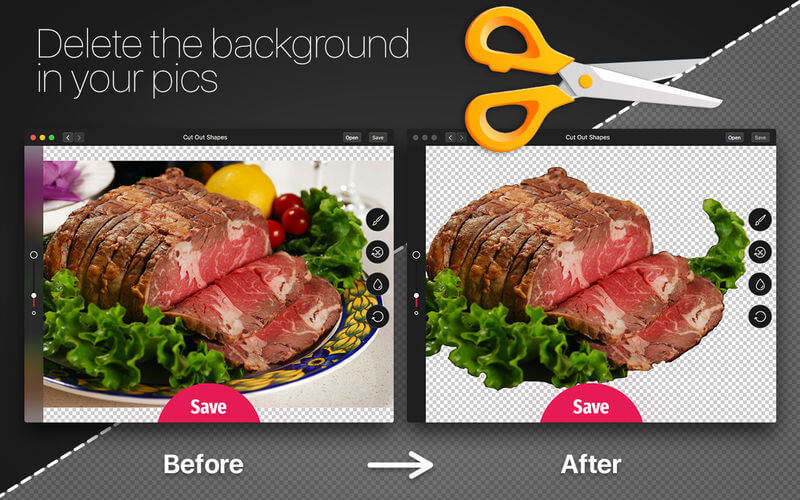
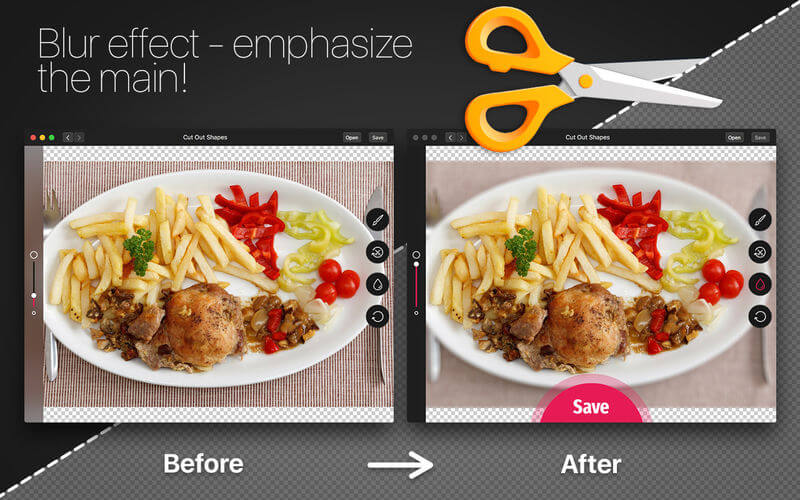
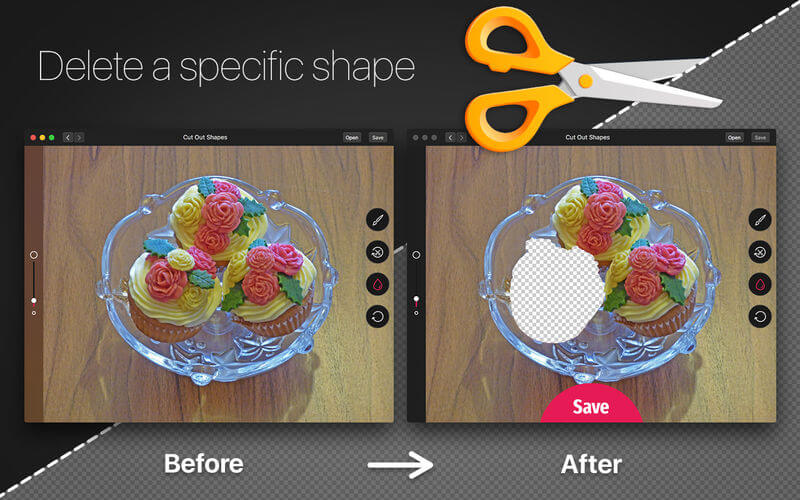
Cut Out Shapes is a new SIMPLE tool that helps you DELETE BACKGROUND in your pics.
Your PHOTO EDITING with the ERASER application Cut Out Shapes is:
- Simple
- Easy-to-use
- Efficient
- Fast
- Click the Folder icon in order to upload a photo;
- Use the 1st scale to choose the brush size;
- Use the 2nd scale to edit the transparency (partial/total removal);
- Click Eraser icon and paint the area/shape you want to delete;
- Use the Eraser With Clock icon and paint the zone of deleted background, if you want to restore its initial look;
- Click the Diskette symbol to save the result.
Version 3.3.1
- Enhance you images with our background editing tool! Check this update, where we've fixed common bugs and improved the app performance.
Frequently asked questions
How do I install the app?
Mount the image, drag the app into the "Applications" folder and launch it. If the system blocks the launch, allow it in "System Settings → Privacy & Security".
The app is damaged or won't launch
Reinstalling from a fresh image usually helps. Make sure your macOS version matches the one listed in the compatibility specs.
How do I update?
Download the new version from the site and install it over the current one — your settings will be preserved.
The download link doesn't work
Try a mirror or a download manager. For large files the browser often drops the connection.
How do I completely remove the app?
Use an uninstaller utility — it cleans up the service files that remain after moving the app to the trash.
VersionCut Out Shapes: Erase Elements 8.3.1
DeveloperPhoto And Video Labs OOO
CompatibilityOS X 10.10 or later, 64-bit processor
LanguageEnglish
IncludesK'ed by TNT


Information
Visitors in the group Guests cannot leave comments on this publication.
Choose a download source
Cut Out Shapes: Erase Elements 8.3.1 · 33.97 MB
Previous versions
Cut Out Shapes: Erase Elements 8.3.1
Previous versions are available to registered users.